
Remote work has reshaped how we think about workspace design. With no office manager dictating desk layouts, professionals now have the freedom—and responsibility—to optimize their home environments. One of the most debated upgrades is the addition of a second monitor. While tech influencers and ergonomic blogs often tout dual monitors as essential, the reality is more nuanced. For some roles, the investment pays off in spades. For others, it’s an overpriced luxury with minimal return. The truth lies not in blanket recommendations but in understanding your specific tasks, habits, and cognitive preferences.
The Cognitive Case for Multiple Displays
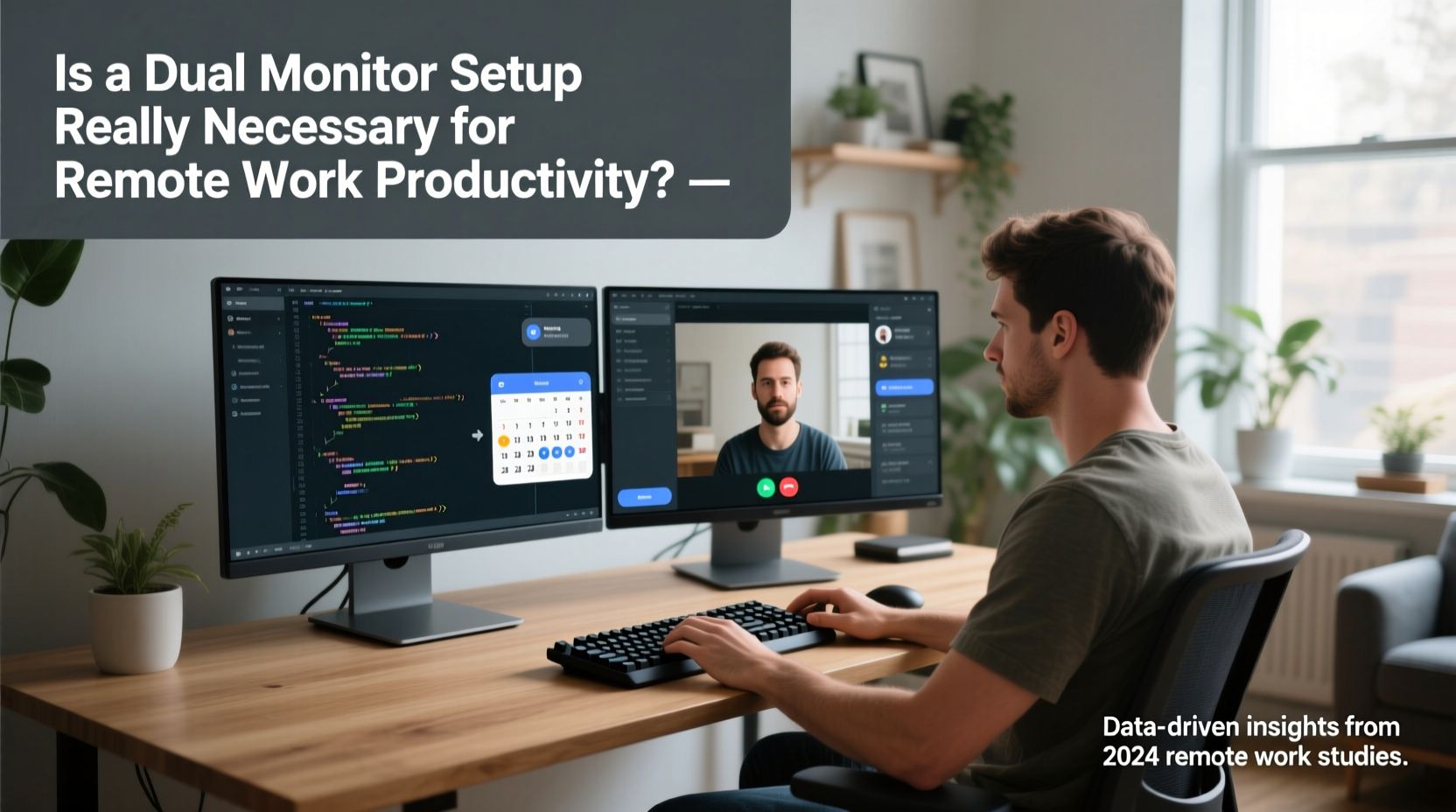
Human attention is finite. When working remotely, distractions are abundant—family, pets, household chores—but so are digital interruptions: Slack pings, email alerts, calendar reminders. A dual monitor setup can reduce cognitive load by compartmentalizing these demands. Instead of constantly switching tabs or resizing windows, users can dedicate one screen to active work (e.g., writing code or drafting a report) and the other to reference materials, communication tools, or monitoring dashboards.
Research from the University of Utah found that workers using two monitors were up to 42% more productive on complex multitasking activities compared to single-screen users. However, this gain was most pronounced in tasks requiring frequent cross-referencing—such as financial modeling, video editing, or software development. For simpler workflows like answering emails or attending back-to-back Zoom calls, the benefit diminished significantly.
“Adding a second monitor doesn’t automatically make you more productive—it amplifies your existing workflow. If your job involves juggling multiple applications, it’s transformative. If not, it’s just extra real estate.” — Dr. Lena Patel, Human Factors Psychologist at MIT
Professions That Benefit Most from Dual Monitors
Not all remote jobs are created equal when it comes to screen needs. Here’s a breakdown of roles where a second monitor delivers measurable value:
- Software Developers: Code on one screen, documentation or terminal output on the other.
- Data Analysts & Financial Modelers: View spreadsheets while referencing source data or dashboards.
- Graphic Designers & Video Editors: Use one screen for timeline or canvas, the other for tool palettes and asset libraries.
- Customer Support Leads: Monitor live chat queues on one screen while resolving tickets on the other.
- Project Managers: Keep Gantt charts open alongside team messaging platforms.
In contrast, writers, podcasters, and sales representatives who primarily focus on linear tasks—writing, speaking, or listening—often see limited gains. Their workflows don’t require constant context-switching between dense visual information sources.
Do’s and Don’ts of Dual Monitor Setup
| Do’s | Don’ts |
|---|---|
| Align both monitors at eye level to prevent neck strain. | Place screens at different heights, forcing awkward head tilting. |
| Match resolution and scaling settings for seamless cursor movement. | Mix a 4K monitor with a 1080p one without adjusting DPI settings. |
| Use keyboard shortcuts (e.g., Win+Left/Right) to snap windows efficiently. | Rely solely on dragging windows manually across screens. |
| Turn off notifications on the secondary screen to minimize distraction. | Run social media feeds or news tickers on your second monitor. |
| Rotate one monitor vertically for reading long documents or coding. | Leave both monitors in landscape mode when working with tall content. |
Real-World Example: From Single to Dual – A Developer’s Journey
When Maria Lopez transitioned to full-time remote work as a backend engineer, she used a 13-inch laptop with no external display. She managed, but debugging API responses while checking Swagger docs became a frustrating game of tab-swapping. After three months of eye strain and slow turnaround times, she invested in a 24-inch IPS panel.
She placed the new monitor to her left, rotated it vertically to view long JSON responses, and kept her laptop screen for active coding. Within a week, her bug resolution time dropped by nearly 30%. “I didn’t realize how much mental energy I was wasting just navigating windows,” she said. “Now I can see the request, response, logs, and code all at once. It’s like upgrading from a flashlight to overhead lighting.”
However, Maria also learned balance. Initially, she opened too many tools on the second screen—Slack, Jira, browser, system monitor—leading to visual clutter. She eventually minimized non-essential apps and used virtual desktops to segment tasks. The hardware helped, but intentional organization made the difference.
Alternatives to a Second Monitor
A dual monitor setup isn’t the only path to improved productivity. For those constrained by budget, space, or simplicity preferences, several alternatives exist:
- Virtual Desktops: macOS Spaces and Windows Virtual Desktops allow users to create separate environments for different tasks, reducing window clutter without adding hardware.
- Window Management Tools: Apps like Magnet (Mac) or PowerToys (Windows) enable precise window snapping, mimicking multi-monitor efficiency on a single screen.
- Larger Single Monitors: A 32-inch 4K display offers ample space to split into quadrants, effectively serving as two virtual monitors in one.
- Tablet as Secondary Display: Using an iPad or Android tablet with apps like Duet Display or Spacedesk adds flexibility at a fraction of the cost.
- Improved Workflow Habits: Techniques like time-blocking, minimizing open tabs, and using split-screen mode can yield significant gains without any hardware changes.
The key is aligning tools with behavior. A cluttered dual-monitor setup can be less effective than a well-organized single display. Technology should serve the workflow—not dictate it.
Step-by-Step: Evaluating Your Need for a Second Monitor
Before purchasing a second monitor, follow this evaluation process to determine if it’s truly necessary:
- Track Your Daily Tasks (3 Days): Note how often you switch between applications, resize windows, or lose focus due to navigation friction.
- Identify Repetitive Pain Points: Are you frequently minimizing one app to check another? Do you struggle to compare two documents side by side?
- Simulate the Experience: Extend your current display to a TV, projector, or tablet. Use it for core tasks to test usability.
- Assess Physical Space: Ensure your desk can accommodate a second monitor without compromising ergonomics.
- Calculate Cost vs. Time Saved: If a $200 monitor saves you 30 minutes per day, it pays for itself in under two months. But if savings are marginal, reconsider.
- Start Small: Buy a basic 1080p monitor first. Upgrade later if needed, rather than overspending upfront.
Expert Insight: Ergonomics and Long-Term Impact
Beyond productivity, dual monitors influence physical comfort. Poorly positioned screens can lead to chronic neck and shoulder pain. Experts emphasize alignment and symmetry.
“The ideal dual monitor setup forms a gentle arc around the user, with both screens angled inward and the center point aligned with the nose. This reduces lateral eye and head movement, lowering fatigue over long sessions.” — Dr. Rajiv Mehta, Occupational Health Specialist
He also warns against “monitor sprawl”—adding screens simply because they’re available. More displays mean more visual stimuli, which can increase stress if not managed. “A minimalist approach with intentional placement beats a chaotic wall of screens every time,” he adds.
Frequently Asked Questions
Can I use a TV as a second monitor?
Yes, most modern TVs support HDMI input and can function as extended displays. However, input lag and lower refresh rates may affect responsiveness, especially for fast-paced tasks like coding or design. Use TVs for reference material, not primary interaction.
Does a second monitor drain laptop battery faster?
Yes, especially if powering the monitor via USB-C or HDMI. External displays increase GPU and CPU load, reducing battery life by 20–40%. Always plug in your laptop when using dual monitors to avoid unexpected shutdowns.
Is ultrawide better than dual monitors?
An ultrawide monitor (e.g., 29” or 34”) eliminates the bezel gap and offers seamless horizontal space, making it excellent for video editing or financial dashboards. However, it lacks the flexibility of independent window management. You can’t physically rotate one section vertically. The choice depends on whether you prioritize continuity or configurability.
Checklist: Is a Dual Monitor Right for You?
- Do you regularly work with two or more applications simultaneously?
- Do you spend more than 2 hours daily comparing documents or datasets?
- Do you find yourself constantly minimizing/maximizing windows?
- Is your current screen smaller than 24 inches?
- Do you experience eye strain or fatigue from excessive scrolling?
- Have you tried window management tools and still feel constrained?
Conclusion: Productivity Isn’t Just About Screens
A dual monitor setup can be a powerful tool—but only when matched to the right user and workflow. For developers, analysts, and designers, it often delivers a clear return on time and focus. For others, the benefits are marginal, and resources might be better spent on better chairs, lighting, or noise-canceling headphones.
The deeper lesson is this: productivity in remote work isn’t about copying trends. It’s about diagnosing bottlenecks and applying targeted solutions. A second monitor isn’t inherently necessary—but thoughtful workspace design absolutely is.




 浙公网安备
33010002000092号
浙公网安备
33010002000092号 浙B2-20120091-4
Comments
No comments yet. Why don't you start the discussion?