
In today’s digital workspace, the question isn’t just about having enough screen space—it’s about using it wisely. While dual monitor setups are often associated with high-end gaming rigs or financial traders analyzing live data, their value extends far beyond those niches. For non-gamers and creative professionals—writers, designers, developers, video editors, researchers, and remote workers—a second monitor can be a quiet but powerful upgrade to daily efficiency. The real question is not whether you *can* add a second screen, but whether it will meaningfully improve your workflow, reduce fatigue, and enhance output.
The answer, in most cases, is yes—but only if implemented thoughtfully. A second monitor isn't magic; its value depends on how you use it. This article explores the tangible benefits, practical applications, and potential pitfalls of dual monitors for people whose work doesn’t involve rendering games at 144Hz. We’ll break down real-world scenarios, examine expert insights, and provide actionable guidance to help you decide if this simple hardware change could significantly impact your productivity and comfort.
Why Screen Real Estate Matters More Than You Think
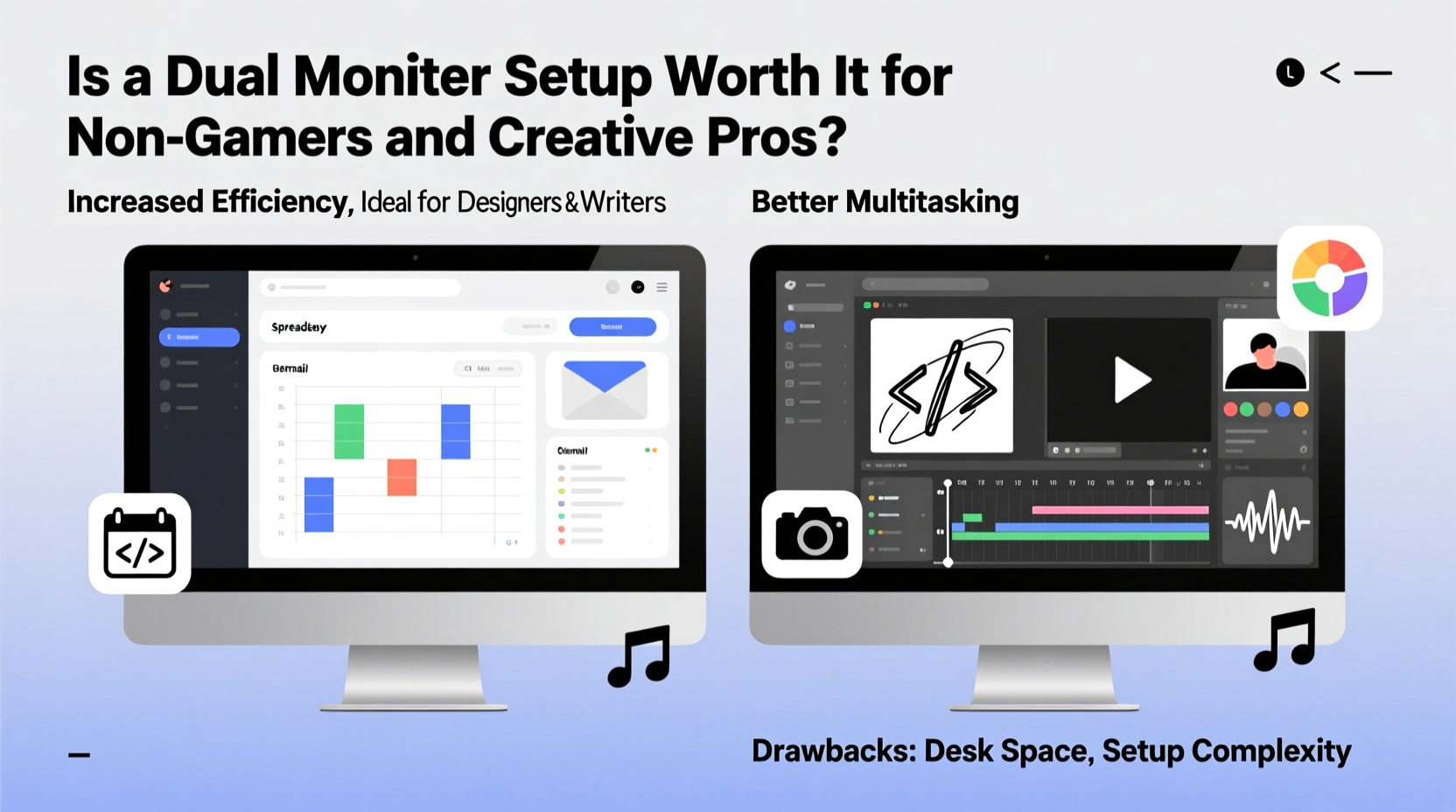
Human attention is finite. Every time you alt-tab between applications, resize windows, or minimize one program to check another, you lose focus. Cognitive studies show that even brief context switches cost up to 40% of productive time due to mental reloading. A dual monitor setup mitigates this by allowing parallel visibility—keeping essential tools open and accessible without overlapping or obscuring primary tasks.
For example, a copywriter can keep research articles on one screen while drafting on the other. A graphic designer might leave Photoshop on the main display and have color palettes, asset libraries, and client feedback visible on the secondary. Video editors benefit from timeline controls on one screen and preview output on the other. Developers frequently use one monitor for code and the other for documentation, terminal logs, or browser testing.
According to a study conducted by the University of Utah and sponsored by NEC Displays, workers using dual monitors were 30% more productive than those using a single screen. The improvement was especially pronounced in tasks involving data comparison, multitasking, and document editing—all common among knowledge workers and creatives.
Real-World Use Cases: Who Benefits Most?
Not all professions gain equal value from an extra screen. Below are several roles where dual monitors consistently deliver measurable advantages:
Writers & Researchers
Academic writers, journalists, and technical authors spend significant time cross-referencing sources, checking citations, and comparing drafts. With two screens, they can maintain full access to source material on one side while composing on the other. This eliminates constant tab-switching and reduces errors caused by misquoting or losing track of references.
Graphic Designers & Digital Artists
Creative software like Adobe Creative Suite thrives on screen space. Tools such as layers panels, brushes, swatches, and history tabs consume valuable interface area. Offloading these to a second monitor frees up the main screen for the canvas, improving precision and reducing clutter. Many professional studios now standardize dual (or even triple) monitor configurations for design teams.
Video & Audio Editors
Non-linear editing systems demand simultaneous control over timelines, effects, audio meters, and preview windows. A second monitor allows editors to expand their workspace logically—placing playback on one screen and editing controls on the other—resulting in smoother workflows and fewer accidental edits.
Software Developers & Coders
Writing code often involves referencing APIs, debugging outputs, and testing in browsers. Dual monitors let developers keep their IDE on one screen and documentation or test environments on the other. This spatial separation improves concentration and speeds up development cycles.
Data Analysts & Financial Planners
Working with spreadsheets, databases, and dashboards requires constant toggling between datasets and reports. Two screens allow analysts to view raw data alongside visualizations or pivot tables, enabling faster insights and reducing manual errors.
“Screen real estate directly impacts cognitive load. When information is constantly hidden behind tabs or minimized windows, the brain works harder to reconstruct context.” — Dr. Laura Chen, Cognitive Ergonomics Researcher, MIT Media Lab
Setting Up Your Dual Monitor System: A Step-by-Step Guide
Adding a second monitor is straightforward, but optimizing it takes planning. Follow this sequence to ensure maximum benefit:
- Assess your current workflow: Identify which applications you use simultaneously. Are there recurring patterns of switching between tools? That’s where a second screen will help most.
- Choose compatible hardware: Ensure your graphics card supports multiple displays. Most modern laptops and desktops do, but older models may require a USB-to-HDMI adapter or docking station.
- Select appropriate monitors: You don’t need identical models, but matching resolution and size minimizes visual disruption when moving the cursor between screens.
- Position ergonomically: Place the primary monitor directly in front of you. The secondary should be positioned to the left or right at a slight inward angle, forming a gentle arc around your field of vision.
- Configure display settings: In Windows or macOS, set the correct arrangement so the mouse moves naturally between screens. Decide which monitor hosts your main application window.
- Assign dedicated functions: Train yourself to use each screen for specific purposes—e.g., communication apps (email, Slack) on the secondary, core work on the primary.
- Test and refine: After a week, evaluate whether the setup feels intuitive. Adjust positioning, brightness, or task allocation as needed.
Do’s and Don’ts of Dual Monitor Usage
| Do | Don't |
|---|---|
| Use the secondary screen for reference materials, chat apps, or notifications | Clutter both screens with too many open windows |
| Keep the primary monitor free of distractions for focused work | Place the second monitor too far to the side, forcing excessive head turning |
| Match brightness and color temperature across both monitors | Use mismatched resolutions that cause scaling issues and visual jarring |
| Take advantage of OS features like Snap Layouts (Windows) or Spaces (macOS) | Assume bigger is always better—sometimes a smaller secondary screen suffices |
| Invest in a monitor arm for flexible positioning and reduced desk clutter | Ignore cable management, which can create visual stress and tripping hazards |
Cost vs. Value: Is It Worth the Investment?
A basic 24-inch IPS monitor costs between $150 and $250. Even higher-end models rarely exceed $400 unless specialized (e.g., color-accurate displays for photo editing). Compare that to the average hourly wage of a knowledge worker—often $30–$100+ per hour. If a dual monitor setup saves just 20 minutes per day in reduced task-switching and improved focus, the return on investment becomes clear within weeks.
Consider Sarah, a freelance UX researcher based in Portland. Before adopting a dual monitor system, she spent considerable time flipping between interview transcripts, affinity mapping tools, and presentation slides. After adding a second screen, she reported cutting her weekly analysis time by nearly five hours. Over a year, that’s 250 hours saved—equivalent to more than six full workweeks.
This isn’t anecdotal. A 2022 report by the International Journal of Human-Computer Interaction found that employees using dual monitors completed complex analytical tasks 27% faster than single-screen users. Additionally, they reported lower levels of mental fatigue and higher job satisfaction after four weeks of consistent use.
Frequently Asked Questions
Can I use a laptop as one of the monitors?
Yes. Most operating systems allow you to extend your desktop to a laptop screen via HDMI, Thunderbolt, or wireless projection (like AirPlay or Miracast). However, running two systems simultaneously may impact performance, especially on older machines.
Does screen size matter for the second monitor?
It depends on usage. For reference tasks (email, notes, calendars), a smaller 22-inch screen is sufficient. For creative work involving image or video editing, aim for at least 24 inches with Full HD resolution or higher.
Will a dual monitor setup increase my electricity bill?
Minimal impact. Modern LED monitors consume around 20–30 watts each. Running two for eight hours daily adds roughly $2–$4 per month to your energy costs, depending on local rates.
Maximizing Long-Term Benefits: A Productivity Checklist
- ✅ Audit your daily workflow to identify multitasking bottlenecks
- ✅ Choose a secondary monitor with similar resolution and aspect ratio
- ✅ Position monitors to minimize neck rotation and eye strain
- ✅ Assign fixed roles to each screen (e.g., primary = main app, secondary = comms/references)
- ✅ Use OS-level window management tools to organize layouts efficiently
- ✅ Review setup effectiveness every 30 days and adjust as needed
- ✅ Consider upgrading to a monitor arm for better ergonomics and flexibility
Conclusion: Small Change, Significant Impact
A dual monitor setup is not a luxury reserved for power users or corporate offices. For non-gamers and creative professionals alike, it represents one of the most cost-effective upgrades available to enhance focus, reduce fatigue, and streamline complex workflows. Whether you're writing a novel, designing a brand identity, coding an app, or analyzing market trends, the ability to see more at once translates into working smarter—not harder.
The key lies in intentionality. Simply plugging in a second screen won’t guarantee results. But when paired with thoughtful configuration and disciplined organization, it becomes a silent partner in your daily productivity. The investment is modest, the learning curve is shallow, and the long-term gains are substantial.




 浙公网安备
33010002000092号
浙公网安备
33010002000092号 浙B2-20120091-4
Comments
No comments yet. Why don't you start the discussion?