
In an age where nearly every service requires an online account—from banking to social media—passwords are the first line of defense. Many people still rely on memory to manage their login credentials, reusing familiar patterns or simple variations across platforms. Others have turned to password managers, digital vaults that generate, store, and autofill complex passwords. But is relying on software actually safer than trusting your own mind? The answer isn’t just about technology—it’s about human behavior, threat models, and long-term security hygiene.
The Psychology of Password Memory
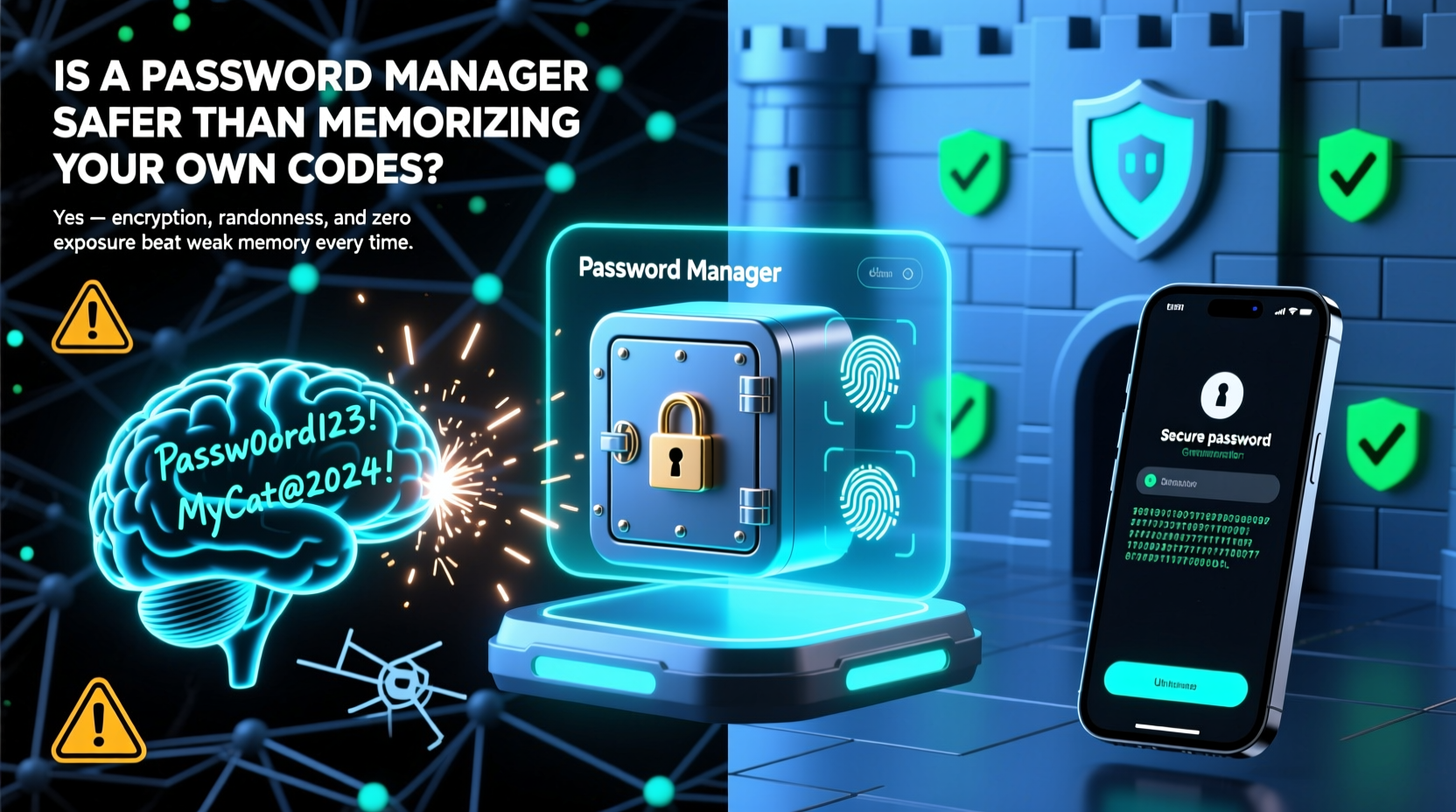
Humans are not built to remember dozens of unique, complex strings of characters. Cognitive science shows that our short-term memory can hold about 7 items at once, and long-term retention depends heavily on repetition and emotional significance. Most people compensate by creating predictable patterns: “Password1,” “MyBank2023!”, or slight variations like replacing “o” with “0.” These habits make passwords easier to recall but dramatically easier to crack.
Reused passwords are especially dangerous. A 2023 study by Google found that nearly 65% of people reuse passwords across multiple sites. When one service suffers a data breach—which happens thousands of times per year—those credentials often end up on the dark web. Attackers use automated tools to test stolen usernames and passwords against other platforms in what’s known as credential stuffing. If you’ve used the same password for your email and bank account, a breach at a minor shopping site could compromise your finances.
How Password Managers Work
A password manager is a secure application that stores your login information in an encrypted vault. You access this vault with a single master password—the only one you need to remember. Behind the scenes, the manager uses strong encryption (typically AES-256) to protect your data. Even if someone gains access to the encrypted file, they cannot read its contents without the decryption key, which is derived from your master password.
Modern password managers do more than just store passwords. They can:
- Generate long, random passwords (e.g., “Xq9$!kLm@2vPn&zR”)
- Autofill login forms securely
- Detect compromised passwords in data breaches
- Synchronize across devices via secure cloud sync
- Store secure notes, payment details, and two-factor recovery codes
Popular tools like Bitwarden, 1Password, and KeePass offer varying levels of functionality and control. Some are open-source, allowing independent audits of their code, while others provide advanced features like emergency access and travel mode.
Security Comparison: Memory vs. Manager
At first glance, relying on memory might seem foolproof—no servers, no software, just your brain. But in practice, it introduces far greater risk than a well-implemented password manager.
| Factor | Memorized Passwords | Password Manager |
|---|---|---|
| Uniqueness | Rarely achieved; users repeat patterns | Guaranteed per account |
| Complexity | Limited by human recall | High—randomly generated |
| Breach Resilience | Poor—reused passwords spread damage | Strong—each password is isolated |
| Convenience | Fast for familiar logins | Automated fill; faster overall |
| Single Point of Failure | Low—but widespread exposure | Master password only |
| Recovery Options | “Forgot password?” flows (often weak) | Secure backup & emergency access |
The trade-off is clear: memorization leads to weaker, repeated passwords, while a password manager enables strong, unique ones at scale. The manager’s central weakness—the master password—is mitigated by good practices like enabling two-factor authentication (2FA) and using a memorable but unpredictable passphrase.
“We’ve moved beyond the era where humans should be expected to manage cryptographic secrets. Password managers aren’t perfect, but they’re orders of magnitude better than the status quo.” — Dr. Lorrie Faith Cranor, Chief Technologist at the FTC and cybersecurity researcher
Real-World Example: The Case of Sarah Chen
Sarah Chen, a freelance designer, used a simple system: her base password was “BlueSky!2020,” modified slightly for each site—“BlueSky!2020-Gmail,” “BlueSky!2020-Amz”—and stored in a notebook. When a small e-commerce site she used was breached, her credentials appeared in a credential dump. Automated bots quickly tested the pattern against major services. Within hours, her PayPal and Dropbox accounts were accessed.
After resetting everything, Sarah switched to Bitwarden. She generated 20-character random passwords for all accounts, enabled 2FA, and memorized a strong master passphrase: “GiraffeBatteryStaple!”—a nonsensical phrase she could recall easily. Six months later, when another service she used suffered a breach, her password was flagged as compromised—but because it was unique and never reused, no other accounts were affected.
This scenario illustrates a key truth: the danger isn’t just being hacked once. It’s the ripple effect across your digital life when poor password hygiene amplifies a single breach into a cascade of compromises.
Best Practices for Using a Password Manager Safely
A password manager is only as secure as how you use it. To maximize protection, follow these steps:
- Create a strong master password. Avoid dictionary words, personal info, or common phrases. Use a passphrase of 4+ random words (e.g., “CorrectHorseBatteryStaple”) or a mix of upper/lowercase, numbers, and symbols.
- Enable two-factor authentication (2FA). Use an authenticator app (like Authy or Google Authenticator) or a hardware key (YubiKey). This ensures that even if someone guesses your master password, they can’t access the vault without the second factor.
- Use biometric locks on mobile devices. Fingerprint or face recognition adds a layer of convenience and security for daily access.
- Regularly audit your passwords. Most managers include a security dashboard that flags weak, reused, or exposed passwords. Update them proactively.
- Back up your vault securely. Export an encrypted copy and store it offline—on a USB drive in a safe—or use the manager’s built-in sync with end-to-end encryption.
- Train trusted contacts on emergency access. If something happens to you, designate someone who can access your vault after a timeout period.
Common Concerns Addressed
Despite their advantages, many people hesitate to adopt password managers due to perceived risks. Let’s address the most frequent concerns.
“What if the password manager gets hacked?”
It’s rare, but not impossible. In 2015, LastPass experienced a breach where encrypted vaults were stolen—but because they were encrypted client-side, attackers couldn’t decrypt them without users’ master passwords. The company responded with improved security measures. Open-source tools like Bitwarden allow public scrutiny, reducing the risk of hidden vulnerabilities.
“Isn’t storing all my passwords in one place risky?”
Yes, but so is spreading weak passwords everywhere. Concentrating risk in one well-defended system is more secure than distributing it widely. With proper safeguards (strong master password + 2FA), the vault becomes extremely difficult to breach.
“I don’t trust the cloud.”
Fair concern. For maximum control, consider local-only managers like KeePassXC, which stores data on your device and syncs manually via encrypted USB or private cloud. You sacrifice some convenience but gain full ownership.
FAQ
Can a password manager be used on multiple devices?
Yes. Most modern managers sync across smartphones, tablets, and computers using end-to-end encryption. Your data remains protected during transit and storage.
Do password managers work with two-factor authentication?
Absolutely. While they don’t store 2FA codes (which change every 30 seconds), they can store recovery codes securely and integrate with authenticator apps. Some, like 1Password, include built-in authenticators.
What happens if I forget my master password?
You lose access to your vault. Unlike websites, password managers cannot reset your master password because they don’t store it. That’s why setting up recovery options and backing up your vault is essential.
Conclusion: Security Is a System, Not a Single Choice
Memorizing passwords may feel like staying in control, but it leads to predictable, weak patterns that attackers exploit. A password manager, by contrast, enables truly secure behavior at scale—unique, complex passwords for every account, without the cognitive burden. When combined with two-factor authentication and good recovery planning, it forms the foundation of modern digital security.
The goal isn’t perfection. It’s progress. Moving from reused, simple passwords to a managed system drastically reduces your attack surface. You don’t need to be a tech expert—just consistent. Start by choosing a reputable manager, set up your vault, and begin replacing your old passwords one at a time.




 浙公网安备
33010002000092号
浙公网安备
33010002000092号 浙B2-20120091-4
Comments
No comments yet. Why don't you start the discussion?