
In the shift toward long-term remote work, professionals are re-evaluating their home office setups. One of the most debated upgrades is adding a second monitor. While some swear by the expanded screen real estate, others question whether the investment truly translates into measurable productivity gains. The answer isn’t universal—it depends on your workflow, job function, and how you use digital tools. This analysis breaks down the data, user experiences, and practical considerations to determine whether a second monitor delivers real value for remote workers.
The Productivity Science Behind Dual Monitors
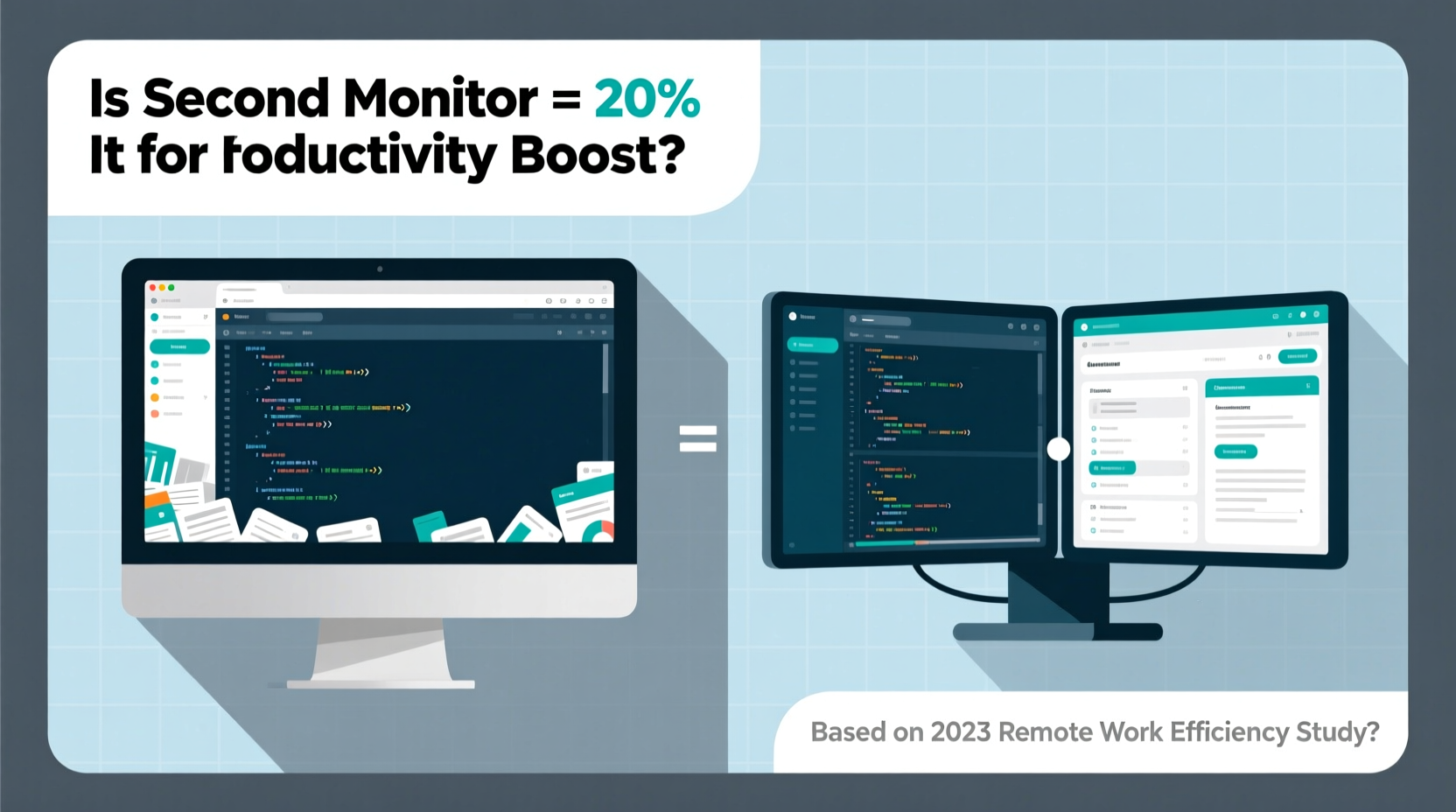
Multiple studies over the past two decades have examined the impact of multiple monitors on work performance. A seminal 2008 study by the University of Utah, commissioned by NEC Displays, found that users with dual monitors were up to 42% more productive when performing tasks like data entry, financial modeling, and document comparison. More recent research from the Journal of Applied Psychology reaffirms that multitasking efficiency improves significantly when information can be displayed simultaneously across screens.
The cognitive benefit lies in reduced context switching. When you’re toggling between windows—say, an email client, spreadsheet, and video call—the brain must reload contextual memory each time. A second monitor minimizes this mental load by keeping relevant applications visible at all times. For roles involving constant data referencing, such as coding, financial analysis, or content creation, this reduction in cognitive friction adds up over hours and days.
“Dual monitors reduce task-switching penalties by up to 30%, which directly correlates with faster completion times and fewer errors.” — Dr. Laura Kim, Cognitive Ergonomics Researcher, MIT Human Performance Lab
However, these gains assume effective screen utilization. Simply duplicating your desktop or using the second screen solely for passive content (like music playlists or social media) offers minimal benefit. The real advantage emerges when both displays serve distinct, complementary functions.
Real-World Use Cases: Who Benefits Most?
Not all remote workers gain equally from a second monitor. The return on investment varies significantly by profession and daily workflow. Below is a breakdown of high-impact use cases:
- Software Developers: One screen for code editor, the other for documentation, terminal, or debugging tools. Reduces reliance on tab switching and accelerates problem-solving.
- Data Analysts & Financial Planners: Spreadsheet on one screen, data source or dashboard on the other. Enables side-by-side comparison without losing place.
- Content Creators: Video editors can keep timeline and preview on separate screens; writers can research on one side and draft on the other.
- Customer Support & Sales Teams: CRM open on secondary screen while handling live calls or emails improves response accuracy and speed.
- Project Managers: Gantt charts or Kanban boards visible alongside communication platforms (Slack, Teams) streamline coordination.
In contrast, roles with linear workflows—such as transcriptionists or single-application users—may see negligible improvements. Similarly, if your primary tool is a full-screen video conferencing app with limited multitasking needs, the added screen might go underutilized.
Cost-Benefit Analysis: Is It Worth the Investment?
A mid-range external monitor typically costs between $150 and $300. High-end models with ultrawide formats or 4K resolution can exceed $600. To assess whether this expense pays off, consider both tangible and intangible returns.
| Factor | Single Monitor | Dual Monitor |
|---|---|---|
| Average Task Completion Time | Baseline | 15–30% faster* |
| Daily Context Switches | 60–100+ | 20–40 |
| Mental Fatigue (Self-reported) | Moderate to High | Lower |
| Initial Setup Cost | $0 (if already owned) | $150–$600 |
| Long-Term ROI (Est.) | N/A | Break-even in 2–6 months** |
* Based on aggregated studies and user reports from tech and creative industries.
** Assumes 1–2 hours of saved productive time per week at average remote worker hourly rate ($30–$70).
For example, a developer earning $60/hour who saves 90 minutes per week gains the equivalent of $90 in weekly productivity. At that rate, a $300 monitor pays for itself in just over three weeks. Even accounting for diminishing returns and setup time, most knowledge workers recoup the cost within two to six months.
Beyond direct output, secondary benefits include improved posture (when monitors are properly aligned), reduced eye strain from minimized zooming and scrolling, and enhanced ability to manage complex workflows during peak hours.
Mini Case Study: From Cluttered Workflow to Streamlined Output
Sarah Lin, a freelance UX designer based in Portland, worked remotely with a single 13-inch laptop screen for nearly two years. She frequently complained of fatigue and inefficiency, especially during client feedback sessions where she had to toggle between Figma, Zoom, and Notion.
After investing $220 in a 24-inch IPS monitor, she restructured her workspace: Figma on the main screen, Zoom and feedback notes on the second. Within one week, she reported a noticeable drop in stress and a 25% reduction in project revision cycles. “I’m not losing my place anymore,” she said. “When a client points to something on their screen, I can see it and adjust in real time without missing a beat.”
Over three months, Sarah billed 12 additional hours of work compared to her previous average—directly attributable to smoother multitasking. The monitor paid for itself in less than five weeks.
Setting Up Your Dual-Monitor Workspace Effectively
Purchasing a second monitor is only half the battle. Poor setup can negate benefits or even cause ergonomic issues. Follow this step-by-step guide to optimize your configuration:
- Choose the Right Monitor: Match resolution and aspect ratio to your primary screen if possible. A 24-inch 1080p or 27-inch 1440p display is ideal for most remote workers.
- Position Correctly: Place the secondary monitor at eye level and within arm’s length. The top of both screens should align with your horizontal gaze to prevent neck strain.
- Align Logically: If you’re right-handed, position the secondary screen to the right for natural eye movement. Left-handed users may prefer the opposite.
- Extend, Don’t Duplicate: In your display settings, select “Extend Desktop” rather than mirror screens.
- Assign Roles: Dedicate one screen to core work (e.g., writing, coding) and the other to supporting tools (email, calendar, references).
- Use Keyboard Shortcuts: Master shortcuts like Win + Shift + Left/Right (Windows) or Ctrl + Left/Right (Mac with Spaces) to move windows efficiently.
- Test and Adjust: Spend a week experimenting with layout. Reassess after two weeks to refine placement and usage patterns.
Checklist: Is a Second Monitor Right for You?
Before making a purchase, evaluate your needs with this actionable checklist:
- ☑ Do you regularly work with two or more applications at once?
- ☑ Do you spend more than 20 minutes per day copying data between windows?
- ☑ Does your job involve reviewing, comparing, or cross-referencing information?
- ☑ Do you experience eye strain or fatigue from constant window resizing?
- ☑ Can your current laptop or desktop support an additional display?
- ☑ Do you have physical space for a second monitor without cluttering your desk?
- ☑ Are you willing to invest 30–60 minutes to configure and optimize the setup?
If you answered “yes” to four or more, a second monitor is likely a worthwhile upgrade. If three or fewer apply, consider alternative productivity tools first—such as tiling window managers, split-screen features, or browser workspaces.
Frequently Asked Questions
Can I use a TV as a second monitor?
Yes, many modern TVs support HDMI input and can function as large secondary displays. However, they often have higher input lag and lower pixel density, which can make text appear blurry. Use them only for reference or media playback, not for detailed work.
Do ultrawide monitors replace the need for dual screens?
An ultrawide (e.g., 34-inch 21:9) can mimic dual-monitor functionality by allowing split views. They eliminate the bezel gap and save desk space. However, they don’t offer the same flexibility in positioning or independent screen orientation. Some users still prefer two separate monitors for physical separation of tasks.
Will a second monitor drain my laptop battery faster?
Yes, driving an external display increases GPU and CPU load, reducing battery life by 20–40%. Always plug in your laptop when using a second monitor to avoid performance throttling and rapid discharge.
Conclusion: Making the Decision That Fits Your Workstyle
The evidence strongly supports dual monitors as a productivity booster for most remote knowledge workers. The cognitive efficiency, time savings, and reduction in mental fatigue translate into real, measurable gains—especially for those juggling complex digital workflows. While not every role benefits equally, the majority of professionals who engage in multitasking, data analysis, or creative production will find the investment justified within weeks.
Yet, technology alone isn’t the solution. The true advantage comes from intentional design: how you arrange your screens, assign tasks, and integrate them into your daily rhythm. A second monitor won’t magically make you more productive—but used wisely, it becomes an extension of your thinking process, helping you work smarter, not harder.




 浙公网安备
33010002000092号
浙公网安备
33010002000092号 浙B2-20120091-4
Comments
No comments yet. Why don't you start the discussion?