
In an age where remote work and digital multitasking dominate our professional lives, the sight of dual monitors has become almost iconic. From tech influencers to corporate offices, multiple screens are often presented as the gold standard for productivity. But is this setup truly enhancing performance, or is it simply adding visual noise and unnecessary complexity to our desks?
The answer isn’t straightforward. While some users report significant gains in efficiency, others find themselves overwhelmed by split attention and digital sprawl. The truth lies in how the technology is used, who’s using it, and what tasks they’re performing. This article dives into scientific studies, user experiences, ergonomic considerations, and practical implementation strategies to determine whether dual monitors boost productivity—or just create clutter.
The Science Behind Multiple Monitors and Cognitive Performance
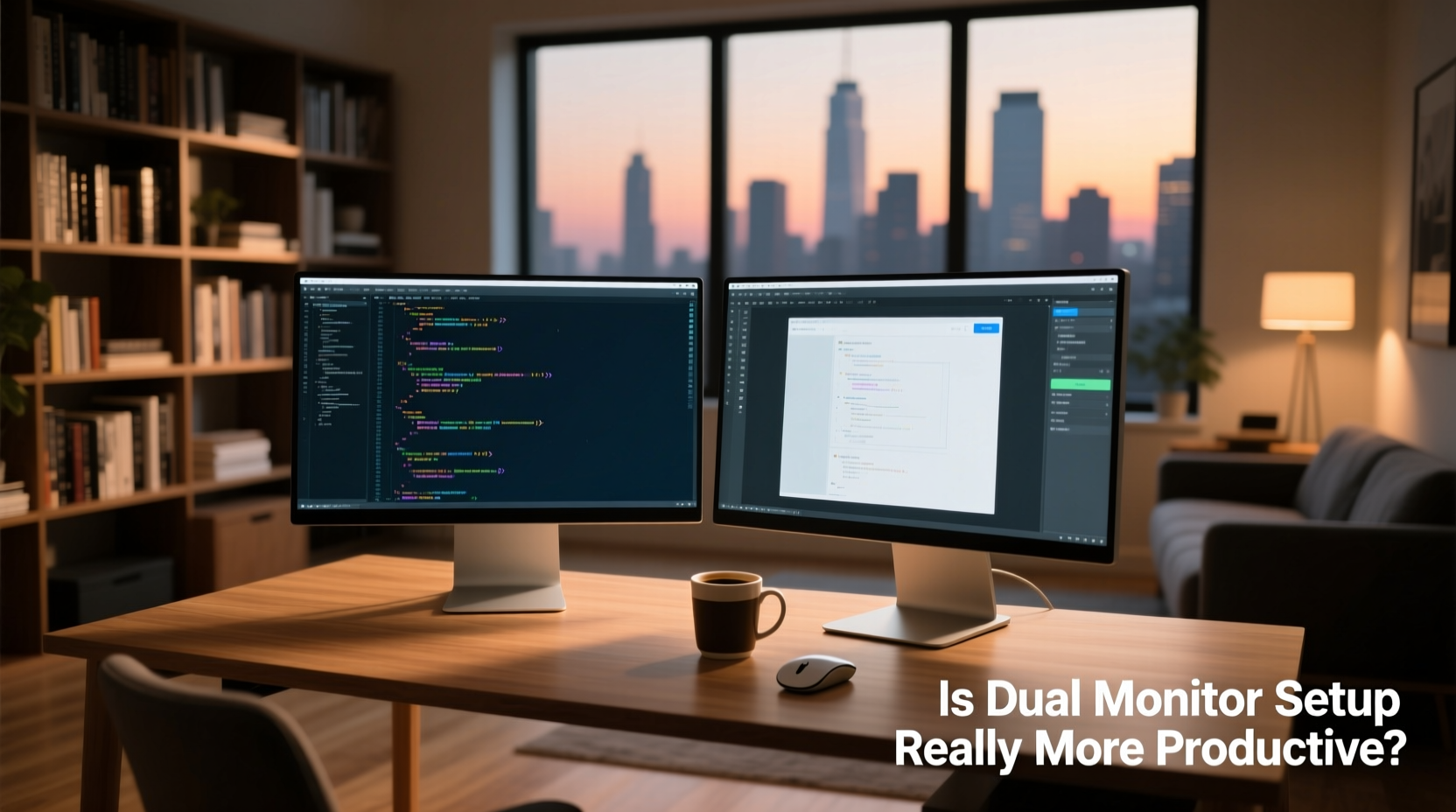
Multiple studies have explored the impact of dual (or multi) monitor setups on work output. One of the most cited reports comes from the University of Utah, commissioned by NEC in 2003. It found that users with two monitors were up to 42% more productive than those using a single screen when performing common office tasks like data entry, email management, and spreadsheet work.
More recent research supports these findings. A 2020 study published in the journal *Computers in Human Behavior* concluded that users with extended desktops made fewer task-switching errors and completed assignments faster due to reduced reliance on window minimization and tab cycling.
“Visual real estate matters. When information can be viewed simultaneously rather than toggled between, cognitive load decreases significantly.” — Dr. Linda Nguyen, Cognitive Ergonomics Researcher, MIT Media Lab
The core advantage lies in reducing **context switching**—the mental cost of shifting focus between applications. Every time you minimize a window or alt-tab between programs, your brain must reorient itself. Dual monitors allow you to keep reference materials, communication tools, and primary workflows visible at once, minimizing disruptions to flow state.
However, this benefit only holds if the second screen is used intentionally. Placing a second monitor solely to run social media feeds or streaming services may increase distraction rather than reduce it. In such cases, the dual setup becomes less a productivity tool and more digital decoration.
When Dual Monitors Help—and When They Don’t
Not all jobs benefit equally from multiple displays. The value depends heavily on the nature of the work being performed.
| Profession / Task | Benefit Level | Why It Helps |
|---|---|---|
| Software Development | High | Code editor on one screen, documentation/debug console on the other |
| Financial Analysis | High | Spreadsheets alongside live market data or news feeds |
| Graphic Design & Video Editing | High | Tool palettes and timelines separated from preview windows |
| Data Entry & Customer Support | Moderate | Form filling with reference guides open side-by-side |
| Writing & Content Creation | Variable | Useful for research + writing split, but easily misused for distractions |
| Social Media Management | Low to Moderate | May spread tools across screens, but often leads to multitasking overload |
| Casual Browsing or Email Only | Low | Limited need for screen space; adds clutter without gain |
The key differentiator is whether the additional screen enables parallel processing of related information. If both monitors support a single, focused workflow, the setup enhances concentration. If they encourage constant task-switching or passive consumption, they contribute to cognitive fatigue.
A Real-World Case: Two Developers, Two Approaches
Consider two software engineers working remotely for the same fintech startup.
Developer A uses a dual monitor setup with her IDE (integrated development environment) on the left and browser-based API documentation, Slack, and Jira tickets on the right. She rarely minimizes windows and completes feature implementations 20–30 minutes faster per task than she did with one screen.
Developer B has the same hardware but uses his second monitor primarily for YouTube tutorials, personal email, and Discord chats. He frequently switches between tabs, reports feeling “mentally scattered,” and admits he sometimes spends hours debugging issues caused by copying code from outdated videos.
Same tools. Opposite outcomes.
This contrast illustrates that hardware alone doesn’t drive productivity. It’s the discipline in usage that determines whether dual monitors serve as a functional extension of your workspace—or become a magnet for distraction.
Setting Up Your Dual Monitor System the Right Way
Simply plugging in a second monitor won’t automatically improve your workflow. To get real benefits, follow a structured approach to configuration and usage.
- Assess your primary tasks. Identify which activities involve frequent window switching or require simultaneous access to multiple sources.
- Choose the right monitor size and orientation. For coding or long documents, consider a vertical monitor on one side. For analytics or design, matching horizontal resolutions work best.
- Position ergonomically. Center the main monitor directly in front of you. Angle the second slightly inward so both fall within natural peripheral vision. Top of screens should align with eye level.
- Extend, don’t duplicate. Ensure your OS is set to “extend” the desktop, not mirror it. Mirroring defeats the purpose. <5> Assign roles to each screen. Define a consistent layout—e.g., left = work app, right = references/communication.
- Minimize visual noise. Disable unnecessary widgets, auto-updating dashboards, or animated backgrounds on either screen.
“Treat your second monitor like a dedicated assistant—assign it specific duties, not random chores.” — Mark Tran, UX Consultant at WorkSpace Labs
Additionally, operating systems offer features to optimize multi-monitor use:
- Windows: Use Snap Layouts (Win + Z) to organize apps across screens.
- macOS: Assign different Spaces (virtual desktops) per monitor via Mission Control settings.
- Linux: Tools like i3 or KDE’s desktop grid allow precise control over window placement.
Without intentional organization, even powerful setups devolve into chaotic digital desks.
Dual Monitors vs. Large Single Screens: Is There a Better Alternative?
With modern ultrawide monitors (like 34” or 49” curved displays), some professionals are questioning whether dual monitors are even necessary. These wide-format screens simulate multiple displays in one seamless unit, eliminating the bezel gap that can disrupt reading flow.
Advantages of ultrawides include:
- No physical divide between workspaces
- Less cable clutter and power draw
- Better immersion for video editing and gaming
- Easier calibration and alignment
However, they come with trade-offs:
- Harder to position correctly without neck strain
- Less flexibility in adjusting angles independently
- Higher cost for equivalent resolution
- Some applications don’t scale well across extreme aspect ratios
For many, the ideal solution isn't \"dual vs. single,\" but rather **purpose-driven display selection**. A graphic designer might prefer an ultrawide for timeline continuity, while a trader may still favor two separate 27-inch panels for independent market feed control.
Checklist: Is a Dual Monitor Setup Right for You?
Before upgrading your desk, ask yourself the following questions:
- Do I regularly switch between two or more critical applications?
- Would having reference material constantly visible save me time?
- Am I currently limited by screen space (e.g., scrolling endlessly in spreadsheets)?
- Can I commit to organizing my second screen purposefully?
- Do I have enough desk space and proper lighting to support dual monitors?
- Have I optimized my current single-screen workflow first?
If you answered “yes” to three or more, a dual monitor system could be a worthwhile investment. If not, you may be better off improving software efficiency—using keyboard shortcuts, virtual desktops, or better window managers—before adding hardware.
Frequently Asked Questions
Does using two monitors slow down my computer?
Generally, no—unless you're running high-resolution displays or graphics-intensive applications. Most modern laptops and desktops handle dual 1080p or even 1440p monitors without issue. However, older integrated GPUs or underpowered systems may struggle, especially with video rendering or gaming across both screens.
Can dual monitors cause eye strain or fatigue?
Poorly configured setups can. Mismatched brightness levels, glare, or improper positioning (e.g., one screen too high or angled wrong) force your eyes to constantly refocus and adjust. Ensure both monitors have similar color temperature, brightness, and are positioned within a 30-degree field of view to minimize strain.
Is there a downside to having too much screen space?
Yes. Excessive screen real estate can lead to “spread-out” work habits—leaving dozens of windows open, relying on visual scanning instead of efficient navigation. Some users report feeling overwhelmed when too much information is visible at once. Discipline in window management remains essential regardless of screen count.
Final Verdict: Productivity Tool or Desk Clutter?
The dual monitor setup is neither universally transformative nor inherently wasteful. Its effectiveness hinges entirely on application. For knowledge workers dealing with complex, multitasked workflows—developers, analysts, designers, researchers—the second screen can act as a genuine force multiplier, reducing friction and preserving mental focus.
But for casual users, or those who lack structure in their digital environment, the same setup risks becoming expensive clutter. A second monitor filled with idle apps, autoplaying videos, or unmanaged tabs does more harm than good. It fragments attention, increases visual stress, and gives the illusion of productivity without delivering results.
Ultimately, the question isn’t whether dual monitors boost productivity—it’s whether you use them productively. Technology amplifies existing habits. If yours are disciplined and goal-oriented, the extra screen will serve you well. If they lean toward distraction and disorganization, no amount of hardware will fix the underlying issue.




 浙公网安备
33010002000092号
浙公网安备
33010002000092号 浙B2-20120091-4
Comments
No comments yet. Why don't you start the discussion?