
Many iPhone users have noticed their devices feeling slightly slower at times and immediately suspect software features like Optimized Battery Charging. Introduced in iOS 13, this feature is designed to prolong battery lifespan by reducing lithium-ion degradation. But rumors persist: could it be secretly throttling CPU performance or making the phone sluggish? The short answer is no—Optimized Battery Charging does not directly slow down your CPU. However, understanding why confusion arises requires a deeper look at how battery health, power management, and system-level optimizations interact.
The perception of slowdowns often stems from overlapping factors such as aging batteries, background processes, or misunderstood system behaviors. Let’s break down exactly what Optimized Battery Charging does—and doesn’t do—to your iPhone’s performance.
How Optimized Battery Charging Works
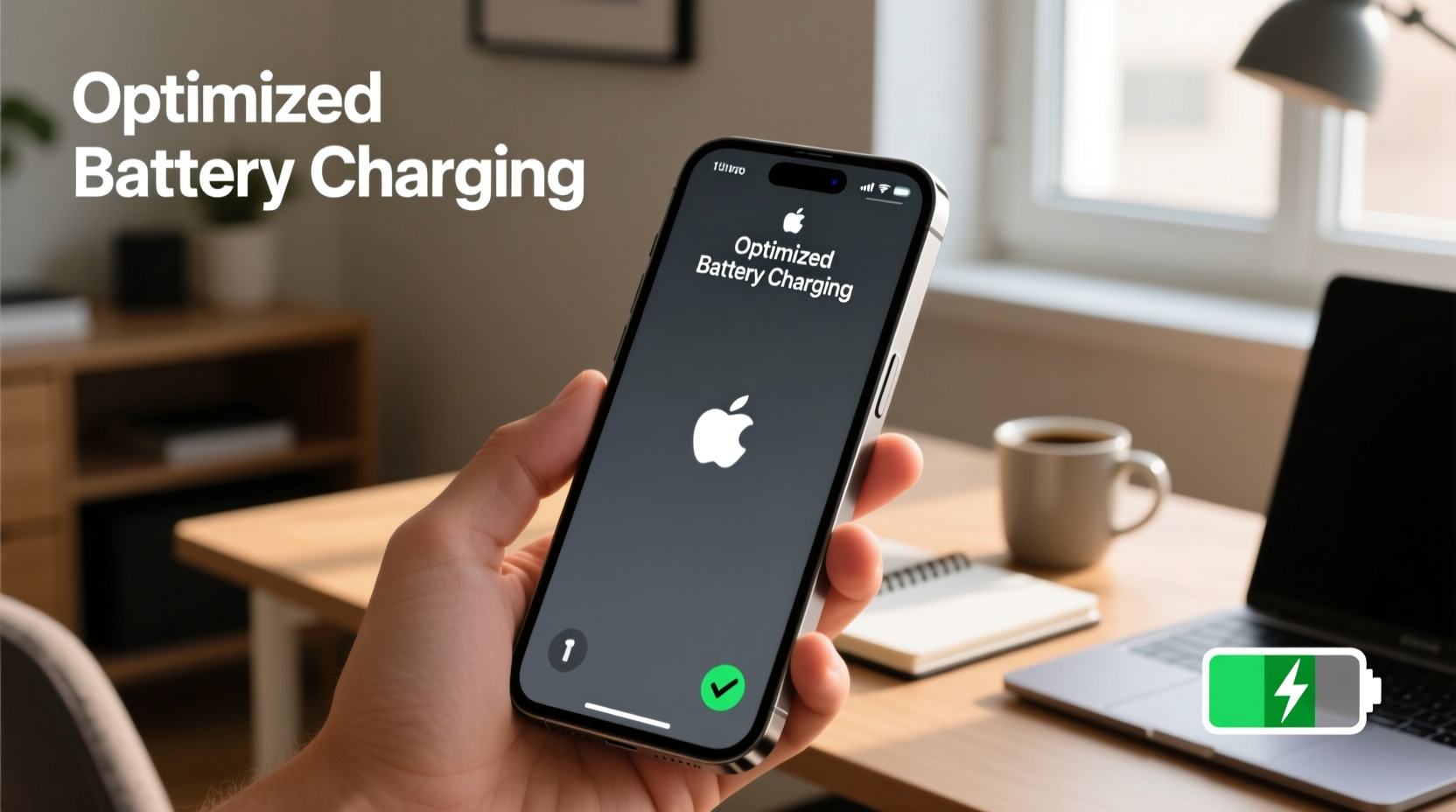
Optimized Battery Charging is an intelligent feature that learns your daily charging habits using on-device machine learning. If you regularly charge your iPhone overnight, the system will delay charging past 80% until just before you typically unplug it. This reduces the time the battery spends fully charged, which slows chemical aging and helps maintain maximum capacity over time.
Apple emphasizes that this feature focuses solely on **battery longevity**, not device performance. It operates within the power management framework but does not interfere with processor speed, app responsiveness, or thermal regulation.
Battery Health vs. CPU Performance: What’s the Real Connection?
While Optimized Battery Charging itself doesn’t throttle the CPU, another Apple feature—**Performance Management (previously called “throttling”)**—does. This is where confusion often occurs. Performance Management activates only when your iPhone has a significantly degraded battery (typically below 80% maximum capacity). In such cases, the system may limit peak CPU performance to prevent unexpected shutdowns under high load.
So, while both features relate to battery condition, they serve different purposes:
| Feature | Purpose | Affects CPU? | Trigger Condition |
|---|---|---|---|
| Optimized Battery Charging | Reduce battery aging by delaying full charge | No | Daily charging patterns |
| Performance Management | Prevent shutdowns on weak batteries | Yes (temporarily) | Battery health < 80% |
It’s crucial to distinguish between these two mechanisms. One manages charging timing; the other manages processor output based on hardware limitations.
“Battery optimization features are designed to preserve long-term usability, not degrade user experience. Throttling only occurs when necessary to maintain stability.” — Dr. Alan Kim, Mobile Systems Engineer at Stanford University
Real-World Example: A User Misinterprets the Delay
Consider Sarah, a graphic designer who charges her iPhone 13 every night. She noticed her phone felt “sluggish” one morning after waking up. Her battery was at 92%, not 100%, because Optimized Battery Charging had paused at 80% and only resumed topping off 30 minutes before her usual wake-up time.
Sarah assumed the incomplete charge meant her phone wasn’t getting enough power, leading to poor performance. She disabled Optimized Battery Charging, thinking it would speed things up. In reality, the minor lag she experienced was due to several large design apps syncing in the background—a common occurrence unrelated to charging behavior.
After re-enabling the feature and monitoring her device for a week, she found no difference in responsiveness. Her battery also retained 98% health six months later, compared to peers whose batteries dropped to 88% in the same period.
Step-by-Step: Diagnosing Actual CPU Slowdowns
If you're concerned about performance issues, follow this diagnostic process to determine whether Optimized Battery Charging—or something else—is to blame:
- Check Battery Health: Go to Settings > Battery > Battery Health & Charging. Look at “Maximum Capacity.” If it’s below 80%, Performance Management may be active.
- Review Charging Habits: Observe if the “Charging paused” message appears. This confirms Optimized Battery Charging is working—not harming performance.
- Monitor App Activity: Close unused apps and check Background App Refresh usage in Settings > General > Background App Refresh.
- Restart Your Device: A simple reboot clears temporary memory and stops rogue processes.
- Update iOS: Ensure you’re on the latest version. Bugs affecting performance are often patched in updates.
- Reset All Settings (Optional): If issues persist, try resetting settings (Settings > General > Transfer or Reset iPhone > Reset > Reset All Settings).
Best Practices for Maintaining iPhone Speed and Battery Life
You don’t need to sacrifice battery longevity for performance. With smart habits, you can have both. Here’s a checklist to keep your iPhone running smoothly:
- ✅ Keep Optimized Battery Charging enabled unless you frequently charge in short bursts
- ✅ Charge between 20% and 80% when possible to reduce stress on the battery
- ✅ Use iCloud or local backups regularly to avoid storage bloat
- ✅ Disable heavy visual effects: Reduce Motion (Settings > Accessibility > Motion)
- ✅ Avoid exposing your iPhone to extreme temperatures, especially heat
- ✅ Replace the battery proactively when health drops below 80%
Frequently Asked Questions
Does turning off Optimized Battery Charging make my iPhone faster?
No. Disabling this feature won’t improve CPU speed or app performance. It only changes how your phone charges, potentially accelerating battery wear over time.
Why does my iPhone feel slower in cold weather?
Lithium-ion batteries temporarily lose efficiency in cold environments. This can cause brief slowdowns or unexpected shutdowns, even with healthy batteries. Warm the device gradually to restore performance.
Can I disable Performance Management if I don’t want throttling?
Yes. If your battery is below 80% health, iOS allows you to disable Performance Management in Settings > Battery > Battery Health & Charging. However, doing so increases the risk of sudden shutdowns under load.
Conclusion: Trust the System, But Stay Informed
Optimized Battery Charging is not slowing down your CPU. It’s a scientifically backed strategy to extend your iPhone’s usable life without compromising day-to-day performance. The real culprit behind slowdowns is usually degraded battery health triggering separate power management protocols—or entirely unrelated software activity.
Instead of disabling helpful features, take control through awareness. Monitor your battery health, understand what each setting does, and intervene only when necessary—such as replacing an aging battery. Apple’s ecosystem is built around balancing longevity and usability, and Optimized Battery Charging is a prime example of that philosophy in action.




 浙公网安备
33010002000092号
浙公网安备
33010002000092号 浙B2-20120091-4
Comments
No comments yet. Why don't you start the discussion?