
In an era where nearly every service requires an online account, managing passwords has become both a necessity and a challenge. Many people rely on their web browsers—like Chrome, Safari, or Firefox—to remember login credentials automatically. Others invest in dedicated password managers such as Bitwarden, 1Password, or LastPass. But which approach truly offers better protection and usability? The answer isn’t always straightforward, but understanding the trade-offs between browser-based storage and standalone password managers can help you make a more informed decision about how to safeguard your digital identity.
Understanding How Browsers Store Passwords
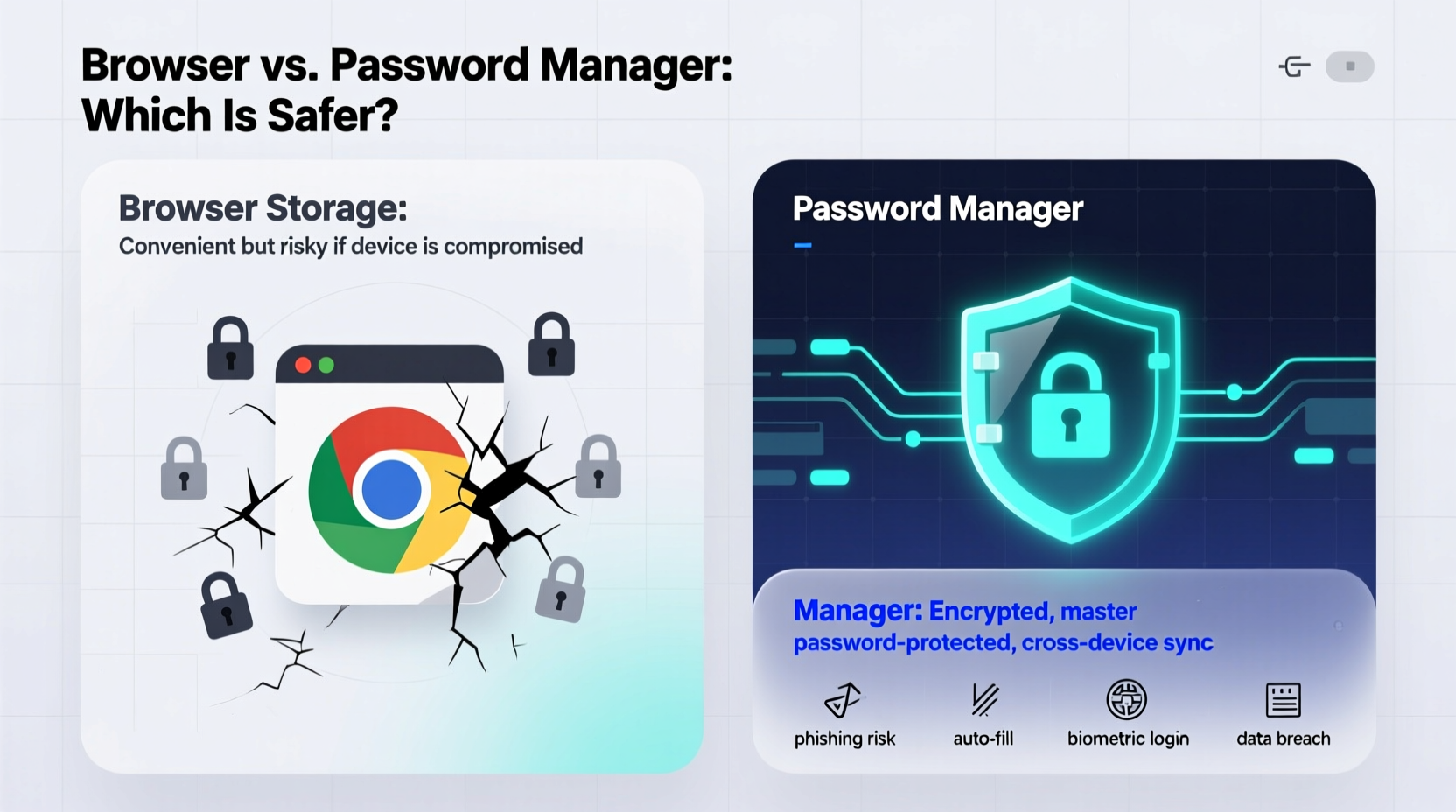
Modern browsers have built-in password-saving features that prompt users to “save this password” after logging into a website. These credentials are typically encrypted and stored locally on the device, though some sync across devices if you're signed into a Google, Apple, or Microsoft account.
The convenience is undeniable: one-click logins, autofill forms, and seamless integration with your browsing experience. However, this ease comes with limitations. Browser-stored passwords often depend on the operating system’s keychain or account-level encryption, which may not be as robust as specialized tools designed solely for password security.
For example, Chrome encrypts saved passwords using your Google account credentials when sync is enabled, but only if you’ve set up additional protections like a device passcode or Windows Hello. Without these, anyone with physical access to your unlocked device could potentially view saved passwords in plain text through browser settings.
How Dedicated Password Managers Work
Password managers are applications specifically engineered to generate, store, and manage login information securely. They operate independently of your browser, though most offer browser extensions for seamless autofill functionality.
These tools use end-to-end encryption, meaning your data is encrypted locally before being synced to the cloud. Even the provider cannot access your master password or decrypted vault. You unlock everything with a single, strong master password—which must be memorized, as there's no recovery option if lost.
Advanced features include secure sharing, breach monitoring, password health reports, dark web scanning, and automatic password changing for supported sites. Some even integrate with authenticator functions to replace apps like Google Authenticator, consolidating digital security into one platform.
“Using a dedicated password manager significantly reduces the risk of credential theft compared to browser storage.” — Dr. Nitesh Saxena, Cybersecurity Researcher, University of Alabama at Birmingham
Security Comparison: Browser vs. Password Manager
When evaluating security, several factors come into play: encryption standards, attack surface, cross-platform support, and recovery mechanisms.
| Feature | Browser Storage | Password Manager |
|---|---|---|
| Encryption Standard | Varies by OS; often AES-256 but tied to system/user account | AES-256 with zero-knowledge architecture |
| Master Password Protection | Optional; often bypassed by device login | Mandatory; required to decrypt vault |
| Cross-Device Sync Security | Depends on cloud provider (Google, Apple); vulnerable if account compromised | End-to-end encrypted sync; no third-party access |
| Vulnerability to Malware | High—malware can extract passwords via memory scraping | Moderate—depends on implementation, but generally more isolated |
| Password Generator | Limited or basic | Advanced, customizable options |
| Auto-Update on Password Change | Manual or inconsistent | Often automatic with site detection |
The table illustrates that while browsers provide adequate protection for casual users, they lack the depth of control and proactive security measures found in dedicated tools. A password manager treats your credentials as high-value assets requiring maximum isolation and encryption.
Real-World Example: The Office Worker’s Dilemma
Consider Mark, a marketing professional who uses multiple SaaS platforms daily—email, CRM, project management, social media, and finance software. He initially relied on Chrome to save his passwords because it was convenient. After upgrading his laptop, he realized his passwords didn’t fully transfer due to incomplete sync settings. Worse, during a team meeting, a colleague briefly accessed his unattended computer and opened Chrome’s password manager, seeing several account names and domains.
Shaken, Mark switched to Bitwarden. He generated unique, complex passwords for each service, enabled biometric unlock on his phone, and activated 2FA on critical accounts. Within weeks, he received an alert from Bitwarden about one of his email-associated passwords appearing in a known breach—information Chrome never provided. This early warning allowed him to change the password before any damage occurred.
Mark’s experience highlights how browser storage prioritizes convenience over comprehensive security, while a password manager adds layers of protection, insight, and peace of mind.
Step-by-Step Guide to Transitioning from Browser to a Password Manager
Moving away from browser-based storage doesn’t have to be overwhelming. Follow this structured process to migrate smoothly:
- Export Saved Passwords: In your browser settings (e.g., Chrome > Settings > Autofill > Passwords), export saved logins as a CSV file. Do this on a private device and delete the file immediately after import.
- Choose a Trusted Password Manager: Evaluate options based on open-source transparency (e.g., Bitwarden), independent audits, pricing, and platform support.
- Import Credentials: Most password managers allow CSV imports. Map fields correctly (site URL, username, password) to avoid errors.
- Verify and Update Entries: Check for duplicates, weak passwords, or reused credentials. Use the manager’s audit tool to identify risks.
- Generate Strong New Passwords: Begin updating high-risk accounts (email, banking, social media) with auto-generated, unique passwords.
- Disable Browser Saving: Turn off password prompts in your browser settings to prevent accidental reuse or confusion.
- Enable Biometrics and 2FA: Secure your vault with fingerprint, face ID, or authenticator app backup.
Common Myths About Password Managers
Despite growing adoption, misconceptions persist:
- Myth: “If my master password is stolen, all my accounts are compromised.”
Reality: With proper 2FA enabled (such as TOTP or hardware keys), even someone with your master password cannot access your vault without secondary verification. - Myth: “Password managers are only for tech experts.”
Reality: Modern tools feature intuitive interfaces, mobile apps, and guided setup flows suitable for non-technical users. - Myth: “They’re too expensive.”
Reality: Free tiers from reputable providers (Bitwarden, KeePass, Zoho Vault) offer full core functionality for individuals.
Checklist: Choosing the Right Solution for You
Use this checklist to determine whether browser storage or a password manager fits your needs:
- ✅ Do you reuse passwords across sites? → Use a password manager
- ✅ Do you share logins with family or teammates? → Password managers offer secure sharing
- ✅ Are you concerned about phishing or data breaches? → Managers detect suspicious sites and warn about exposed passwords
- ✅ Do you use multiple devices (phone, tablet, work computer)? → Dedicated tools sync securely across platforms
- ✅ Is simplicity your top priority and you only have a few accounts? → Browser storage might suffice—for now
- ✅ Do you handle sensitive personal or business data? → A password manager is strongly recommended
Frequently Asked Questions
Can hackers access my passwords if they steal my phone?
If you're using a password manager with a strong master password and biometric lock, accessing your vault requires more than just the device. Most reputable managers do not store decrypted data on the device. Browser-stored passwords, however, may be accessible if your phone is unlocked or lacks screen protection.
Are free password managers safe?
Yes, many free password managers are secure. Bitwarden, for instance, is open-source and audited annually. The key is choosing one with transparent development practices and regular security updates. Avoid obscure or unverified tools, even if they’re free.
What happens if I forget my master password?
You will lose access to your vault permanently. Unlike browser storage, which may reset via account recovery, password managers use zero-knowledge encryption—meaning no one, including the company, can recover your data. Always store your master password securely offline.
Final Recommendation
While storing passwords in your browser offers immediate convenience, it falls short in security, portability, and long-term manageability. For most users—especially those with more than a handful of accounts—a dedicated password manager is the superior choice. It provides stronger encryption, better breach protection, advanced features, and greater peace of mind.
The digital world demands vigilance. Relying on browser-based password saving is akin to locking your front door but leaving the windows wide open. A password manager closes those gaps, offering a holistic defense against increasingly sophisticated cyber threats.




 浙公网安备
33010002000092号
浙公网安备
33010002000092号 浙B2-20120091-4
Comments
No comments yet. Why don't you start the discussion?