
For avid readers, few things matter more than comfort during extended reading sessions. Whether curled up with a novel before bed or studying dense nonfiction for hours, eye strain can quickly turn pleasure into discomfort. As digital reading devices like the Kindle Paperwhite have evolved, many wonder: is switching from physical books to an e-reader actually better for your eyes? The answer isn’t just about preference—it’s rooted in display technology, lighting design, and how our eyes respond to different reading environments.
This article examines whether the Kindle Paperwhite offers meaningful advantages over traditional print books when it comes to reducing eye fatigue. We’ll explore screen technology, ambient lighting, reading posture, and scientific insights to help you make an informed decision—especially if you're prone to headaches, dry eyes, or discomfort after long reading sessions.
Understanding Eye Strain: What Causes It?
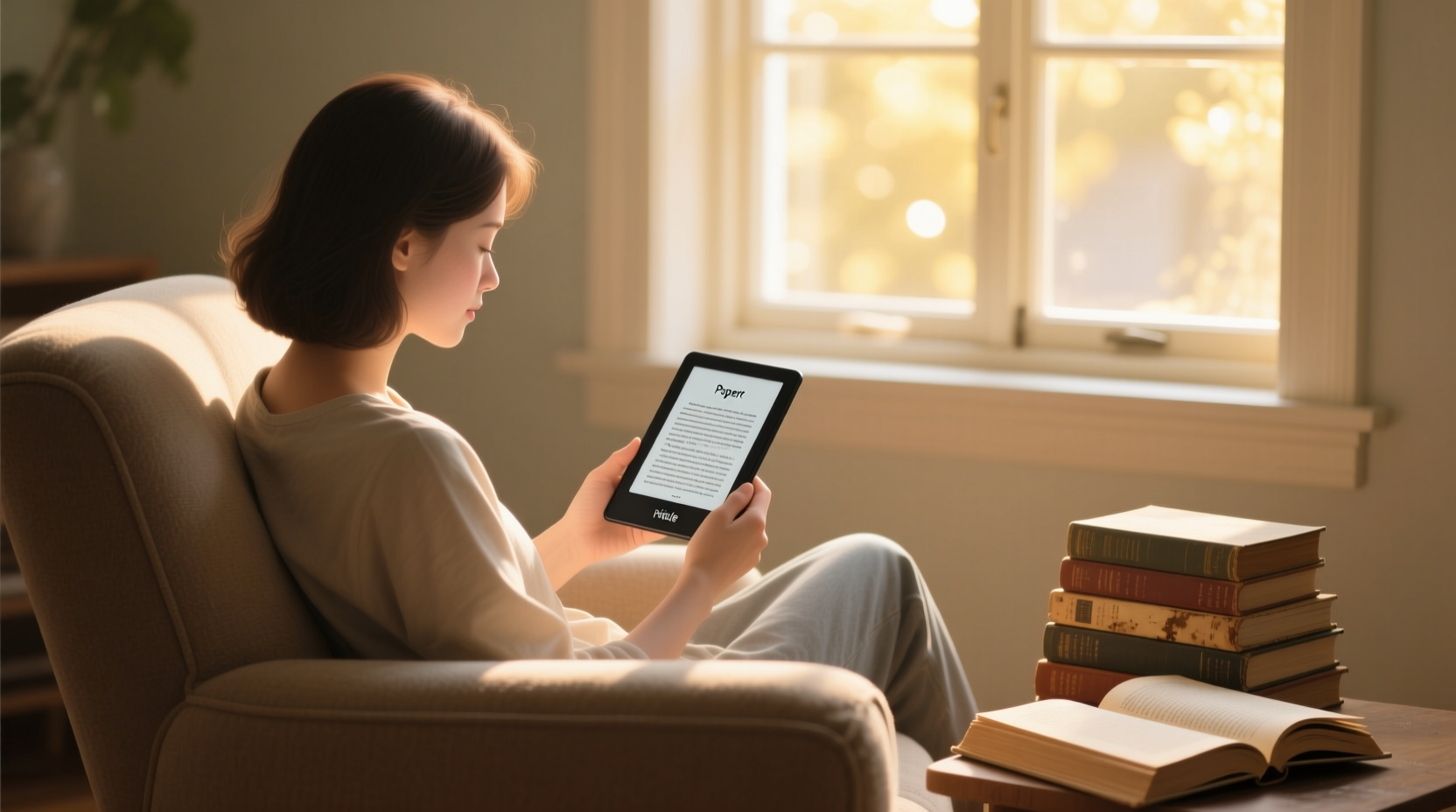
Eye strain, also known as asthenopia, occurs when your eyes become tired from intense use. Common symptoms include soreness, blurred vision, dryness, and even neck or shoulder pain due to poor posture while reading. While often temporary, chronic eye strain can affect sleep quality and overall visual comfort.
Several factors contribute to eye fatigue during reading:
- Poor lighting – Reading in dim light forces your eyes to work harder to distinguish text.
- Glare and reflections – Shiny book covers or glossy pages can create glare, especially under bright lights.
- Text contrast – Low contrast between text and background (e.g., gray ink on white paper) increases visual effort.
- Focusing fatigue – Holding focus on small text for prolonged periods strains eye muscles.
- Blue light exposure – Especially from backlit screens, blue light may disrupt circadian rhythms and contribute to eye discomfort.
Traditional books eliminate blue light but aren't immune to strain-inducing conditions. In contrast, modern e-readers like the Kindle Paperwhite are engineered specifically to minimize these stressors—using e-ink technology and front lighting designed to mimic natural reading conditions.
E-Ink vs. Print: How the Kindle Paperwhite Compares
The core innovation behind the Kindle Paperwhite is its use of e-ink display technology. Unlike tablets or smartphones that emit light directly into your eyes, e-ink mimics the appearance of printed paper by reflecting ambient light. This fundamental difference plays a crucial role in reducing eye strain.
E-ink displays work by using tiny microcapsules filled with charged black and white particles. When a voltage is applied, the particles move to the top or bottom of the capsule, forming text and images. Because no backlight shines through the screen constantly, the viewing experience is remarkably similar to reading ink on paper—just without the bulk.
The Kindle Paperwhite enhances this foundation with adjustable front lighting. Instead of shining from behind (like an LCD), the light is distributed evenly across the top and sides of the screen, illuminating the page uniformly without creating hotspots or glare. This allows comfortable reading in total darkness—a scenario where physical books would require an external lamp, often leading to shadows or uneven brightness.
“E-ink displays are among the most eye-friendly digital technologies available. Their reflective nature and lack of flicker make them ideal for prolonged reading.” — Dr. Lena Patel, Optometrist and Vision Researcher
Key Advantages of E-Ink for Eye Comfort
- No screen flicker – Unlike some LED-backlit displays, e-ink doesn’t pulse rapidly, which can cause subtle eye fatigue even if not consciously noticed.
- Matte finish reduces glare – The Paperwhite’s anti-glare screen performs well in sunlight, making it suitable for outdoor reading without squinting.
- Consistent contrast – Text appears sharp and high-contrast, regardless of font size or background color settings.
- Adjustable brightness – You can fine-tune lighting intensity to match your environment, avoiding overly bright screens in dark rooms.
In direct comparison, physical books rely entirely on ambient lighting. A poorly lit room or harsh overhead light can make reading uncomfortable. While matte-finish paperbacks reduce glare, glossy magazines or laminated covers often reflect light unpredictably. Additionally, older print editions may suffer from faded ink or low-quality paper, increasing visual strain.
Real-World Reading Scenarios: Who Benefits Most?
To understand whether the Kindle Paperwhite is truly worth it, consider real-life reading habits and environments. Not all readers face the same challenges, and the device's benefits vary depending on lifestyle.
Case Study: Nighttime Reader with Light Sensitivity
Sarah, a 38-year-old teacher, enjoys reading before bed but frequently wakes with dry, tired eyes. She used to read paperback novels with a bedside lamp, but found the angle of light created shadows and forced her to hold the book closer. After switching to a Kindle Paperwhite, she adjusted the warm light setting and reduced brightness to a soft glow. Within a week, she reported fewer instances of eye irritation and improved sleep onset.
Why? The even front lighting eliminated shadows, and the ability to dim the screen prevented overstimulation of her visual system. Unlike holding a book under a directional lamp, the Paperwhite provided consistent illumination without requiring awkward positioning.
Commuter or Travel Reader
For those reading on public transit or in changing light conditions—such as moving from indoor stations to sunny platforms—the Kindle Paperwhite adapts instantly. Its high refresh rate minimizes ghosting, and the glare-free screen remains readable even in direct sunlight. Physical books, while reliable, can be difficult to see in bright environments unless shaded manually.
Low-Vision Readers
One of the most significant advantages of the Paperwhite is customizable text. Users can increase font size, adjust line spacing, and even change typefaces to suit their needs. For readers with mild vision impairments, this flexibility often makes digital reading more accessible than struggling with small print in physical editions.
Comparative Analysis: Kindle Paperwhite vs. Physical Books
| Feature | Kindle Paperwhite | Physical Books |
|---|---|---|
| Light Source | Adjustable front light (no blue light peak in warm mode) | Dependent on ambient lighting |
| Glare Resistance | High (matte anti-glare screen) | Variable (glossy covers reflect; matte paper better) |
| Reading in Dark | Excellent (built-in light, no external source needed) | Poor without lamp (shadows, uneven lighting) |
| Font Customization | Yes (size, style, spacing) | No (fixed by publisher) |
| Portability (Multiple Books) | High (thousands of books in one device) | Low (bulky, heavy to carry multiple) |
| Eye Fatigue Risk | Low (with proper settings) | Moderate (depends on lighting and print quality) |
| Battery/Power Dependency | Yes (weeks per charge) | No (always readable) |
The table highlights a key trade-off: convenience and adaptability versus independence from technology. However, for individuals prioritizing eye comfort—especially in variable lighting—the Kindle Paperwhite offers measurable improvements.
Best Practices for Reducing Eye Strain on Any Device
Whether you choose a Kindle or stick with print, certain habits significantly impact eye comfort. Here’s a checklist to optimize your reading setup:
📖 Eye-Friendly Reading Checklist
- Use adequate, diffused lighting—avoid single-point sources that cast shadows.
- Position reading material 14–18 inches from your eyes.
- Take regular breaks using the 20-20-20 rule.
- If using a Kindle, enable Warm Light and reduce blue emission in evening hours.
- Choose fonts with high legibility (e.g., Bookerly, Helvetica).
- Avoid reading in moving vehicles if prone to motion sickness or visual fatigue.
- Keep your screen or book at a slight downward angle (about 20 degrees) to reduce neck strain.
Step-by-Step: Optimizing Your Kindle Paperwhite for Eye Comfort
- Turn on Warm Light – Go to Settings > Display & Brightness > Warm Light and set it to auto-adjust based on time of day.
- Lower Brightness – Adjust until the screen feels like a printed page under soft lamplight—not glowing.
- Select a Comfortable Font – Try larger sizes (e.g., 4–5) and fonts like Palatino or Bookerly for smoother reading.
- Enable Bold Text – In Accessibility settings, turn on bold rendering for improved character clarity.
- Use Auto-Rotate – Ensures optimal orientation and reduces awkward holding positions.
- Set Sleep Timer – Prevents accidental late-night scrolling and supports healthy sleep hygiene.
“The biggest mistake people make is treating e-readers like tablets. The Kindle should feel invisible—like a book. If your eyes hurt, it’s likely the settings, not the device.” — James Lin, Human Factors Engineer at a Leading Display Lab
Frequently Asked Questions
Does the Kindle Paperwhite emit blue light?
All digital screens emit some blue light, but the Kindle Paperwhite includes a Warm Light feature that shifts the color temperature toward amber in the evening. This reduces blue light exposure significantly compared to phones or tablets. When combined with low brightness, it poses minimal risk to circadian rhythm or eye strain.
Can reading on a Kindle cause headaches?
Not typically—if properly configured. Headaches are more likely caused by excessive brightness, incorrect posture, or prolonged focus without breaks. Users who experience discomfort should review their settings and ensure they’re following ergonomic best practices.
Is printed text easier on the eyes than e-ink?
In identical lighting conditions, the difference is negligible. However, because the Kindle allows control over lighting and text size, it often provides a more consistent and adaptable reading experience—especially in suboptimal environments like dim hotel rooms or sunlit parks.
Final Verdict: Is the Kindle Paperwhite Worth It?
For readers concerned about eye strain, the Kindle Paperwhite isn’t just a convenient alternative to physical books—it’s often a superior choice. Its e-ink display, front lighting system, and customization options address many of the root causes of visual fatigue. Unlike tablets or smartphones, it avoids the pitfalls of blue light overload and screen glare, offering a reading experience that closely mirrors—and in many cases improves upon—the comfort of print.
That said, the value depends on usage. If you primarily read in well-lit spaces, enjoy collecting physical editions, or prefer the tactile experience of turning pages, a switch may not be necessary. But for those who read frequently in varying conditions—especially at night, during travel, or in low light—the Kindle Paperwhite delivers tangible benefits for long-term eye comfort.
Ultimately, the goal is sustainable reading enjoyment. Whether through paper or pixels, reducing strain means you can read longer, sleep better, and stay immersed in stories without physical distraction.




 浙公网安备
33010002000092号
浙公网安备
33010002000092号 浙B2-20120091-4
Comments
No comments yet. Why don't you start the discussion?