
The line between tablets and laptops has never been blurrier. With Apple’s latest iPad Air featuring the M2 chip—previously reserved for high-end MacBooks—the question is no longer whether an iPad can do some laptop tasks, but whether it can genuinely replace one. For students, creatives, remote workers, and casual users, the iPad Air now promises desktop-level processing in a featherlight form. But does it deliver across all workflows?
This isn’t just about raw power. It’s about usability, multitasking, peripheral support, software maturity, and workflow integration. Let’s examine whether upgrading to the newest iPad Air means you can finally ditch your clamshell.
Performance: The M2 Chip Changes the Game
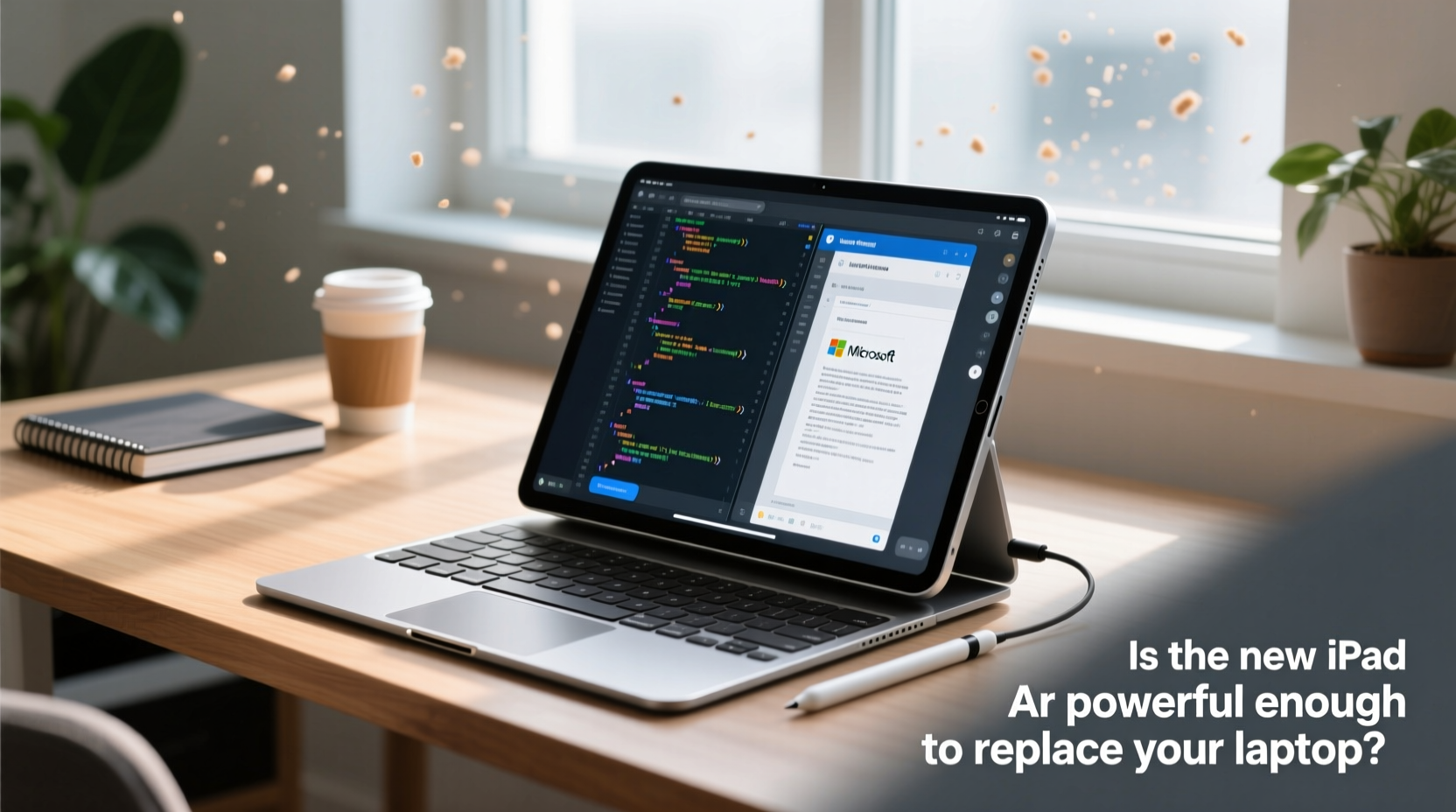
The 2024 iPad Air marks a significant leap by integrating the same Apple M2 chip found in the MacBook Air and 13-inch MacBook Pro. This eight-core CPU and ten-core GPU configuration delivers up to 50% faster CPU performance and 40% faster graphics than its predecessor, the M1-powered model.
In real-world terms, this means:
- Seamless 4K video editing in apps like LumaFusion
- Smooth rendering of complex vector illustrations in Affinity Designer
- Effortless handling of multiple browser tabs, messaging apps, and cloud tools simultaneously
- Near-instant app launches and transitions
Geekbench 6 scores place the iPad Air within 10–15% of the base-model MacBook Air (M2, 8GB RAM), which is remarkable considering the thermal constraints of a fanless tablet design. However, sustained workloads—like long encoding sessions or compiling code—can trigger throttling over time.
“Apple’s silicon efficiency allows tablets to punch far above their weight class. The M2 in the iPad Air isn’t just fast—it’s intelligently optimized.” — Dr. Lin Chen, Hardware Analyst at TechInsight Labs
Software Limitations: Where iPadOS Still Falls Short
Even with MacBook-tier hardware, the iPad Air runs iPadOS—a mobile-first operating system that prioritizes simplicity over flexibility. While iPadOS 17 introduced improved multitasking with Stage Manager, file management via Files app enhancements, and better external display support, key limitations remain.
Consider these gaps when evaluating laptop replacement potential:
- No true windowing system: Apps run in constrained containers, not freely resizable windows. Dragging and dropping between overlapping apps is still awkward.
- Limited file system access: Unlike macOS, users cannot directly browse system folders or manage files with granular control.
- App fragmentation: Many professional tools (e.g., full Adobe Creative Suite, Xcode, virtual machines) are either missing or offer stripped-down versions.
- Browser engine restrictions: All third-party browsers on iOS/iPadOS must use WebKit, limiting performance and extension support compared to desktop Chrome or Firefox.
For example, while you can edit documents in Microsoft Word on iPad, advanced features like mail merge, macro scripting, or citation management require the desktop version. Similarly, developers cannot compile native iOS apps on an iPad due to the absence of Xcode.
Real-World Use Case: Can Sarah Replace Her Laptop?
Sarah is a freelance graphic designer and part-time instructor who travels frequently. Her current setup includes a 2020 MacBook Air, a portable monitor, and a Wacom tablet. She uses Adobe Photoshop, Illustrator, Zoom, Google Workspace, and occasionally edits short client videos.
She tested the new iPad Air (M2, 256GB, with Magic Keyboard and Apple Pencil) for four weeks:
- Pros: Lightweight (1 pound), instant wake, excellent battery life (over 10 hours), superb stylus precision for sketching, smooth performance in Procreate and Affinity apps.
- Cons: Switching between design layers in Affinity Photo was slower than expected; exporting multi-page PDFs required workarounds; connecting her HDMI monitor demanded a USB-C hub and had inconsistent mirroring behavior.
Verdict: The iPad Air handled 80% of her workload efficiently. But for final client deliverables requiring precise typography and batch exports, she still needed her MacBook. “It’s my go-to for travel,” she said, “but I wouldn’t sell my laptop yet.”
Comparison Table: iPad Air vs. MacBook Air (M2)
| Feature | iPad Air (M2) | MacBook Air (M2) |
|---|---|---|
| Processor | Apple M2 | Apple M2 |
| RAM Options | 8GB (fixed) | 8GB or 16GB |
| Storage Options | 128GB, 256GB, 512GB, 1TB | 256GB, 512GB, 1TB, 2TB |
| Operating System | iPadOS 17 | macOS Sonoma |
| Keyboard & Trackpad | Sold separately (Magic Keyboard) | Integrated |
| Portability | Lighter (1 lb), thinner | 3 lbs, slightly bulkier |
| Battery Life | Up to 10 hours | Up to 15 hours |
| External Display Support | One external display (Stage Manager required) | One display up to 6K |
| Stylus Support | Apple Pencil (2nd gen) | None |
| Price (Starting) | $599 (device only) + $299 (keyboard) + $129 (Pencil) = $1,027 total |
$999 (includes keyboard/touchpad) |
Note: The iPad Air becomes cost-competitive only if you already own accessories or don’t need them full-time.
Who Should Consider the iPad Air as a Laptop Replacement?
The answer depends on your primary use case. Below is a checklist to help determine if the iPad Air fits your needs.
✅ Yes, If You:
- Rely heavily on touch or stylus input (artists, note-takers, educators)
- Spend most of your day in web apps, email, and document editors
- Travel often and prioritize portability and battery life
- Use creative apps optimized for iPad (Procreate, GarageBand, LumaFusion)
- Don’t require legacy software, local development environments, or complex file systems
❌ Probably Not, If You:
- Work extensively with spreadsheets, databases, or programming IDEs
- Need consistent multi-window productivity (e.g., coding while referencing docs)
- Use specialized desktop software (Adobe Premiere Pro, AutoCAD, Final Cut Pro)
- Manage large media libraries or perform frequent file transfers
- Require reliable external device support (printers, scanners, MIDI gear)
Optimizing Your iPad Air for Laptop-Like Workflows
If you’re committed to using the iPad Air as your primary device, follow this step-by-step guide to maximize productivity:
- Invest in the Magic Keyboard: It transforms the iPad into a laptop-like experience with a responsive trackpad and backlit keys. Without it, typing-heavy tasks become impractical.
- Enable Stage Manager: Go to Settings > Home Screen & Dock > Turn on Stage Manager. This allows you to group and resize app windows more effectively.
- Use cloud-synced workflows: Store files in iCloud Drive, Dropbox, or Google Drive to ensure seamless access across devices and backups.
- Install pro-grade apps: Replace basic tools with powerful alternatives:
- Documents by Readdle (file management)
- Folios (advanced note-taking)
- Working Copy (Git client for developers)
- Pythonista (scripting environment)
- Connect peripherals via USB-C hub: Use a multi-port adapter to attach external drives, Ethernet, HDMI monitors, and SD cards.
- Set up text replacements and shortcuts: Automate repetitive typing in Settings > General > Keyboard > Text Replacement.
- Regularly restart the device: Prevents memory leaks and maintains responsiveness after days of continuous use.
Frequently Asked Questions
Can the iPad Air run desktop-class applications?
No. Despite the M2 chip, iPadOS restricts apps to those available in the App Store, which are typically mobile-optimized versions. Full desktop software like Photoshop, Excel macros, or virtual machines are not supported.
Does the iPad Air support external monitors effectively?
Yes, but with caveats. You can connect one external display up to 6K resolution using Stage Manager. However, extended desktop mode is limited, and some apps don’t scale well. Mirroring is more reliable than extending.
How does battery life compare to a MacBook Air?
The iPad Air offers around 10 hours of active use, which is less than the MacBook Air’s 15-hour endurance under similar conditions. However, the iPad wakes instantly and consumes zero power in standby, making it more efficient for intermittent use.
Final Verdict: A Partial Replacement, Not a Full One
The newest iPad Air is the most capable tablet ever made. Its M2 chip erases any doubt about processing power. In contexts where mobility, creativity, and consumption dominate—education, light content creation, travel blogging, digital art, and remote communication—it excels beyond most entry-level laptops.
Yet, it remains constrained by an operating system designed for simplicity, not complexity. When workflows demand deep file manipulation, multitasking precision, software compatibility, or peripheral versatility, macOS on even a base MacBook Air provides a more complete experience.
Think of the iPad Air not as a laptop killer, but as a strategic evolution: a hybrid tool that redefines what portable computing can be. For many, it can serve as a primary device most of the time—with a backup laptop nearby for the rest.
“The future isn’t about replacing laptops with tablets, but redefining what ‘primary device’ means based on context, not specs.” — Kara Nguyen, Senior Editor at MobileTech Review
Take Action: Rethink Your Workflow
Instead of asking whether the iPad Air can replace your laptop, ask how it can enhance your digital life. Experiment with offloading specific tasks—note-taking, sketching, reading, presentations—to the iPad and keep the laptop for heavy lifting. Over time, you may find yourself reaching for the clamshell less often.




 浙公网安备
33010002000092号
浙公网安备
33010002000092号 浙B2-20120091-4
Comments
No comments yet. Why don't you start the discussion?