
When your laptop’s built-in mouse (touchpad) stops responding, it can bring your workflow to a sudden halt. Whether you're typing an urgent email, navigating a spreadsheet, or browsing online, a non-functional touchpad disrupts productivity. The good news: most issues have simple, immediate solutions. Before calling support or buying an external mouse, try these practical troubleshooting steps. Many users resolve the problem in under 10 minutes with basic checks and settings adjustments.
Check for Physical and Software Triggers
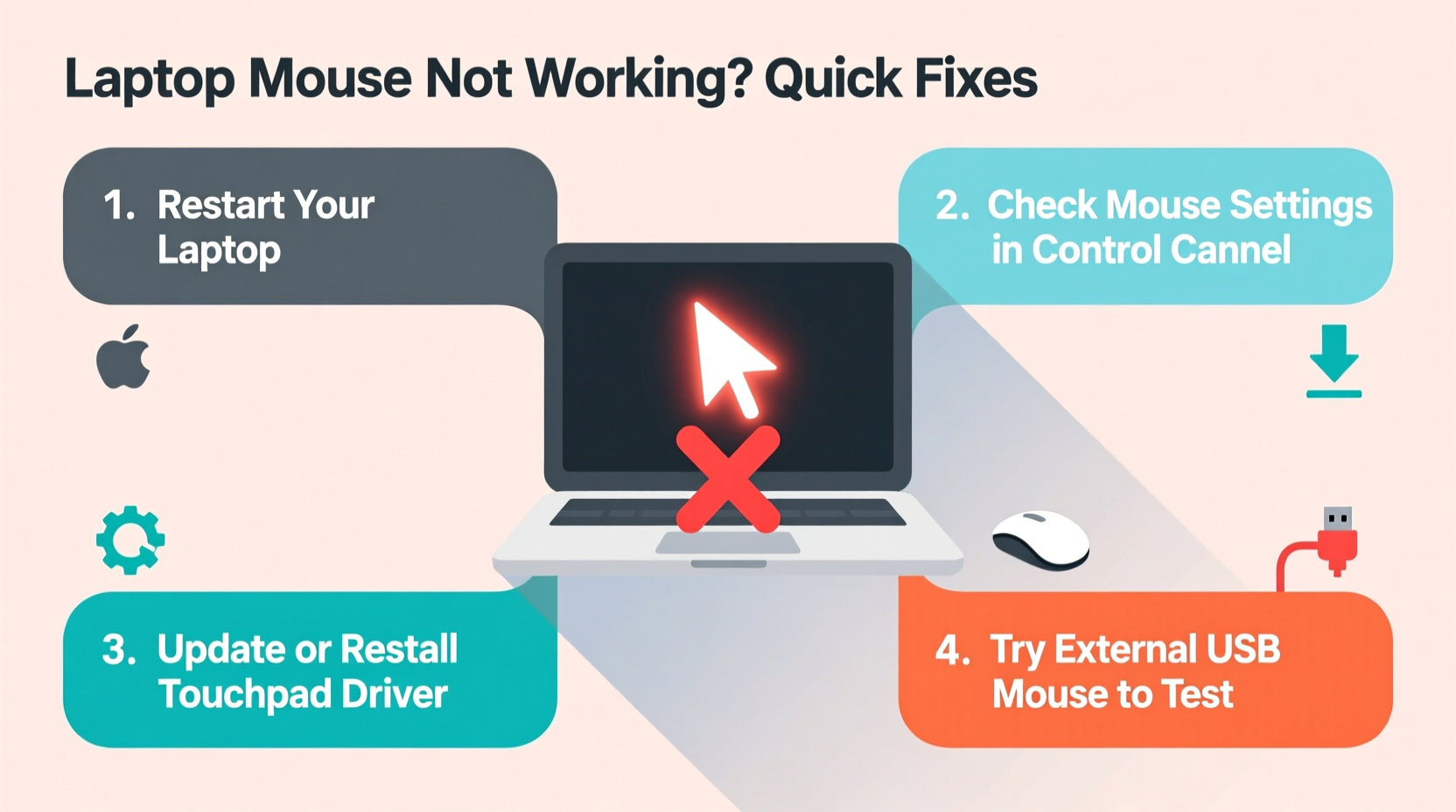
Sometimes, the simplest causes are overlooked. A disabled touchpad, accidental spills, or debris buildup can mimic hardware failure. Begin by ruling out these common culprits.
- Is the touchpad accidentally disabled? Many laptops have a function key (e.g., F6, F9, or F12) that toggles the touchpad on and off. Look for an icon resembling a touchpad with a line through it. Press Fn + [Touchpad Key] to re-enable it.
- Are there liquid spills or debris? Moisture or dust near the touchpad sensors can interfere with responsiveness. Power down the laptop, gently wipe the surface with a dry microfiber cloth, and let it sit for 30 minutes if damp.
- Is the battery critically low? Some laptops disable peripheral functions like the touchpad when power is below 5%. Plug in and charge for at least 10 minutes before testing again.
Restart and Update Your System
A restart resolves temporary glitches in over 60% of minor hardware issues. It clears memory conflicts and reloads drivers essential for input devices.
- Save your work and shut down the laptop completely.
- Wait 30 seconds, then power it back on.
- Test the touchpad immediately after login—don’t open other programs first.
If the issue persists, outdated or corrupted drivers may be to blame. Windows automatically installs generic drivers, but manufacturers often release optimized versions.
How to Update Touchpad Drivers
- Press Windows + X and select Device Manager.
- Expand the Mice and other pointing devices section.
- Right-click your touchpad (often labeled as “Synaptics,” “ELAN,” or “HID-compliant mouse”).
- Select Update driver > Search automatically for updated driver software.
If Windows finds no updates, visit your laptop manufacturer’s support site (e.g., support.lenovo.com, support.hp.com), enter your model number, and download the latest touchpad driver manually.
Adjust Touchpad Settings and Sensitivity
Incorrect sensitivity or gesture settings can make the touchpad feel unresponsive—even when technically functional.
To access touchpad settings:
- Go to Settings > Devices > Touchpad.
- Ensure the toggle switch is turned On.
- Adjust cursor speed to “Medium” or “Fast” if movements feel sluggish.
- Verify that tap-to-click is enabled if you rely on tapping instead of physical clicks.
Some laptops use third-party software like Synaptics or Precision Touchpad drivers. These offer advanced customization such as palm rejection, scrolling direction, and multi-finger gestures. If available, open the app from the system tray or Start menu to fine-tune behavior.
| Setting | Recommended Value | Why It Matters |
|---|---|---|
| Cursor Speed | 6/11 or higher | Prevents slow or jerky movement |
| Tap to Click | Enabled | Restores convenience of light taps |
| Palm Rejection | Enabled | Stops accidental inputs while typing |
| Scroll Direction | Natural (reverse) | Matches smartphone-like scrolling |
Real-World Example: Sarah’s Frozen Cursor
Sarah, a freelance writer using a 3-year-old HP Pavilion, suddenly found her touchpad unresponsive mid-deadline. She tried restarting—no change. Then she noticed a small coffee spill near the left click button from earlier that morning. After powering down and wiping the area, she opened Device Manager and discovered her ELAN touchpad had a yellow warning icon. She uninstalled the driver, restarted, and Windows reinstalled it automatically. The touchpad worked instantly. “I thought I’d need a repair,” she said later. “But cleaning and reinstalling the driver fixed everything.”
Expert Insight: When Hardware Meets Software
“Most touchpad failures aren’t mechanical. They stem from driver conflicts or OS-level misconfigurations. Always check software first—it saves time and money.” — Rajiv Mehta, Senior Support Engineer at TechCare Solutions
Mehta emphasizes that physical touchpad components rarely fail before five years of regular use. Instead, Windows updates, conflicting applications, or background processes often interrupt device communication. He recommends periodic driver maintenance, especially after major OS upgrades.
Troubleshooting Checklist
Follow this step-by-step checklist to systematically identify and fix your laptop mouse issue:
- ✅ Check if the touchpad is disabled via Fn key or tap gesture.
- ✅ Restart the laptop to clear temporary errors.
- ✅ Inspect for moisture, dirt, or physical damage.
- ✅ Verify touchpad is enabled in Settings > Devices > Touchpad.
- ✅ Update or reinstall the touchpad driver via Device Manager.
- ✅ Test with an external USB mouse to isolate the issue.
- ✅ Boot into Safe Mode—if the touchpad works, a third-party app is interfering.
- ✅ Perform a system restore if the issue began after a recent update.
Frequently Asked Questions
Why does my laptop mouse work sometimes and not others?
Intermittent performance often points to a loose internal ribbon cable or unstable driver. If cleaning and updating don’t help, the hardware connection may need professional inspection. However, first rule out software conflicts by booting into Safe Mode and testing responsiveness there.
Can malware cause touchpad problems?
While rare, some malicious software interferes with system drivers or input services. Run a full scan using Windows Defender or a trusted antivirus tool. If threats are found, remove them and restart. Also, check Task Manager for unusual processes consuming high CPU, which might affect device responsiveness.
What should I do if none of the fixes work?
If all troubleshooting steps fail, the touchpad may have sustained physical damage. In such cases, use a USB or Bluetooth mouse as a reliable alternative. For permanent repair, consult the manufacturer or an authorized service center. Some models allow DIY replacement with moderate technical skill, but warranty terms may be voided.
Final Steps and Prevention Tips
Once your touchpad is restored, take steps to prevent future issues. Avoid eating or drinking near your laptop, keep the surface clean, and install driver updates proactively. Consider creating a system restore point monthly so you can roll back changes if an update causes instability.
For frequent travelers or heavy users, carrying a compact wireless mouse ensures continuity during unexpected hardware hiccups. Pair it with a protective sleeve to minimize wear and tear on your laptop’s hinge and ports.
“Reliability starts with routine care. A few minutes of maintenance can prevent hours of downtime.” — Lena Torres, IT Support Consultant
Take Action Today
Your laptop’s touchpad is a critical interface—don’t accept reduced functionality. Most problems are solvable without cost or technical expertise. Start with the basics: reboot, check settings, update drivers. Work through the checklist methodically. In most cases, you’ll regain full control quickly. If you’ve resolved your issue using these tips, consider sharing your experience in the comments. Others facing the same frustration might benefit from your insight. Stay proactive, stay productive.




 浙公网安备
33010002000092号
浙公网安备
33010002000092号 浙B2-20120091-4
Comments
No comments yet. Why don't you start the discussion?