
Sitting at a desk for hours with a poorly positioned laptop can lead to neck strain, shoulder tension, and chronic back pain. The solution isn’t always a full ergonomic overhaul—sometimes it’s as simple as choosing the right laptop stand. But many stands require reorganizing your workspace, taking up valuable real estate, or compromising on stability. The ideal stand should elevate your screen to eye level, promote neutral spine alignment, and integrate seamlessly into your existing desk layout.
The challenge lies in finding a stand that enhances posture while respecting the constraints of a functional workspace. Whether you're working from a compact home office, a shared table, or a cluttered workstation, there are smart options designed to blend form, function, and efficiency. This guide explores how to select and use laptop stands that support healthy posture without forcing you to rearrange your entire desk.
Why Posture Matters—and Why Most Laptop Setups Fail
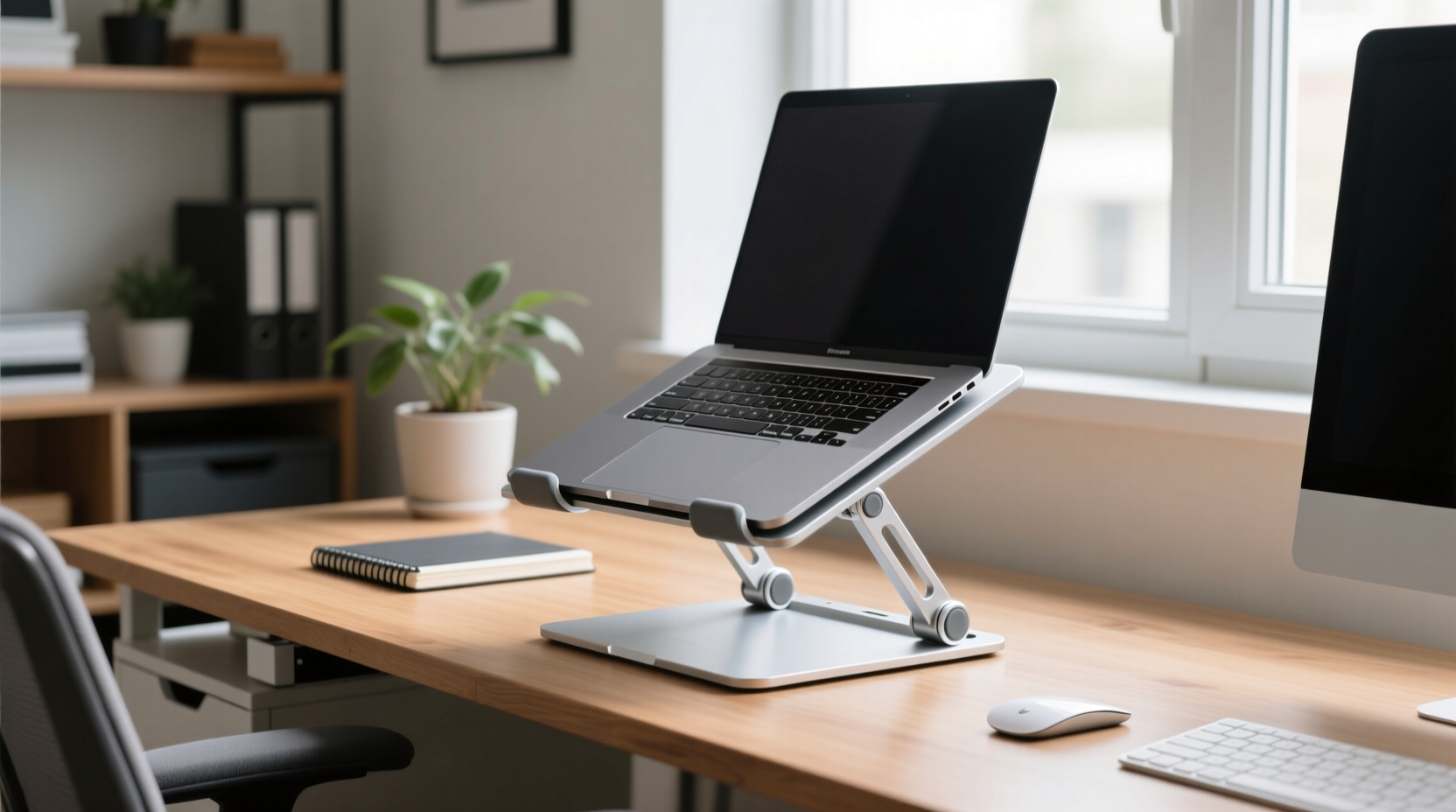
Laptops are inherently non-ergonomic. Their screens sit too low, forcing users to look down, which increases cervical spine load. According to Dr. Karen Jacobs, clinical professor of occupational therapy at Boston University, “For every inch your head tilts forward, the effective weight on your neck doubles.” That means a 12-pound head can feel like 30 pounds when hunched over a laptop.
Most people don’t have room—or budget—for dual monitors, external keyboards, and full docking stations. Yet they still need relief from slouching and discomfort. This is where minimalist, space-conscious laptop stands come in: they offer an immediate elevation boost without demanding extra peripherals or surface area.
“Even a small change in screen height can significantly reduce musculoskeletal strain over time.” — Dr. Elena Torres, Ergonomics Researcher, Human Factors Lab
Key Features of Space-Smart, Posture-Friendly Laptop Stands
Not all laptop stands are created equal. Some take up more space than they save, while others wobble under pressure or block ventilation. To maintain both comfort and desk harmony, prioritize these features:
- Compact footprint: Should fit within the same space as your laptop, ideally no wider or deeper than the device itself.
- Adjustable height: Allows customization based on chair height and personal preference; ideal range is 4–6 inches.
- Ventilation support: Open designs prevent overheating by allowing airflow underneath.
- Stability: Non-slip pads and rigid construction prevent shifting during typing.
- Cable management integration: Minimalist clips or channels keep cords tidy without adding bulk.
- Foldability or portability: Enables easy storage when not in use, preserving desk space.
Top 5 Laptop Stands That Respect Your Desk Layout
Below is a curated list of stands proven to enhance posture while minimizing spatial disruption. These models were selected based on user feedback, ergonomic testing, and compatibility with common desk configurations.
| Stand Model | Height Range | Footprint (inches) | Weight Capacity | Special Feature |
|---|---|---|---|---|
| Nexstand Portable Lap Desk | 5.5\" fixed | 11\" x 8\" | 20 lbs | Folds flat; aluminum build |
| Roost Stand (V2) | Adjustable (3.5\"–7\") | 10\" x 7\" | 15 lbs | Collapsible legs; lifts screen only |
| AmazonBasics Adjustable Stand | 4\"–6\" (3 angles) | 12\" x 9\" | 17 lbs | Built-in fan slot; non-slip surface |
| Twelve South Curve | 6\" fixed | 10.5\" x 7.5\" | Unlimited (solid wood) | Aesthetic design; natural materials |
| ErgoFoam TiltFrame | 4.5\" fixed | 11\" x 8\" | 12 lbs | Angled base promotes wrist neutrality |
Each of these stands fits comfortably within standard desk zones, avoiding interference with keyboards, mice, notebooks, or secondary monitors. The Roost Stand, for example, uses a scissor mechanism that collapses downward, leaving maximum clearance behind the laptop. Meanwhile, the Nexstand’s ultra-thin profile makes it ideal for travelers or those using fold-down workspaces.
Real-World Example: Sarah’s Home Office Upgrade
Sarah, a freelance copywriter, worked from a 42-inch wide desk shared with her partner. Her previous attempt at ergonomics involved stacking books under her MacBook, which kept falling and looked unprofessional during client calls. She invested in the Roost Stand after reading reviews about its minimal footprint.
Within a week, she noticed reduced neck stiffness. More importantly, the stand didn’t interfere with her wireless keyboard placement or obstruct access to her USB hub. Because it folds flat, she stores it in a drawer each evening, keeping her desk clean and multipurpose. For Sarah, the stand wasn’t just an ergonomic fix—it was a space-saving necessity.
How to Integrate a Laptop Stand Without Disrupting Workflow
Even the best stand fails if it disrupts your daily rhythm. Follow this step-by-step process to ensure seamless integration:
- Assess your current desk layout. Map out where your keyboard, mouse, monitor, and accessories sit. Identify unused vertical space above your laptop zone.
- Determine optimal screen height. Sit in your chair, look straight ahead, and mark where your eye line hits the wall. That’s your target screen-top level.
- Select a stand within your footprint limit. If your laptop occupies 12” x 8”, choose a stand no larger than 13” x 9” to avoid encroachment.
- Position the stand directly behind your laptop’s original spot. This keeps peripheral alignment intact—no need to stretch for your mouse.
- Pair with a slim external keyboard. Once elevated, typing on the laptop becomes awkward. A low-profile Bluetooth keyboard maintains typing comfort without adding clutter.
- Test for stability and heat dissipation. Run a processor-heavy task (e.g., video call + browser tabs) for 30 minutes to ensure the laptop doesn’t overheat.
- Adjust chair height if needed. Elevating the screen may require slight upward adjustment of your seat to maintain elbow-to-desk alignment.
Do’s and Don’ts of Minimalist Stand Usage
| Do | Don't |
|---|---|
| Use stands with rubberized contact points to prevent scratches | Place heavy items on folding stands not rated for extra weight |
| Combine with a separate keyboard and mouse for full ergonomics | Block ventilation grills with solid-bottom stands |
| Store foldable stands vertically in desk organizers | Force adjustments beyond recommended angles |
| Wipe down metal surfaces monthly to prevent dust buildup | Leave laptops unattended on unstable stands around pets or kids |
Building a Complete Micro-Ergonomic Setup
A laptop stand alone won’t fix all posture issues. It’s one component of a micro-ergonomic system—a collection of small, compatible tools that optimize health within tight spaces.
Consider pairing your stand with:
- Magnetic wrist rest: Attaches temporarily to metal desks or laptop bases, supporting wrists without permanent placement.
- Monitor riser with storage: If using an external display, choose one with a compartment for pens or chargers.
- Under-desk cable tray: Keeps power bricks and adapters off the main surface.
- Posture reminder app: Tools like *PostureMinder* or *WorkPace* prompt gentle breaks every 25–30 minutes.
The goal is cumulative improvement: each element contributes slightly, but together they create meaningful change. One study published in Applied Ergonomics found that workers using compact ergonomic aids reported a 38% reduction in upper body discomfort—even without major furniture changes.
Checklist: Setting Up Your Posture-Friendly Workspace
- ☐ Measure available desk space around your laptop
- ☐ Choose a stand with adjustable or appropriate fixed height
- ☐ Confirm compatibility with your laptop size and weight
- ☐ Acquire a slim external keyboard and mouse
- ☐ Position stand so screen top aligns with eye level
- ☐ Anchor stand if prone to sliding
- ☐ Test typing comfort and heat output over 30 minutes
- ☐ Adjust chair height so elbows form 90° angle
- ☐ Schedule weekly inspection for wear or instability
Frequently Asked Questions
Can I use a laptop stand with a large 16-inch device?
Yes, but verify weight limits and width compatibility. Stands like the AmazonBasics Adjustable or Twelve South Curve support larger models. Avoid ultra-compact stands marketed for 13-inch devices unless explicitly rated for heavier loads.
Won’t elevating my laptop make typing harder?
It can—if you continue using the built-in keyboard. Always pair a raised laptop with an external keyboard placed at elbow height. This separates screen ergonomics from input ergonomics, giving you the best of both worlds.
Are foldable stands durable enough for daily use?
High-quality foldable stands like the Roost V2 are engineered for repeated deployment and have been tested for thousands of openings. However, avoid cheap knockoffs with thin aluminum or loose hinges. Invest in reputable brands known for longevity.
Final Thoughts: Small Change, Lasting Impact
Improving posture doesn’t require a complete desk rebuild. Often, the most effective interventions are subtle, affordable, and respectful of existing routines. A well-chosen laptop stand can correct years of poor alignment, reduce fatigue, and help you work longer with less strain—all without displacing your favorite mug or notebook.
The key is intentionality: selecting a stand that fits your physical space, usage habits, and ergonomic needs. When done right, it becomes invisible in the best way—not a clunky add-on, but a natural extension of your workflow.




 浙公网安备
33010002000092号
浙公网安备
33010002000092号 浙B2-20120091-4
Comments
No comments yet. Why don't you start the discussion?