
A non-responsive touch screen on a modern laptop can be more than an inconvenience—it disrupts workflow, reduces efficiency, and undermines the device’s core functionality. Touch-enabled laptops are designed for intuitive interaction, but when the screen stops responding, users often feel locked out of their own machines. The good news is that most touch screen issues stem from software glitches, driver conflicts, or simple misconfigurations—problems that can be resolved without costly repairs. Understanding the root causes and knowing which steps to take first can save time and prevent unnecessary service visits.
Common Causes of Touch Screen Failure
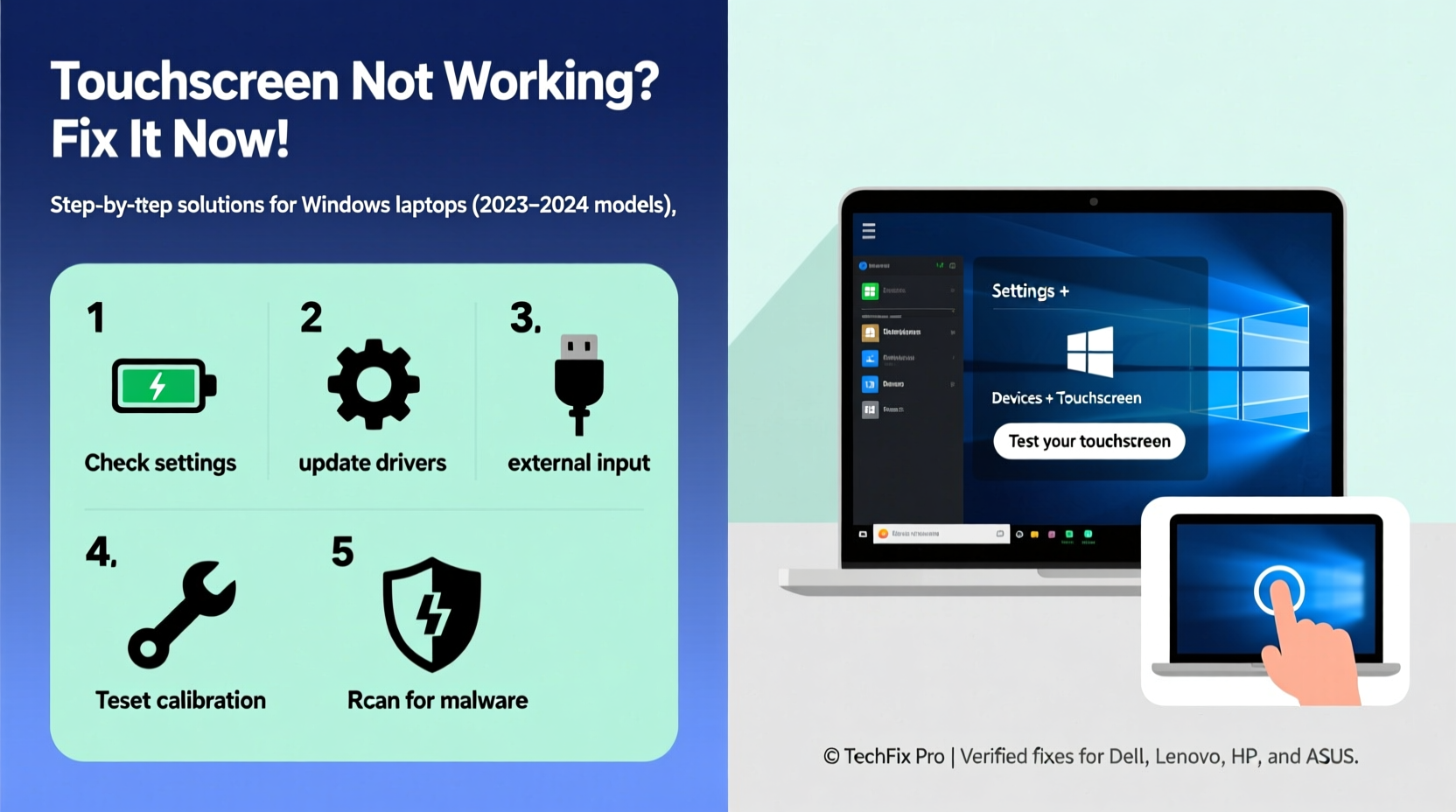
Before diving into fixes, it's essential to identify potential sources of the issue. Touch screen malfunctions rarely happen without reason. Some causes are temporary and easily corrected; others may point to deeper hardware concerns.
- Driver corruption or outdated drivers: Graphics and touch input drivers are critical for screen responsiveness.
- Windows settings misconfiguration: The touch screen might be accidentally disabled in system settings.
- Software conflicts: Third-party applications or recent updates may interfere with touch functionality.
- Physical damage: Cracks, pressure marks, or internal component failure can impair touch sensors.
- Dirt or moisture on screen: Buildup can block touch detection, especially on capacitive screens.
- Power management overrides: Some power-saving features disable peripherals to conserve energy.
Step-by-Step Troubleshooting Guide
Follow this structured approach to diagnose and fix touch screen problems methodically. Begin with basic checks and progress to advanced solutions only if needed.
- Restart the laptop – This clears temporary software hiccups and reloads drivers.
- Check for physical damage – Inspect the screen for cracks, discoloration, or unresponsive zones.
- Clean the screen – Use a microfiber cloth slightly dampened with water to remove oils, dust, or residue.
- Test with gloves or stylus – If the screen responds to indirect touch, the sensor may be overly sensitive or misconfigured.
- Verify touch is enabled in settings – Navigate to Settings > Devices > Touchpad (or Display) and ensure touch input is turned on.
Update or Reinstall Touch Screen Drivers
Outdated or corrupted drivers are among the top culprits behind unresponsive touch screens. Windows relies on accurate driver communication between the operating system and hardware components.
To update drivers:
- Press Win + X and select Device Manager.
- Expand the Human Interface Devices section.
- Look for entries labeled HID-compliant touch screen.
- Right-click each one and choose Update driver > Search automatically for updated driver software.
If no update is found, try uninstalling the driver:
- Right-click the HID touch device and select Uninstall device.
- Restart the laptop. Windows will automatically reinstall the driver upon reboot.
“Over 60% of reported touch screen failures in Windows laptops are resolved through driver reinstallation.” — Tech Support Division, Dell Global Services
Use Built-in Troubleshooting Tools
Modern versions of Windows include diagnostic utilities designed to detect and repair common hardware issues.
To run the hardware troubleshooter:
- Go to Settings > System > Troubleshoot > Other troubleshooters.
- Find the Hardware and Devices option and click Run.
- Follow on-screen prompts to allow the tool to scan for issues.
This utility often detects disabled devices, power conflicts, or configuration errors that manual checks might miss.
Disable and Re-enable the Touch Screen Device
Sometimes, simply toggling the device off and on forces a reset at the system level.
- Open Device Manager.
- Locate HID-compliant touch screen under Human Interface Devices.
- Right-click and select Disable device. Wait 10 seconds.
- Right-click again and choose Enable device.
This process mimics a hardware reset and frequently restores function without further intervention.
Check for Firmware and OS Updates
Manufacturers regularly release firmware updates that improve touch responsiveness, fix bugs, and enhance compatibility. Ignoring these updates can leave known issues unresolved.
To check for updates:
- Windows Update: Go to Settings > Windows Update and install all pending updates.
- Manufacturer Software: Visit your laptop maker’s support site (e.g., HP Support Assistant, Lenovo Vantage, Dell Command Update) and download the latest system firmware.
Troubleshooting Checklist
Use this checklist to ensure you’ve covered all essential steps when diagnosing a non-working touch screen:
| Action | Status (✓/✗) | Notes |
|---|---|---|
| Restart the laptop | Resolves temporary glitches | |
| Clean the screen surface | Remove oils and debris | |
| Check touch screen settings | Ensure feature is enabled | |
| Update or reinstall drivers | Use Device Manager | |
| Run Windows Hardware Troubleshooter | Automated fix detection | |
| Install OS and firmware updates | Check manufacturer website | |
| Test in Safe Mode | Determine software conflict |
Real-World Example: A Fix That Saved a Business Presentation
Jamie, a marketing consultant, arrived at a client meeting only to find her Surface Pro’s touch screen completely unresponsive. With a live demo scheduled in 20 minutes, she quickly ran through diagnostics. After ruling out physical damage and cleaning the screen, she opened Device Manager and discovered the touch driver was missing—likely due to a failed Windows update. She reinstalled the driver using Microsoft’s official update portal, restarted the device, and restored full functionality just in time. The presentation proceeded smoothly, and the client signed the contract that afternoon.
This scenario underscores how timely, informed troubleshooting can prevent professional setbacks—even under pressure.
When to Suspect Hardware Failure
If all software-based fixes fail, hardware damage may be the cause. Signs include:
- Partial screen responsiveness (only edges work)
- Random touches or ghost inputs
- No response even after clean OS installation
- Visible cracks or internal delamination
In such cases, contact the manufacturer or an authorized repair center. Attempting DIY repairs on touch screen assemblies can void warranties and risk further damage.
Frequently Asked Questions
Why did my laptop touch screen stop working after a Windows update?
Some Windows updates introduce compatibility issues with older drivers. Roll back the recent update via Settings > Update & Security > Recovery, then manually install the correct touch driver from your manufacturer’s support page.
Can I use an external touchscreen monitor if my laptop screen fails?
Yes. Many USB or HDMI-connected monitors offer touch input and can extend or replace your primary display. Ensure your laptop supports touch over external connections (most modern systems do).
Does malware affect touch screen performance?
While rare, malicious software can hijack system resources or interfere with driver processes. Run a full system scan using Windows Defender or a trusted antivirus tool to rule this out.
Final Thoughts and Next Steps
A malfunctioning touch screen doesn’t have to mean a trip to the repair shop. In most cases, the issue lies within reach of simple, user-executed solutions. From restarting the system to updating drivers and running built-in diagnostics, the tools are already on your device. The key is approaching the problem systematically and avoiding assumptions. By following the steps outlined here, you can restore functionality efficiently and maintain productivity.




 浙公网安备
33010002000092号
浙公网安备
33010002000092号 浙B2-20120091-4
Comments
No comments yet. Why don't you start the discussion?