
Low frame rates (FPS) can turn an exciting gaming session into a frustrating slideshow. Whether you're playing competitive shooters or immersive RPGs, inconsistent or low FPS undermines responsiveness, visual quality, and overall enjoyment. While modern systems are powerful, numerous factors—ranging from outdated drivers to inefficient game settings—can bottleneck performance. This guide breaks down the most effective ways to diagnose and resolve low FPS issues across different setups.
Understanding Frame Rate and Performance Bottlenecks
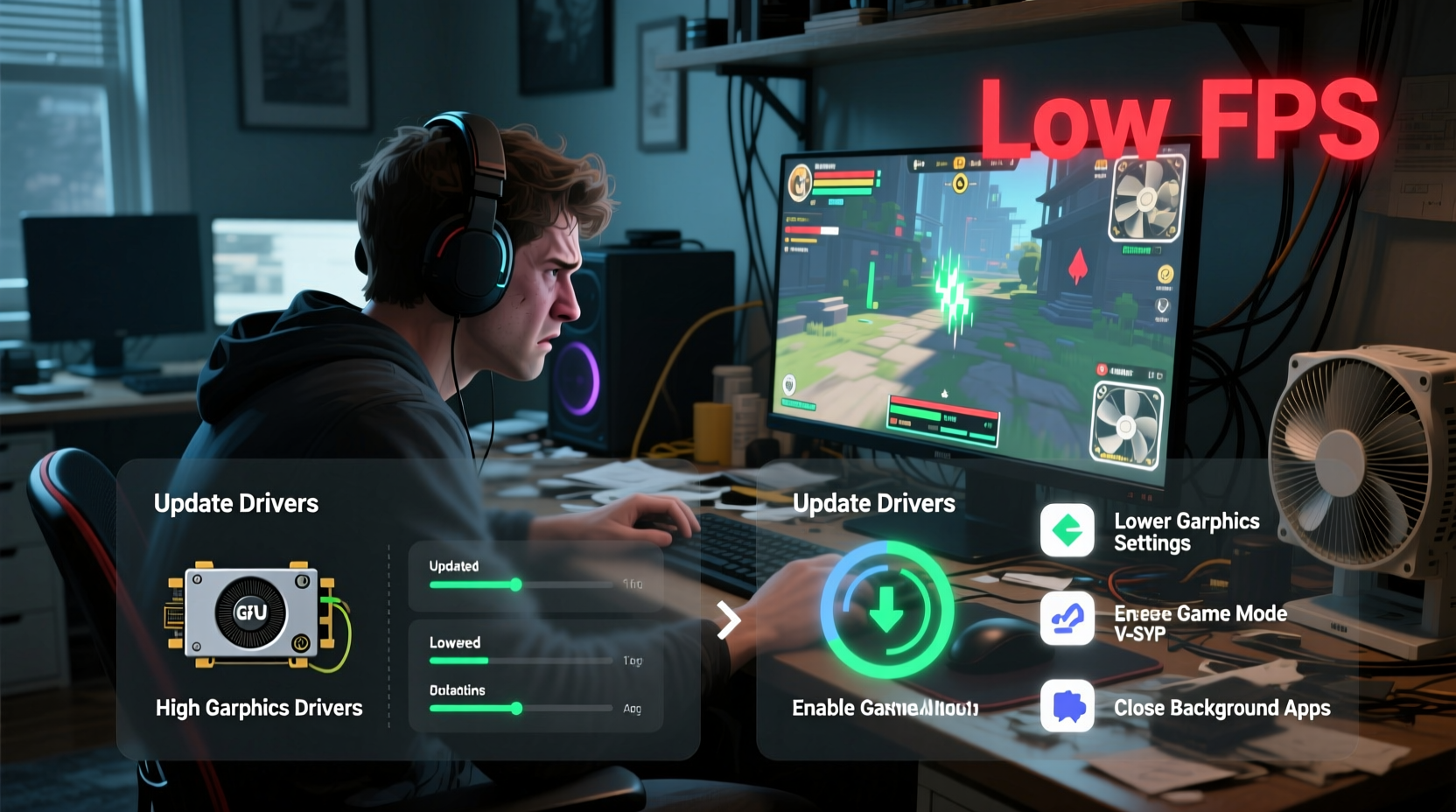
Frame rate, measured in frames per second (FPS), indicates how many images your system renders each second. A consistent 60 FPS is generally considered smooth, while competitive gamers often aim for 144 FPS or higher. When FPS drops below 30, gameplay becomes visibly choppy and unresponsive.
Performance bottlenecks occur when one component in your system limits the capabilities of others. For example, a high-end GPU may be underutilized if paired with a slow CPU or insufficient RAM. Identifying where the bottleneck lies is crucial to targeted optimization.
Step-by-Step Guide to Diagnose and Fix Low FPS
Follow this structured approach to isolate and correct performance issues:
- Check baseline performance: Run a benchmark or play the game at default settings to establish current FPS.
- Monitor system resources: Identify which component is maxing out—CPU, GPU, or memory.
- Update graphics drivers: Outdated drivers are a common cause of poor performance.
- Adjust in-game settings: Lower resolution, texture quality, shadows, and anti-aliasing incrementally.
- Close background applications: Browsers, streaming software, and updaters consume valuable resources.
- Verify hardware health: Check temperatures and ensure components aren’t throttling due to heat.
- Test with different games: Determine if the issue is game-specific or systemic.
Optimize In-Game and System Settings
Many players overlook simple software adjustments that yield significant FPS gains. The following table outlines key settings and their typical impact on performance:
| Setting | Performance Impact | Recommendation |
|---|---|---|
| Resolution | High | Lower from 4K to 1080p if struggling to maintain 60 FPS. |
| Texture Quality | Medium-High | Set to High unless VRAM is limited (e.g., 4GB or less). |
| Shadows | High | Reduce to Medium or Low—shadows are GPU-intensive. |
| Anti-Aliasing | High | Use FXAA or disable if sharp edges aren't critical. |
| V-Sync | Variable | Disable to reduce input lag; use only if screen tearing occurs. |
| Ray Tracing | Very High | Disable unless using RTX 30/40 series with DLSS support. |
In addition to in-game options, enable performance modes in your operating system. On Windows, navigate to Settings > System > Power & battery and select “Best performance.” Also, set your game’s process priority to “High” via Task Manager (right-click process > Set Priority) for temporary gains.
Hardware Upgrades and Thermal Management
Sustained low FPS despite optimal settings may indicate hardware limitations. Consider these upgrades based on your current setup:
- GPU Upgrade: The most impactful change for gaming performance. Ensure compatibility with power supply and case size.
- Add More RAM: 16GB is standard; upgrading to 32GB helps in memory-heavy titles or multitasking scenarios.
- Switch to SSD: Reduces loading times and can improve texture streaming in open-world games.
- Cooling Solutions: Overheating causes thermal throttling. Clean dust from fans, repaste CPU/GPU if necessary, and consider better airflow or liquid cooling.
“Thermal throttling is one of the silent killers of gaming performance. A GPU running at 85°C will downclock automatically, cutting FPS by 20% or more.” — Adrian Lin, Senior Hardware Engineer at TechPerf Labs
Mini Case Study: Resolving Low FPS in Cyberpunk 2077
A user reported averaging 28 FPS in Cyberpunk 2077 on a system with an RTX 2060, Ryzen 5 3600, and 16GB RAM—well below expected performance. Initial checks revealed GPU usage fluctuating between 40–60%, suggesting a bottleneck.
The troubleshooting steps included:
- Updating NVIDIA drivers to the latest Game Ready version.
- Disabling ray tracing and reducing shadow quality to Medium.
- Enabling Windows Game Mode and closing Discord and Chrome.
- Monitoring temps: CPU at 88°C, indicating thermal throttling.
After reapplying thermal paste and adjusting fan curves, CPU temperatures dropped to 67°C under load. Combined with optimized settings, average FPS increased to 62, with minimal stuttering. This case highlights how both software tuning and thermal maintenance contribute to stable performance.
Essential Checklist for Low FPS Fixes
Use this checklist to systematically address low frame rates:
- ✅ Update graphics drivers (NVIDIA, AMD, or Intel)
- ✅ Verify game files through Steam, Epic, or platform client
- ✅ Lower in-game graphical settings one at a time
- ✅ Disable fullscreen optimizations (Right-click .exe > Properties > Compatibility)
- ✅ Close background apps (especially browsers and overlays)
- ✅ Ensure your power plan is set to \"High Performance\"
- ✅ Monitor CPU, GPU, and RAM usage during gameplay
- ✅ Clean internal dust and check component temperatures
- ✅ Consider overclocking GPU (with caution and proper cooling)
- ✅ Upgrade hardware if consistently hitting performance ceilings
Frequently Asked Questions
Why is my FPS low even with a good GPU?
Several factors could be responsible: CPU bottleneck, outdated drivers, thermal throttling, background processes consuming resources, or poorly optimized game engines. Always verify that your CPU and RAM can keep up with your GPU's demands.
Does RAM speed affect FPS?
Yes, especially on AMD Ryzen systems. Faster RAM improves data transfer between CPU and memory, reducing stutters in CPU-intensive games. Aim for DDR4-3200MHz or higher, or DDR5-5200MHz and above for newer platforms.
Can malware cause low FPS?
Indirectly, yes. Malware or crypto-mining scripts can run hidden processes that consume CPU and GPU resources, leading to reduced performance. Regularly scan your system with trusted antivirus software.
Conclusion: Take Control of Your Gaming Experience
Low FPS isn’t a dead end—it’s a solvable challenge. By methodically evaluating your system’s software, settings, and hardware, you can unlock smoother, more responsive gameplay. Start with simple fixes like driver updates and setting adjustments before moving to hardware improvements. Monitor your progress, document changes, and prioritize stability over maximum visuals. Every adjustment brings you closer to a seamless gaming experience.




 浙公网安备
33010002000092号
浙公网安备
33010002000092号 浙B2-20120091-4
Comments
No comments yet. Why don't you start the discussion?