
If you've ever been listening to music, a podcast, or an important video call and suddenly heard a popping, buzzing, or distorted sound from your MacBook's speakers, you're not alone. Crackling audio is one of the most common complaints among MacBook users across models and years. While it can be alarming, the issue is often fixable without needing a trip to the Apple Store. Understanding the root causes — from software glitches to hardware wear — empowers you to diagnose and resolve the problem efficiently.
This guide breaks down the most frequent reasons behind crackling MacBook speakers and provides tested, practical solutions. Whether you’re using a MacBook Air, Pro, or M-series model, these steps can help restore clean, high-fidelity sound.
Common Causes of Speaker Crackling
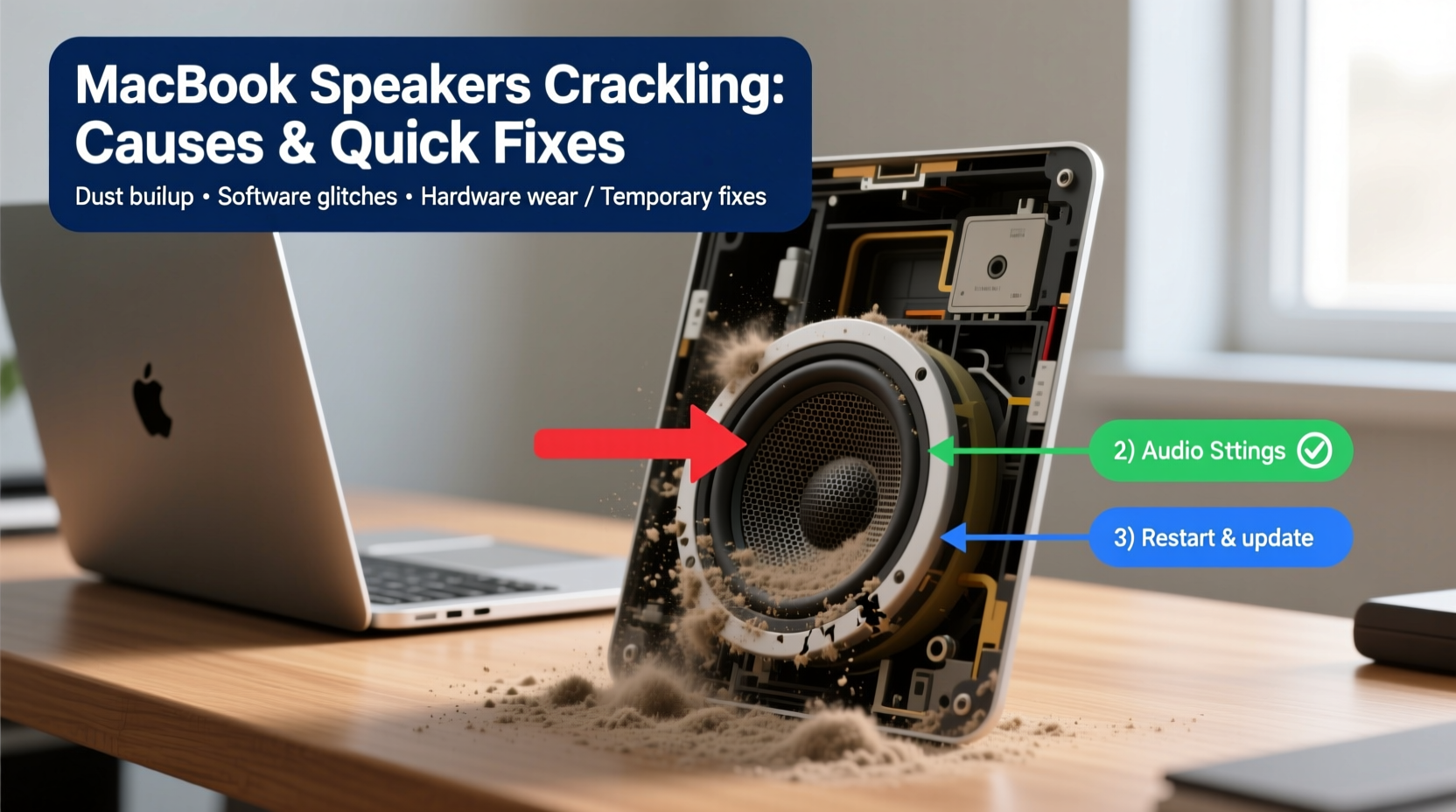
Crackling isn't usually random. It typically stems from one of several identifiable sources:
- Software conflicts or bugs: macOS updates, third-party apps, or audio drivers may interfere with sound output.
- Audio file or app-specific issues: Corrupted media files or poorly optimized applications can produce distorted playback.
- Volume level extremes: Pushing volume too high or adjusting abruptly can cause temporary distortion.
- Dust or debris in speaker grilles: Physical blockage affects sound clarity, especially on older models.
- Hardware degradation: Over time, speaker components may degrade due to moisture, impact, or manufacturing defects.
Identifying whether the issue is isolated to certain apps, occurs only at specific volumes, or persists across reboots helps narrow down the cause.
Step-by-Step Troubleshooting Guide
Follow this logical sequence to isolate and eliminate the source of crackling:
- Restart your MacBook. A simple reboot resolves many transient software issues affecting audio.
- Check for macOS updates. Go to System Settings > General > Software Update. Install any pending patches, as Apple frequently addresses audio bugs in updates.
- Adjust the volume gradually. Rapidly increasing volume or playing at maximum levels can cause distortion. Lower the volume and increase slowly to test clarity.
- Disconnect external audio devices. Unplug headphones, Bluetooth speakers, or USB DACs that might be interfering with internal speaker routing.
- Reset the audio output settings. Click the sound icon in the menu bar and ensure \"Internal Speakers\" are selected.
Reset the Core Audio Daemon
If basic steps fail, resetting the core audio process can resolve deeper system-level glitches:
- Open Terminal (found in Applications > Utilities).
- Type
sudo killall coreaudiodand press Enter. - Enter your administrator password when prompted.
This command restarts the audio subsystem. Test your speakers immediately afterward.
Do’s and Don’ts When Fixing Speaker Issues
| Action | Recommended? | Reason |
|---|---|---|
| Use compressed air to clean speaker grilles | ✅ Yes | Gently removes dust without damaging components. |
| Play audio at max volume for extended periods | ❌ No | Can overheat and damage speaker coils. |
| Update macOS regularly | ✅ Yes | Patches known audio driver bugs. |
| Use third-party audio enhancers (e.g., Boom 3D) | ⚠️ With caution | May introduce distortion or conflict with system audio. |
| Run speaker diagnostics via Apple Diagnostics | ✅ Yes | Official tool to detect hardware faults. |
Mini Case Study: Resolving Intermittent Crackling on a 2021 MacBook Pro
A freelance video editor using a 14-inch MacBook Pro (M1 Pro) began noticing intermittent crackling during timeline scrubbing in Final Cut Pro. The issue didn’t occur in Spotify or YouTube, suggesting it was app-related. After ruling out external monitors and audio interfaces, they discovered that disabling “Playthrough” in Final Cut’s audio preferences stopped the distortion. Additionally, lowering the playback buffer size in the audio settings reduced CPU load, eliminating the crackle. This case highlights how application-specific audio processing can overwhelm system resources, leading to audible artifacts.
Expert Insight on MacBook Audio Systems
“Modern MacBooks use tightly integrated audio subsystems. When software and hardware are in sync, the sound quality is excellent. But even minor driver conflicts or thermal throttling can manifest as audio glitches. Always start with software diagnostics before assuming hardware failure.” — Dr. Alan Reyes, Senior Acoustics Engineer and Apple Platform Analyst
Advanced Fixes for Persistent Crackling
If standard troubleshooting doesn’t work, consider these deeper interventions:
Safe Mode Boot
Boot into Safe Mode to rule out third-party software interference:
- Shut down your MacBook.
- Press the power button and immediately hold the Shift key until the login screen appears.
- Log in (note: startup may take longer).
- Play audio and check for crackling.
If the sound is clean in Safe Mode, a login item or background app is likely causing the issue. Review System Settings > Login Items to disable non-essential apps.
Check for Dust and Debris
On older MacBook models (particularly pre-Retina and unibody designs), dust can accumulate in the speaker grilles located near the hinge. Use a soft-bristled brush or low-pressure compressed air to gently clean the area. Avoid inserting objects into the grille to prevent puncturing the speaker mesh.
NVRAM/PRAM Reset
NVRAM stores audio settings and other hardware parameters. Resetting it can resolve persistent audio anomalies:
- Shut down your Mac.
- Turn it on and immediately press and hold Option + Command + P + R for about 20 seconds.
- Release the keys and allow normal startup.
Note: On Apple Silicon Macs (M1 and later), NVRAM reset occurs automatically during certain diagnostic routines and cannot be manually triggered in the same way.
When to Suspect Hardware Failure
If crackling persists across all apps, after resets, and on multiple user accounts, hardware may be at fault. Common signs include:
- One speaker crackles while the other is clear.
- Distortion worsens with volume increases.
- Physical damage or liquid exposure history.
- Crackling continues even when booted from an external drive or recovery mode.
In such cases, run Apple Diagnostics:
- Shut down your Mac.
- Turn it on and hold down the 'D' key.
- Follow prompts to test hardware.
If diagnostics detect an audio hardware issue, contact Apple Support or visit an authorized service provider. Repairs under warranty or AppleCare+ may cover speaker replacement.
FAQ
Can a macOS update cause speaker crackling?
Yes. Occasionally, macOS updates introduce bugs in audio drivers or compatibility issues with certain apps. If crackling started right after an update, check Apple’s support forums for known issues and wait for a patch, or consider temporarily reverting if possible.
Does Bluetooth interference affect internal speakers?
No. Bluetooth interference typically impacts wireless headphones or peripherals, not internal speakers. However, having multiple active Bluetooth devices may strain system resources indirectly affecting audio processing.
Is it safe to use third-party cleaning tools for audio issues?
Exercise caution. Tools claiming to \"clean\" audio drivers or optimize sound often lack transparency and may install bloatware. Stick to built-in macOS utilities and trusted developer tools.
Conclusion
Crackling MacBook speakers are more than just an annoyance—they disrupt productivity, creativity, and communication. The good news is that most cases stem from correctable software or configuration issues. By methodically testing audio behavior, applying targeted fixes, and knowing when to seek professional help, you can preserve both sound quality and device longevity.




 浙公网安备
33010002000092号
浙公网安备
33010002000092号 浙B2-20120091-4
Comments
No comments yet. Why don't you start the discussion?