
Streaming content from your Apple devices to your Roku TV should be effortless—after all, that’s what AirPlay is designed for. Yet many users encounter confusion when trying to mirror their iPhone screen, play a video from Photos, or stream music from Apple Music directly to their TV. The technology works beautifully when set up correctly, but small missteps in network configuration or device compatibility can disrupt the experience.
This guide walks you through everything you need to know to use AirPlay effectively on Roku TV. From initial setup and troubleshooting to advanced tips for uninterrupted streaming, you’ll gain full control over how your Apple ecosystem connects with your living room entertainment system.
Understanding AirPlay and Roku TV Compatibility
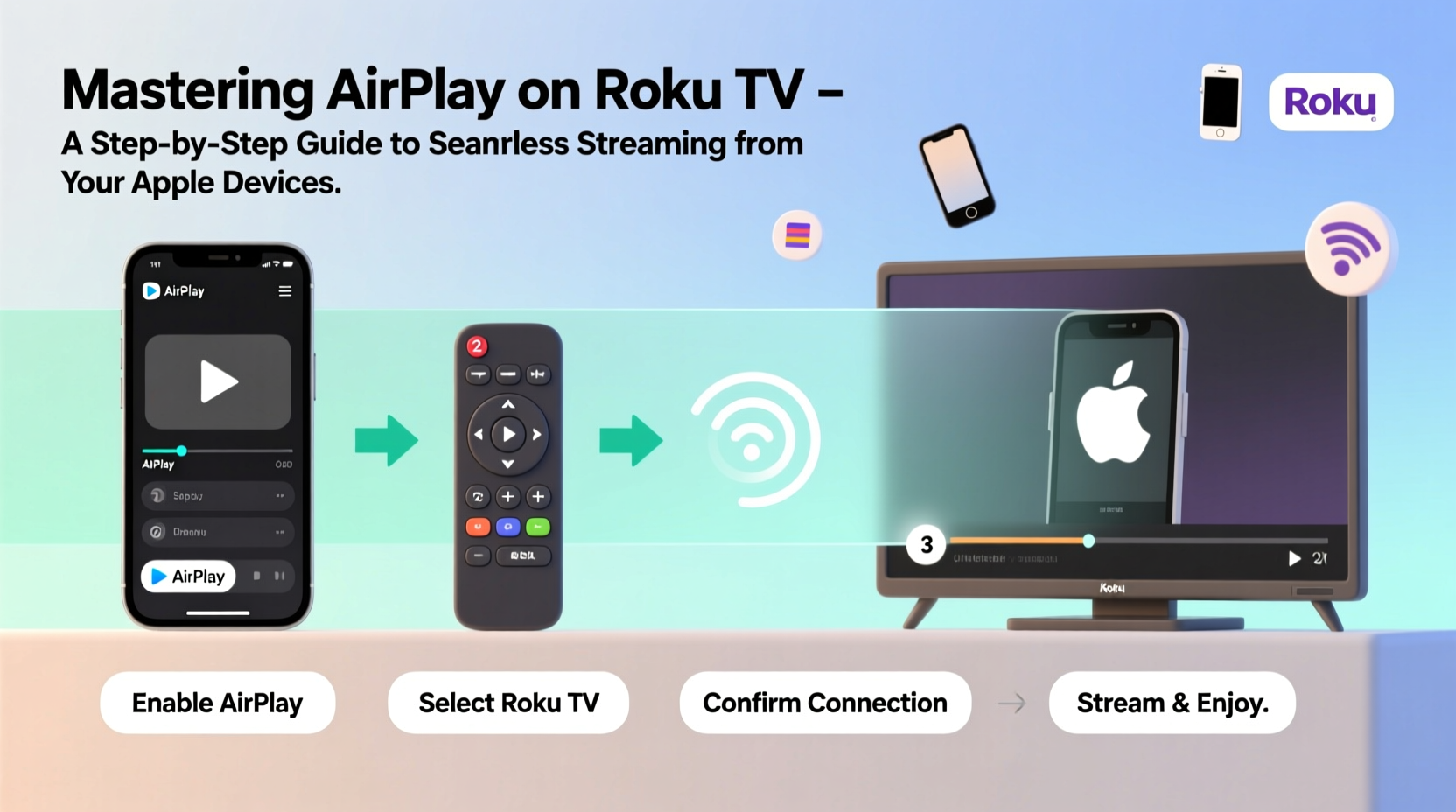
AirPlay is Apple’s proprietary wireless streaming protocol that allows iOS and macOS devices to send audio, video, and screen mirroring data to compatible receivers. Roku TVs have supported AirPlay 2 since 2019, enabling direct integration without third-party apps or workarounds.
However, not all Roku models support AirPlay. Only Roku TVs released from 2019 onward—and certain standalone streaming players like the Roku Ultra (2020+)—are equipped with AirPlay 2 functionality. Before proceeding, confirm your model supports it:
| Roku Model | AirPlay Supported? | Notes |
|---|---|---|
| Roku TV (2020–present) | Yes | Includes brands like TCL, Hisense, Sharp |
| Roku Streaming Stick+ | No | Does not support AirPlay |
| Roku Ultra (2020 and later) | Yes | Requires firmware update |
| Roku Express / Plus | No | Limited processing power; no AirPlay support |
“AirPlay 2 brought much-needed parity between Apple devices and non-Apple smart TVs. Roku’s implementation is solid—if your network is optimized.” — David Lin, Senior Streaming Analyst at HomeTech Review
Step-by-Step: Connecting Your Apple Device to Roku TV via AirPlay
Follow this sequence to ensure a smooth connection every time. These steps apply to iPhones, iPads, and MacBooks running iOS 12.3 or later and macOS Catalina or newer.
- Ensure both devices are on the same Wi-Fi network. AirPlay cannot function across different networks. If your router broadcasts separate 2.4 GHz and 5 GHz bands, consider merging them into a single SSID for seamless roaming.
- Turn on your Roku TV and navigate to the home screen. No app launch is required—AirPlay operates in the background.
- Open Control Center on your iPhone or iPad. Swipe down from the top-right corner (iPhone X and later) or up from the bottom (older models).
- Tap “Screen Mirroring” or “Audio Output” depending on your intent. A list of available devices will appear.
- Select your Roku TV from the list. It typically appears as “[Your TV Brand] Roku TV” (e.g., “TCL Roku TV”).
- Enter the four-digit code displayed on your TV screen. This one-time pairing confirms the connection.
- Begin streaming. Open a video in Photos, YouTube, Safari, or any media app, and tap the AirPlay icon (rectangle with triangle) to cast directly.
Optimizing Performance for Lag-Free Streaming
Even with proper setup, users sometimes report stuttering video, delayed audio, or dropped connections. These issues are rarely due to hardware limitations—they stem from network conditions and settings.
- Use a dual-band router with 5 GHz enabled. AirPlay performs best on 5 GHz Wi-Fi due to higher bandwidth and less interference.
- Position your Roku TV and router within line of sight. Thick walls or large metal objects degrade signal strength.
- Limit the number of active devices on your network. Multiple 4K streams or downloads can saturate bandwidth.
- Update your Roku TV’s software. Go to Settings > System > System Update to check for the latest firmware.
- Disable Bluetooth on your Apple device during screen mirroring. Bluetooth and Wi-Fi compete for radio spectrum on some chips.
Real Example: Fixing Spotty AirPlay at a Family Gathering
Sarah was hosting a holiday dinner and wanted to share vacation photos from her iPhone on the living room Roku TV. Despite previous success, AirPlay failed to connect. After checking basics—same Wi-Fi, updated iOS—she noticed her Roku TV was using the 2.4 GHz band. Her new mesh router had split bands enabled, causing the iPhone to connect to 5 GHz while the TV stayed on 2.4 GHz.
She merged the SSIDs under one network name in her router settings. Within seconds, the TV reappeared in Screen Mirroring. The slideshow played smoothly, and guests enjoyed full-screen memories without interruptions.
Troubleshooting Common AirPlay Issues
When AirPlay isn’t working, start with these proven fixes:
- Issue: Roku TV doesn’t show up in Screen Mirroring list
- Verify both devices are on the same network. Disable any VPNs or private relay services on your Apple device.
- Issue: Connection drops after a few seconds
- Reduce Wi-Fi congestion. Pause large downloads and restart your router. Also, disable “Fast Startup” in Roku settings ( Settings > System > Power > Fast Startup), which can interfere with discovery protocols.
- Issue: Audio plays but no video
- This usually occurs when streaming protected content (e.g., Netflix). Most third-party apps block screen mirroring due to DRM. Use the native Roku app instead or play user-generated videos from Photos.
Frequently Asked Questions
Can I use AirPlay without internet access?
No. Even though AirPlay transmits locally, both devices require connection to the same local network, which depends on a functioning router. Offline mode disables AirPlay functionality entirely.
Does AirPlay support 4K and HDR on Roku TV?
Yes, if your Roku TV model supports 4K/HDR (e.g., Roku U6171, U6375) and your source content is in high dynamic range. However, screen mirroring from iPhone is limited to 1080p. Native video playback (via Photos or Safari) can output up to 4K HDR if the file format is compatible.
Why does my Mac not see my Roku TV?
On macOS, ensure AirPlay receiver is enabled: System Settings > General > AirDrop & Handoff, then toggle on “Allow AirPlay for [your TV].” Also, verify macOS is updated to Monterey or later for reliable detection.
Essential Checklist for Seamless AirPlay Setup
To get AirPlay working flawlessly every time:
- ✅ Confirm your Roku TV supports AirPlay 2
- ✅ Connect iPhone/iPad/Mac and TV to the same Wi-Fi network
- ✅ Use 5 GHz Wi-Fi whenever possible
- ✅ Update Roku TV system software
- ✅ Enable AirPlay in Roku settings (Settings > Apple AirPlay and HomeKit)
- ✅ Pair once using the on-screen code
- ✅ Use the AirPlay icon in apps or Screen Mirroring for casting
Conclusion: Stream Smarter, Not Harder
Mastering AirPlay on Roku TV transforms how you share digital moments—from family videos to workout tutorials—on the big screen. The technology is powerful, secure, and deeply integrated into Apple’s ecosystem. With the right setup, it operates silently in the background, delivering high-quality streaming with minimal effort.
Take a few minutes today to audit your network, update your devices, and test a quick screen mirror. Once configured, AirPlay becomes second nature—a seamless bridge between your mobile life and home entertainment.




 浙公网安备
33010002000092号
浙公网安备
33010002000092号 浙B2-20120091-4
Comments
No comments yet. Why don't you start the discussion?