
The iPhone 16 continues Apple’s legacy of seamless performance and intelligent resource management. Despite its advanced architecture, many users still wonder how to best manage open apps—especially when it comes to closing them for better battery life, responsiveness, or privacy. Contrary to popular belief, simply swiping away apps doesn’t always boost performance. However, knowing when and how to close apps properly can make a meaningful difference in your daily experience.
This guide breaks down the mechanics of app management on the iPhone 16, dispels common myths, and delivers actionable strategies for closing apps efficiently without harming system stability.
Understanding App States on iPhone 16
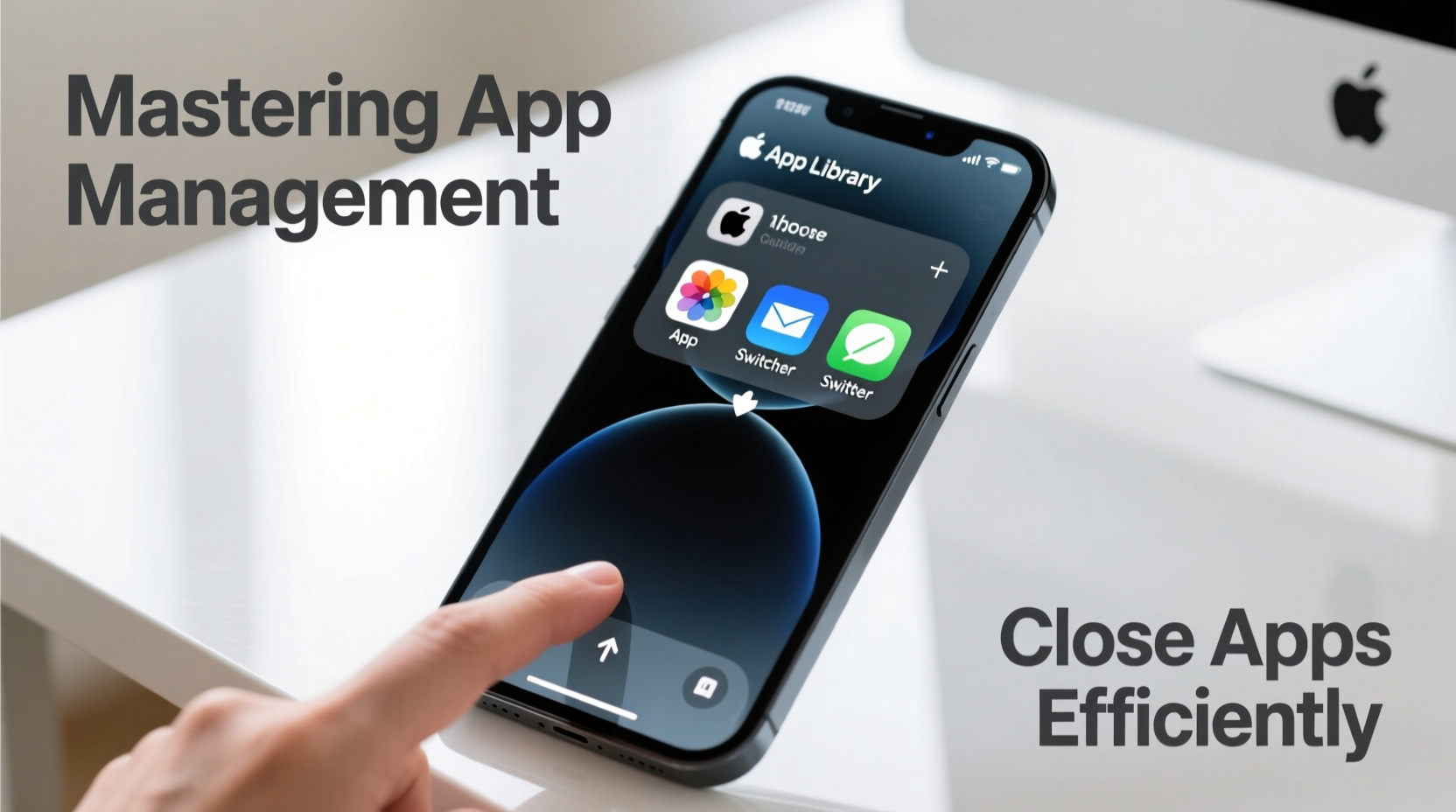
Before learning how to close apps, it's essential to understand what \"open\" really means on iOS. Unlike desktop operating systems, iOS manages background processes intelligently. Apps exist in several states:
- Active: The app is currently in use and visible on screen.
- Inactive: The app is still visible but not receiving events (e.g., during a phone call).
- Background: The app runs limited tasks (like audio playback or location updates) but isn’t visible.
- Suspended: The app is in memory but not actively running; it uses no CPU and minimal energy.
- Not Running: The app is closed or hasn’t been launched.
Most apps transition to a suspended state shortly after being minimized. In this state, they don’t consume battery or processing power. This means that having multiple apps in the app switcher does not slow down your device or drain the battery significantly.
“iOS automatically suspends inactive apps. Manually closing them offers little benefit unless the app is misbehaving.” — Greg Nichols, Senior Mobile Systems Analyst at TechInsight Group
When Should You Close Apps?
Frequent app-swiping is unnecessary under normal conditions. However, there are legitimate scenarios where closing an app improves performance or security:
- App freezing or crashing: If an app becomes unresponsive, closing it resets its state.
- Excessive battery drain: Some apps may run background processes longer than expected.
- Privacy concerns: After using sensitive apps like banking or health tools, closing them ensures no accidental exposure.
- After major updates: Restarting apps post-update helps clear cached data conflicts.
- Syncing issues: Force-closing a messaging or cloud storage app can resolve sync errors.
Step-by-Step: How to Close Apps on iPhone 16
The iPhone 16 retains the gesture-based navigation introduced in earlier models. Here’s how to access and close apps correctly:
- From any screen, swipe up from the bottom and pause slightly in the center. This opens the App Switcher.
- Preview cards of recently used apps appear horizontally, each showing its current screen.
- To close one app, swipe its preview card upward and off the top of the screen.
- To close multiple apps, repeat the upward swipe for each.
- To exit the App Switcher without closing anything, tap anywhere outside the cards or press the Side Button.
Note: There is no bulk-close option in iOS. Each app must be dismissed individually.
Alternative Method: Using AssistiveTouch (Accessibility Feature)
If physical gestures are difficult, enable AssistiveTouch to simulate app-switching:
- Go to Settings > Accessibility > Touch > AssistiveTouch.
- Toggle on AssistiveTouch.
- A small circular button will appear on-screen. Tap it, then select Device > More > App Switcher.
- From here, swipe up on app previews to close them.
Do’s and Don’ts of App Management
| Do’s | Don’ts |
|---|---|
| Close apps that freeze or crash repeatedly | Swiping away all apps daily “to speed up” the phone |
| Monitor battery usage in Settings to identify problematic apps | Assume more closed apps equal better performance |
| Restart your iPhone weekly to clear system cache | Force-close social media apps expecting instant battery savings |
| Use Low Power Mode when battery conservation is critical | Disable Background App Refresh globally—it breaks useful features |
Real Example: Resolving a Battery Drain Issue
Jamie, a freelance photographer, noticed her iPhone 16 losing 40% battery overnight despite minimal use. She checked Settings > Battery and found a photo editing app consuming 35% in the background—even though she hadn’t opened it in two days.
She force-closed the app via the App Switcher and disabled its background refresh temporarily. Over the next 48 hours, her overnight drain dropped to 8%. A quick app update later resolved the underlying bug causing excessive background activity.
This case illustrates that targeted app closure, combined with system diagnostics, can solve real-world problems—without resorting to constant manual intervention.
Optimizing App Behavior Without Constant Closing
Relying on frequent app closures is inefficient. Instead, optimize settings to reduce the need:
- Review Background App Refresh: Go to Settings > General > Background App Refresh. Disable it for non-essential apps.
- Limit Location Services: Restrict apps to “While Using” instead of “Always” location access.
- Enable Automatic App Offloading: Under Settings > App Store, turn on Offload Unused Apps. This removes apps you rarely use while preserving documents and data.
- Update Apps Regularly: Developers patch memory leaks and inefficiencies through updates.
- Restart Your iPhone Weekly: Clears temporary files and resets suspended apps.
“Modern iOS devices are designed to manage resources autonomously. User intervention should be the exception, not the rule.” — Lisa Tran, iOS UX Engineer at Cupertino Labs
FAQ
Does closing apps save battery on iPhone 16?
Generally, no. Suspended apps use negligible power. Only apps actively running background tasks (like GPS or downloads) drain battery. Closing such apps can help, but routine swiping has no measurable impact.
Why does my iPhone feel slower if I don’t close apps?
It likely isn’t slower. iOS suspends apps effectively. Perceived lag may stem from low storage, outdated software, or too many widgets refreshing. Check Settings > General > iPhone Storage for optimization tips.
Can I close all apps at once on iPhone 16?
No. iOS does not support bulk app closing. Each app must be swiped away individually in the App Switcher. Third-party shortcuts or automation tools cannot override this limitation for security reasons.
Checklist: Efficient App Management Routine
- ✅ Monitor battery usage weekly in Settings
- ✅ Close only apps that misbehave or overuse resources
- ✅ Keep iOS and apps updated
- ✅ Use App Offloading for rarely used apps
- ✅ Restart your iPhone every 7–10 days
- ✅ Disable background refresh for non-critical apps
- ✅ Avoid obsessively managing the app switcher
Conclusion
Mastering app management on the iPhone 16 isn’t about constantly closing apps—it’s about understanding when and why to do so. With intelligent background handling and efficient memory management, iOS reduces the need for manual intervention. Focus on monitoring performance, adjusting settings wisely, and acting only when necessary.




 浙公网安备
33010002000092号
浙公网安备
33010002000092号 浙B2-20120091-4
Comments
No comments yet. Why don't you start the discussion?