
Email is a cornerstone of modern productivity, yet many Mac users underutilize the full potential of Apple Mail. While it ships as the default email client on macOS, its capabilities go far beyond basic inbox access. From intelligent organization to seamless integration with other Apple services, mastering Apple Mail can dramatically reduce time spent managing messages and improve communication clarity.
Unlike third-party clients that often prioritize flashy interfaces over functionality, Apple Mail emphasizes simplicity, privacy, and deep system integration. With thoughtful configuration and consistent habits, you can transform your inbox from a source of stress into a streamlined command center for digital correspondence.
Optimize Your Inbox Layout for Focus
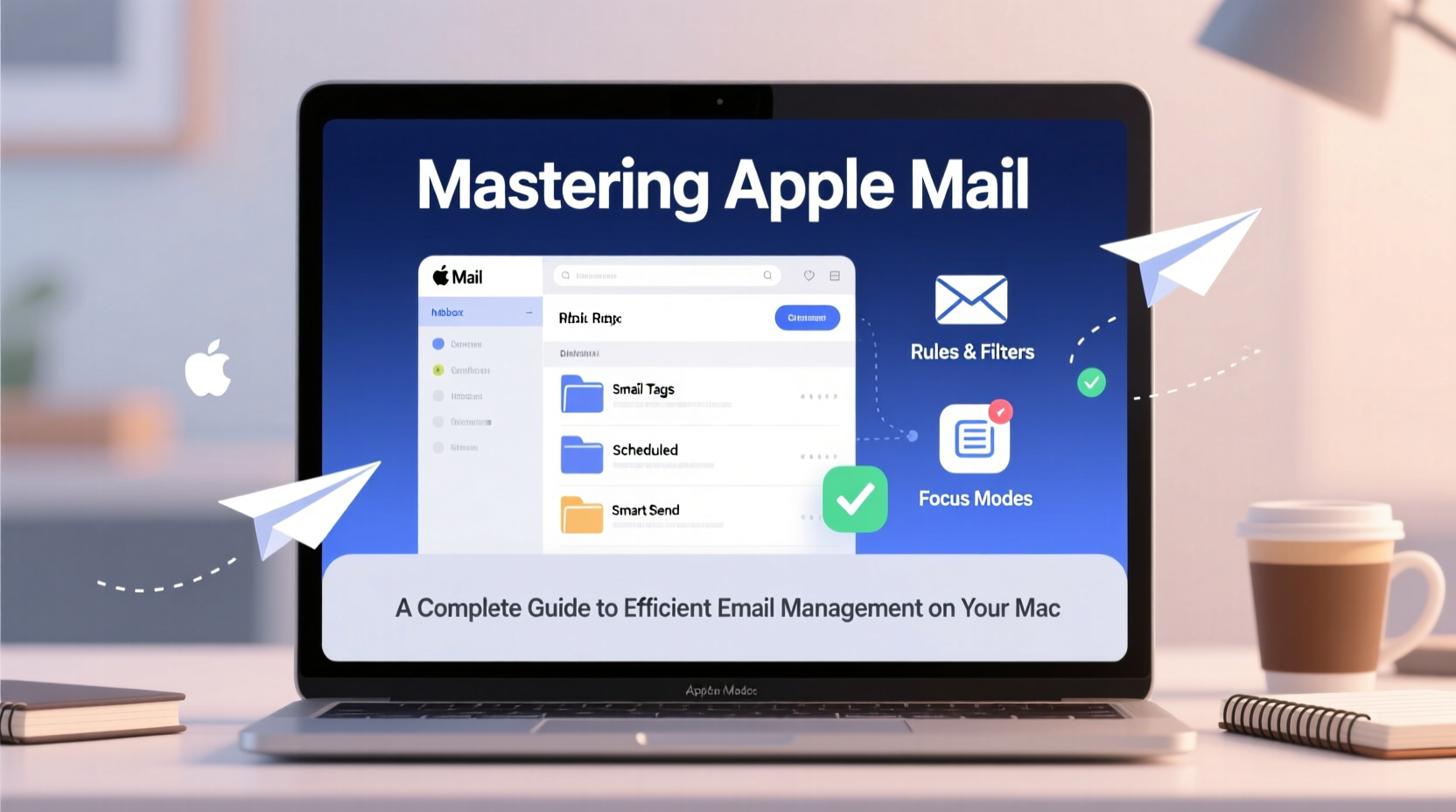
The first step in effective email management is designing an interface that supports concentration rather than distraction. Apple Mail offers several layout options tailored to different workflows—take advantage of them.
In the Mail app, navigate to View > Layout to choose between classic column view or a more compact single-pane design. For most users, the three-column layout (mailbox list, message list, message preview) provides optimal visibility without clutter.
To further declutter, disable unnecessary elements like the Dock icon badge or notification banners if they interrupt deep work. Go to System Settings > Notifications > Mail and customize alerts by account or mailbox.
Organize with Smart Mailboxes and Rules
Manual sorting becomes unsustainable as email volume grows. Apple Mail’s automation tools—Smart Mailboxes and Rules—allow you to filter, categorize, and surface important messages automatically.
A Smart Mailbox dynamically collects messages based on criteria you define, such as sender, subject keywords, date range, or flag status. Unlike traditional folders, it doesn’t move messages but displays them from existing mailboxes.
“Automation isn't about doing less—it's about directing attention where it matters.” — David Pogue, Tech Author and Apple Analyst
For example, create a Smart Mailbox called “Action Required” that shows all unflagged messages from your team with unread status. This creates a virtual to-do list within your inbox.
Rules, found under Mail > Settings > Rules, take action on incoming mail. You can use them to:
- Move newsletters to a “Read Later” folder
- Flag emails from your manager with high priority
- Delete spam-like messages containing specific phrases
Step-by-Step: Create a Priority Filtering Rule
- Open Mail > Settings > Rules > Add Rule.
- Name it “Urgent Team Messages.”
- Set conditions: “From” contains “@yourcompany.com” AND “Subject” contains “urgent” or “action needed.”
- Choose actions: “Mark Color” as red, “Flag Message,” and “Play Sound.”
- Click OK and ensure the rule is enabled.
This ensures critical messages stand out immediately upon arrival.
Leverage Flagging, Tags, and Follow-Up Features
One of Apple Mail’s most underrated strengths is its native support for task-based email processing. Instead of treating every message as just another read item, treat your inbox as a workflow engine using flags and tags.
Right-click any message to apply a flag color—each can represent a status: red for urgent, yellow for pending, green for completed. Combine this with the “Follow Up” smart mailbox, which automatically gathers flagged items for daily review.
| Flag Color | Meaning | Action Trigger |
|---|---|---|
| Red | Requires immediate response | Handle same day |
| Orange | Needs research or input | Add to task list |
| Blue | Waiting on reply | Check weekly |
| Green | Closed or archived | No further action |
You can also use custom tags via mailbox folders—such as “Projects,” “Finance,” or “Travel”—to group related conversations. Archive original messages after tagging to keep primary inboxes clean.
Use Keyboard Shortcuts and Touch Bar Efficiency
Speed comes not from typing faster, but from reducing mouse dependency. Apple Mail supports extensive keyboard navigation that cuts down interaction time significantly.
Essential shortcuts include:
- Command+Shift+A – Archive selected message
- Command+Shift+D – Move to Trash
- Control+Command+F – Toggle full-screen view
- Command+Up/Down Arrow – Navigate between messages
- Command+Option+F – Forward current message
- Command+R – Reply; Command+Shift+R – Reply All
If you're using a MacBook Pro with Touch Bar, customize it to show frequently used buttons like “Flag,” “Mark as Read,” or “Move to Folder.” Access these via System Settings > Keyboard > Touch Bar Show.
Integrate with Apple Ecosystem Tools
Apple Mail shines brightest when used alongside other macOS and iOS apps. Its tight integration with Calendar, Reminders, Notes, and Spotlight enables a frictionless workflow across devices.
When you receive an email with a meeting invitation, simply click the date/time text—it will auto-populate into Calendar. Similarly, dragging an email onto the Reminders app creates a new task linked directly to the message.
Need to reference an attachment later? Drag it into Notes or save it to iCloud Drive with one motion. Because everything syncs via your Apple ID, attachments opened on your Mac appear instantly on your iPad or iPhone.
Mini Case Study: Streamlining Client Communication
Sarah, a freelance designer, used to spend 45 minutes each morning sorting through client emails scattered across multiple accounts. After setting up rules that automatically filed messages by project name and applied colored flags based on urgency, she reduced her daily triage time to under 10 minutes. She now drags approved design briefs into Notes for version tracking and uses Mail + Reminders to set follow-up deadlines. The result: fewer missed replies and more focused creative hours.
Security, Privacy, and Maintenance Best Practices
Efficiency means nothing without security. Apple Mail encrypts messages in transit and at rest when connected to iCloud+, but user behavior plays a crucial role in maintaining safety.
Always verify sender addresses before clicking links—even seemingly legitimate emails from banks or colleagues could be spoofed. Disable remote content loading (Settings > Privacy > Load Remote Content) to prevent trackers from confirming your email activity.
“Email remains the number one attack vector for phishing. Built-in protections help, but vigilance is irreplaceable.” — Katie Moussouris, Cybersecurity Policy Expert
Regularly audit your subscribed newsletters and unsubscribe from inactive ones using the “Unsubscribe” button at the top of bulk emails. This reduces clutter and lowers exposure to compromised mailing lists.
Checklist: Monthly Apple Mail Maintenance
- Review and archive old conversations
- Update or disable outdated rules
- Clear junk and trash folders
- Verify account passwords and two-factor settings
- Test Smart Mailbox filters for accuracy
- Backup Mail data via Time Machine
FAQ
Can I use Apple Mail with Gmail or Outlook accounts?
Yes. Apple Mail supports IMAP connections for Gmail, Outlook.com, Yahoo, and most major providers. Simply go to Mail > Add Account and follow the prompts. For Gmail, enable two-factor authentication and generate an app-specific password for secure access.
Why are my emails not syncing across devices?
Ensure all devices are signed into the same Apple ID and have Mail enabled in iCloud settings. On iPhone/iPad, check Settings > [Your Name] > iCloud > Mail. On Mac, go to System Settings > Apple ID > iCloud and confirm Mail is toggled on.
How do I recover a deleted email?
If recently deleted, check the “Recently Deleted” mailbox (visible under each account). Messages remain there for 30 days by default. Restore by selecting the message and moving it back to your desired folder.
Conclusion
Mastering Apple Mail isn’t about memorizing every feature—it’s about aligning its tools with how you actually work. Whether you’re managing personal correspondence or coordinating professional projects, the right setup turns email from a reactive chore into a proactive asset.
Start small: implement one rule, adopt flagging, or reorganize your sidebar. Over time, these refinements compound into a faster, quieter, and more intentional communication experience. The goal isn’t inbox zero—it’s peace of mind.




 浙公网安备
33010002000092号
浙公网安备
33010002000092号 浙B2-20120091-4
Comments
No comments yet. Why don't you start the discussion?