
In today’s hyper-connected world, satellite technology is no longer reserved for scientists or aerospace engineers. With the right tools and knowledge, you can harness real-time satellite positioning data from the palm of your hand. The Astra satellite network—widely used for broadcasting, communication, and geolocation—can be monitored and interpreted using only a smartphone. Whether you're a hobbyist, amateur astronomer, or someone interested in signal tracking, mastering Astra satellite positioning with your mobile device opens up a new realm of practical applications.
Understanding Astra Satellites and Their Role
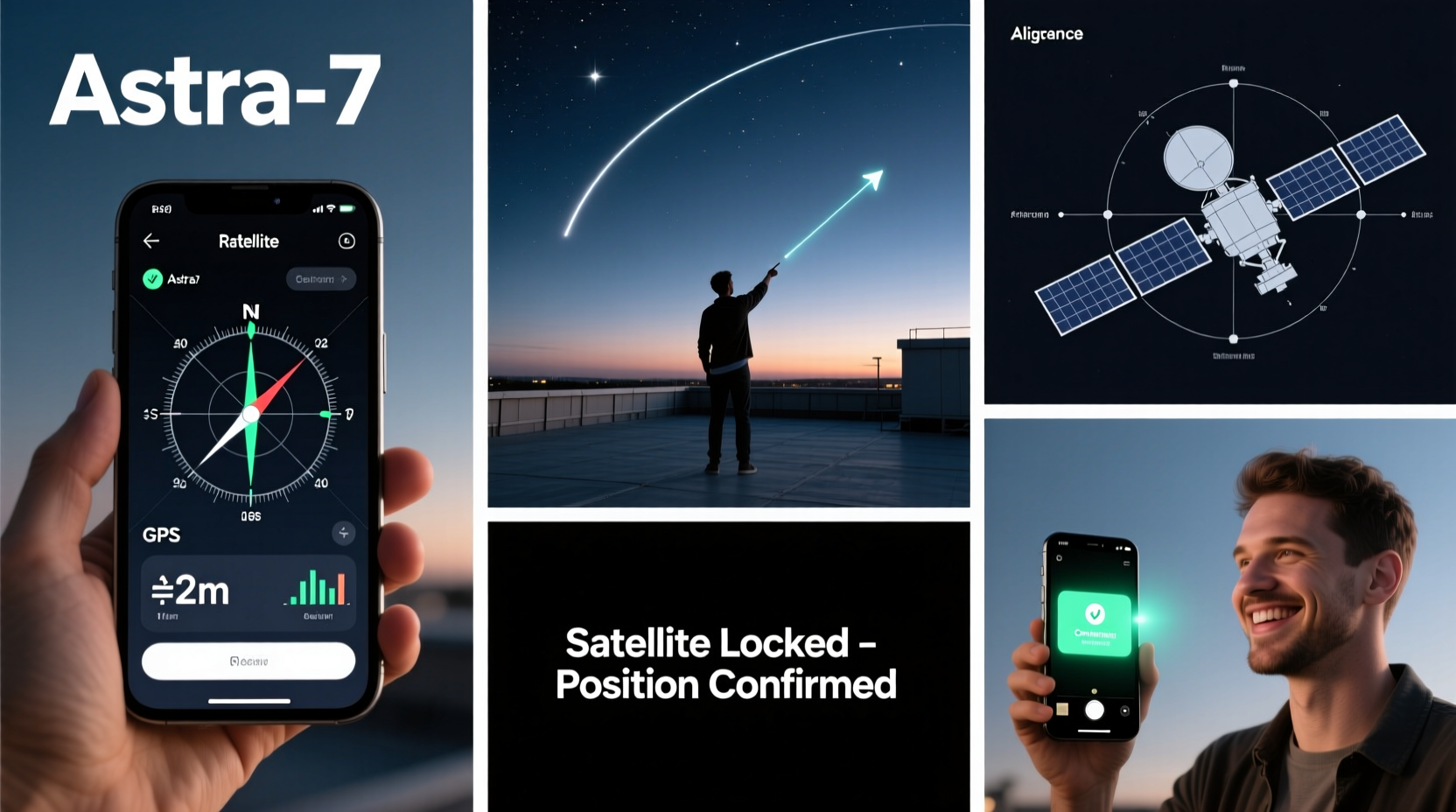
Astra satellites, operated by SES, are a constellation of geostationary spacecraft positioned primarily over the equator at specific longitudes such as 19.2°E, 23.5°E, and 28.2°E. These satellites deliver television, broadband, and data services across Europe, North Africa, and parts of the Middle East. Because they remain fixed relative to Earth's surface, their positions appear constant when observed from a given location.
While most users interact with Astra via satellite dishes, few realize that accurate positional data about these satellites is publicly accessible—and usable on a smartphone. By leveraging GPS, compass sensors, and specialized apps, you can determine where a satellite is in the sky, verify alignment, and even troubleshoot reception issues without additional hardware.
“Satellite visibility isn’t magic—it’s geometry. Knowing where your phone points and where the satellite sits allows anyone to become a field technician.” — Dr. Lena Petrov, Satellite Communications Researcher
Step-by-Step Guide to Tracking Astra Satellites Using Your Phone
Follow this structured process to accurately locate and align with Astra satellites using only your mobile device. This method works best with Android or iOS smartphones equipped with a digital compass, GPS, and internet access.
- Determine Your Geographic Coordinates
Open your phone’s Maps app and tap your current location. Note your latitude and longitude. Accuracy matters—ensure GPS is enabled and you’re outdoors with clear sky visibility. - Select the Target Astra Satellite
Decide which Astra orbital position you want to track (e.g., Astra 19.2°E). Each satellite has a unique longitude above the equator. For European viewers, 19.2°E is common for German and Central European channels. - Calculate Elevation and Azimuth Angles
Use a free online satellite pointing calculator (such as DishPointer.com) or a mobile app like “Satellite Finder” or “SatStat.” Enter your coordinates and select Astra 19.2°E. The tool will return two key values:- Elevation: The angle above the horizon (0° = horizon, 90° = directly overhead).
- Azimuth: Compass direction (in degrees) from true north where the satellite appears.
- Use Your Phone’s Compass App
Open your phone’s built-in compass or download a precision compass app with tilt measurement. Stand facing south (if in the Northern Hemisphere). Rotate until the azimuth value matches the one calculated. Hold your phone flat and use the inclinometer (or a second app) to tilt upward to the correct elevation angle. - Verify Line of Sight
Look in the direction your phone is pointing. Ensure there are no obstructions—trees, buildings, or mountains—that block the path to the satellite. If needed, move to a higher vantage point. - Confirm with Real-Time Data (Optional)
Install an app like “GNSS View” or “GPS Status & Toolbox” to overlay satellite positions in the sky. Some apps show live GNSS constellations, helping visualize geostationary arcs where Astra resides.
Essential Tools and Apps for Mobile Satellite Positioning
While no external hardware is required, choosing the right apps enhances accuracy and usability. Below is a comparison of top mobile tools for Astra satellite tracking.
| App Name | Platform | Key Features | Offline Use? |
|---|---|---|---|
| Satellite Finder | Android | Real-time dish aiming, AR view, supports multiple satellites | Yes (with pre-loaded data) |
| SatStat | Android | Live satellite map, elevation/azimuth readout, minimal interface | Limited |
| GNSS View | iOS / Android | Detailed skyplot, visible satellite list, supports SBAS | Yes |
| DishPointer (Web App) | Any browser | Google Maps integration, precise calculations, 3D view | No (requires internet) |
For best results, combine multiple tools. For instance, use DishPointer in a browser to get initial angles, then switch to Satellite Finder for augmented reality guidance.
Real-World Example: Aligning a Portable Dish in the Field
Consider Marco, a caravan traveler across southern France. He wants to receive German news via Astra 19.2°E but lacks professional installation tools. Using his Android phone, he opens DishPointer.com, enters his current GPS coordinates (43.6°N, 3.9°E), and selects Astra 19.2°E. The site returns an azimuth of 207° and elevation of 32°.
He launches Satellite Finder, mounts his phone on a tripod, and slowly turns southward. As the azimuth approaches 207°, he tilts the phone upward to 32° using the app’s inclinometer. Through the AR camera view, he visualizes the satellite’s position in the sky. He adjusts his portable dish to match the angle, connects the LNB, and within minutes, locks onto the signal. No extra gear—just smart use of mobile technology.
Common Mistakes and How to Avoid Them
- Misreading magnetic vs. true north: Most compass apps default to magnetic north, which varies by location due to declination. Switch to true north in settings or manually adjust based on local declination maps.
- Ignoring elevation limits: In northern latitudes, Astra satellites sit low on the horizon. Even small obstacles like hedges can block signals. Always check terrain profile using tools like Google Earth.
- Trusting GPS too quickly: Phones may take several minutes to achieve accurate lock. Wait until the GPS icon stabilizes before recording coordinates.
- Overlooking atmospheric interference: Heavy rain or thick cloud cover can attenuate Ku-band signals. Timing your setup during clear weather improves success.
Frequently Asked Questions
Can I track Astra satellites without internet access?
Yes, if you’ve pre-downloaded satellite data or used apps like SatStat that cache information. However, initial calculations typically require online tools unless you manually compute angles using trigonometric formulas.
Why does my phone show a different azimuth than the calculator?
This usually happens due to incorrect compass calibration or confusion between magnetic and true north. Verify your app settings and recalibrate the sensor. You can find local magnetic declination via the NOAA website or built-in features in apps like Gaia GPS.
Is this method accurate enough for professional installations?
For rough alignment and personal use, yes. Professional installers often start with mobile tools before fine-tuning with signal meters. While not a replacement for dedicated equipment, it provides >90% accuracy when done correctly.
Final Checklist for Success
- Before You Begin:
- ✅ Charge your phone fully and enable airplane mode (to reduce interference)
- ✅ Install at least two satellite apps for cross-verification
- ✅ Know your target satellite (e.g., Astra 19.2°E)
- During Setup:
- ✅ Stand in an open area with southern exposure (Northern Hemisphere)
- ✅ Calibrate compass and confirm GPS accuracy
- ✅ Match both azimuth and elevation precisely
- After Alignment:
- ✅ Test signal strength with actual receiver or tuner
- ✅ Mark your position for future use (take a photo or save coordinates)
Take Control of the Sky—From Your Pocket
The ability to pinpoint a satellite 35,786 kilometers above Earth using only a smartphone is a testament to how far consumer technology has come. Mastering Astra satellite positioning isn’t just for technicians—it’s a skill accessible to anyone willing to learn. With practice, you’ll develop an intuitive sense of orbital geometry and improve your efficiency in setting up satellite links, whether for travel, emergency communications, or personal curiosity.




 浙公网安备
33010002000092号
浙公网安备
33010002000092号 浙B2-20120091-4
Comments
No comments yet. Why don't you start the discussion?