
Bluetooth speakers offer unmatched convenience, portability, and sound quality—when they work correctly. Yet many users struggle with inconsistent connections, failed pairings, or poor audio performance. The issue isn’t the hardware; it’s often a lack of understanding about how Bluetooth works across different platforms. Whether you're connecting to an iPhone, Android phone, Windows laptop, Mac, or smart TV, the process varies slightly—but follows consistent principles. This guide breaks down every step clearly, equips you with troubleshooting strategies, and ensures seamless audio experiences across all your devices.
Understanding Bluetooth Basics
Before diving into device-specific steps, it's essential to understand what Bluetooth is and how it functions. Bluetooth is a wireless communication protocol that allows two devices to exchange data over short distances (typically up to 30 feet). For audio, this means your phone sends music signals to your speaker without cables.
Modern Bluetooth versions—like 4.2, 5.0, and 5.3—offer improved range, faster pairing, better battery efficiency, and higher audio quality. However, backward compatibility means older devices can still connect, though sometimes with limitations.
Key terms to know:
- Pairing: The initial setup where two devices recognize and authenticate each other.
- Connecting: Re-establishing a link between already-paired devices.
- Profiles: Standards like A2DP (for stereo audio) and HFP (for hands-free calls) determine what functions are supported.
Step-by-Step Guide to Pairing Across Devices
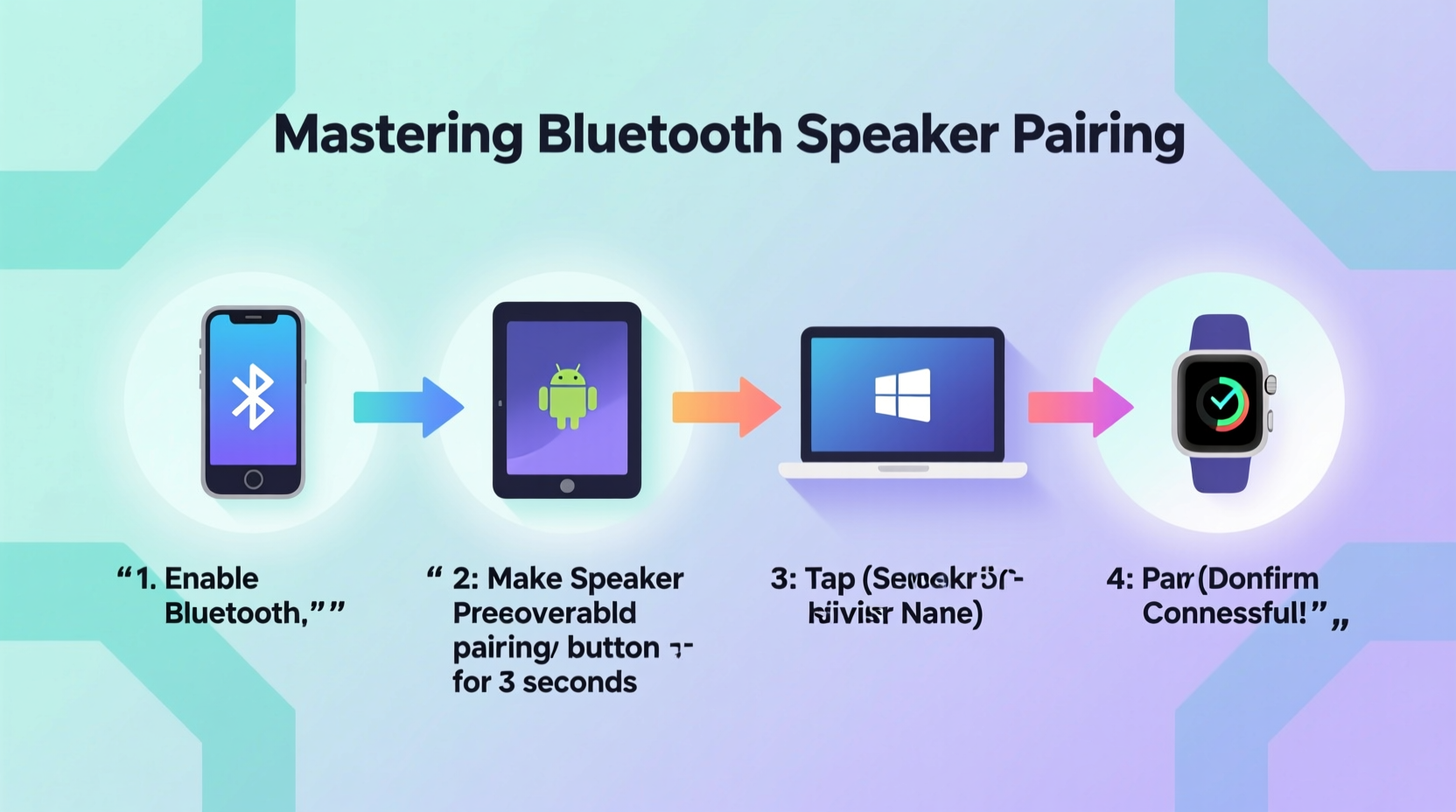
Follow these structured steps to successfully pair your Bluetooth speaker regardless of your primary device type. These instructions assume your speaker is charged and in pairing mode (usually indicated by a blinking blue light).
- Power on your Bluetooth speaker and activate pairing mode (refer to the manual if unsure).
- On your source device, go to Settings > Bluetooth.
- Ensure Bluetooth is turned on.
- Wait for your speaker’s name to appear in the list of available devices.
- Select the device name to initiate pairing.
- If prompted, confirm a passcode (commonly “0000” or “1234”).
- Once connected, audio will route automatically through the speaker.
Smartphones and Tablets
iOS (iPhone/iPad): Apple devices typically detect speakers quickly. After enabling Bluetooth, tap the speaker name when it appears under “Other Devices.” iOS remembers previously paired speakers and reconnects automatically when in range.
Android: Most Android phones follow standard Bluetooth behavior. Some manufacturers (e.g., Samsung) include additional audio management tools like “Dual Audio” or “Bluetooth codec selection,” which can enhance performance.
Laptops and Computers
Windows 10/11: Click the Start menu > Settings > Devices > Bluetooth & other devices > Add Bluetooth or other device. Choose Bluetooth and select your speaker. Once connected, right-click the volume icon, choose “Open Sound settings,” and set the speaker as the default output.
macOS: Go to System Settings > Bluetooth, turn it on, then click your speaker’s name. A checkmark indicates successful connection. You can manage audio output via the Sound section in System Settings.
Smart TVs and Streaming Devices
Many modern smart TVs support direct Bluetooth audio output. Navigate to Settings > Sound > Speaker Output > Bluetooth Device. Select your speaker from the list. Note: Not all TVs allow Bluetooth while using built-in apps due to latency or codec restrictions.
For non-Bluetooth TVs, use a USB Bluetooth transmitter plugged into the audio-out port. These adapters emulate a standard Bluetooth source and work reliably with most speakers.
Troubleshooting Common Pairing Issues
Even with correct procedures, problems occur. Here’s how to resolve them efficiently.
| Issue | Possible Cause | Solution |
|---|---|---|
| Speaker not showing up | Not in pairing mode, out of range, or low battery | Restart speaker, ensure LED blinks, and move closer to the device |
| Connection drops frequently | Interference, weak signal, or outdated firmware | Reduce obstacles between devices, update firmware, or reset Bluetooth module |
| Audio delay (lip sync) | Codec mismatch or high-latency profile | Use aptX Low Latency if supported, or enable TV’s “Bluetooth audio sync” setting |
| Pairs but no sound | Wrong output selected or mute enabled | Check audio output settings and increase volume on both devices |
“Over 70% of Bluetooth issues stem from simple oversights like incorrect pairing mode or forgotten device limits.” — Rajiv Mehta, Senior Wireless Engineer at AudioSync Labs
Optimizing Performance and Maintaining Connections
Once paired, maintaining a stable and high-quality connection requires attention to detail. Follow this checklist to maximize reliability and audio fidelity.
Bluetooth Speaker Optimization Checklist
- ✅ Update the speaker’s firmware regularly via manufacturer app or website.
- ✅ Limit interference by avoiding Wi-Fi routers, microwaves, or metal barriers.
- ✅ Use advanced codecs (AAC for Apple, aptX for Android) if supported.
- ✅ Remove old or unused paired devices from the speaker’s memory.
- ✅ Reset the speaker periodically to clear connection logs and improve responsiveness.
Real-World Example: Office Conference Setup
Mark, a project manager, needed a portable speaker for hybrid team meetings. He purchased a mid-range Bluetooth model but struggled with intermittent cutouts during Zoom calls. After testing, he discovered his laptop was defaulting to a lower-quality SBC codec. By installing a third-party Bluetooth driver and switching to aptX, audio became stable and clear. Additionally, placing the speaker three feet from the laptop and away from his router eliminated interference. His team reported significantly improved call quality—demonstrating how small technical adjustments yield major results.
Frequently Asked Questions
Can I connect one Bluetooth speaker to multiple devices at once?
Most standard Bluetooth speakers only maintain one active connection at a time. However, some models support multipoint pairing, allowing simultaneous connections to two devices (e.g., a phone and a laptop). When one device plays audio, the other pauses automatically.
Why does my speaker disconnect when I leave the room?
Bluetooth has a limited effective range (typically 30 feet unobstructed). Walls, furniture, and electronic interference reduce this. If you walk too far, the signal drops. Consider upgrading to a speaker with Bluetooth 5.0+ for extended range and stability.
How do I reset my Bluetooth speaker?
Locate the reset button (often a small pinhole) and press it with a paperclip for 5–10 seconds until lights flash rapidly. This clears all paired devices and restores factory settings. Refer to your user manual for model-specific instructions.
Conclusion: Take Control of Your Audio Experience
Mastering Bluetooth speaker pairing isn’t about memorizing steps—it’s about understanding the ecosystem of devices, protocols, and environmental factors that influence connectivity. With the right knowledge, you can confidently pair speakers across smartphones, computers, and home entertainment systems. No more frustration, no more guesswork. Apply these techniques today: test your current setup, optimize your audio settings, and enjoy uninterrupted, high-fidelity sound wherever you go.




 浙公网安备
33010002000092号
浙公网安备
33010002000092号 浙B2-20120091-4
Comments
No comments yet. Why don't you start the discussion?