
A clean and efficient workspace starts with control—especially over the one thing that tends to spiral out of order: cables. Whether you're a gamer, remote worker, or creative professional, tangled cords under your desk not only look unprofessional but can hinder airflow, cause tripping hazards, and make troubleshooting a nightmare. Mastering cable management isn’t just about appearances; it’s about functionality, safety, and long-term system maintenance. With the right strategies, tools, and mindset, transforming a chaotic mess into a streamlined setup is entirely achievable.
The Hidden Cost of Poor Cable Management
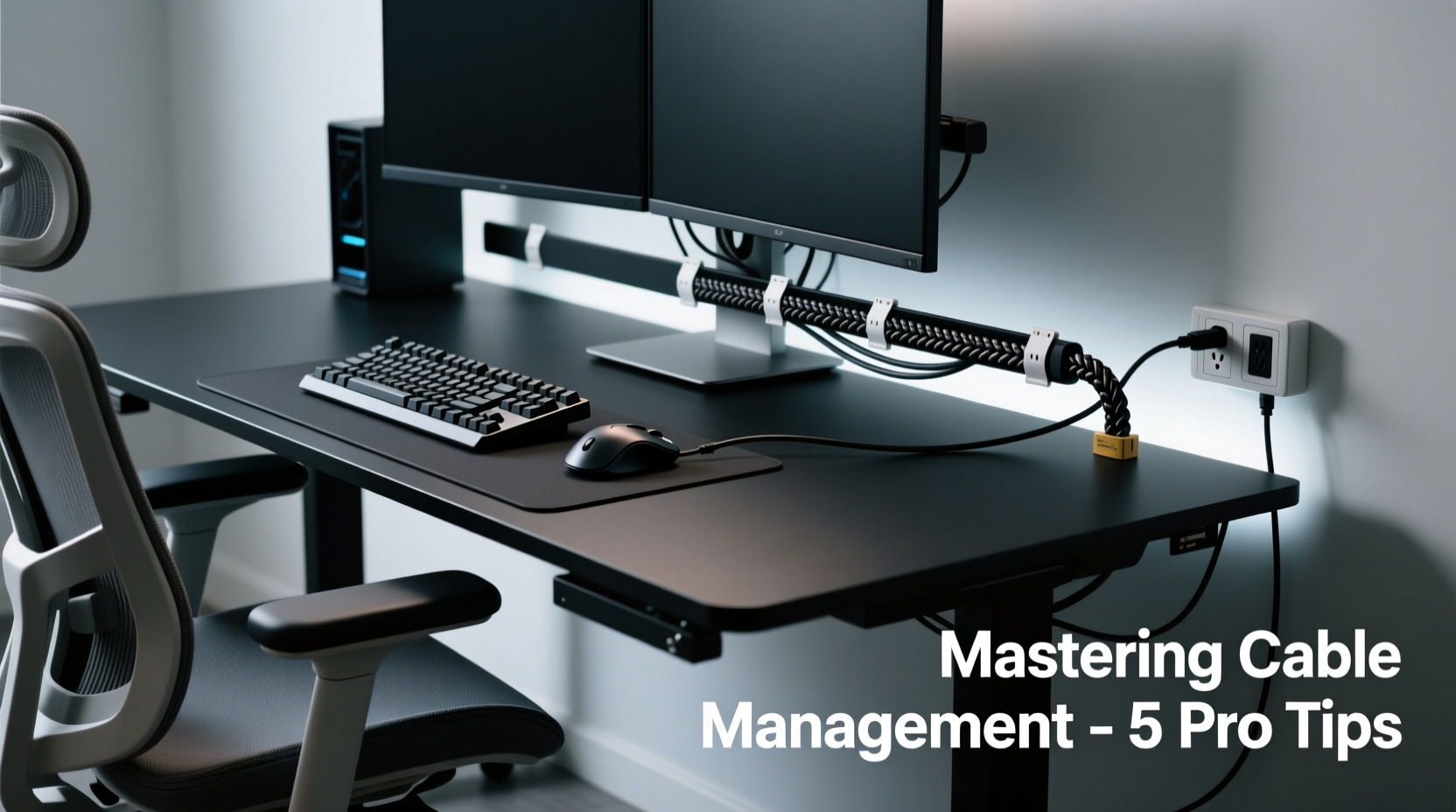
It's easy to overlook cables until they become a problem. A few loose cords might seem harmless, but over time, disorganization accumulates. Dust collects in tangles, reducing cooling efficiency. Accidental unplugs occur during cleaning or movement. Diagnosing hardware issues becomes harder when you can't trace which cable goes where. In extreme cases, poorly routed wires near moving parts (like CPU fans) can pose fire risks.
Studies by ergonomic design firms show that workers in cluttered environments report higher stress levels and reduced focus. A 2022 survey from the Human Workspace Project found that 68% of respondents felt more productive after decluttering their digital workspaces—including physical elements like cables.
“Cable management is not an aesthetic luxury—it’s a core component of system reliability and user well-being.” — Jordan Lee, Senior Systems Designer at TechFlow Labs
Step-by-Step Guide to Organizing Your Desk Cables
Follow this structured approach to achieve a clean, lasting cable setup. This process works whether you’re building a new station or fixing an existing one.
- Power Down and Unplug Everything
Start with a blank slate. Shut down your computer, monitor, peripherals, and unplug all devices from power sources. Safety first—never work on live circuits. - Inventory Your Cables
Lay everything out on the floor or a table. Group them by function: power, data (USB, HDMI, Ethernet), audio, charging, etc. Label each cable if possible using masking tape and a pen. - Eliminate What You Don’t Need
Remove old chargers, broken cables, duplicates, or accessories no longer in use. Recycle e-waste responsibly. The fewer cables you manage, the cleaner your setup will be. - Plan Your Layout
Sketch a rough diagram of your desk and equipment. Decide where each device belongs and how cables will travel—under, behind, or through desk grommets. Prioritize shortest viable paths to minimize slack. - Route and Secure Cables
Begin routing from the wall outlet or power strip toward your devices. Use adhesive clips, Velcro straps, or raceways to keep bundles tight and off the floor. Avoid sharp bends, especially with HDMI or fiber-optic cables. - Label Critical Connections
Use small labels or colored tags on essential cables (e.g., monitor, primary drive, network). This saves time during upgrades or reboots. - Test Before Finalizing
Plug everything back in and boot up your system. Verify all connections are stable. If something fails, now is the time to adjust routes or replace faulty lines. - Final Tidy and Maintenance Check
Once confirmed working, secure any remaining slack with zip ties (loosely!) or reusable sleeves. Wipe down surfaces and document your layout for future reference.
Essential Tools and Accessories for Clean Cable Routing
Investing in the right tools makes cable management faster, safer, and more durable. Here’s a breakdown of must-have items:
| Tool | Best For | Why It Works |
|---|---|---|
| Velcro Cable Ties | General bundling, frequent changes | Reusable, gentle on cables, easy to adjust |
| Cable Sleeves (Braided) | Grouping multiple cords into one stream | Neat appearance, reduces dust buildup |
| Adhesive Cable Clips | Wall or desk-edge routing | Invisible hold, no drilling required |
| Under-Desk Raceway | Full desk organization | Encloses all cables neatly beneath surface |
| Modular Power Strip | Managing high plug density | Swivel outlets reduce strain and improve spacing |
| Cable Labels & Tags | Identification and troubleshooting | Saves hours during maintenance or moves |
Beyond these basics, consider magnetic cable holders for metal desks, or spring-loaded retractors for frequently used USB cables. For standing desks, ensure your cable path allows full vertical movement without tension.
Do’s and Don’ts of Cable Management
Avoid common pitfalls with this clear guide to best practices.
| Do’s | Don’ts |
|---|---|
| Use consistent color coding (e.g., red for power, blue for data) | Loop cables too tightly around corners |
| Leave slight slack for mobility and heat expansion | Daisy-chain multiple heavy-duty devices on one strip |
| Anchor cables away from foot traffic zones | Run AC power lines parallel to Ethernet or audio cables (risk of interference) |
| Use cable grommets if your desk has holes | Ignore manufacturer bend radius guidelines |
| Check connections quarterly for wear or looseness | Use damaged or frayed cables even temporarily |
Real-World Example: Transforming a Home Office Setup
Take the case of Marcus, a freelance video editor working from a compact L-shaped desk. His original setup included a desktop PC, dual monitors, external SSD array, microphone, webcam, speaker system, phone charger, and lamp—all plugged into two overloaded power strips. Cables spilled onto the floor, tangled behind drawers, and blocked airflow to his GPU.
After spending one Saturday applying structured cable management, Marcus followed these actions:
- Replaced daisy-chained strips with a single surge-protected power center mounted under the desk.
- Used braided sleeves to bundle monitor, USB hub, and audio cables into two main trunks.
- Installed adhesive clips along the desk leg to route cables vertically instead of horizontally across walkways.
- Labeled each drive and capture device with colored tags.
- Added a magnetic cable holder for his frequently disconnected tablet stylus charger.
The result? A completely transformed workspace. Not only did his room feel larger and more professional, but he also noticed improved system temperatures due to better airflow. More importantly, when his capture card failed weeks later, he identified and replaced it in under ten minutes—something unthinkable before.
Expert Tips for Long-Term Maintenance
Clean cable management isn’t a one-time fix. Like any organizational system, it requires upkeep. Here are advanced insights from industry professionals:
- Adopt a “One In, One Out” Rule: Whenever you add a new device, remove an old or unused one. This prevents gradual accumulation.
- Go Wireless Where Possible: Use Bluetooth keyboards, mice, and headsets to reduce cable load. Just ensure wireless dongles are stored properly when not in use.
- Use Cable Management Arms: For articulating monitor arms, install dedicated cable covers that move with the arm, preventing snagging.
- Color Code by Function: Assign colors based on purpose—white for audio, black for power, gray for data—to instantly identify cable types.
- Document Your Setup: Take photos or create a simple map showing cable paths and device connections. Store it digitally for easy access during upgrades.
“Most people manage cables once and forget them. The real mastery comes in designing a system that stays clean even with daily use.” — Lena Torres, Workspace Optimization Consultant
FAQ: Common Cable Management Questions Answered
How do I hide cables without drilling holes in my desk?
You don’t need permanent modifications. Use under-desk raceways with adhesive backing, wrap cables along the back edge with clip strips, or run them inside fabric cable sleeves taped discreetly to the desk frame. For floors, flat cord covers or carpet runners can conceal lines safely.
Is it safe to bundle power and data cables together?
Minimize contact between high-voltage power cables and sensitive data lines (like Ethernet or USB) to avoid electromagnetic interference. If they must cross, do so at a 90-degree angle rather than running parallel. Use shielded cables for critical data connections when possible.
Can good cable management improve PC performance?
Indirectly, yes. Proper airflow due to unobstructed vents helps maintain lower internal temperatures, reducing thermal throttling. Additionally, avoiding accidental disconnections improves system stability. While it won’t boost FPS directly, it supports consistent peak performance.
Checklist: Achieve a Perfectly Managed Desk in 10 Steps
Use this actionable checklist to ensure nothing is missed:
- ✅ Turn off and unplug all devices
- ✅ Sort cables by type and function
- ✅ Discard broken or obsolete cords
- ✅ Plan cable paths using a sketch or mental map
- ✅ Install adhesive clips, raceways, or sleeves
- ✅ Route cables from power source to device efficiently
- ✅ Bundle similar cables together with Velcro
- ✅ Label critical connections clearly
- ✅ Test all devices post-installation
- ✅ Schedule a quarterly inspection for wear and alignment
Conclusion: Take Control of Your Digital Environment
A well-managed desk reflects a well-organized mind. By mastering cable management, you’re not just tidying up wires—you’re optimizing your entire workflow. The benefits extend beyond aesthetics: enhanced safety, easier troubleshooting, improved cooling, and a calmer, more focused environment. These improvements compound over time, making every interaction with your workspace more efficient and enjoyable.
Start small if needed. Even organizing just your monitor cables or adding a single cable sleeve can make a noticeable difference. Build momentum, apply consistency, and soon, a pristine setup will become second nature. Your future self—fumbling less, working faster, and breathing easier—will thank you.




 浙公网安备
33010002000092号
浙公网安备
33010002000092号 浙B2-20120091-4
Comments
No comments yet. Why don't you start the discussion?