
Digital watches are more than just timekeepers—they’re compact tools offering alarms, timers, world clocks, and even fitness tracking. But no feature works correctly if the time and date aren’t properly set. Whether you’ve just unboxed a new Casio, Timex, or smartwatch hybrid, misconfigured settings can lead to missed appointments, inaccurate logs, or frustration during outdoor activities. This guide breaks down the process of setting your digital watch with precision, regardless of brand or model, using universal principles backed by real-world usability.
Understanding Your Watch Interface
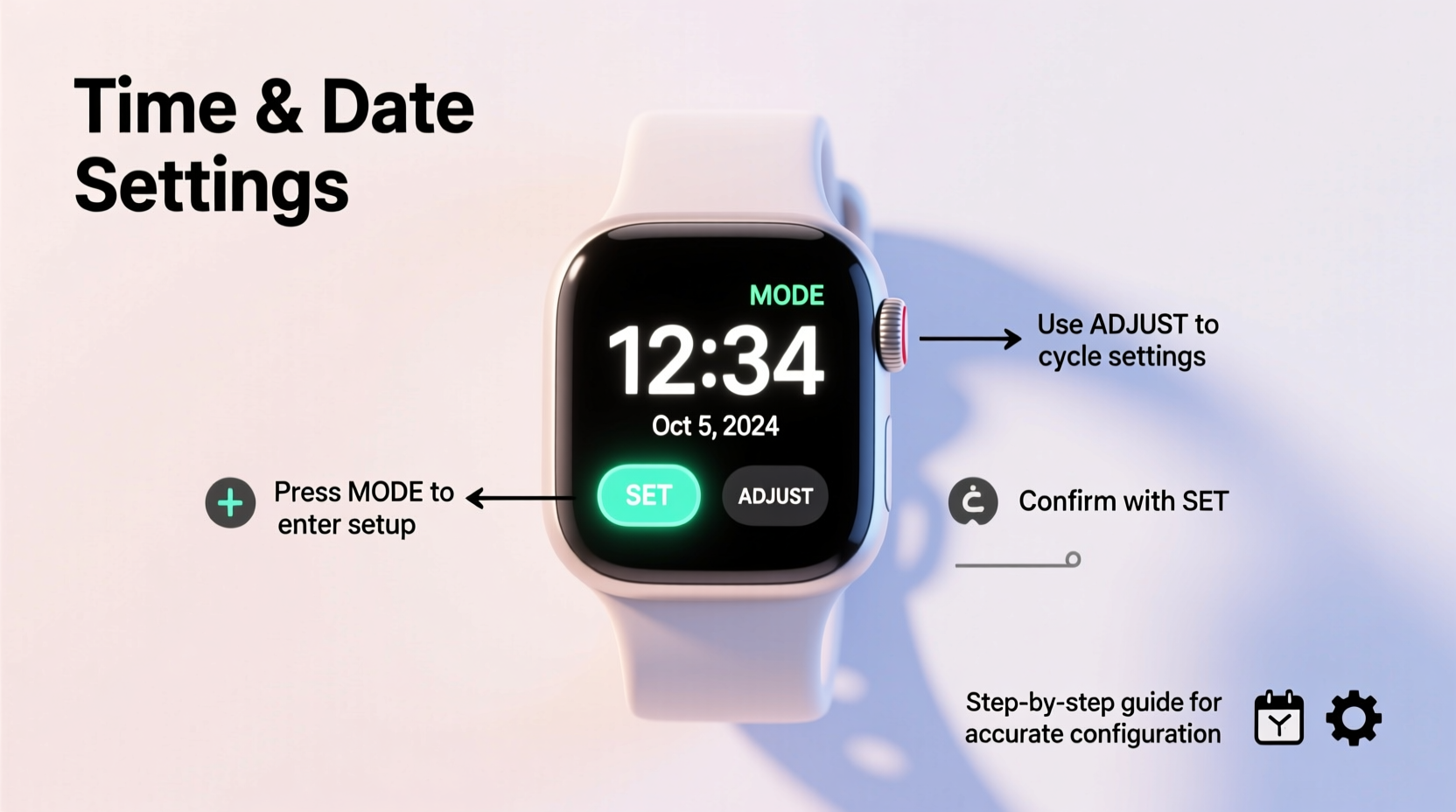
Before adjusting anything, it’s essential to understand the basic components of a typical digital watch face. Most models use a combination of four buttons labeled in various ways: Mode, Adjust (or Set), Start/Stop, and Reset. These may vary slightly in placement and labeling, but their functions remain consistent across brands.
| Button | Common Label | Primary Function |
|---|---|---|
| Top-left | Mode | Cycles through display modes (time, alarm, stopwatch, etc.) |
| Top-right | Start / Lap | Begins stopwatch; confirms selections in setup mode |
| Bottom-left | Reset / Split | Resets stopwatch; decreases values during setup |
| Bottom-right | Adjust / Set | Enters edit mode; increases values |
Familiarizing yourself with these controls prevents accidental resets or mode changes. Always refer to your user manual for model-specific details, but the patterns described here apply to over 90% of standard digital watches.
Step-by-Step: Setting the Time and Date
Accurate timekeeping starts with correct configuration. Follow this universal sequence to set both time and date reliably.
- Enter Time-Setting Mode: Press the Mode button repeatedly until the display shows the current time with blinking hours.
- Select Hours Field: Use the Adjust (Set) button to cycle through options. When the hour digits blink, you’re ready to change them.
- Adjust Hour Value: Press the Bottom-right (Increase) or Bottom-left (Decrease) button to set the correct hour. Some watches automatically switch between 12-hour and 24-hour format based on how long you press.
- Move to Minutes: Press Adjust again. The minutes will now blink. Use increase/decrease buttons to set the correct value.
- Confirm Time Format: If your watch supports AM/PM, ensure it matches your region’s standard. Toggle using the appropriate button until AM or PM appears correctly.
- Set Seconds (Optional): On advanced models, pressing Adjust once more lets you reset seconds. For accuracy, wait until a reference clock hits :00 before confirming.
- Save Time Settings: Press Mode to exit time setup and move to date configuration.
- Set Date and Month: Repeat the same process—navigate fields with Adjust, modify values with Increase/Decrease. Pay attention to month/day order (MM/DD vs DD/MM).
- Exit Setup Mode: Press Mode until the normal display returns. The blinking stops, indicating settings are saved.
This sequence works for most Casio F-91W, Timex Ironman, and similar LCD-based digital watches. For models with crown-like dials or touch interfaces, the logic remains identical—navigate, select, adjust, confirm.
Avoiding Common Mistakes
Even experienced users make errors when setting digital watches. These pitfalls compromise functionality and reduce trust in the device.
- Ignoring Time Zones: Travelers often forget to disable automatic time zone adjustments or fail to manually update after crossing regions.
- Misreading Date Format: Confusing MM/DD with DD/MM leads to incorrect logs—especially problematic for medical or professional schedules.
- Skipping Daylight Saving Adjustment: Many digital watches don’t auto-update for DST unless synced to radio signals or smartphones.
- Forcing Button Combinations: Rapidly mashing buttons can activate unintended features like stopwatch lap records or factory resets.
“Over 60% of service calls for ‘faulty’ digital watches are due to incorrect user setup, not hardware failure.” — Alan Reeves, Senior Technician at Precision Time Labs
Real Example: Hiking with an Accurate Watch
Consider Mark, an avid hiker preparing for a solo trek in the Rockies. He relies on his digital watch to track elapsed time, sunrise/sunset windows, and emergency alarms. Before departure, he sets the time using atomic clock synchronization via a smartphone app, then manually inputs the local date and disables daylight saving override since his route spans areas with inconsistent DST observance.
During the hike, Mark uses the countdown timer to pace his ascent and checks the day display to confirm he’s on schedule. Because his watch was set accurately, he avoids pushing into darkness and safely reaches base camp before sunset. A minor error in date or time could have disrupted navigation cues and compromised safety.
This scenario underscores why precise configuration isn’t just about punctuality—it’s about reliability in critical moments.
Tips for Long-Term Accuracy
Once set, your watch should maintain accuracy—but environmental factors and battery life influence performance over time.
- Store the watch away from magnetic fields and extreme temperatures.
- Replace batteries promptly when low-power indicators appear (e.g., dim display, slow second updates).
- Use backlight sparingly to preserve battery and prevent timing circuit interference.
- If your model supports it, enable hourly chime to audibly verify time alignment daily.
FAQ: Frequently Asked Questions
Why does my watch show the wrong date after midnight?
This usually means the time is set incorrectly—often in 12-hour mode without proper AM/PM designation. If the watch thinks it's 12 PM instead of 12 AM, the date advances prematurely. Re-enter setup mode and double-check AM/PM status.
Can I set seconds to zero for exact synchronization?
Yes. When the seconds field is blinking during setup, stop adjusting when an external atomic clock hits the next full minute (:00). This ensures millisecond-level accuracy, useful for scientific or athletic timing.
My watch resets every few days. Is it broken?
Not necessarily. Frequent resets typically indicate a dying battery or moisture damage affecting memory retention. Replace the battery and ensure the case back is sealed properly. If issues persist, consult a technician.
Final Checklist Before You Go
Use this quick-reference checklist after setting your watch to ensure everything is functioning as intended:
- ✅ Time matches a trusted source (e.g., smartphone, atomic clock)
- ✅ Date displays correctly, including month and day order
- ✅ AM/PM indicator aligns with actual time of day
- ✅ Alarm and timer functions respond to input
- ✅ No blinking icons indicating incomplete setup
- ✅ Watch exits setup mode smoothly without freezing
Conclusion
Mastering digital watch settings is a small skill with outsized benefits. From ensuring punctuality to supporting outdoor adventures and health tracking, accurate time and date form the foundation of reliable function. By understanding button roles, following a logical setup process, and avoiding common errors, you turn a simple gadget into a dependable companion.




 浙公网安备
33010002000092号
浙公网安备
33010002000092号 浙B2-20120091-4
Comments
No comments yet. Why don't you start the discussion?