
In today’s fast-paced digital environment, efficiency isn’t just about working harder—it’s about working smarter. One of the most impactful upgrades you can make to your daily workflow is adopting a dual monitor setup. Whether you're managing spreadsheets, coding, editing video, or juggling multiple communication platforms, having two screens dramatically reduces context switching, improves multitasking, and enhances focus. This guide walks through every aspect of creating an effective dual-monitor workspace—from selecting the right hardware to optimizing ergonomics and software settings.
Why Dual Monitors Boost Productivity
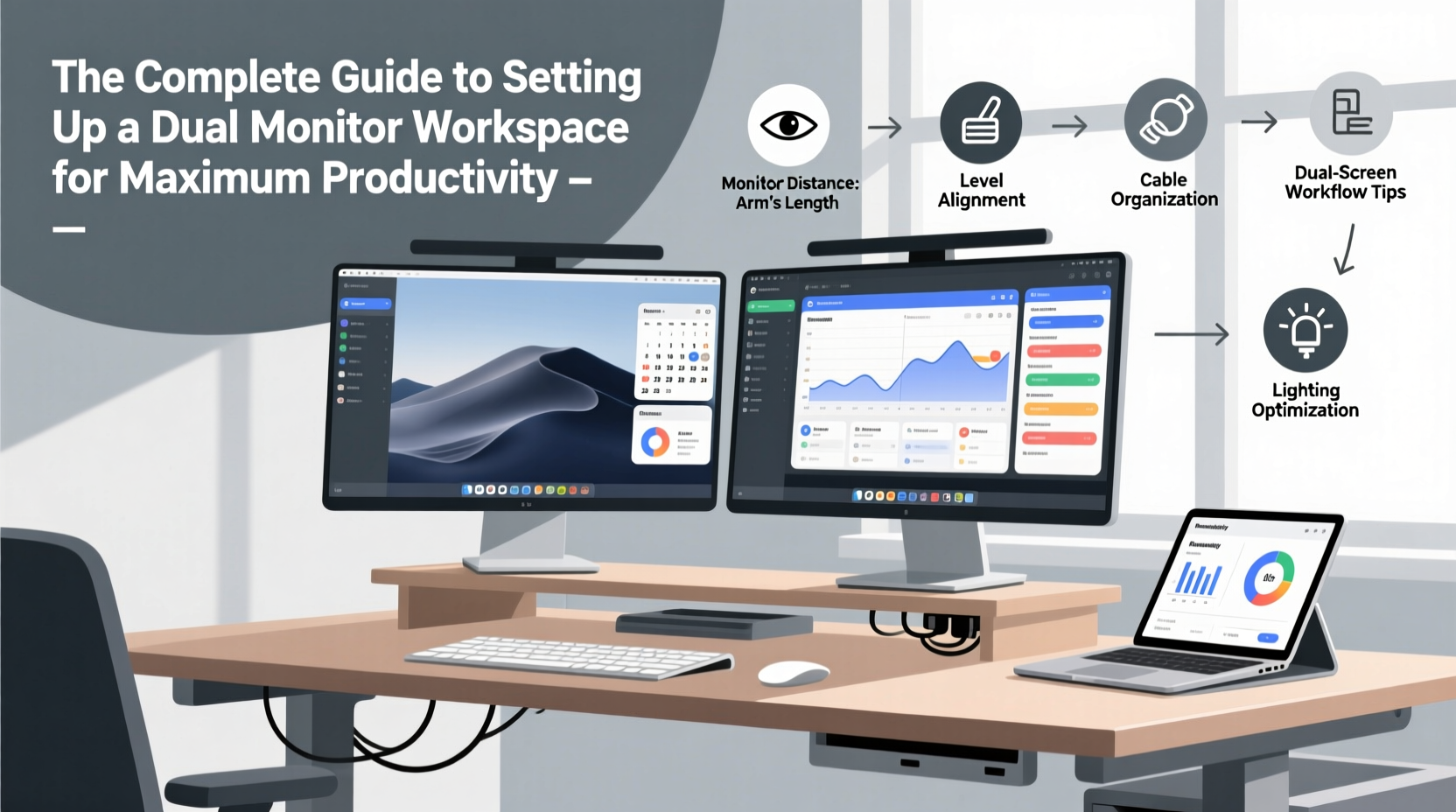
Multiple studies have shown that using two monitors increases productivity by 20% to 30%. According to research from the University of Utah, users with dual displays completed tasks faster and with fewer errors than those limited to a single screen. The reason is simple: more screen real estate means less time spent minimizing windows, alt-tabbing between applications, or scrolling through cluttered desktops.
For professionals in fields like finance, design, programming, or content creation, this translates into tangible benefits—fewer distractions, better organization, and smoother transitions between tools. A developer might keep code on one screen and documentation or testing environments on the other; a writer could draft on one monitor while researching on the second.
“Adding a second monitor is one of the highest-ROI productivity upgrades available. It costs less than a week’s salary for most knowledge workers but delivers compounding time savings.” — Dr. Linda Chen, Human-Computer Interaction Researcher, MIT Media Lab
Selecting the Right Hardware
The foundation of any successful dual-monitor setup lies in choosing compatible, high-quality equipment. Not all monitors are created equal, and mismatched specs can lead to eye strain, inconsistent color representation, or performance bottlenecks.
Monitor Specifications to Consider
- Size: 24 to 27 inches is ideal for most users. Larger screens offer more space but require greater desk depth.
- Resolution: Full HD (1920x1080) is standard, but QHD (2560x1440) or even 4K provides sharper visuals—especially beneficial for graphic work.
- Panel Type: IPS panels deliver better color accuracy and viewing angles than TN or VA, making them preferable for creative work.
- Refresh Rate: 60Hz is sufficient for office use, but 75Hz or higher reduces motion blur if you frequently watch videos or switch windows quickly.
- Connectivity: Ensure both monitors support the same connection type as your computer (HDMI, DisplayPort, USB-C, etc.). Adapters can introduce lag or resolution issues.
Matching Your Monitors
While it's possible to mix different models, doing so may result in uneven brightness, color temperature, or bezel thickness—leading to visual fatigue over long sessions. For the best experience, use identical monitors. If budget constraints require mixing, at least match key specs like resolution, panel type, and size.
| Feature | Recommended | Acceptable Alternatives |
|---|---|---|
| Screen Size | 24–27\" | 22–32\" (if space allows) |
| Resolution | QHD (2560x1440) | Full HD (1920x1080) |
| Panel Type | IPS | VA (for contrast), avoid TN |
| Ports | DisplayPort + HDMI | USB-C (with display support) |
| Mount Type | VESA-compatible | Proprietary stands (less flexible) |
Step-by-Step Setup Process
Once you’ve acquired your monitors and verified compatibility with your system, follow this sequence to ensure a smooth installation.
- Check Your Graphics Output: Confirm your laptop or desktop has enough video outputs (e.g., two HDMI ports, or HDMI + DisplayPort). Most modern GPUs support at least two displays natively.
- Position the Monitors: Place them side by side with minimal gap. Align the top edges to maintain consistent eye level.
- Connect Cables: Attach each monitor to your computer using appropriate cables. Prefer wired connections over wireless adapters for reliability.
- Power On: Turn on both monitors and your computer. Windows and macOS typically detect additional displays automatically.
- Configure Display Settings:
- Windows: Press Win + P to choose \"Extend\" mode. Then go to Settings > System > Display to arrange screen order and set primary display.
- macOS: Go to System Settings > Displays, click \"Arrange,\" and drag the white menu bar to the preferred main screen.
- Adjust Resolution & Scaling: Set both monitors to native resolution. On macOS, enable \"Default for display\" unless working with HiDPI scaling.
- Test Functionality: Open apps on both screens, move windows across displays, and verify no blackouts or flickering occur.
If your computer lacks sufficient ports, consider a docking station (for laptops) or upgrading your graphics card. USB-to-HDMI adapters work in a pinch but often limit refresh rates and add input lag.
Ergonomic Optimization for Long-Term Comfort
A powerful dual-monitor setup only delivers value if it supports healthy posture and minimizes physical strain. Poor positioning leads to neck pain, shoulder tension, and reduced concentration.
Proper Monitor Placement
- The center of both screens should be about 15–20 degrees below eye level when seated.
- Sit approximately an arm’s length (20–30 inches) away from the monitors.
- Angle both screens slightly inward (like a shallow V-shape) to reduce head turning.
- Minimize glare by positioning monitors perpendicular to windows or bright lights.
Use Adjustable Mounts
Most stock monitor stands offer limited adjustability. Invest in VESA-mounted arms or a dual-monitor stand that allows height, tilt, swivel, and rotation adjustments. These mounts let you fine-tune positioning and free up valuable desk space.
Software Tools to Maximize Efficiency
Hardware is only half the equation. To truly unlock the potential of dual monitors, leverage software that enhances window management, task distribution, and workflow automation.
Window Management Utilities
- Windows Snap (Built-in): Drag windows to screen edges to snap them into quarters or halves. Use Win + Left/Right Arrow to shift apps between monitors.
- FancyZones (PowerToys): Microsoft’s free tool lets you create custom grid layouts across both screens for precise window placement.
- DisplayFusion: Offers advanced multi-monitor features like independent wallpapers, taskbars, and hotkeys.
- Magnet (macOS): Enables snapping functionality similar to Windows, filling a gap in Apple’s default interface.
Virtual Desktops & Workspaces
Take advantage of virtual desktops to compartmentalize tasks:
- Windows: Use Win + Tab to access Task View and create separate desktops (e.g., Work, Communication, Research).
- macOS: Mission Control (Ctrl + Up Arrow) lets you manage Spaces assigned to different workflows.
Automation Scripts
Advanced users can write simple scripts (using AutoHotkey on Windows or Automator on macOS) to launch applications on designated monitors at startup. For example, open your email client on the right screen and your IDE on the left—every time you boot up.
Real-World Example: A Developer’s Dual-Screen Workflow
Consider Mark, a full-stack developer based in Austin. Before switching to dual monitors, he constantly minimized his browser to check API documentation, losing focus mid-coding session. His workflow was fragmented and inefficient.
After setting up two 27-inch QHD IPS monitors connected via DisplayPort to his desktop GPU, he restructured his environment:
- Left Screen: Code editor (VS Code) with terminal embedded at the bottom.
- Right Screen: Chrome with tabs for GitHub, Stack Overflow, and live preview of the app being built.
The result? Mark reported a 40% reduction in task-switching time and completed sprints ahead of schedule. More importantly, he experienced less mental fatigue at the end of the day.
Common Mistakes to Avoid
Even well-intentioned setups can fall short due to oversights. Watch out for these pitfalls:
- Mismatched Resolutions: Causes scaling inconsistencies and awkward window resizing when dragged between screens.
- Ignoring Cable Quality: Cheap HDMI cables can degrade signal, leading to flickering or intermittent disconnects.
- Poor Cable Management: Exposed wires create clutter and increase tripping hazards. Use clips or sleeves to bundle them neatly.
- Overlooking Primary Screen Assignment: Make sure your main monitor hosts your core application (browser, IDE, etc.) to minimize cursor travel.
- Skipping Calibration: Calibrate brightness, contrast, and color temperature across both monitors to prevent eye strain.
Checklist: Building Your Dual-Monitor Workspace
- ✅ Assess your computer’s graphics output capability
- ✅ Choose two matching monitors (size, resolution, panel type)
- ✅ Acquire necessary cables or docking station
- ✅ Set up monitors side by side with aligned tops
- ✅ Connect and power on all devices
- ✅ Configure display settings (extend mode, primary screen)
- ✅ Adjust resolution and orientation
- ✅ Optimize ergonomics (height, distance, angle)
- ✅ Install window management tools (e.g., FancyZones, Magnet)
- ✅ Test workflow with real applications
Frequently Asked Questions
Can I use two different-sized monitors?
Yes, but it’s not ideal. Different sizes mean uneven screen real estate and potentially misaligned tops, which forces unnatural eye movement. If unavoidable, place the smaller monitor slightly higher so the viewing planes align.
Do I need a powerful GPU for dual monitors?
For standard office tasks (web browsing, documents, video calls), integrated graphics (like Intel Iris or Apple M-series chips) are sufficient. However, for video editing, gaming, or 4K output, a dedicated GPU ensures smooth performance.
How do I prevent distraction on the second screen?
Reserve the secondary monitor for passive or reference content—such as email, calendar, or documentation—not social media or entertainment. Use focus modes or website blockers if needed.
Conclusion: Take Control of Your Digital Environment
A dual monitor workspace isn’t just a luxury—it’s a strategic investment in how you interact with technology every day. When configured thoughtfully, it reduces friction, accelerates output, and supports sustainable work habits. From selecting harmonious hardware to refining software behavior, each decision compounds into a more fluid, focused experience.
Start small if needed: even adding one external monitor to a laptop can transform your workflow. Tune the setup over time, listen to your body, and refine based on actual usage patterns. The goal isn’t complexity—it’s clarity.




 浙公网安备
33010002000092号
浙公网安备
33010002000092号 浙B2-20120091-4
Comments
No comments yet. Why don't you start the discussion?