
Staying connected with family and friends in real time has become an essential part of modern life. Whether you're meeting up in a crowded city, checking on a loved one’s safe arrival, or planning a group outing, Apple’s “Find My” app—formerly known as “Find Friends”—offers powerful tools to share your location and locate others with precision and privacy. Despite its seamless integration across Apple devices, many users underutilize its full potential due to confusion over settings, permissions, or security concerns. This guide demystifies the process, offering clear, actionable steps to help you confidently use location sharing on your iPhone.
How Find My Works: The Basics
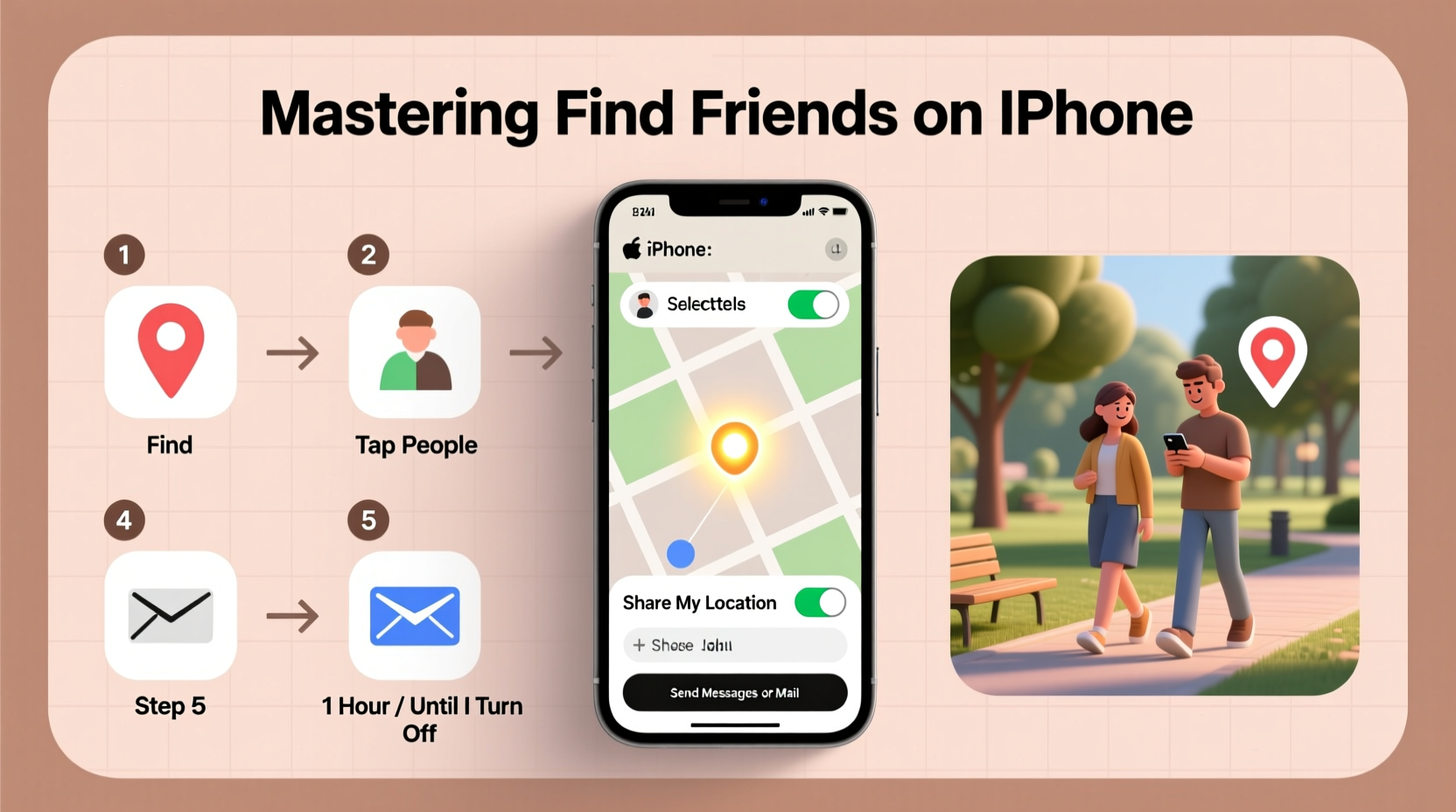
The “Find My” app combines device tracking and people location into one unified system. It uses iCloud, GPS, Wi-Fi, and Bluetooth to determine and transmit location data between trusted contacts. Unlike third-party apps, it is end-to-end encrypted, meaning only you and the people you choose can see your location—Apple cannot access it.
To use location sharing, both parties must have an Apple ID, two-factor authentication enabled, and location services turned on. Sharing is always opt-in; no one can track you without your explicit permission. You control how long your location is shared—options include one hour, until the end of the day, or indefinitely—and can stop sharing at any time.
Step-by-Step: Sharing Your Location with Friends
Sharing your location is simple once you know where to navigate. Follow these steps to begin:
- Open the Find My app on your iPhone.
- Tap the People tab at the bottom of the screen.
- Select Start Sharing Location.
- Choose a contact from your list or tap Add Person to search by name or number.
- Select how long you’d like to share: For One Hour, Until End of Day, or Indefinitely.
- Tap Send. Your contact will receive a notification and can view your location if they accept.
If the person isn’t using an iPhone, you can still share via a link through Messages or another app. Tap “Send Link via Message” after selecting the duration. They’ll be able to view your location in a web browser for the selected period.
How to Find a Friend’s Location
Once someone shares their location with you, viewing it is straightforward:
- Open the Find My app and go to the People tab.
- Contacts who are sharing their location will appear on the map or in your list.
- Tap a contact’s name to see their precise location, battery level, device type, and last update time.
- You can also use the Directions option to open Maps and navigate to them.
If a contact hasn’t shared their location, you’ll see a message indicating that they aren’t sharing. You can send a request directly from the app by tapping Invite next to their name.
“Location sharing should empower connection, not create anxiety. Apple’s design ensures consent and transparency at every step.” — Dr. Lisa Tran, Digital Privacy Researcher, Stanford University
Managing Privacy and Security Settings
One of the most important aspects of using Find My is maintaining control over your privacy. Apple provides granular settings so you’re never exposed unintentionally.
In Settings > Privacy & Security > Location Services > Share My Location, you can toggle global sharing on or off. Under Settings > Find My > Share My Location, you can disable sharing entirely or manage individual contacts.
You can also set up automatic stopping of location sharing. For example, choosing “Until End of Day” means your location stops being visible at midnight. This is ideal for temporary meetups without forgetting to turn it off later.
| Action | Where to Do It | Effect |
|---|---|---|
| Stop sharing with one person | Find My > People > [Contact] > Stop Sharing | They can no longer see your location |
| Pause all sharing temporarily | Settings > Find My > Share My Location (toggle off) | No one sees your location until re-enabled |
| Receive alerts when someone arrives/leaves a place | Find My > People > Tap contact > Add Notification | Get notified when they reach home, work, etc. |
| View shared location history | Find My > People > [Contact] > See Last Seen | Only shows recent check-ins, not full history |
Mini Case Study: Reuniting at a Music Festival
Sophia and her three friends attended a weekend music festival in a sprawling park with spotty cell service. Before arriving, they opened the Find My app and shared their locations indefinitely for 48 hours. When they got separated during a headlining act, instead of calling repeatedly (which failed due to congestion), Sophia used the app to see that one friend was near the food trucks. She directed the others via text using landmarks visible on the map. Within minutes, the group reunited—without shouting, stress, or missed performances. After the festival, each manually stopped sharing, ensuring no lingering exposure.
Best Practices and Common Pitfalls
While Find My is user-friendly, missteps can lead to frustration or privacy risks. Here’s what to avoid and what to embrace:
Do’s and Don’ts of Location Sharing
| Do | Don't |
|---|---|
| Use time-limited sharing for casual meetups | Leave location sharing on indefinitely with acquaintances |
| Check battery levels before relying on tracking | Assume someone is ignoring you if their location isn’t updating—low battery or poor signal may be the cause |
| Set up geofenced alerts for family members arriving home | Share your location with untrusted individuals or public links |
| Verify contact names to avoid sharing with the wrong person | Forget to disable sharing after a trip or event |
FAQ: Common Questions About Find My
Can someone track me without my knowledge?
No. Location sharing in Find My requires explicit permission. If someone tries to request your location, you’ll receive a notification and must approve it. Additionally, your device must have “Share My Location” enabled under Settings.
What happens if my phone dies?
When your iPhone powers off, its last known location is saved and displayed in the Find My app for up to 24 hours. This helps others know where you were last active. However, real-time updates stop immediately.
Can I share my location from an iPad or Mac?
Yes. The Find My app is available on all Apple devices signed into the same iCloud account. Location sharing works identically across iPhone, iPad, and Mac, provided location services are enabled.
Conclusion: Take Control of Connection
Mastering location sharing on iPhone isn’t about constant surveillance—it’s about fostering safer, more efficient communication. With Find My, you gain peace of mind knowing you can locate a child arriving from school, coordinate with coworkers en route to a client meeting, or simply avoid getting lost in a new city. The key lies in understanding the tools, respecting boundaries, and using them intentionally. By following the steps outlined here, you transform a simple feature into a powerful asset for daily life.




 浙公网安备
33010002000092号
浙公网安备
33010002000092号 浙B2-20120091-4
Comments
No comments yet. Why don't you start the discussion?