
Navigating multiple Google accounts on a single Android device is increasingly common. Whether managing personal emails, handling professional responsibilities, or accessing shared family services, the ability to switch between accounts efficiently can significantly improve productivity and digital organization. Yet, many users struggle with confusion over syncing, app behavior, and security when juggling more than one identity. This guide breaks down the entire process—from setup to optimization—so you can transition between Google accounts effortlessly and securely.
Why Account Switching Matters in Daily Use
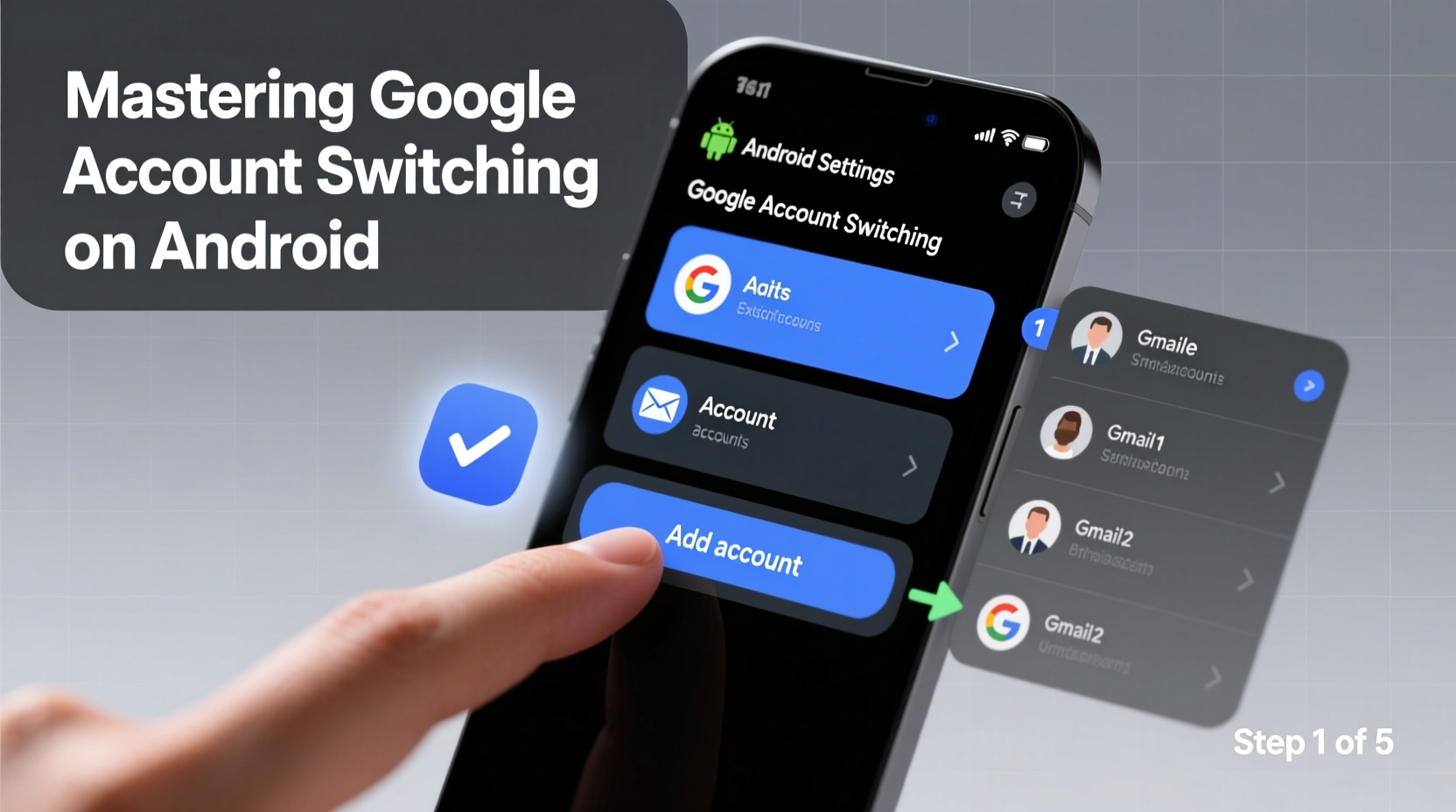
Modern lifestyles demand flexibility. A teacher might use one account for school communications and another for personal cloud storage. A freelancer may manage client emails on a business profile while using a personal account for YouTube subscriptions. Without smooth account switching, users risk mixing data, missing notifications, or logging out entirely when switching contexts.
Android’s native support for multiple Google accounts means you don’t have to choose just one. You can maintain separate calendars, Drive files, Gmail inboxes, and even Play Store purchase histories—all from the same phone. The key lies in understanding how to add, organize, and toggle between them without friction.
Step-by-Step Guide to Adding and Switching Accounts
Adding a new Google account is straightforward, but knowing where and how each service responds to the change ensures consistent performance across apps.
- Open Settings on your Android device.
- Tap Accounts (may appear as “Passwords & accounts” or “Users & accounts,” depending on brand).
- Select Add Account, then choose Google.
- Follow the prompts to sign in with your existing credentials or create a new account.
- Grant permissions for services like Gmail, Contacts, and Calendar as needed.
- Repeat for additional accounts.
Once added, all accounts sync independently based on your preferences. To switch accounts within specific apps:
- In Gmail: Tap your profile icon in the top-right corner, then select the desired inbox.
- In YouTube: Tap your avatar > choose another account or tap “Add another account.”
- In Google Drive: Open the side menu > tap your current email > pick an alternate account.
- In Chrome: Tap your profile at the top right > switch profiles to load different bookmarks and history.
This unified profile system allows personalized browsing, search history, and autofill data per account—without needing to log out.
Managing Sync Settings for Optimal Performance
By default, Android syncs contacts, calendar events, and email automatically once an account is added. However, excessive syncing can drain battery life and consume bandwidth unnecessarily.
| Sync Option | Recommended For | Consider Disabling If… |
|---|---|---|
| Active communication accounts | You only check occasionally; disable auto-fetch | |
| Contacts | Shared family or team devices | Privacy-sensitive roles (e.g., freelance work) |
| Calendar | Work/personal scheduling | You use third-party calendar apps instead |
| Drive/Photos | Frequent file access | Storage is limited or Wi-Fi only preferred |
To adjust these settings: go to Settings > Accounts > [Select Account] > Account Sync. Toggle off non-essential services. You can also schedule sync frequency under Google > Manage your Google Account > Data & Privacy > Sync.
“Efficient account management starts with intentional syncing. Only pull what you need, when you need it.” — Lena Patel, Mobile Productivity Consultant
Real-World Scenario: Managing Work-Life Balance
Sophia, a project manager at a tech startup, uses her personal Pixel phone for both daily tasks and remote work. She added her company-managed Google Workspace account alongside her personal Gmail. Initially, she found herself replying to Slack messages during dinner because work calendar alerts kept popping up.
After reviewing her sync settings, she disabled calendar and contact syncing for her work account outside office hours. She now uses Focus Mode to suppress non-personal notifications after 7 PM. Within Gmail and Chrome, she keeps two distinct profiles open and switches manually when transitioning between roles. This small adjustment reduced mental clutter and improved her work-life boundaries—without requiring a second device.
Tips for Secure and Efficient Multi-Account Use
Beyond functionality, maintaining security and clarity across accounts is essential. Here are best practices to avoid overlap and protect sensitive information.
- Name your accounts clearly: In Settings > Accounts, rename generic labels (e.g., “Gmail”) to “Work – Marketing Team” or “Family Photos.”
- Review app-specific permissions: Some third-party apps request access to all Google accounts. Audit these regularly via manageaccount.google.com/permissions.
- Remove unused accounts: Old test or temporary accounts increase vulnerability surface. Delete them via Settings > Accounts > Remove Account.
- Enable 2FA on every account: Even secondary accounts should have two-factor authentication enabled.
Checklist: Optimizing Your Multi-Account Setup
- ✔ Add all active Google accounts to your device
- ✔ Assign clear names and profile images to each
- ✔ Customize sync settings per account (email, calendar, etc.)
- ✔ Test switching in Gmail, Drive, and YouTube
- ✔ Disable sync for inactive or infrequently used accounts
- ✔ Review connected app permissions monthly
- ✔ Enable screen lock and biometric authentication
Frequently Asked Questions
Can I use different Google Play accounts for apps and purchases?
Yes. While only one Google account can be fully integrated with the Play Store at a time, you can switch billing identities during purchase. However, downloaded apps remain tied to the primary account unless manually logged into a different one within the app itself.
Will switching accounts log me out of other devices?
No. Account switching on Android affects only that device. Other signed-in sessions (like laptops or tablets) remain active unless you manually sign out remotely via myaccount.google.com/device-activity.
Is there a limit to how many Google accounts I can add?
Android does not enforce a hard limit, but performance may degrade beyond 5–6 accounts due to background sync load. Most users find 2–3 accounts optimal for usability and speed.
Final Thoughts: Streamline Your Digital Identity Flow
Mastering Google account switching isn't about technical complexity—it's about designing a fluid digital experience that matches how you live and work. With deliberate setup, smart syncing, and regular maintenance, your Android device becomes a seamless hub for all your online identities. No more logging in and out, no more accidental replies from the wrong email. Just smooth transitions between roles, priorities, and purposes.




 浙公网安备
33010002000092号
浙公网安备
33010002000092号 浙B2-20120091-4
Comments
No comments yet. Why don't you start the discussion?