
Google Drive has become the backbone of digital collaboration for millions of users worldwide. Whether you're sharing a report with a colleague, sending photos to family, or collaborating on a project with a remote team, understanding how to effectively use Google Drive links is essential. Yet, many users only scratch the surface of its capabilities—often leaving files too open, too restricted, or shared inefficiently.
This guide breaks down every aspect of Google Drive link sharing into clear, actionable steps. From setting permissions to troubleshooting access issues, you’ll learn how to share files securely, organize shared content, and maintain control over your digital assets.
Understanding Google Drive Link Settings
Before sharing any file, it’s crucial to understand the different permission levels Google Drive offers. These determine who can view, comment on, or edit your file. The three primary settings are:
- Viewer: Can see the file but not make changes.
- Commenter: Can view and add comments, but cannot edit content.
- Editor: Can view, comment, and modify the file.
When generating a shareable link, Google Drive defaults to “Restricted,” meaning only people added by email can access the file. However, you can change this to “Anyone with the link” if broader access is needed. This flexibility makes Google Drive ideal for both private collaboration and public distribution.
Step-by-Step Guide to Creating and Sharing a Google Drive Link
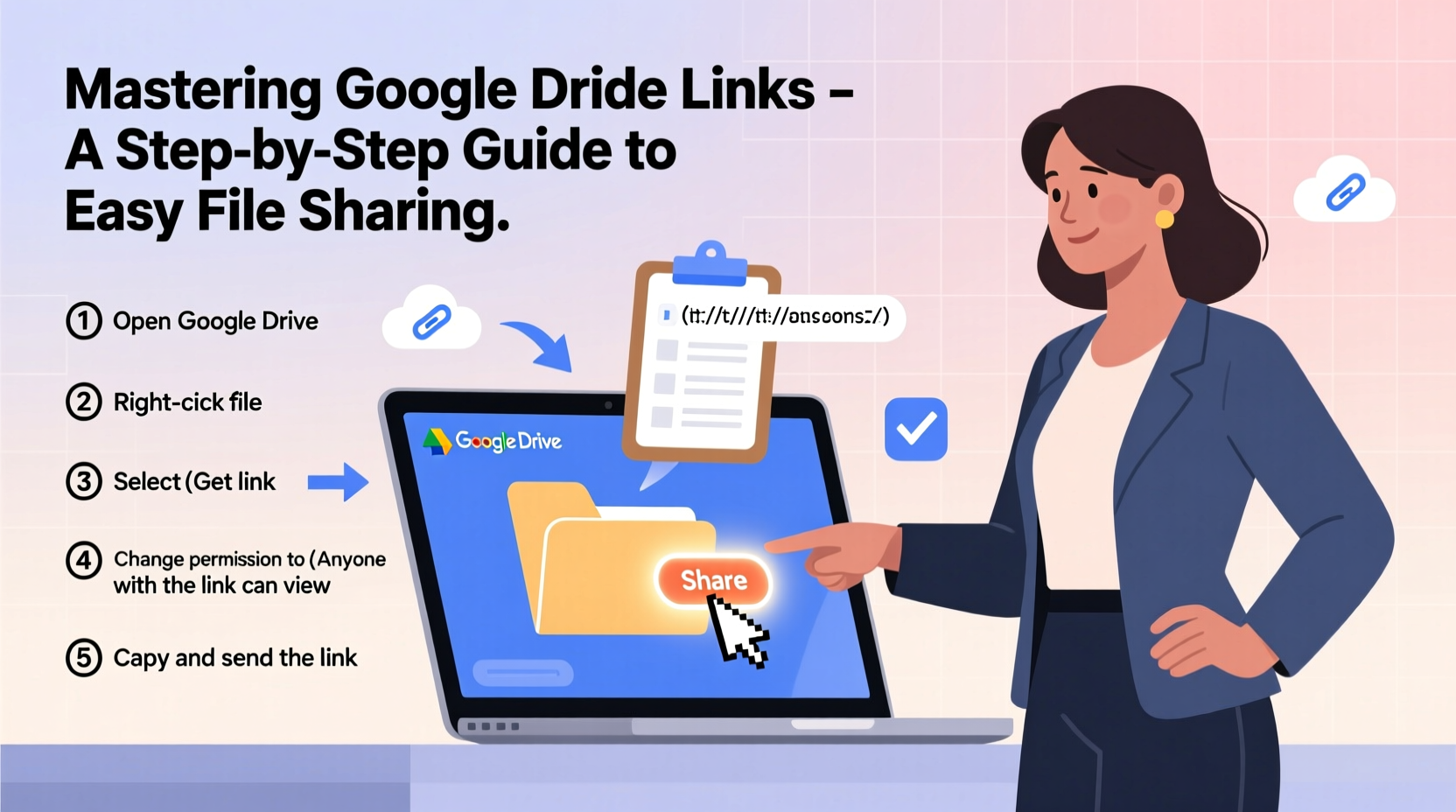
Follow this straightforward process to generate and distribute a secure, functional link from Google Drive:
- Open Google Drive in your browser and locate the file or folder you want to share.
- Right-click the item and select “Get link” from the context menu.
- Adjust permissions by clicking the dropdown next to “Restricted.” Choose Viewer, Commenter, or Editor based on your needs.
- Copy the link that appears and paste it into an email, message, or document.
- Optionally, add recipients directly by entering their email addresses and assigning specific roles.
For folders, the same process applies. Once shared, all current and future contents within the folder inherit the same permissions unless individually modified.
Best Practices for Secure and Efficient Sharing
While sharing via link is convenient, misuse can lead to data leaks or unauthorized edits. Adopt these best practices to maintain control and clarity:
- Audit shared files regularly. Use the “Shared” tab in Google Drive to review which files are accessible externally.
- Use descriptive filenames so recipients know exactly what they’re opening without confusion.
- Set expiration dates (available with Google Workspace) for time-sensitive documents to automatically revoke access.
- Prevent download, print, and copy actions when sharing sensitive content by adjusting advanced settings.
“Over 60% of accidental data exposures in cloud storage stem from misconfigured sharing settings.” — IT Security Report, 2023
Do’s and Don’ts of Google Drive Link Sharing
| Do | Don't |
|---|---|
| Use “Restricted” mode for confidential files | Share editable links publicly without vetting recipients |
| Clearly label files meant for external partners | Assume privacy just because a link isn’t searchable |
| Revoke access when collaboration ends | Leave old project folders shared indefinitely |
| Use folders to group related files and simplify sharing | Send multiple individual file links when one folder would suffice |
Real-World Example: Streamlining Team Onboarding
Sarah manages a marketing agency with frequent contractor turnover. Previously, onboarding new designers involved manually attaching PDFs, brand guidelines, and templates via email—an error-prone and time-consuming process.
She now uses a dedicated Google Drive folder titled “Onboarding Kit – Do Not Edit.” She sets it to “Viewer” access and generates a single link distributed through her welcome email. Inside, the folder contains subfolders for brand assets, project examples, and SOPs. New hires access everything instantly, while Sarah retains full control. If someone leaves the team, she removes them from the folder—no need to track down individual files.
This system cut her onboarding time by 70% and reduced follow-up questions significantly.
Troubleshooting Common Access Issues
Even with correct settings, users may encounter access problems. Here’s how to resolve the most frequent ones:
- \"You need access\" error: Ensure the recipient is logged into the correct Google account. If using work or school accounts, confirm domain restrictions aren’t blocking access.
- Link opens but file won’t load: Clear browser cache or try incognito mode. Large files may take time to render.
- Recipient can’t edit despite Editor status: Check if the file is stored in a synced third-party app (like Dropbox via Backup and Sync), which can interfere with permissions.
If the issue persists, break the sharing link and re-create it. Sometimes cached permissions cause inconsistencies.
Expert Insight: Balancing Accessibility and Security
“The key to effective file sharing isn’t locking everything down—it’s applying the right level of access at the right time. Think of Google Drive like a office building: some rooms are open to visitors, others require badges, and a few are off-limits entirely.” — David Lin, Cloud Collaboration Consultant
This philosophy underscores the importance of intentionality. Blindly setting all files to “Restricted” slows collaboration, while defaulting to “Anyone with the link” risks exposure. Evaluate each file’s purpose and audience before choosing settings.
Frequently Asked Questions
Can someone share my Google Drive link further if I set it to \"Anyone with the link\"?
Yes. Anyone who receives the link can forward it to others, even if they’re not on your contact list. To prevent this, limit sharing to specific emails instead of using public links.
How do I stop someone from accessing a file after I’ve shared it?
Go to the file’s sharing settings, find the person’s email, and click the three-dot menu next to their name. Select “Remove access.” They will immediately lose all viewing, commenting, or editing privileges.
Can I track who has opened my shared file?
Google Drive doesn’t provide built-in view tracking. However, you can use Google Docs, Sheets, or Slides activity dashboards (via the “Activity” panel) to see who viewed or edited the file. For broader analytics, integrate with tools like DocuTrack or use Google Workspace audit logs.
Checklist: Mastering Your Google Drive Sharing Workflow
- ✅ Confirm file ownership and location in Drive
- ✅ Right-click and select “Get link”
- ✅ Set appropriate permission level (Viewer, Commenter, Editor)
- ✅ Choose between “Restricted” or “Anyone with the link”
- ✅ Copy and distribute the link securely
- ✅ Periodically review and clean up shared files
- ✅ Remove access when collaboration ends
Conclusion: Take Control of Your Digital Collaboration
Mastering Google Drive links isn’t about memorizing menus—it’s about developing a mindful approach to sharing. With the right settings, habits, and awareness, you can empower collaboration without sacrificing security. Whether you're a student, professional, or small business owner, efficient file sharing saves time, reduces errors, and builds trust among collaborators.




 浙公网安备
33010002000092号
浙公网安备
33010002000092号 浙B2-20120091-4
Comments
No comments yet. Why don't you start the discussion?