
Finding a specific photo in a library of thousands can feel like searching for a needle in a digital haystack. Whether you're trying to locate last summer’s beach trip, a screenshot from six months ago, or a photo of your friend’s dog, Google Photos offers powerful search capabilities—if you know how to use them. With over 1 billion users relying on the platform, mastering its search functions isn’t just convenient; it’s essential for productivity and peace of mind.
Google Photos leverages artificial intelligence, machine learning, and natural language processing to interpret visual content and metadata. But most users only scratch the surface of what’s possible. This guide walks through practical strategies, overlooked features, and expert-backed techniques to help you retrieve any image in seconds.
Understanding How Google Photos Search Works
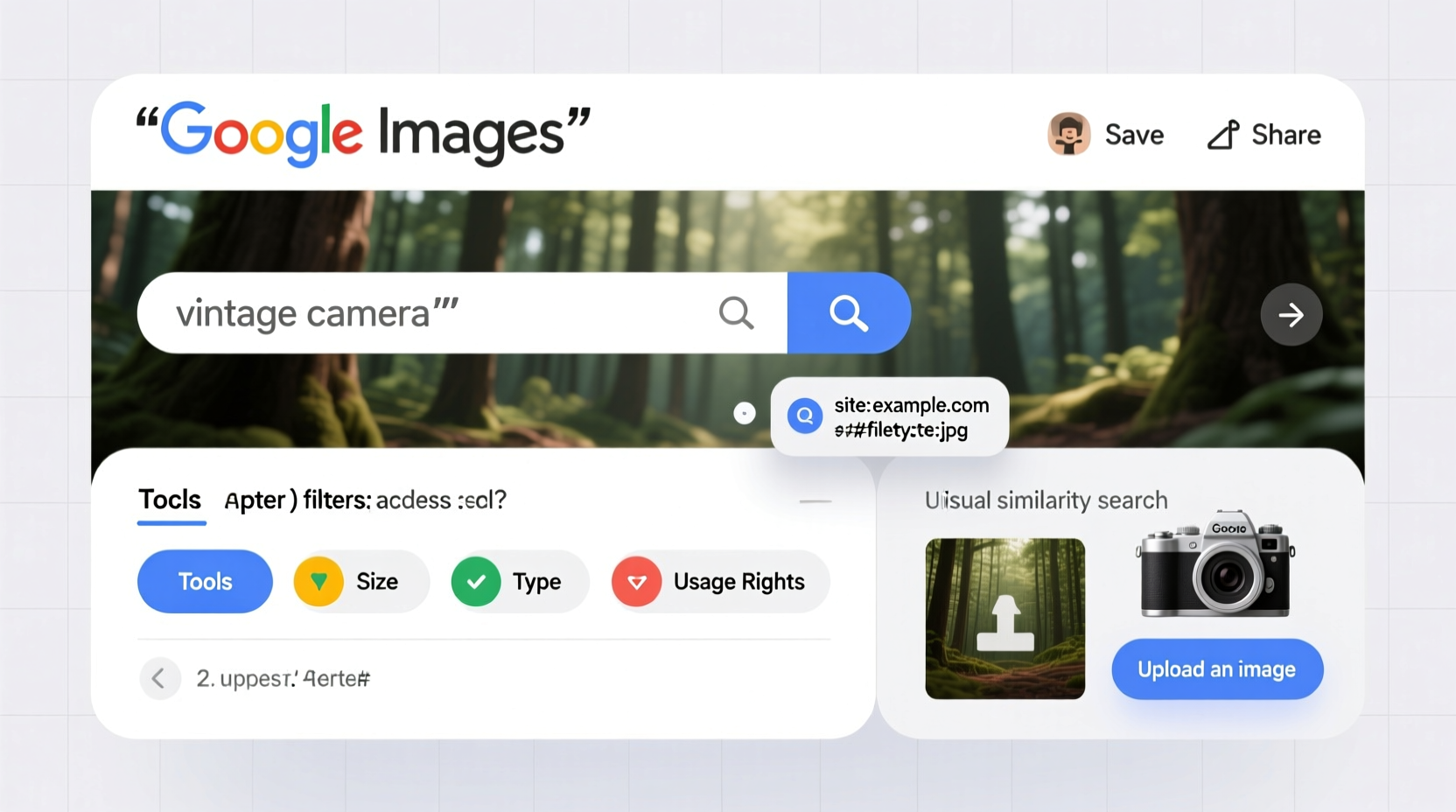
At its core, Google Photos doesn’t just rely on filenames or dates. It analyzes the actual content of images—recognizing people, pets, places, objects, text, and even emotions. This is powered by Google’s Vision AI, which scans pixels to detect patterns and classify scenes.
When you upload a photo, Google indexes it based on:
- Visual content: Objects (cars, trees), animals (dogs, cats), landmarks (Eiffel Tower), activities (running, eating)
- Metadata: Timestamps, GPS location, device type, file format
- User input: Album names, captions, starred photos, favorites
- Text within images: Whiteboards, receipts, signs, documents
This multi-layered indexing allows for highly contextual searches. For example, typing “dog at beach” returns photos where both conditions are met—even if you never labeled them as such.
“Google Photos understands context better than most users realize. It doesn’t just see a tree—it knows it’s a palm tree near water during sunset.” — Dr. Lena Patel, Computer Vision Researcher at Stanford
Step-by-Step Guide to Efficient Image Retrieval
To consistently find what you’re looking for, follow this structured approach:
- Start with a keyword: Enter a descriptive term like “birthday,” “mountains,” or “receipt.” Be specific but not overly narrow.
- Add context: Combine terms. Try “birthday cake 2023” or “black cat sleeping.”
- Leverage time filters: Use date ranges like “June 2022” or “last winter.”
- Include locations: Type “Paris museum” or “home kitchen” to filter geotagged images.
- Use activity-based queries: Search for actions like “running,” “eating pizza,” or “video call.”
- Refine with modifiers: Add words like “selfie,” “group,” “close-up,” or “document.”
- Check results and adjust: If results are off, rephrase using synonyms or broader terms.
Advanced Search Techniques and Hidden Features
Beyond basic keywords, several underused tools dramatically improve search accuracy.
Search by Color
You can find images dominated by a specific color. Try queries like “red dress,” “blue sky,” or “yellow car.” Google detects dominant hues and matches them accordingly.
Find Screenshots and Documents
Type “screenshots” or “documents” to pull up non-photographic captures. This is especially useful for retrieving login pages, error messages, or scanned notes.
Locate Specific People and Pets
If face grouping is enabled, search by name. Even untagged individuals may appear when you type “person with glasses” or “man in red shirt.” For pets, try “my dog” or “orange cat.”
Use Text Within Images
Google extracts readable text from photos. Searching “invoice $500” might return a picture of a bill containing that amount. Useful for receipts, business cards, and whiteboard notes.
Leverage Seasons and Holidays
Queries like “Halloween,” “spring flowers,” or “New Year’s Eve” tap into seasonal recognition algorithms trained on cultural and climatic patterns.
| Search Query | What It Finds | Best Used For |
|---|---|---|
| “receipt” | Images of bills, invoices, payments | Expense tracking |
| “screenshot” | Digital screen captures | Finding error messages or saved info |
| “food” | Meals, restaurants, groceries | Recipe inspiration or dietary logs |
| “travel” | Airports, suitcases, landmarks | Compiling trip memories |
| “favorite” | Starred or hearted photos | Quick access to cherished moments |
Common Mistakes That Slow Down Searches
Even experienced users fall into traps that reduce search efficiency. Avoid these pitfalls:
- Using vague terms: “Photo” or “picture” yield no results. Always specify content.
- Ignoring capitalization and spelling: While Google is forgiving, extreme misspellings (“bech”) fail.
- Overloading queries: “Mom dog birthday party red dress June” may be too specific and exclude relevant results.
- Assuming offline availability: Only backed-up photos are searchable. Check sync status if results seem incomplete.
- Not reviewing search suggestions: As you type, Google offers real-time predictions based on your library. These often lead faster to desired results.
Real-World Example: Recovering Lost Travel Photos
Sophia returned from a two-week trip to Japan but couldn’t find photos from her Kyoto temple visit. She had taken hundreds of pictures and assumed they were lost. Instead of scrolling endlessly, she followed an efficient search strategy:
- She opened Google Photos and typed “temple.”
- The results included temples from India and Greece—too broad.
- She refined the query to “temple Japan.”
- Still too many hits, so she added the month: “temple Japan April.”
- Finally, she used a location hint: “temple garden Japan April.”
Within seconds, she found the iconic red gates of Fushimi Inari Shrine. The entire process took less than a minute—compared to the 20+ minutes she previously spent scrolling.
Optimizing Your Library for Future Searches
Proactive organization enhances long-term search performance. Follow this checklist to keep your library optimized:
- ✅ Enable backup & sync across all devices
- ✅ Turn on facial recognition (Settings > Group Similar Faces)
- ✅ Create albums for major events with descriptive titles
- ✅ Star or favorite key photos for quick retrieval
- ✅ Regularly delete duplicates and blurry shots
- ✅ Use consistent naming for people and pets (e.g., “Aunt Maria,” “Buddy the Dog”)
Also consider adding voice memos or notes to albums. Though not indexed directly, these provide mental cues when recalling events.
FAQ: Common Questions About Google Photo Search
Why doesn’t my search show recent photos?
If new photos aren’t appearing, check your internet connection and sync settings. Ensure “Back up & Sync” is enabled and your device has uploaded the latest content. Processing can take minutes to hours depending on volume.
Can I search for multiple people together?
Yes. If face grouping is active, type names separated by “and”—for example, “John and Sarah.” Google will show photos where both faces appear. You can also try “family,” “couple,” or “group photo.”
Does Google Photos work offline?
Limited functionality is available offline. Recently viewed and starred photos may appear, but full search requires internet access to connect with Google’s AI servers.
Conclusion: Take Control of Your Visual Memories
Google Photos is more than a storage tool—it’s a smart visual archive capable of retrieving precise moments with minimal effort. By understanding how its AI interprets images and applying strategic search methods, you transform chaos into clarity. No more endless scrolling or frustration over missing files.
Start today: test a complex query, clean up your album structure, and explore the power of natural language search. The more you interact with the system, the better it learns your habits. Master these techniques, and every photo—no matter how old or obscure—becomes instantly accessible.




 浙公网安备
33010002000092号
浙公网安备
33010002000092号 浙B2-20120091-4
Comments
No comments yet. Why don't you start the discussion?