
Finding information about an image—where it came from, who owns it, or if it’s been altered—is now easier than ever thanks to Google Reverse Image Search. While many users know they can paste a URL into the search bar, few leverage its full potential. This guide breaks down advanced techniques, practical applications, and common pitfalls so you can use reverse image search like a digital investigator.
How Google Reverse Image Search Works
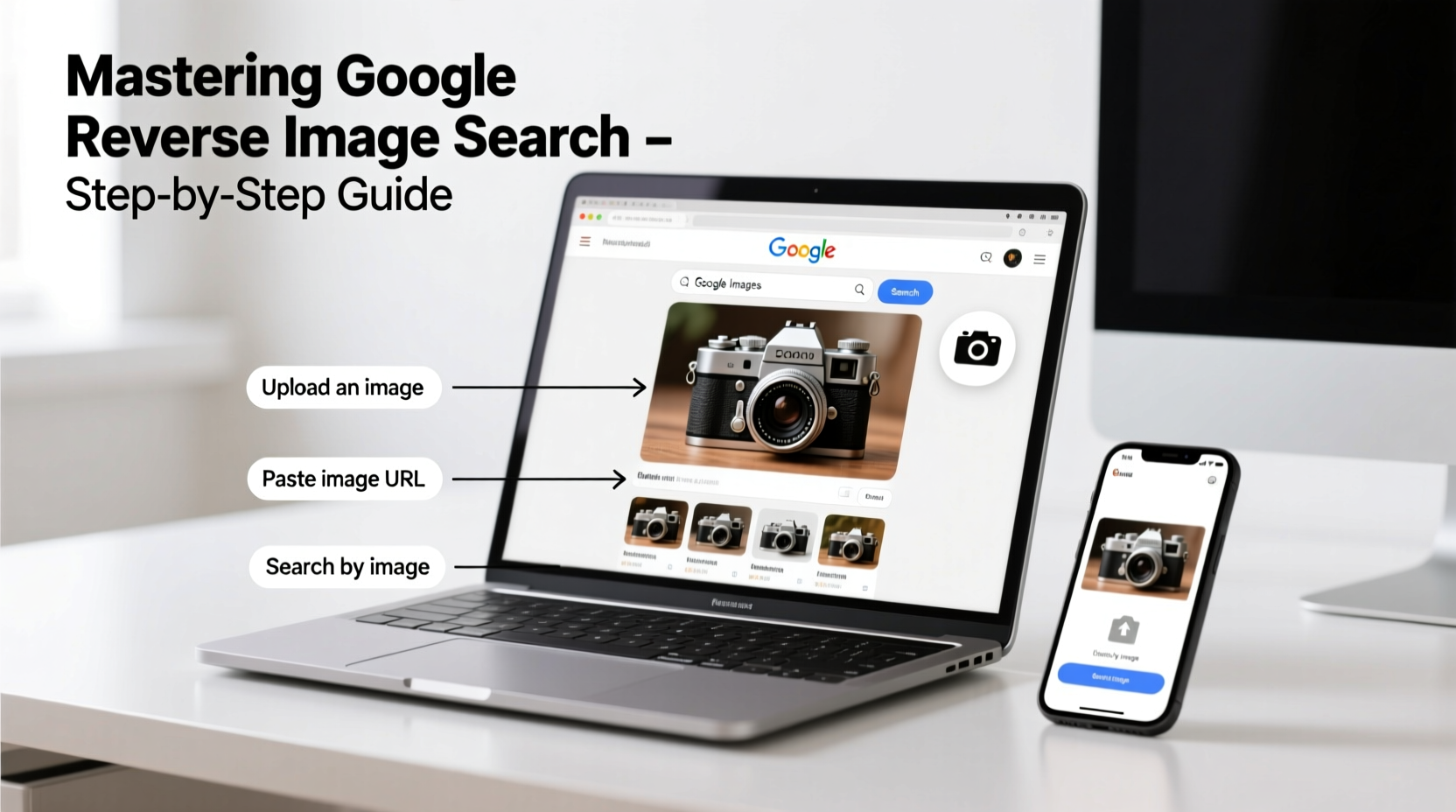
At its core, reverse image search analyzes visual data to find matches across the web. Instead of typing keywords, you provide an image, and Google uses algorithms to detect shapes, colors, textures, and patterns. It then compares these features against billions of indexed images to return visually similar results.
The technology relies on computer vision and machine learning models trained on massive datasets. When you upload an image, Google generates a unique digital fingerprint (a hash) that represents its content. Even if the image has been resized, cropped, or slightly edited, Google can often still identify matches based on partial similarities.
“Reverse image search is one of the most underused tools for fact-checking and content verification in the digital age.” — Sarah Lin, Digital Forensics Analyst at OpenNews Lab
Step-by-Step Guide to Performing a Reverse Image Search
Whether you're verifying a meme, tracking down photo credits, or investigating a suspicious profile picture, follow this structured process:
- Open Google Images: Go to images.google.com.
- Click the camera icon in the search bar to open the reverse image search tool.
- Upload your image using one of two methods:
- Paste an image URL (if the image is hosted online)
- Upload an image from your device (drag and drop or browse files)
- Analyze the results: Google will display:
- Sites where the image appears
- Versions of the image (cropped, resized, edited)
- Related searches and context
- Refine your search: Use filters like “Large,” “Photos,” or “Creative Commons” to narrow results.
Practical Applications of Reverse Image Search
This tool isn’t just for curiosity—it serves real-world purposes across industries.
Verifying Authenticity of Social Media Content
In an era of misinformation, reverse image search helps determine whether a viral photo is genuine. For example, during breaking news events, old images are often repurposed as new. By uploading the image, you can trace its earliest appearances and assess credibility.
Protecting Intellectual Property
Photographers and designers can use reverse search to find unauthorized uses of their work. Regular checks help identify websites using images without permission, enabling takedown requests or licensing negotiations.
Shopping and Product Identification
See a piece of furniture, clothing, or gadget in a photo but don’t know the brand? Upload the image to find retail listings, reviews, and pricing comparisons—even if no text description exists.
Researching Art and Historical Images
Art students and historians use reverse search to identify unknown paintings, sculptures, or archival photos. Matching fragments to museum databases or academic publications reveals provenance and context.
Mini Case Study: Exposing a Fake Profile
A freelance client received a message on LinkedIn from someone claiming to be a marketing executive at a well-known tech firm. The profile included a professional headshot. Suspicious of overly polished language, the freelancer downloaded the image and ran a reverse search.
Results revealed the same photo used on multiple dating sites, travel blogs, and scam reports. Further investigation showed the individual didn’t exist—the photo was stolen from a stock image site. Thanks to reverse image search, a potential phishing attempt was avoided.
Advanced Tips and Best Practices
To get the most out of Google’s tool, go beyond basic uploads.
- Use Chrome Extensions: Tools like “Search by Image” allow right-click reverse searches directly from any webpage.
- Try Multiple Engines: While Google is powerful, alternatives like Bing Visual Search, Yandex, or TinEye may yield different results—especially for non-Western content.
- Check Metadata When Possible: Though Google strips EXIF data during upload, viewing metadata locally (using software like ExifTool) can reveal camera model, location, and timestamp before running the search.
- Modify the Image Slightly: Convert to grayscale or enhance contrast if the original is low quality. Sometimes preprocessing improves match accuracy.
Do’s and Don’ts of Reverse Image Searching
| Do’s | Don’ts |
|---|---|
| Use high-resolution images for better accuracy | Assume all results are current or authoritative |
| Crop to relevant sections when dealing with complex images | Upload sensitive personal images (e.g., IDs, private photos) |
| Cross-reference findings across multiple search engines | Ignore regional variations in results (Google shows localized matches) |
| Save search results with timestamps for documentation | Automate bulk searches without reviewing each result carefully |
FAQ
Can Google Reverse Image Search identify people?
Google does not offer facial recognition for public reverse searches. While visually similar faces may appear in results, it cannot reliably identify individuals unless they are public figures with widely published images linked to their names.
Why do some images return no results?
An image may not appear in results if it’s never been indexed—such as newly created or privately stored photos. Heavily edited, abstract, or low-contrast images also reduce matching accuracy.
Is reverse image search free and safe to use?
Yes, Google’s tool is free and secure. Uploaded images are processed temporarily and not stored permanently. However, avoid uploading confidential or personally identifiable material to protect privacy.
Conclusion and Call to Action
Google Reverse Image Search is more than a novelty—it’s a vital skill for navigating today’s visual internet. From combating misinformation to protecting creative work, the ability to trace an image’s journey empowers smarter decisions online. Mastery comes not just from knowing how to upload a file, but from interpreting results critically and applying them strategically.




 浙公网安备
33010002000092号
浙公网安备
33010002000092号 浙B2-20120091-4
Comments
No comments yet. Why don't you start the discussion?