
Staying connected with friends, family, or team members doesn’t have to mean sending the same message over and over. Group texting on Android simplifies communication by letting you reach multiple people at once—without cluttering your inbox or wasting time. When used effectively, it becomes a powerful tool for coordination, planning, and maintaining relationships. Yet many users miss out on its full potential due to overlooked settings, privacy concerns, or confusion about how it works across different devices and carriers.
This guide walks through everything you need to know to master group texting on Android—from setup and customization to etiquette and troubleshooting—all designed to help you communicate more efficiently and confidently.
Understanding How Group Texting Works on Android
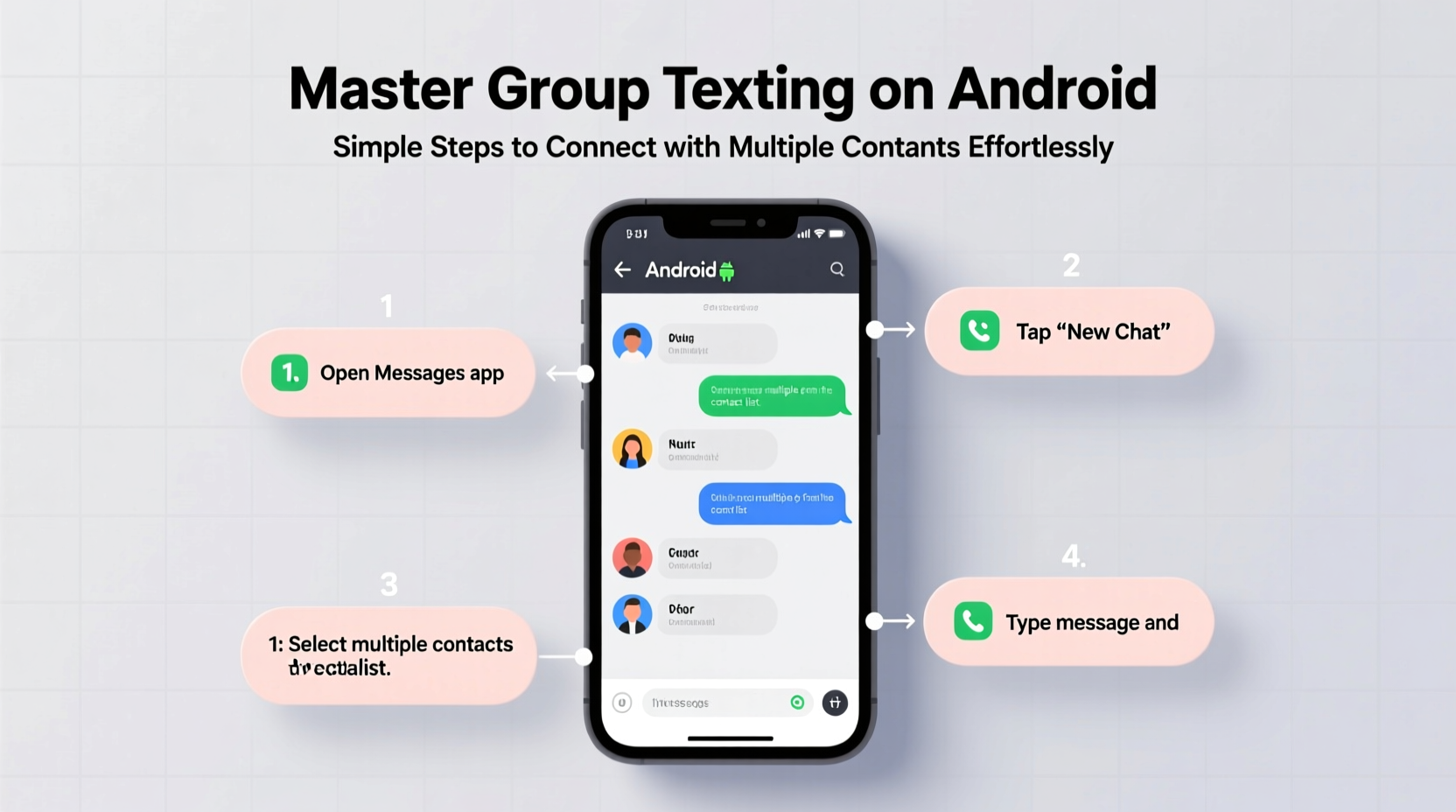
Unlike traditional one-on-one SMS, group texts allow multiple recipients to receive and reply to the same message thread. On Android, group messaging can operate via two primary protocols: SMS/MMS (standard text messaging) and Rich Communication Services (RCS). The behavior of your group chat depends heavily on which protocol is active.
SMS-based group messages are sent as MMS (Multimedia Messaging Service), even if no media is attached. This means each participant receives an individual copy of the message, and replies may appear as separate threads depending on the recipient’s device. RCS, Google’s upgraded messaging standard, supports true group chats with read receipts, typing indicators, and high-quality media sharing—similar to iMessage or WhatsApp.
To ensure optimal performance, confirm that Google Messages is set as your default app and that RCS is enabled. Without it, you might experience fragmented conversations or delayed delivery.
Step-by-Step Guide to Creating a Group Text
Creating a group text on Android is straightforward when using the right tools. Follow these steps to start a new group conversation:
- Open the Google Messages app (or your default messaging app).
- Tap the compose icon (usually a pencil or square with a plus sign).
- In the \"To\" field, begin typing the names or phone numbers of the contacts you want to include.
- Select each contact from the dropdown list—up to 29 additional people can be added per group.
- Type your message in the text box.
- Press send.
Once sent, a group thread will form. If RCS is active, all participants using compatible devices will see a unified conversation. If not, the system defaults to MMS, which may result in split replies or missing metadata like read status.
You can rename the group for easier identification. Long-press the conversation, tap “Group info,” then edit the subject line. Note that renaming only affects your view unless all members use RCS-enabled platforms with sync support.
Best Practices for Effective Group Communication
While convenient, group texts can quickly become overwhelming without proper management. Miscommunication, off-topic replies, and notification fatigue are common pitfalls. To maintain clarity and respect among participants, consider these best practices:
- Set clear expectations: At the start of a new group, briefly state its purpose—whether it's event planning, family updates, or work coordination.
- Limit unnecessary replies: Avoid responding with “Okay” or “Got it” unless essential. Use reactions if available via RCS.
- Respect timing: Be mindful of time zones and late-night messages that could disturb others.
- Avoid mass tagging: Only add people who genuinely need to be included. Unwanted additions can feel intrusive.
- Use descriptive subjects: Rename groups meaningfully (e.g., “Weekend Trip – June 14–16”) so they’re instantly recognizable.
“Effective digital communication isn’t just about speed—it’s about intentionality. A well-managed group text reduces noise and increases trust.” — Dr. Lena Torres, Digital Communication Researcher, University of Michigan
Do’s and Don’ts of Android Group Messaging
| Do’s | Don’ts |
|---|---|
| Enable RCS for richer features and better synchronization | Assume everyone sees messages the same way—device differences matter |
| Use group naming to organize frequent conversations | Add someone without their permission |
| Leave a group you no longer need to avoid clutter | Spam the group with memes or non-essential content |
| Turn off notifications temporarily during busy periods | Expect instant responses—group dynamics vary |
| Confirm receipt for critical information (e.g., meeting changes) | Delete the entire thread thinking it removes it for others |
Troubleshooting Common Group Text Issues
Even with proper setup, issues can arise. Here are some frequent problems and practical solutions:
Messages Not Delivering to All Recipients
This often occurs when MMS settings are misconfigured. Check that mobile data is enabled and APN (Access Point Name) settings are correct. Go to Settings > Network & Internet > Mobile Network > Advanced > Access Point Names and verify your carrier’s MMS configuration.
Split Threads or Duplicate Conversations
If replies appear as separate messages, your device may be interpreting each response individually. Ensure all participants are using the same messaging app where possible, and encourage adoption of RCS. You can also try merging conversations: long-press a duplicate thread, select “Merge,” and choose the correct match.
Unable to Add More Than a Few Contacts
Some carriers impose limits on MMS group size (often 10–20 recipients). If you hit this cap, consider switching to a dedicated messaging platform like WhatsApp or Telegram for larger groups.
Real-World Example: Coordinating a Family Reunion
The Patel family lives across four states. Planning their annual reunion used to involve endless back-and-forth calls and scattered emails. Last year, they created a group text titled “Patel Family Reunion 2024” using Google Messages with RCS enabled.
One member shared a link to a shared calendar, another posted transportation options, and a third uploaded a poll for preferred dates. Because RCS allowed read receipts and typing indicators, everyone knew when decisions were being made in real time. When Aunt Meera accidentally sent a photo meant for her sister, she used the “Delete for everyone” feature within two minutes—avoiding embarrassment.
The group stayed active for six weeks, then was archived after the event. The result? Smoother planning, fewer missed details, and stronger engagement than ever before.
Essential Checklist for Mastering Group Texts
Before launching your next group conversation, run through this checklist:
- ✅ Set Google Messages as your default SMS app
- ✅ Enable RCS under Chat features
- ✅ Verify all contacts’ numbers are saved correctly
- ✅ Confirm mobile data is on for MMS delivery
- ✅ Name the group clearly upon creation
- ✅ Inform members of the group’s purpose and norms
- ✅ Know how to leave or mute a group if needed
Frequently Asked Questions
Can I leave a group text without notifying everyone?
Yes. In Google Messages, open the group, tap the three-dot menu, and select “Leave conversation.” Others will see a note saying you’ve left, but you won’t receive further messages. There’s no way to exit silently—the departure notice is automatic for transparency.
Why do some messages show “Sent as SMS” instead of delivered?
This typically happens when RCS is disabled or unavailable for a recipient. The message falls back to standard SMS, which lacks delivery confirmation unless provided by your carrier. Encourage contacts to enable chat features for consistent results.
Is my group text secure?
RCS with end-to-end encryption (available in Google Messages for verified participants) protects content between Android users. However, SMS/MMS messages are not encrypted and can be intercepted. For sensitive discussions, opt for apps like Signal or WhatsApp that offer universal encryption.
Take Control of Your Conversations
Group texting on Android is more than a convenience—it’s a way to strengthen connections, streamline collaboration, and reduce communication overhead. By understanding the technology behind it, applying smart habits, and respecting social boundaries, you transform chaotic threads into productive, meaningful exchanges.
Start today: review your current group chats, clean up inactive ones, rename unclear threads, and enable RCS if you haven’t already. Small adjustments lead to big improvements in how you stay connected.




 浙公网安备
33010002000092号
浙公网安备
33010002000092号 浙B2-20120091-4
Comments
No comments yet. Why don't you start the discussion?