
Adding a link to a web page is one of the most fundamental skills in web development. Hyperlinks connect content across the internet, guiding users from one page to another, whether within your site or to external resources. For beginners, understanding how to correctly implement links using HTML is essential. This guide walks you through every step—from writing basic anchor tags to using advanced attributes—so you can confidently create functional, accessible, and SEO-friendly links.
Understanding the Anchor Tag: The Foundation of Links
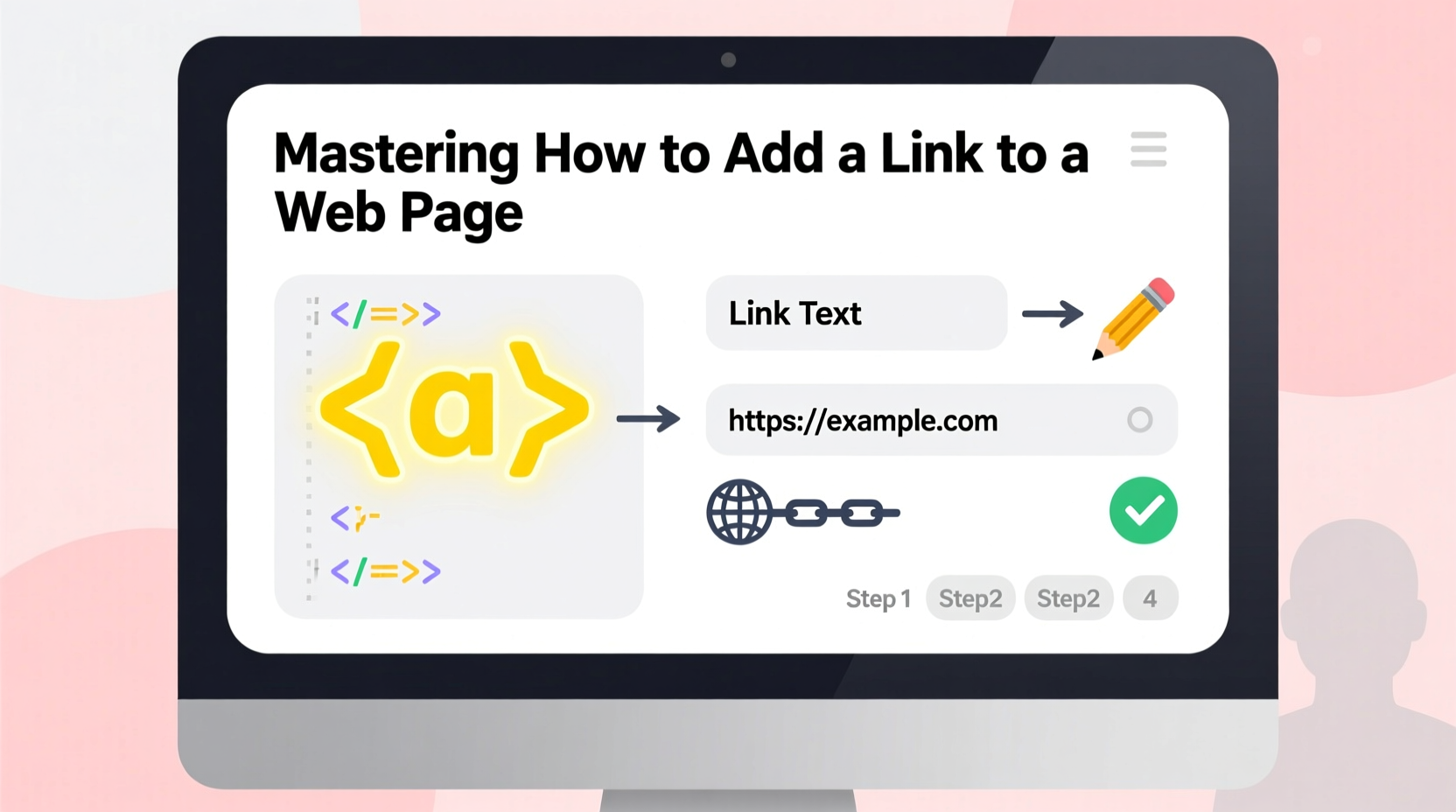
In HTML, links are created using the <a> element, known as the anchor tag. This tag defines a hyperlink, which can point to another web page, a file, an email address, or even a specific section within the same page. The key attribute used with this tag is href, short for \"hypertext reference,\" which specifies the destination URL.
The simplest form of a link looks like this:
<a href=\"https://www.example.com\">Visit Example</a>When rendered in a browser, this displays as clickable text labeled \"Visit Example\" that directs users to the specified URL upon clicking.
Step-by-Step Guide to Adding a Link
- Determine the destination URL: Decide where the link should go—another page on your site, a blog post, a PDF, or an external website.
- Write the opening anchor tag: Begin with
<a href=\"URL\">, replacing \"URL\" with the actual web address. - Add descriptive link text: Insert readable text between the opening and closing tags that clearly indicates the purpose of the link.
- Close the tag: End with
</a>. - Test the link: Save your HTML file and open it in a browser to ensure the link works as expected.
For example, to link to a privacy policy page hosted on your own site:
<a href=\"/privacy-policy.html\">View our Privacy Policy</a>Types of URLs: Relative vs Absolute
When adding links, you’ll encounter two types of paths: relative and absolute. Knowing when to use each is crucial for maintaining clean, functional navigation.
| Type | Syntax Example | Use Case |
|---|---|---|
| Absolute URL | https://yoursite.com/about.html |
Linking to external sites or ensuring full path accuracy |
| Relative URL | about.html or ../images/photo.jpg |
Navigating within your own website’s folder structure |
Absolute URLs include the full web address, including the protocol (https://). They’re necessary when linking to external domains. Relative URLs are shorter and based on the current file’s location. For internal navigation, they make your code more portable—if you move your entire site to a new domain, relative links still work without changes.
Enhancing Links with Advanced Attributes
Beyond the basic href, several attributes improve functionality and user experience:
- target: Specifies where the linked document opens. Use
target=\"_blank\"to open in a new tab (ideal for external links). - title: Adds a tooltip that appears on hover, offering extra context.
- rel: Defines the relationship between the current page and the linked one. For external links opened in a new tab, always include
rel=\"noopener noreferrer\"for security.
Here’s an improved version of an external link:
<a href=\"https://external-site.com\" target=\"_blank\" rel=\"noopener noreferrer\" title=\"Opens in a new window\">
  Learn More at External Site
</a>“Usingrel='noopener'isn’t just best practice—it’s critical for preventing performance and security issues when usingtarget='_blank'.” — Jake Archibald, Web Developer Advocate at Google
Common Mistakes and How to Avoid Them
Even small errors can break links or harm usability. Watch out for these frequent pitfalls:
- Missing quotes around URLs: Writing
<a href=https://example.com>may seem to work but violates HTML standards and can fail in complex cases. - Using raw spaces in URLs: Spaces must be encoded as
%20or replaced with hyphens. Better yet, avoid spaces entirely in filenames. - Forgetting forward slashes in relative paths:
../folder/file.htmlis correct; missing dots or slashes leads to 404 errors. - Overusing blank targets: Opening too many tabs frustrates users. Reserve
target=\"_blank\"for truly external destinations.
Mini Case Study: Fixing Navigation on a Small Business Website
Sarah runs a local bakery with a simple website built in HTML. She noticed customers weren’t finding her online order form. Upon review, she found the menu item was coded as:
<a href=order-now.html>Order Online</a>The missing quotes caused inconsistent rendering across browsers. After correcting it to:
<a href=\"order-now.html\">Order Online</a>and placing the link in the main navigation bar, visits to the order page increased by 40% over three weeks. A tiny fix led to real business impact.
Accessibility and SEO Best Practices
A well-built link benefits both accessibility and search engine optimization. Screen readers rely on clear link text to navigate content, while search engines use links to index pages and assess relevance.
To optimize for both:
- Use action-oriented, meaningful text (e.g., “Download the pricing guide” instead of “Click here”).
- Avoid generic phrases like “link” or “page.”
- Ensure sufficient color contrast between link text and background.
- Don’t underline non-link text, as it confuses users expecting clickable elements.
Checklist: Creating Effective HTML Links
Before publishing any page, run through this checklist:
- ✅ Is the
hrefattribute correctly formatted with quotes? - ✅ Does the link text describe the destination clearly?
- ✅ Are external links set to
target=\"_blank\"withrel=\"noopener noreferrer\"? - ✅ Have I tested the link in multiple browsers?
- ✅ Are relative paths accurate based on file structure?
- ✅ Is the link accessible to keyboard and screen reader users?
Frequently Asked Questions
Can I link to a specific section on the same page?
Yes. First, assign an id to the target element: <h2 id=\"contact\">Contact Us</h2>. Then link to it using <a href=\"#contact\">Jump to Contact</a>. This creates a smooth scroll effect and improves navigation.
What should I do if a link stops working?
Regularly audit your site for broken links using tools like Screaming Frog or Google Search Console. Update outdated URLs promptly. If a page has permanently moved, consider setting up a 301 redirect on your server to maintain SEO value.
Is it okay to link to PDFs or downloadable files?
Yes, but inform users. Use descriptive text like “Download the annual report (PDF, 2.3MB).” You can also add an icon via CSS to visually indicate a download, improving user experience.
Conclusion: Start Building Better Connections Today
Mastering how to add a link to a web page is more than a technical task—it’s about creating seamless pathways for information, commerce, and engagement. With proper syntax, thoughtful labeling, and attention to detail, your links become powerful tools for usability and discovery. Whether you're building a personal blog or managing a company website, taking the time to implement links correctly pays dividends in user satisfaction and search visibility.




 浙公网安备
33010002000092号
浙公网安备
33010002000092号 浙B2-20120091-4
Comments
No comments yet. Why don't you start the discussion?