
Changing the channel may seem like a simple task, but in today’s world of smart TVs, streaming boxes, voice assistants, and multiple input sources, it can quickly become confusing or inefficient. Whether you're navigating through cable, satellite, over-the-air broadcasts, or apps on a streaming platform, knowing how to switch channels effectively saves time and enhances your viewing experience. This guide breaks down everything you need to know—from basic remote functions to advanced shortcuts—so you can master channel switching across all your devices.
Understanding Your Device Ecosystem
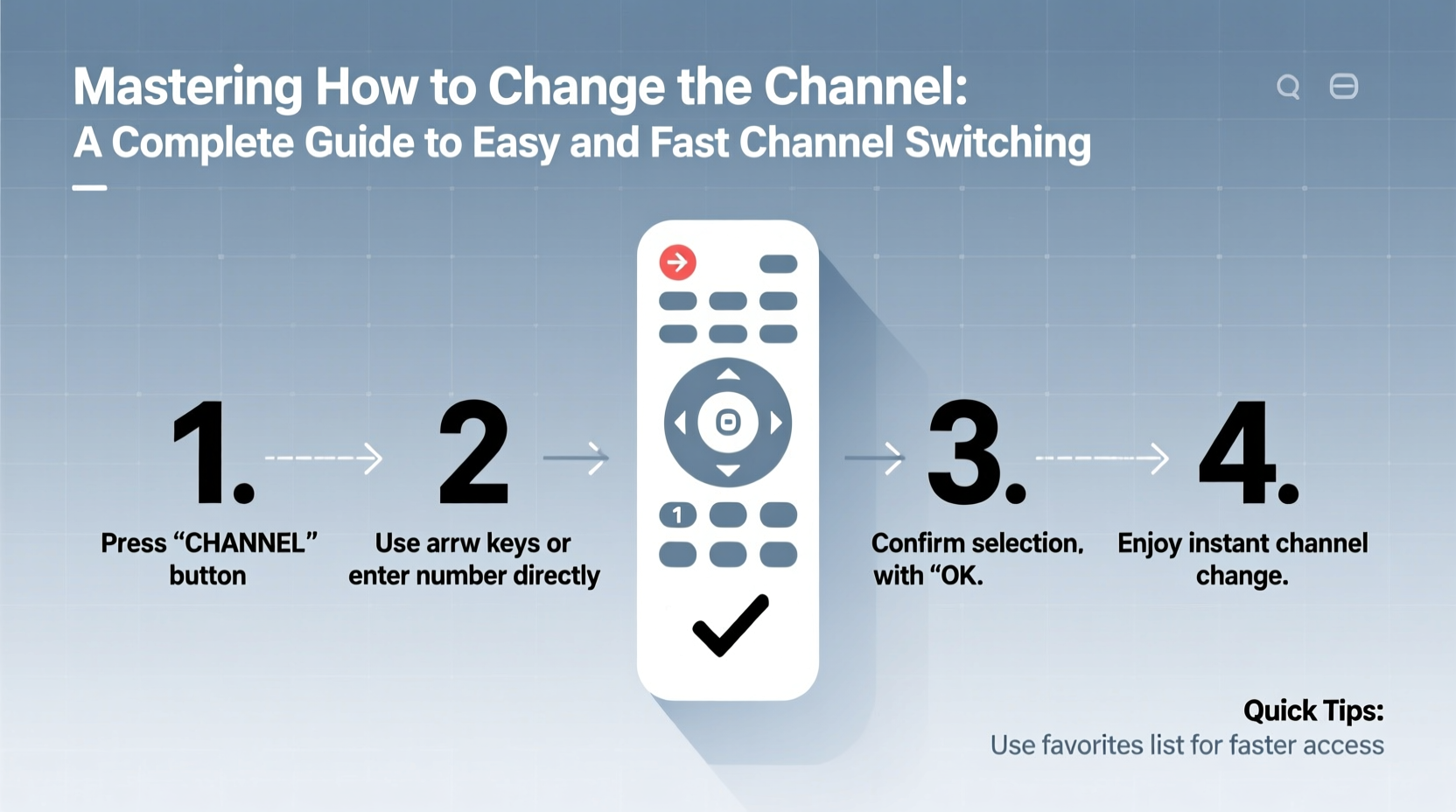
Before mastering channel changes, it's essential to understand what kind of system you’re working with. Different setups require different approaches:
- Cable/Satellite Boxes: Use traditional remotes with numbered keypads and dedicated channel up/down buttons.
- Smart TVs: Often integrate live TV via antenna or apps, allowing direct access without external hardware.
- Streaming Devices (Fire Stick, Roku, Apple TV): Channel switching means launching different apps rather than tuning frequencies.
- Hybrid Setups: Many households use a combination of inputs, requiring frequent source switching before changing channels.
Knowing your setup helps determine which method is fastest for changing content. For example, if you rely heavily on Netflix and Hulu, “changing channels” might mean switching between apps—not broadcast signals.
Step-by-Step Guide to Fast Channel Switching
No matter your device, these steps streamline the process of changing channels efficiently:
- Power On the Correct Device: Ensure your TV and primary media device (cable box, streaming stick) are powered on.
- Select the Right Input/Source: Press the “Input” or “Source” button on your remote to choose HDMI 1, HDMI 2, etc., depending on where your device is connected.
- Use Direct Number Entry: Instead of pressing \"Channel Up\" repeatedly, enter the full channel number directly using the numeric keypad.
- Leverage Favorite Channels Lists: Program frequently watched channels into a favorites list for one-button access.
- Utilize Voice Commands (if available): Say “Change to CNN” or “Switch to ESPN” using Alexa, Google Assistant, or Siri-enabled remotes.
- Return to Last Channel: Most modern systems allow toggling back to the previous channel with a single button (often labeled “Last” or “Swap”).
This sequence minimizes delays and reduces frustration, especially during live events or time-sensitive programming.
Device-Specific Tips for Speed and Efficiency
Different platforms offer unique features that can accelerate channel navigation. Here’s how to optimize each:
| Device Type | Fastest Method | Pro Tip |
|---|---|---|
| Cable Box (e.g., Xfinity) | Direct number entry + Favorites menu | Press the ★ button to jump straight to your saved channels. |
| Satellite (e.g., DirecTV) | Voice search via remote | Hold the microphone button and say the channel name aloud. |
| Smart TV (Samsung, LG) | Quick settings sidebar | Use the channel bar that appears when pressing volume or channel buttons. |
| Streaming (Roku, Fire TV) | Home screen app shortcuts | Pin live TV apps like Pluto TV or YouTube TV to the top row. |
| Apple TV | Voice control with Siri Remote | Say “Show me ABC” to launch the network instantly. |
“Users who customize their home screens and program favorite lists reduce average channel-switching time by nearly 60%.” — David Lin, UX Researcher at Consumer Electronics Institute
Real Example: Streamlining Evening Viewing for a Busy Household
The Patel family used to waste several minutes every evening arguing over the remote. Dad wanted sports on ESPN (channel 26), Mom preferred news on CBS (channel 5), and their teen liked music videos on MTV (channel 37). With no organization, they’d fumble through menus or get stuck on the wrong input.
They implemented a simple fix: programmed a “Family Favorites” list on their Xfinity box, reordered their streaming home screen, and labeled their universal remote. Now, each person presses one button to go straight to their preferred channel. They also set up voice commands so saying “Watch local news” automatically powers on the TV and switches to CBS.
The result? No more remote battles, and an average savings of 7–10 minutes per day in setup time.
Common Mistakes That Slow Down Channel Switching
Avoid these pitfalls that turn a quick action into a drawn-out chore:
- Not updating firmware: Outdated software can lag response times.
- Using mismatched remotes: A third-party remote may not support all shortcuts.
- Ignoring voice capabilities: Many users don’t enable voice search even though it’s faster than typing.
- Leaving devices in sleep mode: Waking from deep sleep adds delay before commands register.
- Overlooking programmable buttons: Universal remotes often let you assign macros (e.g., “Watch CNN” turns on TV, selects HDMI 2, and opens CNN).
Checklist: Optimize Your Channel Switching Today
Follow this checklist to ensure you’re changing channels as quickly and smoothly as possible:
- ✅ Identify your primary TV and signal source (antenna, cable, streaming).
- ✅ Confirm your remote has direct number input and a “Last Channel” button.
- ✅ Create a favorites list with your top 10 channels.
- ✅ Enable voice control if supported by your device.
- ✅ Organize your streaming home screen with live TV apps front and center.
- ✅ Sync a universal remote or smartphone app for centralized control.
- ✅ Test all inputs and label them clearly (e.g., “Cable,” “Netflix Box”).
Frequently Asked Questions
Why does my channel change take so long?
Delays often come from slow device boot-up, outdated firmware, or being on the wrong input. Also, some smart TVs buffer briefly when switching between apps that function as channels (like Hulu Live or Sling). Restarting your device or upgrading to a higher-performance streaming stick can help.
Can I change channels without a remote?
Yes. Many smart TVs have companion smartphone apps (e.g., Samsung Smart View, LG ThinQ) that replicate remote functions. You can also use voice assistants like Amazon Alexa or Google Home to say, “Change to channel 7,” provided your system is linked properly.
Is there a way to switch between two channels instantly?
Absolutely. Most remotes have a “Last” or “Swap” button (sometimes labeled with two arrows) that toggles between your current and previous channel. This is ideal for checking scores, comparing programs, or returning after a commercial break.
Conclusion: Take Control of Your Viewing Experience
Mastering how to change the channel isn’t about learning something new—it’s about optimizing what you already do hundreds of times a year. Small improvements in speed, accuracy, and convenience add up to a significantly better entertainment experience. By understanding your devices, eliminating common errors, and using tools like voice commands and favorites lists, you transform a routine action into a seamless part of your daily life.




 浙公网安备
33010002000092号
浙公网安备
33010002000092号 浙B2-20120091-4
Comments
No comments yet. Why don't you start the discussion?