
Downloading files is a daily activity for most internet users—whether it’s software, documents, media, or datasets. Yet, many people overlook the risks and inefficiencies involved. A poorly managed download can expose your device to malware, waste bandwidth, or corrupt data. Mastering how to file download isn’t just about clicking a link; it’s about understanding security, optimizing performance, verifying integrity, and organizing results effectively.
This guide walks through best practices, tools, and strategies that ensure every download you initiate is fast, safe, and reliable. From recognizing trustworthy sources to using download managers and verifying checksums, you’ll gain the skills needed to navigate the digital landscape with confidence.
Understanding File Download Risks
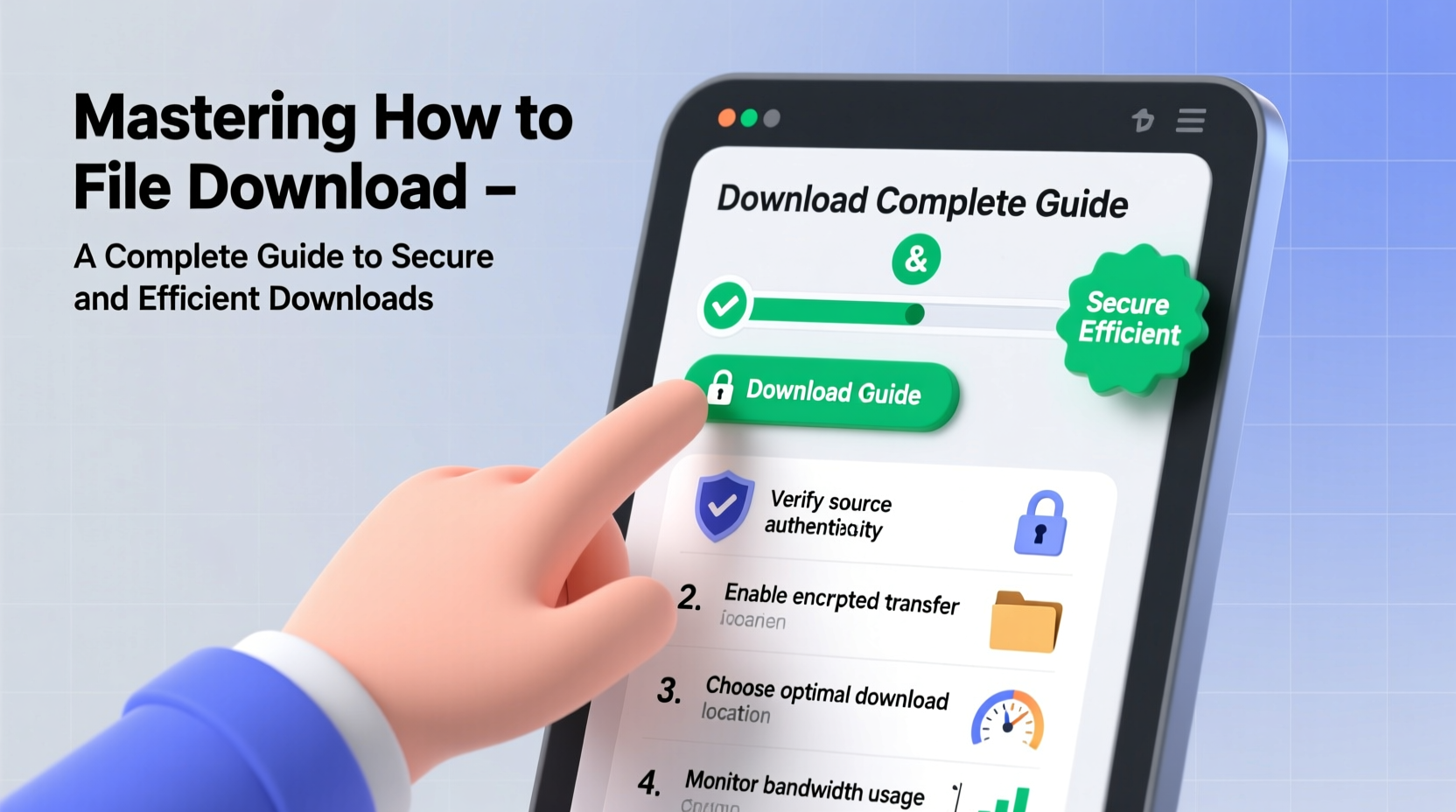
Every time you download a file, you’re inviting external data into your system. That data could be benign—or it could contain malicious code designed to steal information, encrypt your files, or take control of your device. Cybercriminals often disguise malware as legitimate software, PDFs, or media files on untrusted websites.
Common threats include:
- Malware-laced executables: Files ending in .exe, .bat, or .scr may install viruses if sourced from unknown origins.
- Phishing documents: Fake invoices or forms in .pdf or .docx formats can harvest login credentials.
- Drive-by downloads: Malicious scripts that trigger automatic downloads without consent.
- Outdated software bundles: Free software portals sometimes bundle adware or outdated versions with security flaws.
A 2023 report by AV-TEST Institute detected over 560,000 new malware samples daily. Many were distributed via deceptive download pages mimicking official sites. Awareness and caution are essential defenses.
Step-by-Step Guide to Secure Downloads
To minimize risk and maximize reliability, follow this structured approach each time you initiate a download:
- Identify the need: Determine exactly what file you require—version, format, and source.
- Choose an official source: Download directly from the developer’s website or a verified repository like GitHub, SourceForge (verified projects), or government data portals.
- Check reviews and reputation: Search for user feedback or security audits related to the file or site.
- Inspect the page: Avoid pop-ups, fake “Download Now” buttons, or aggressive advertising.
- Verify encryption: Ensure the connection uses HTTPS (look for the padlock icon).
- Scan after download: Use antivirus software to scan the file immediately upon completion.
- Confirm file integrity: Compare checksums (MD5, SHA-256) if provided by the publisher.
This process reduces exposure to social engineering tactics and ensures authenticity. Skipping even one step can compromise security.
Optimizing Download Speed and Efficiency
Slow downloads frustrate users and consume unnecessary time and bandwidth. However, speed isn’t always limited by your internet plan—configuration and tools play a major role.
Consider these optimization techniques:
- Use a download manager: Tools like Free Download Manager, JDownloader, or Internet Download Manager split files into segments and download them simultaneously, increasing throughput.
- Schedule off-peak downloads: Run large transfers during low-usage hours (e.g., overnight) when network congestion is minimal.
- Limit concurrent connections: Too many simultaneous downloads can throttle overall speed. Adjust settings based on your bandwidth.
- Clear browser cache regularly: Accumulated data can interfere with download initiation and progress tracking.
| Method | Speed Impact | Best For |
|---|---|---|
| Standard Browser Download | Moderate | Small files, trusted sites |
| Download Manager (Segmented) | High | Large files, unstable connections |
| Cloud-to-Cloud Transfer (e.g., MultCloud) | Variable | Remote file migration |
| Command-Line Tools (wget, curl) | High + Scriptable | Automated, repeated tasks |
“Using segmented downloading tools can improve transfer speeds by up to 500%, especially on high-latency connections.” — Dr. Lena Torres, Network Performance Researcher at MIT
Verifying File Integrity and Authenticity
Even if a file appears legitimate, it might have been altered during transit. Checksums and digital signatures help confirm that what you downloaded matches the original release.
Here’s how to use them:
- Checksum verification: Publishers often provide MD5 or SHA-256 hashes. After downloading, generate the hash locally using tools like CertUtil (Windows), `shasum` (macOS/Linux), and compare.
- Digital signatures: Executables from reputable developers are signed. On Windows, right-click the file > Properties > Digital Signatures to validate.
- GPG verification: Open-source projects frequently offer GPG-signed releases. Verify using public keys from trusted key servers.
Mini Case Study: The Compromised Development Tool
In 2022, a popular open-source development utility hosted on a third-party mirror was silently replaced with a version containing a backdoor. Developers who downloaded it unknowingly introduced vulnerabilities into their production environments. Those who verified the SHA-256 checksum against the project’s GitHub page detected mismatches and avoided installation. The incident highlighted the importance of source verification and integrity checks—even for widely used tools.
Essential Checklist for Every Download
Before finalizing any download, run through this checklist to protect your system and ensure quality:
- ✅ Is the website the official source?
- ✅ Does the URL begin with HTTPS?
- ✅ Are there user reviews or community warnings?
- ✅ Is there a checksum or digital signature available?
- ✅ Have I scanned the file with antivirus software?
- ✅ Am I using a download manager for large files?
- ✅ Is my device firewall active during the transfer?
Adopting this routine turns safe downloading from an afterthought into a consistent habit.
Frequently Asked Questions
Is it safe to download files from torrent sites?
Torrents themselves are not inherently unsafe, but they carry higher risks due to decentralized hosting and lack of moderation. Many torrents contain pirated content or malware. If used, pair them with a trusted VPN, avoid executable files, and always scan downloads. Legal alternatives like official repositories or direct downloads are safer.
Why does my download fail midway?
Mid-transfer failures can stem from unstable internet, server timeouts, insufficient storage, or browser issues. Using a download manager with resume capability helps overcome interruptions. Also, check your disk space and close bandwidth-heavy applications during large transfers.
Can I automate repetitive downloads?
Yes. Tools like wget, curl, or scripting languages such as Python (with libraries like `requests`) allow automation. For non-technical users, browser extensions like “Chrono Download Manager” support batch downloads and scheduling.
Conclusion
Mastering how to file download means more than just saving data—it means doing so securely, efficiently, and with full awareness of potential risks. By prioritizing trusted sources, leveraging technology like download managers and checksum verifiers, and adopting consistent safety habits, you transform a routine task into a resilient digital practice.
Your device’s health and your personal data depend on the care you invest in every download. Start applying these principles today—not just when something goes wrong, but as a standard part of your online behavior.




 浙公网安备
33010002000092号
浙公网安备
33010002000092号 浙B2-20120091-4
Comments
No comments yet. Why don't you start the discussion?