
Finding information quickly is essential in today’s fast-paced digital world. Whether you're searching for a website, checking the weather, or looking up a recipe, having instant access to a search bar can save time and streamline your workflow. Yet many users struggle to locate or enable the search bar on their devices—especially after updates or when switching platforms. This guide walks through practical, device-specific methods to ensure the search bar is always within reach, no matter what you're using.
Understanding the Search Bar: What It Is and Why It Matters
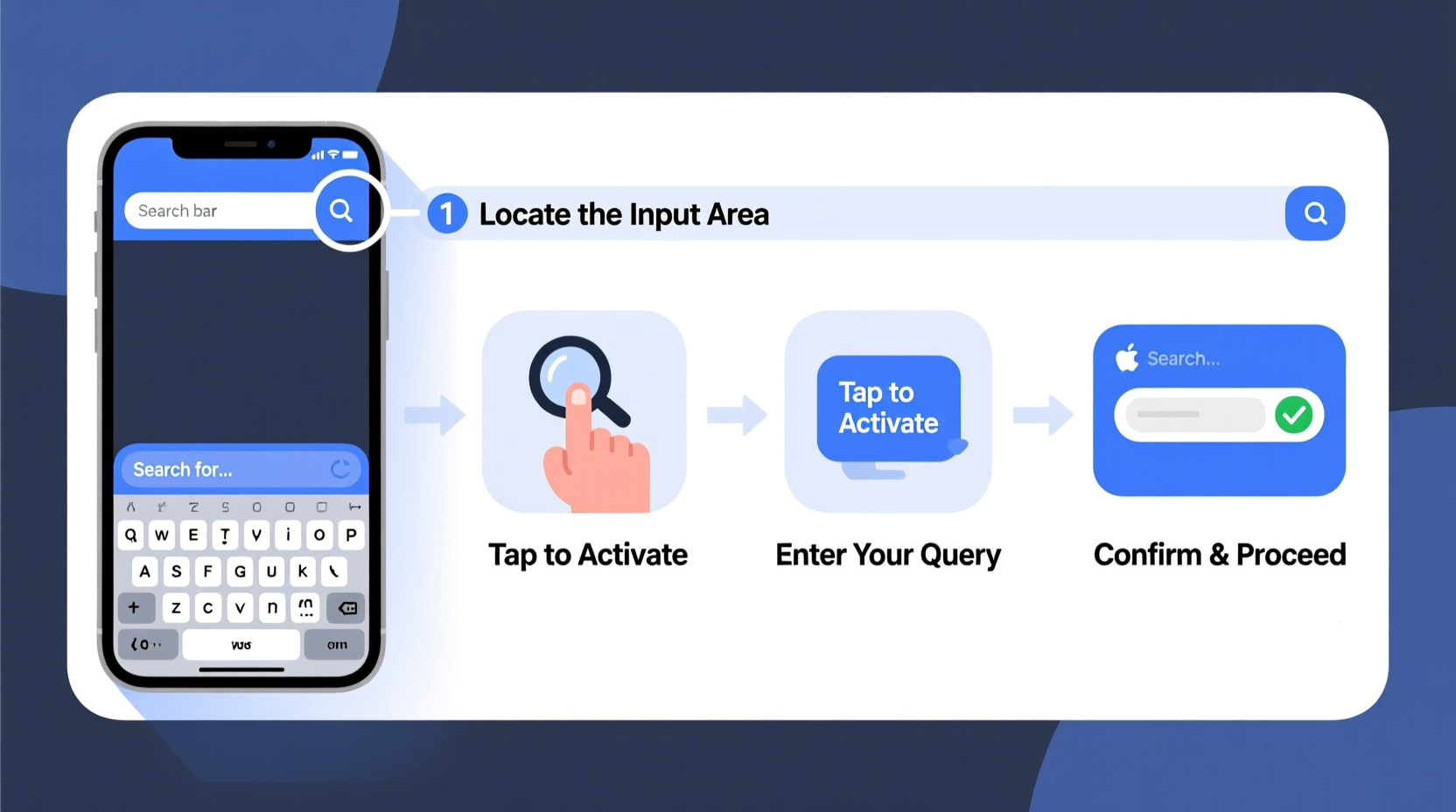
The search bar is a gateway to information, applications, and settings across all modern operating systems. On mobile devices, it may appear as a widget on the home screen or within an app drawer. On desktops, it's often integrated into the browser, taskbar, or system menu. Its absence can lead to inefficiency, especially when trying to launch apps or look up facts without opening a separate browser tab.
Despite its simplicity, the visibility of the search bar depends on user preferences, device settings, and software versions. Some manufacturers hide it by default to reduce clutter; others allow customization that requires manual setup. Understanding where and how the search bar functions across platforms empowers users to reclaim control over their digital experience.
“Accessibility to search tools directly impacts productivity. A visible, responsive search bar reduces friction between intent and action.” — Dr. Lena Patel, Human-Computer Interaction Researcher
Step-by-Step Guide to Enable the Search Bar by Device Type
Below is a comprehensive walkthrough for enabling the search bar across major platforms. Follow these steps based on your current device.
1. Android Smartphones (Samsung, Google Pixel, etc.)
- Long-press on an empty area of your home screen.
- Select “Widgets” from the menu that appears.
- Scroll down to find your preferred launcher’s search bar (e.g., “Google” or “Search” widget).
- Tap and drag the search bar widget onto your home screen.
- Adjust its size if needed by dragging the edges.
If the Google app isn’t installed:
- Open the Google Play Store.
- Search for “Google” and install the official app.
- Return to the widget menu and repeat the above steps.
2. iPhones (iOS Devices)
iOS doesn't offer a traditional search bar on the home screen, but Apple provides powerful alternatives:
- Swipe down from the middle of the home screen (on iPhone X or later) or swipe right on older models.
- This reveals Spotlight Search—a full-featured search interface.
- Type any query: app names, contacts, messages, or web searches will appear instantly.
To enhance functionality:
- Go to Settings > Siri & Search.
- Enable “Show in Search” and “Suggest in App Library” for frequently used apps.
- Disable distractions by turning off suggestions from apps you don’t use.
3. Windows PCs
Windows includes multiple ways to access search:
- Look for the search icon (magnifying glass) on the taskbar near the Start button.
- If missing, right-click the taskbar and select “Taskbar settings.”
- Under “Taskbar items,” toggle on “Search.” Choose between icon-only, small box, or full box view.
- To restore the search indexing if results are slow, go to Settings > Privacy & security > Search > Searching Windows.
- Run troubleshooting under “Advanced diagnostics” if issues persist.
4. Mac Computers (macOS)
macOS uses Spotlight as its primary search tool:
- Click the magnifying glass icon in the top-right corner of the screen.
- Alternatively, press Command + Spacebar to activate it instantly.
- Type any term—apps, files, emails, definitions, calculations—all appear in real time.
- To customize which categories appear, go to System Settings > Siri & Spotlight > Spotlight Privacy.
You can also add a search field to Finder windows:
- Open any Finder window.
- Click the search bar at the top-right.
- Select “Add to Toolbar” to make it permanently visible.
5. Tablets (iPad and Android)
Tablets follow similar logic to smartphones but benefit from larger screens:
- iPad: Swipe down from the center of the home screen to access Spotlight. Consider using third-party launchers via shortcuts for enhanced search widgets.
- Android Tablet: Use the same method as phones—long-press home screen, open Widgets, place Google search bar. On Samsung Galaxy Tabs, enable “Search bar” in Home screen settings.
Do’s and Don’ts When Setting Up Your Search Bar
| Do’s | Don’ts |
|---|---|
| Customize placement for easy thumb access on mobile. | Clutter the home screen with multiple search widgets. |
| Use keyboard shortcuts like Command+Space (Mac) or Win+S (Windows) for speed. | Ignore software updates that may change search functionality. |
| Test voice search integration (e.g., “Hey Siri,” “OK Google”). | Store sensitive search data on public or shared devices. |
| Review privacy settings to manage what gets indexed. | Assume the search bar works the same across brands—always verify model-specific steps. |
Real-World Example: Maria Regains Control of Her Workflow
Maria, a freelance graphic designer, switched from a Windows laptop to a new iPad Pro for client meetings. She relied heavily on quick searches to pull up project files, color codes, and stock images. After the transition, she found herself frustrated—there was no obvious search bar on her iPad’s home screen.
She spent hours navigating folders until she discovered Spotlight by accident while swiping down during a presentation. Once she learned the gesture, she enabled suggested apps in Settings so recent projects appeared faster. She even created a shortcut labeled “Search” on her home screen using the Shortcuts app, simulating a permanent search bar.
Within days, her efficiency improved dramatically. Her story highlights a common gap: intuitive design doesn’t always mean visible design. Knowing where to look—and how to adapt—is half the battle.
Tips for Optimizing Search Bar Performance
- Clear cached search data monthly to prevent slowdowns.
- Enable predictive text and auto-suggestions only if privacy is not a concern.
- Train your device by consistently using the same search terms for recurring tasks.
Quick Setup Checklist
Use this checklist to ensure your search bar is active and optimized:
- ✅ Identify your device type and OS version.
- ✅ Locate the correct method to display the search bar or equivalent tool.
- ✅ Install necessary apps (e.g., Google app on Android).
- ✅ Customize placement and size for ergonomic access.
- ✅ Test functionality with sample queries (app, file, web term).
- ✅ Adjust privacy settings to control what is searchable.
- ✅ Set up keyboard or voice shortcuts for hands-free access.
Frequently Asked Questions
Why did my search bar disappear after a software update?
Software updates sometimes reset default settings or reorganize interface elements. Check your home screen settings or taskbar options to manually re-enable the search feature. On Android, reinstall or re-add the Google widget. On iOS and macOS, Spotlight rarely disappears—but gestures may change slightly with new versions.
Can I add a search bar to my iPhone home screen?
Not natively, but you can simulate one. Use the Shortcuts app to create a button labeled “Search” that opens Spotlight or launches a web search. Place this shortcut at the top of your first home screen page for consistent access.
Is there a universal search bar for all devices?
No single solution works identically across all platforms, but cloud-based tools like Google Keep or Notion offer built-in search features that sync across devices. For true cross-platform consistency, rely on web browsers with synced histories and bookmarks.
Take Control of Your Digital Experience
The search bar is more than a convenience—it's a critical tool for managing information overload. By taking a few minutes to configure it properly on each of your devices, you gain immediate access to everything you need, exactly when you need it. Whether you're a student, professional, or casual user, mastering this small but powerful feature pays dividends in daily efficiency.




 浙公网安备
33010002000092号
浙公网安备
33010002000092号 浙B2-20120091-4
Comments
No comments yet. Why don't you start the discussion?