
Printing from a webpage may seem straightforward, but anyone who has ended up with cluttered pages, broken layouts, or missing images knows it’s rarely that simple. Whether you're printing an article for offline reading, saving a recipe, or archiving important information, the final output should be clean, readable, and tailored to your needs. With the right approach, you can consistently produce professional-quality prints—without wasting paper or time.
Understanding the Challenges of Web-to-Print Conversion
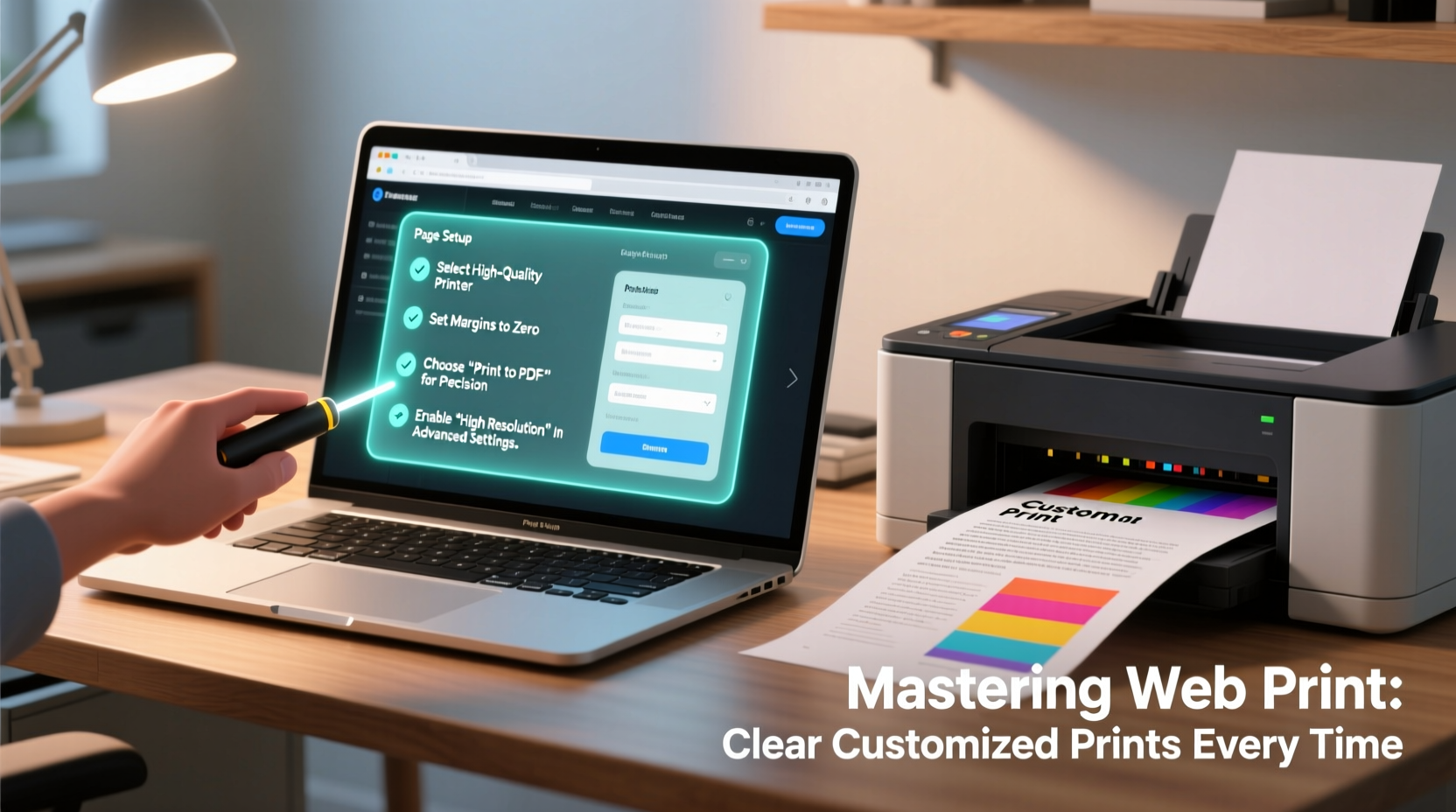
Websites are designed for screens, not paper. This fundamental mismatch causes common printing issues: sidebars spilling over, unwanted ads or navigation bars appearing, inconsistent fonts, and excessive blank space. These problems stem from how browsers interpret CSS (Cascading Style Sheets) during print rendering. Many sites lack dedicated print stylesheets, leaving users at the mercy of default settings.
The good news is that modern browsers have evolved to offer robust print customization tools. By understanding both the limitations and capabilities of these tools, you gain control over the final document. The goal isn’t just to print—it’s to print *smartly*.
“Most web content wasn’t built with print in mind, so user intervention is often necessary to achieve clarity and readability.” — Sarah Lin, UX & Accessibility Consultant
Step-by-Step Guide to Optimizing Webpage Prints
Follow this structured process to ensure high-quality printed output every time:
- Preview Before Printing: Always use the browser’s Print Preview (Ctrl+P or Cmd+P) before sending anything to the printer. This reveals layout issues early.
- Select Only Relevant Content: Highlight the main text or section you want to print. Most browsers allow you to print only the selected portion.
- Adjust Page Settings: Modify margins, orientation (portrait vs. landscape), and scale (usually 70–90%) to fit content efficiently.
- Enable Background Graphics (If Needed): Some designs rely on background colors or watermarks. Enable “Background graphics” in advanced settings if they add value. <5> Choose the Right Output Format: If printing isn't urgent, consider saving as PDF first. It gives you full control and lets you review before physical printing.
Customization Techniques for Cleaner Results
Beyond basic print commands, several techniques dramatically improve print quality:
- Use Reader Mode: In Firefox, Safari, and Microsoft Edge, activate Reader View to strip away ads, menus, and scripts. What remains is clean, legible text ideal for printing.
- Apply Custom CSS via Browser DevTools: Advanced users can hide unwanted elements by inspecting the page (F12), finding the ID or class of distracting sections (e.g., headers, footers), and adding
display: none;rules. - Install Print-Friendly Extensions: Tools like “Print Friendly & PDF” or “GoFullPage” simplify the cleanup process, automatically removing banners and adjusting fonts.
- Copy to Word Processor: For maximum control, copy the cleaned text into Google Docs or Microsoft Word, where you can reformat, adjust spacing, and insert page breaks manually.
Mini Case Study: Printing a Research Article
A university student needed to print a lengthy online journal article filled with citations, author bios, and related links. Using standard print settings resulted in 18 pages of fragmented text and irrelevant content. Instead, she used Firefox’s Reader Mode, removed footnotes via selection, adjusted scaling to 85%, and deselected headers/footers. The revised print job came out cleanly in just 9 pages—saving paper, ink, and reading time. She also saved a PDF version for annotation.
Do’s and Don’ts of Webpage Printing
| Do’s | Don’ts |
|---|---|
| Use Print Preview to check layout | Assume the default settings will work perfectly |
| Select only the content you need | Print entire pages with sidebars and ads |
| Save as PDF before printing physically | Print multiple test copies to check formatting |
| Adjust margins to narrow for more text per page | Ignore font size—tiny text harms readability |
| Enable “Shrink to Fit” when content overflows | Forget to disable headers/footers if they clutter the page |
Expert Tips for Consistently Clear Prints
Different types of content require different strategies:
- Recipes: Remove nutritional sidebars and social sharing buttons. Increase font size for kitchen readability.
- News Articles: Eliminate comment sections and auto-play video placeholders.
- E-Tickets or Confirmations: Ensure barcodes and reference numbers are large and unobstructed. Use high contrast mode if needed.
- Academic Papers: Retain citations and structure. Consider exporting to PDF with hyperlinks preserved for digital reference.
Checklist: Pre-Print Optimization Routine
Run through this checklist before hitting print:
- ✅ Open Print Dialog (Ctrl+P / Cmd+P)
- ✅ Activate Reader Mode if available
- ✅ Select only essential content
- ✅ Choose “Save as PDF” for review
- ✅ Adjust scale between 80–100%
- ✅ Disable headers, footers, and URLs
- ✅ Set margins to “Minimal” or “Narrow”
- ✅ Toggle on “Background graphics” only if needed
- ✅ Preview page breaks and avoid mid-sentence splits
- ✅ Confirm final page count is reasonable
Frequently Asked Questions
Why does my printed page look different from the screen?
Webpages use screen-specific styling that doesn’t always translate to print. Elements like fixed headers, animations, and responsive grids are often ignored or distorted during printing. Browsers apply print-specific CSS rules, which may not match the visual design you see online.
How can I remove ads and pop-ups from my printout?
Ads are typically embedded as visible HTML elements. Use Reader Mode to eliminate them automatically, or manually select only the article body before printing. Alternatively, install a browser extension like “uBlock Origin” or “Print Edit” to block non-essential content pre-print.
Can I print a full webpage as one long image or scrollable PDF?
Yes. Use browser extensions like “GoFullPage,” “Fireshot,” or native developer tools to capture an entire webpage as a single scrollable image or PDF. This method preserves exact visuals, including charts and screenshots, without layout shifts.
Final Thoughts: Print Smarter, Not Harder
Printing from the web doesn’t have to be a frustrating trial-and-error process. With deliberate preparation and the right tools, you can transform chaotic web layouts into crisp, organized documents. The key is intentionality—don’t just print; curate what gets printed. Take advantage of built-in browser features, customize settings to your preferences, and always preview before committing to paper.
Whether you're a student, professional, or casual user, mastering this everyday digital skill saves time, reduces waste, and enhances readability. A well-formatted printout reflects clarity of purpose—and that starts with you.




 浙公网安备
33010002000092号
浙公网安备
33010002000092号 浙B2-20120091-4
Comments
No comments yet. Why don't you start the discussion?