
For millions of households, Spectrum TV delivers a robust lineup of channels and on-demand content. But even the most comprehensive live schedule can’t compete with the flexibility of watching what you want, when you want. That’s where recording comes in. Whether you’re juggling work schedules, parenting duties, or simply hate missing the season finale, mastering how to record Spectrum TV is essential. This guide breaks down every aspect of Spectrum’s DVR and cloud recording features—how they work, how to use them effectively, and how to maximize storage and accessibility.
Understanding Spectrum’s Recording Options
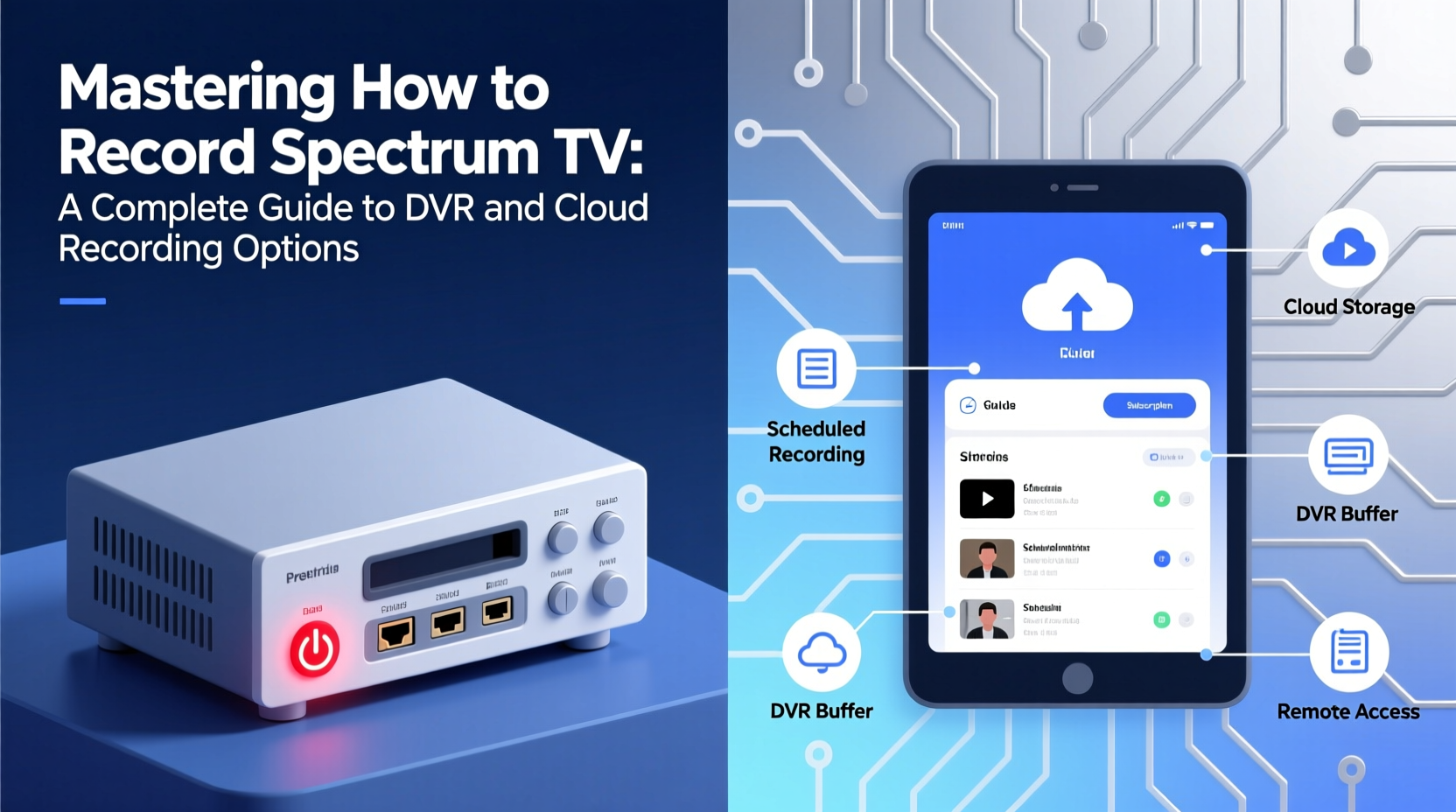
Spectrum offers two primary methods for recording TV: traditional DVR (Digital Video Recorder) and cloud-based recording. Both are accessible through Spectrum’s compatible set-top boxes and the Spectrum TV App, but they function differently and serve distinct needs.
The standard DVR uses a physical hard drive built into your Spectrum receiver to store recordings locally. This means your shows are saved directly on the box connected to your TV. In contrast, cloud DVR stores your recordings on remote servers, allowing access from multiple devices—including smartphones, tablets, and other TVs in your home—without relying on a single device.
Both options support series recording, manual scheduling, and playback controls like pause, rewind, and fast-forward. However, cloud DVR provides greater flexibility for on-the-go viewing and multi-room access, while traditional DVR may offer more predictable performance without internet dependency.
Setting Up Your Spectrum DVR System
To begin recording, you need a Spectrum TV plan that includes DVR service. Most Spectrum TV packages support at least one DVR-capable receiver, but cloud DVR may require an additional subscription or be included in higher-tier plans like Spectrum TV Silver or Gold.
- Check Equipment Compatibility: Ensure your Spectrum receiver supports DVR. Models like the Spectrum Receiver 4K (ARRIS VIP5662W) include built-in DVR functionality.
- Connect the Receiver: The DVR receiver must be properly connected to power, your TV via HDMI, and to your Spectrum cable line.
- Activate the Box: Call Spectrum customer service or log into your account online to activate the DVR feature on your receiver.
- Enable Cloud DVR (if desired): Navigate to “Settings” > “DVR” > “Cloud Settings” on your receiver or via the Spectrum TV App to enable cloud storage.
Once activated, your DVR will sync with the program guide, allowing you to browse upcoming shows and schedule recordings instantly.
How to Record Live TV: Step-by-Step Guide
Recording a show on Spectrum is straightforward, whether using your remote or the mobile app. Here’s how to do it:
Using the Remote Control
- Press the Guide button on your Spectrum remote.
- Navigate to the program you want to record.
- Highlight the show and press the OK or Select button.
- Choose “Record” for a single episode or “Record Series” to automatically save every new episode.
- Confirm the selection. A red dot will appear next to scheduled recordings in the guide.
Using the Spectrum TV App
- Open the Spectrum TV App on your smartphone or tablet.
- Sign in with your Spectrum account credentials.
- Browse the Live TV Guide or search for a specific show.
- Tap the plus (+) icon next to the program.
- Select “Record This Episode” or “Record All Episodes.”
- The recording will be saved to your cloud DVR and available across devices.
Recorded programs remain in your library until you delete them or storage space is needed, depending on your retention settings.
DVR vs. Cloud DVR: Key Differences and Recommendations
Choosing between local DVR and cloud DVR depends on your viewing habits, household size, and tech preferences. The following table compares both options across critical factors:
| Feature | Local DVR | Cloud DVR |
|---|---|---|
| Storage Location | On your receiver’s internal hard drive | Remote servers (Spectrum’s cloud) |
| Access Devices | Only the connected TV | Multiple devices (TVs, phones, tablets) |
| Storage Capacity | Limited (typically 1–2 TB, ~150 hours HD) | Unlimited (subject to plan limits) |
| Internet Required? | No (except for setup) | Yes (for streaming and management) |
| Series Recording | Yes | Yes |
| Mobile Management | Limited | Full control via app |
Most users upgrading from basic cable appreciate the freedom cloud DVR offers. Families with multiple viewers benefit significantly from being able to record different shows simultaneously and watch them independently.
“Cloud DVR has transformed how people interact with live TV. It removes the friction of being tied to one screen and gives real control over viewing time.” — Linda Reyes, Broadband Consumer Analyst at Media Insights Group
Maximizing Your Recording Experience: Pro Tips and Best Practices
To get the most out of Spectrum’s recording capabilities, consider these expert-backed strategies:
- Use Series Record Wisely: Automatically recording every episode can fill storage quickly. Set end dates or filter by new episodes only to avoid duplicates.
- Manage Storage Regularly: Delete old recordings you’ve already watched. On cloud DVR, expired shows are automatically removed after one year, but local DVR may require manual cleanup.
- Leverage the Watch List: Create a “Watch List” in the Spectrum app to track favorite shows. You’ll receive alerts when new episodes air and can record them with one tap.
- Check Recording Conflicts: If you try to record more shows than your tuner allows (usually 2–4 simultaneous recordings), Spectrum will notify you. Prioritize or reschedule accordingly.
- Enable Parental Controls: Use PIN protection to restrict access to recorded content, especially if children share the system.
Real-World Example: How One Family Uses Cloud DVR Effectively
The Thompson family in Austin, Texas, used to miss half their favorite shows. With two parents working late and three kids in after-school activities, coordinating TV time was impossible. After switching to Spectrum’s cloud DVR, they transformed their viewing habits.
Mom records cooking shows during lunch breaks and watches them on her tablet in the evening. Dad schedules all football games automatically and streams weekend replays on the living room TV. The teens access K-pop concerts and anime on their phones during commutes. No arguments, no missed content—just personalized entertainment.
“We didn’t realize how much we were missing until we started using cloud recording,” says Sarah Thompson. “Now, TV fits our life instead of the other way around.”
Frequently Asked Questions
How many shows can I record at once?
Spectrum receivers typically support 2 to 4 simultaneous recordings, depending on the model and whether you're using broadcast, cable, or streaming sources. Cloud DVR follows the same tuner limits, so you can't bypass hardware constraints with cloud storage.
How long are recordings stored?
With cloud DVR, recordings are stored for up to one year. Local DVR storage depends on disk space; older recordings are deleted when capacity is reached unless protected. You can manually extend retention by marking recordings as “Keep Until I Delete.”
Can I share recordings with someone outside my household?
No. Recordings are tied to your Spectrum account and home network. While you can stream them on authorized devices within your household, sharing externally violates Spectrum’s terms of service.
Take Control of Your Viewing Experience
Mastering how to record Spectrum TV isn’t just about convenience—it’s about reclaiming time and personalizing entertainment. Whether you choose local DVR for simplicity or embrace cloud recording for its flexibility, the tools are designed to fit modern lifestyles. By understanding your options, setting up recordings efficiently, and managing your library proactively, you ensure that no show slips through the cracks.




 浙公网安备
33010002000092号
浙公网安备
33010002000092号 浙B2-20120091-4
Comments
No comments yet. Why don't you start the discussion?