
Microsoft Word remains one of the most widely used tools for creating professional documents, from academic papers to business reports. Yet, many users overlook one of its most powerful features: the ruler. When properly utilized, the ruler provides unmatched control over margins, indentation, tab stops, and alignment. Understanding how to show and use the ruler transforms your document editing from guesswork into precision. This guide walks through everything you need to know—from enabling the ruler to leveraging its full functionality in real-world scenarios.
Why the Ruler Matters in Microsoft Word
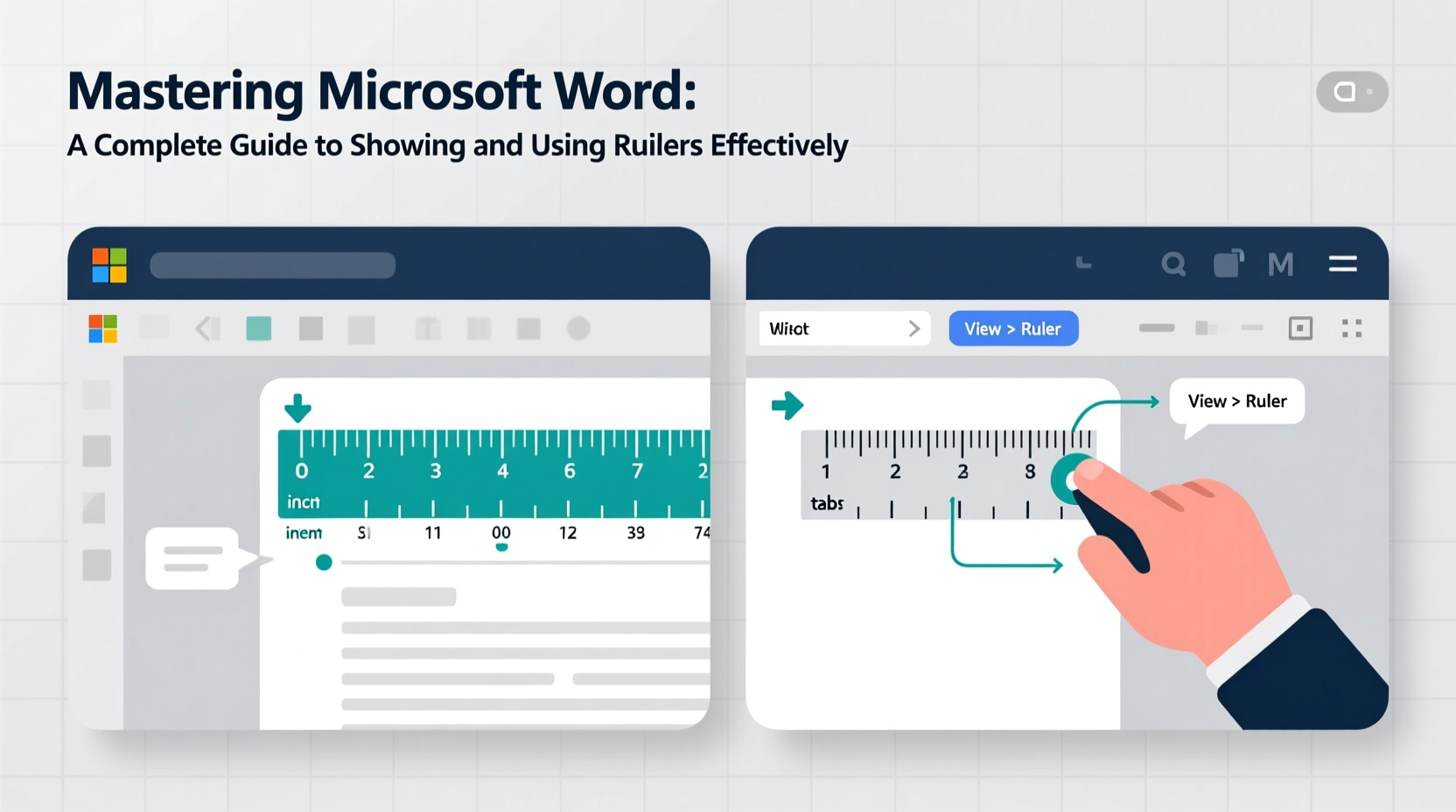
The ruler in Microsoft Word is more than just a visual aid—it’s a dynamic formatting tool. Located horizontally at the top and vertically along the left side of the document window (when enabled), the ruler allows you to adjust spacing, indents, and tab positions with pixel-level accuracy. Without it, aligning text or managing paragraph layout often relies on trial and error, leading to inconsistent formatting.
Professional writers, editors, and designers depend on the ruler to maintain consistency across long documents. Whether you're setting up a thesis with strict margin requirements or designing a newsletter with custom columns, the ruler gives you direct, intuitive control.
“Precision in document layout starts with understanding the ruler. It’s the foundation of clean, readable formatting.” — Dr. Alan Reyes, Technical Communication Specialist
How to Show the Ruler in Microsoft Word
By default, the ruler may not be visible in your Word interface. Fortunately, turning it on takes only a few clicks.
Step-by-Step: Enabling the Ruler
- Open your document in Microsoft Word.
- Navigate to the View tab on the ribbon menu.
- In the Show group, check the box labeled Ruler.
- The horizontal ruler will now appear directly below the toolbar.
- To enable the vertical ruler (if available), go to File > Options > Advanced, then scroll to the Display section and check Show vertical ruler in Print Layout view.
Once activated, both rulers provide real-time feedback as you format text, making alignment adjustments immediate and intuitive.
Decoding the Horizontal Ruler: Tools and Functions
The horizontal ruler contains several interactive markers that control paragraph formatting. Each segment serves a distinct purpose:
| Marker | Name | Function |
|---|---|---|
| ▲ (Top Triangle) | First Line Indent | Moves only the first line of a paragraph forward or backward. |
| ▼ (Bottom Triangle) | Hanging Indent | Indents all lines except the first—commonly used in bibliographies. |
| ▭ (Rectangle) | Left Indent | Moves the entire paragraph left or right. |
| | (Vertical Line) | Right Margin | Sets where the text wraps on the right side. |
| ⋮ (Small Tick Marks) | Tab Stops | Define locations where pressing Tab will move the cursor. |
To adjust any of these, simply click and drag the marker along the ruler. For example, dragging the bottom triangle inward creates a hanging indent ideal for reference lists. Holding the Alt key while dragging enables finer control, snapping to smaller increments based on your measurement units.
Using the Vertical Ruler for Page Layout Control
The vertical ruler, though less frequently used, plays a critical role in managing top and bottom margins, header/footer height, and paragraph spacing in Print Layout view. It becomes especially useful when designing multi-column layouts or inserting objects like images and text boxes.
For instance, dragging a paragraph’s top edge against the vertical ruler lets you visually set exact spacing before or after a section. Similarly, adjusting the header boundary via the vertical ruler ensures consistent placement across pages.
Practical Applications: Real-World Example
Consider Sarah, a university student preparing her final dissertation. Her department requires 1.5-inch left margins for binding, block quotes indented 0.5 inches on both sides, and a custom tab stop for annotated citations.
Instead of guessing or manually spacing text, Sarah enables the ruler. She drags the left indent marker to 1.5 inches to meet margin requirements. For block quotes, she selects the quoted text and adjusts both the left and hanging indent markers to 0.5 inches. Finally, she sets a decimal-aligned tab stop at 3.75 inches to neatly organize author names and page numbers in her references.
Thanks to the ruler, Sarah completes her formatting in minutes—accurate, consistent, and stress-free.
Customizing Tabs and Indents Like a Pro
Tabs are among the most underused yet powerful tools in Word. The ruler allows you to create four types of tab stops:
- Left Tab: Text aligns to the left at the tab position.
- Center Tab: Text centers at the tab stop.
- Right Tab: Text aligns to the right (useful for page numbers).
- Decimal Tab: Numbers align by decimal point.
To insert a tab stop, click the tab selector in the upper-left corner of the ruler (it cycles through types) until you get the desired style, then click on the ruler where you want the stop. To remove it, drag the marker off the ruler.
“Using decimal tabs transformed how I format financial reports. No more misaligned decimals.” — Maria Tran, Financial Analyst
Essential Checklist: Mastering the Ruler in 6 Steps
- Enable the ruler via the View tab.
- Familiarize yourself with all indent markers.
- Use the First Line Indent for paragraphs.
- Apply Hanging Indents for bibliographies.
- Set custom tab stops instead of using spaces.
- Adjust margins visually using both horizontal and vertical rulers.
Frequently Asked Questions
Can I change the ruler’s measurement units?
Yes. Go to File > Options > Advanced, then under Editing options, select your preferred unit (inches, centimeters, millimeters, or points) from the Show measurements in units of dropdown.
Why isn’t the vertical ruler showing up?
The vertical ruler only appears in Print Layout view and must be enabled in Word Options. Ensure you’re in Print Layout mode and have checked “Show vertical ruler” under Advanced Display settings.
Are ruler settings saved with the document?
Indent and tab settings applied to specific text are saved within the document. However, default ruler visibility is a user preference and does not affect other users opening the file.
Conclusion: Take Control of Your Documents
The ruler in Microsoft Word is not just a convenience—it’s a gateway to professional-grade document design. By mastering its features, you eliminate formatting inconsistencies, save time, and produce cleaner, more polished work. Whether you're drafting a simple letter or managing a complex report, the ability to see and manipulate layout elements directly empowers you to work smarter, not harder.




 浙公网安备
33010002000092号
浙公网安备
33010002000092号 浙B2-20120091-4
Comments
No comments yet. Why don't you start the discussion?