
Smartphones today are equipped with cameras and microphones that rival professional gear from just a decade ago. Whether you're creating content for social media, documenting a personal project, or recording a podcast interview, your phone can be a powerful tool—if used correctly. The key isn’t just having the device; it’s knowing how to use it effectively. With the right techniques, settings, and mindset, you can produce crisp, clear video and audio that engages your audience without spending thousands on equipment.
Optimize Your Phone Settings for Recording
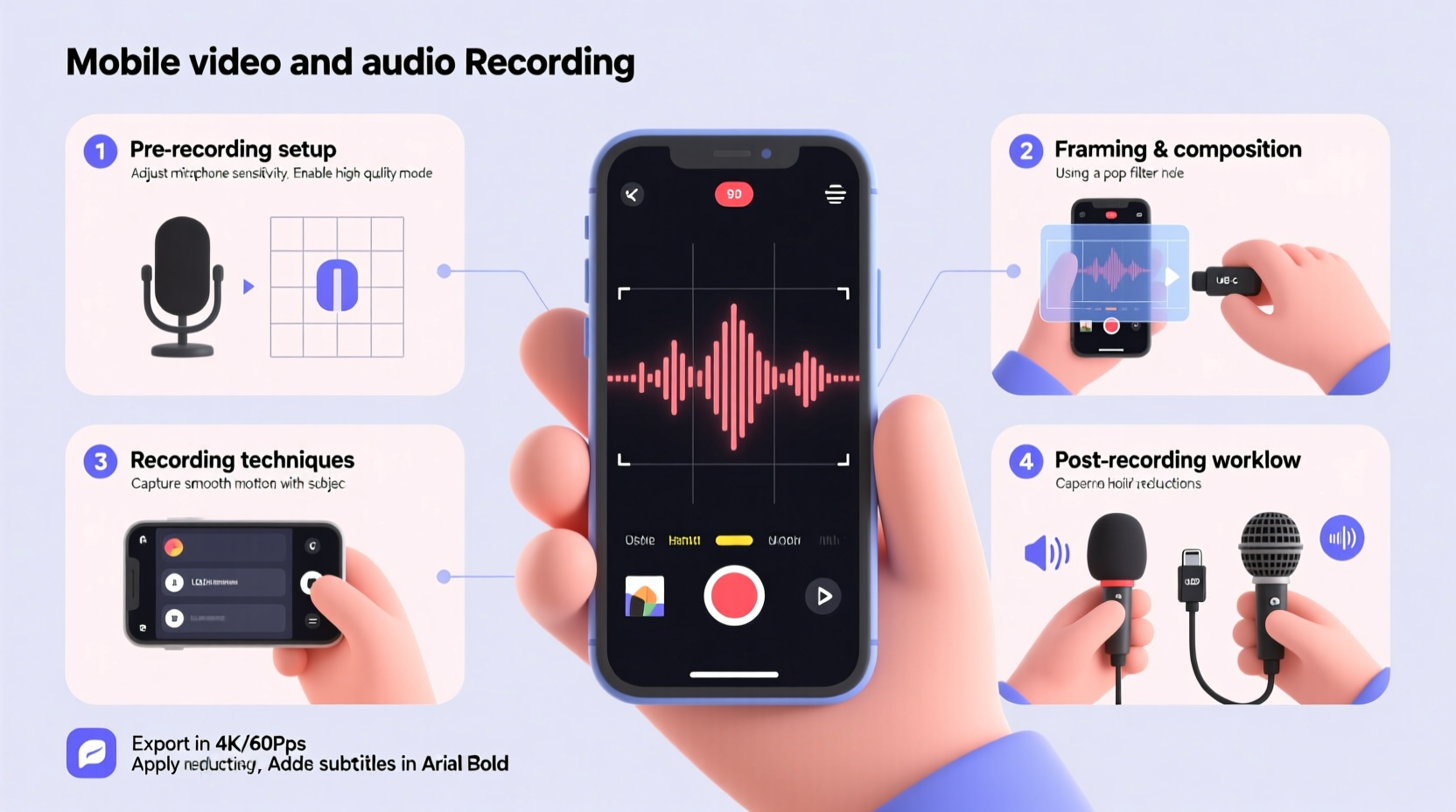
Before hitting record, ensure your phone is configured for optimal performance. Many users overlook built-in settings that dramatically affect output quality. Start by checking your camera resolution: aim for at least 1080p at 30fps for standard videos, or 4K if lighting conditions allow. Higher resolutions provide flexibility in post-production, especially when cropping or zooming.
For audio, disable any noise suppression features unless in a very noisy environment. These filters often reduce background sounds but can also dull your voice. Instead, rely on clean recording environments and external apps that offer manual audio control.
Disable automatic mode switching between lenses (e.g., wide to ultra-wide) to maintain visual consistency. Lock focus and exposure by tapping and holding on your subject until “AE/AF Lock” appears. This prevents the camera from refocusing every time something moves across the frame.
Step-by-Step Guide to Capturing High-Quality Video
- Prepare your environment: Choose a quiet space with soft, natural light. Position yourself facing the light source to avoid harsh shadows.
- Stabilize your phone: Use a mini tripod, clamp, or stack of books to keep the phone steady. Handheld shots often appear unprofessional due to subtle shakes.
- Frame your shot: Apply the rule of thirds. Position your eyes along the top horizontal line and leave space in front of where you’re looking.
- Set focus and exposure: Tap and hold on your face to lock AE/AF. Adjust brightness manually if needed.
- Start recording: Wait two seconds after pressing record to let stabilization engage, then begin speaking or acting.
- Monitor levels: If possible, use headphones to listen in real time and catch issues early.
- Stop cleanly: End with a pause so editing is easier later.
Improving Audio Quality Without External Gear
Audio is often more important than video. Viewers will tolerate mediocre visuals if the sound is clear, but poor audio drives people away quickly. Most phone microphones perform well in controlled conditions, but placement and environment make all the difference.
Speak directly toward the microphone, which is typically located at the bottom edge of the phone. Avoid covering it with fingers or placing the phone flat on a surface, which muffles sound. Record in rooms with soft furnishings—carpets, curtains, and couches absorb echo. Hard surfaces like tile or glass create reverb that degrades clarity.
| Situation | Recommended Approach | Avoid |
|---|---|---|
| Indoor talking head video | Face window for natural light, use rug or blanket to dampen sound | Backlighting, bare floors |
| Outdoor interview | Use windscreen (even a sock works), position subject with back to wind | Open fields with no barriers |
| Voiceover narration | Record in closet filled with clothes for instant sound booth effect | Noisy HVAC systems or traffic |
“Over 70% of viewer drop-off in amateur videos happens within the first 15 seconds due to poor audio.” — Dana Liu, Broadcast Engineer & Mobile Filmmaker
Essential Tools and Apps for Better Results
While default camera apps work fine, third-party applications unlock advanced features. For iOS, consider *Filmic Pro* or *Paralens*, which offer manual control over ISO, shutter speed, and bitrate. Android users can try *ProCam* or *Open Camera* for similar functionality.
For audio, use dedicated recording apps like *Voice Memos* (iOS) or *RecForge II* (Android) to export lossless WAV files. These give you better control than compressed formats used in default apps.
Free editing tools like CapCut, DaVinci Resolve (mobile), or iMovie allow trimming, color correction, and multi-track mixing. Learn basic cuts, fade-ins for audio, and text overlays to elevate production value.
Real-World Example: A Travel Vlogger’s Workflow
Lena, a solo travel vlogger based in Portugal, produces weekly videos using only her smartphone. She films sunrise clips early in the morning when crowds are low and light is soft. Before recording, she wipes the lens with a microfiber cloth—a habit many forget. She uses a $20 phone tripod with a flexible base to attach to railings or chairs.
For interviews with locals, she places her phone on a table between them, angled slightly upward. To improve audio, she records the conversation twice: once on her phone and once on her smartwatch placed closer to the speaker. In editing, she dubs the clearer audio over the video. Her viewers frequently comment on how “cinematic” her content feels despite minimal gear.
Checklist: Pre-Recording Setup Routine
- ✅ Charge phone fully and close unused apps
- ✅ Clean camera lens with a soft cloth
- ✅ Set resolution to 1080p or higher
- ✅ Lock focus and exposure on subject
- ✅ Test audio by recording a short clip and playing it back
- ✅ Confirm storage space (1 minute of 4K video ≈ 400MB)
- ✅ Position light source in front or to the side
- ✅ Place phone on stable surface or mount
Frequently Asked Questions
Can I get professional-quality results with just a phone?
Absolutely. Modern smartphones have sensors and processors capable of capturing broadcast-ready footage. The limiting factor is usually technique, not technology. Lighting, framing, and audio matter far more than the device itself.
Why does my audio sound muffled even in quiet rooms?
This often happens when the microphone is blocked or the phone is lying flat on a surface. Try propping it up or recording into a small enclosed space like a closet lined with clothes. Also, check if your case covers the mic ports.
Should I use digital zoom while recording?
Avoid digital zoom—it reduces image quality by cropping and enlarging pixels. Instead, physically move closer to your subject or use a clip-on lens for optical zoom capability.
Final Thoughts: Consistency Beats Perfection
Mastery in mobile recording comes not from owning the latest gadget but from understanding your tools and refining your process. You don’t need studio lights or lavalier mics to start—just intentionality. Focus on one improvement at a time: better lighting this week, cleaner audio next week. Small, consistent upgrades compound into remarkable results.
The barrier to entry has never been lower. Billions of people carry devices more powerful than the cameras used to film entire movies in the 1990s. What separates good content from great is preparation, attention to detail, and the courage to press record.




 浙公网安备
33010002000092号
浙公网安备
33010002000092号 浙B2-20120091-4
Comments
No comments yet. Why don't you start the discussion?