
Navigating the web efficiently begins with mastering the fundamentals—and one of the most frequent actions users perform is going back to a previous page. Whether you're researching, shopping, or simply browsing, knowing how to return quickly to where you were can save time and reduce frustration. Google Chrome, the world’s most widely used browser, offers multiple intuitive methods to move backward through your browsing history. Yet many users rely solely on the back button, missing out on faster, more precise alternatives.
Understanding these tools not only improves speed but also enhances accessibility, especially for those who prefer keyboard-driven workflows or use assistive technologies. From mouse gestures to keyboard shortcuts and touchpad controls, Chrome supports a range of techniques tailored to different preferences and devices. This guide explores practical, tested strategies to help you master backward navigation—making your browsing experience seamless and efficient.
Use the Back Button Wisely
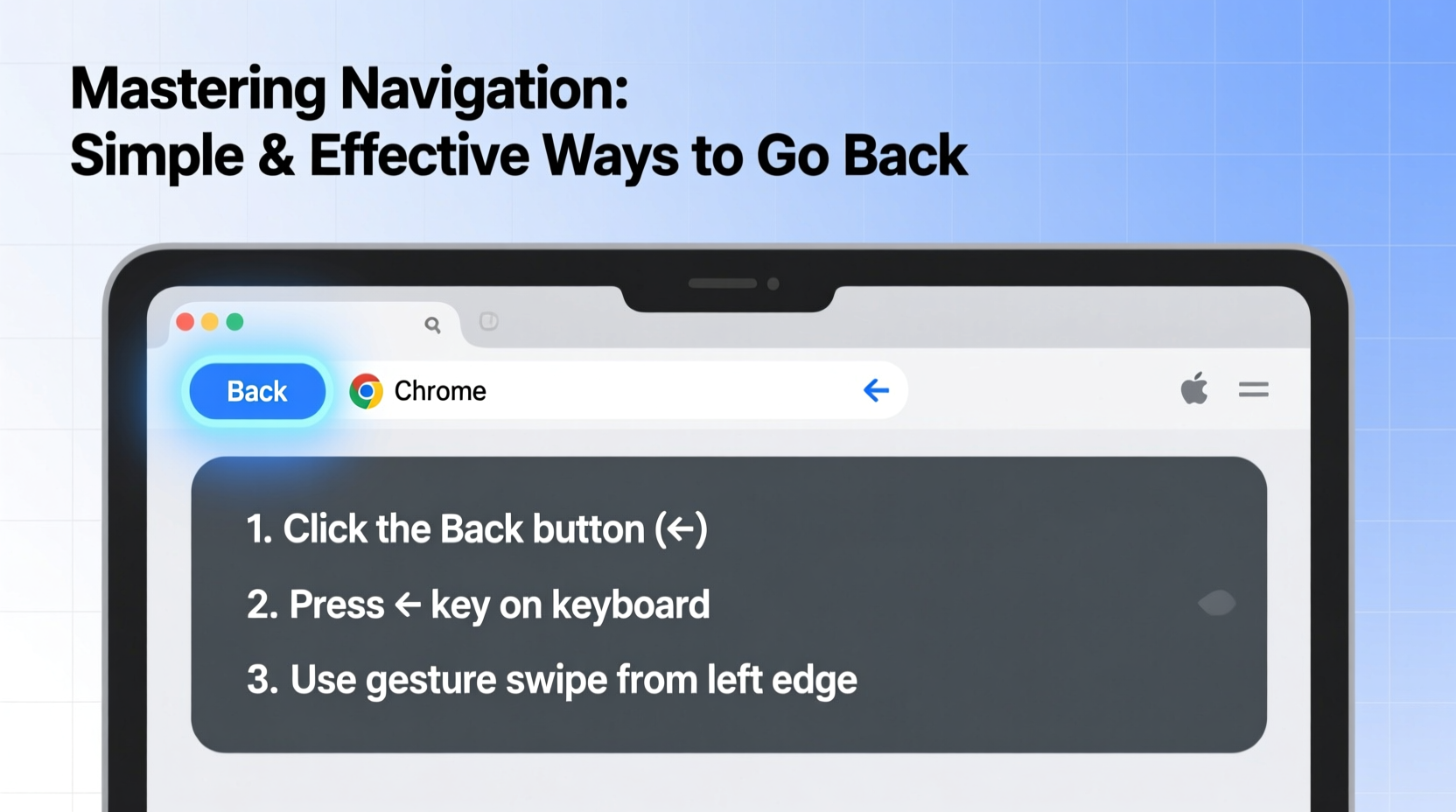
The most visible method to go back in Chrome is the back arrow located in the top-left corner of the browser window. Clicking it once takes you to the immediately preceding page. While straightforward, this method has nuances that many overlook.
Clicking and holding the back button reveals a dropdown menu showing your recent browsing history within that tab. This allows you to jump back several pages at once instead of clicking repeatedly. For example, if you've visited five product pages in sequence, hold the back button to see all five and select the one you want directly.
This feature becomes even more valuable when navigating complex websites like online stores or documentation hubs. Instead of retracing every click, you gain instant access to any prior destination within the current session.
Keyboard Shortcuts for Lightning-Fast Navigation
For power users, keyboard shortcuts are indispensable. Chrome supports several key combinations to navigate backward without touching the mouse.
- Alt + Left Arrow (Windows/Linux): Moves back one page.
- Command + [ (macOS): Equivalent to Alt + Left Arrow on Mac.
- Backspace (in some configurations): Can function as a back command, though this depends on settings and may be disabled by default in newer versions for safety reasons.
These shortcuts integrate seamlessly into typing workflows. Imagine reading an article, following a link, then returning—all without lifting your hands from the keyboard. Over time, this small efficiency compounds across hundreds of sessions.
“Keyboard navigation reduces physical strain and increases precision. Users who adopt shortcuts report up to 30% faster browsing.” — Dr. Lena Torres, Human-Computer Interaction Researcher
Step-by-Step: Mastering Keyboard Back Navigation
- Open Chrome and visit any webpage.
- Click a link to navigate to a new page.
- Press Alt + Left Arrow (or Cmd + [ on Mac).
- Observe the immediate return to the previous page.
- Repeat with multiple links to build muscle memory.
Practice this sequence until the motion feels natural. Within a few days, reaching for the mouse will feel unnecessarily slow.
Mouse and Touchpad Gestures
If you prefer using a mouse or trackpad, Chrome supports gesture-based navigation that mimics forward and backward movement.
On most modern mice, side buttons (often near the thumb rest) are automatically mapped to browser navigation. Pressing the left-side button typically goes back; the right-side button moves forward. These buttons work system-wide in Chrome and other browsers, offering tactile control without looking away from the screen.
For laptop users, two-finger swipes on the touchpad serve the same purpose. Swipe left with two fingers to go back, swipe right to go forward. This gesture is enabled by default on macOS and many Windows laptops with Precision Touchpads.
| Device | Gesture | Action |
|---|---|---|
| Mouse (with side buttons) | Press left thumb button | Go back |
| MacBook Trackpad | Two-finger swipe left | Go back |
| Windows Laptop (Precision Touchpad) | Two-finger swipe left | Go back |
| External Mouse (USB/Bluetooth) | Side button press | Browser navigation (configurable) |
Advanced Techniques: Tab and Session Management
Sometimes “going back” isn’t just about the last page—it’s about returning to a previous context. When managing multiple tabs or research threads, standard navigation may not suffice.
Chrome’s History panel (accessible via Ctrl + H or Cmd + Y on Mac) provides a full timeline of visited pages. You can search by site name or keyword to locate a previously viewed page—even if it was closed days ago.
Additionally, consider using extensions like “Session Buddy” or “OneTab” to save groups of tabs. If you close a tab accidentally, restoring the entire session lets you recover your browsing path instantly.
Mini Case Study: The Researcher’s Workflow
Alice, a graduate student, was compiling sources for her thesis. She opened over 20 tabs across three windows, jumping between academic journals, news articles, and reference databases. After closing a tab by mistake, she needed to return to a specific study cited three steps back in a chain of links.
Instead of retracing each click manually, she used Alt + Left Arrow four times to backtrack precisely. Later, when she realized she had closed the wrong tab, she pressed Ctrl + Shift + T to restore it immediately. Her workflow remained uninterrupted, saving nearly 15 minutes per session.
Common Pitfalls and How to Avoid Them
Even experienced users fall into habits that undermine efficient navigation. Here are common mistakes and their solutions:
- Over-relying on the address bar: Typing URLs or searching again instead of using back navigation wastes time.
- Ignoring gesture support: Many disable touchpad gestures due to accidental triggers. Instead of turning them off, adjust sensitivity or delay settings.
- Not customizing mouse buttons: Some mice require software to assign navigation commands. Take five minutes to configure them properly.
“The fastest navigators aren’t those with the quickest fingers—they’re the ones who eliminate unnecessary actions.” — Mark Chen, UX Design Consultant
FAQ
Why doesn’t Backspace take me back anymore?
In recent Chrome versions, Backspace no longer defaults to “go back” to prevent accidental data loss in forms. This change protects users from exiting pages while typing. Use Alt + Left Arrow or mouse buttons instead.
Can I customize the back gesture on my touchpad?
Yes, but customization happens at the OS level. On Windows, go to Settings > Devices > Touchpad > Three-finger gestures. On macOS, adjust swipe tracking under System Settings > Trackpad > More Gestures.
Does going back reload the page?
Usually not. Chrome often loads the previous page from cache, preserving scroll position and form entries. However, dynamic pages (like social media feeds) may refresh upon return.
Checklist: Optimize Your Back Navigation
- ✅ Test the back button’s history dropdown
- ✅ Practice Alt + Left Arrow (or Cmd + [) until automatic
- ✅ Verify your mouse’s side buttons work in Chrome
- ✅ Enable two-finger swipe gestures on your touchpad
- ✅ Learn Ctrl + Shift + T to restore closed tabs
- ✅ Explore Chrome’s History panel (Ctrl + H)
Conclusion
Mastery of backward navigation in Chrome is more than convenience—it’s a cornerstone of digital fluency. Whether you’re a casual user or a productivity-focused professional, integrating these methods into your routine transforms how you interact with the web. Speed, precision, and control emerge not from new tools, but from using existing ones more effectively.




 浙公网安备
33010002000092号
浙公网安备
33010002000092号 浙B2-20120091-4
Comments
No comments yet. Why don't you start the discussion?