
Making a phone call may seem like second nature to many, but for new smartphone users, older adults transitioning from landlines, or anyone unfamiliar with modern interfaces, the process can feel confusing. With varying operating systems, screen layouts, and features, knowing where to start isn’t always obvious. This guide breaks down everything you need to know—from locating the dialer to managing post-call actions—in clear, practical steps. Whether you're using an iPhone or Android, this is your go-to resource for mastering the basics of phone calling with confidence.
Understanding Your Phone’s Calling Interface
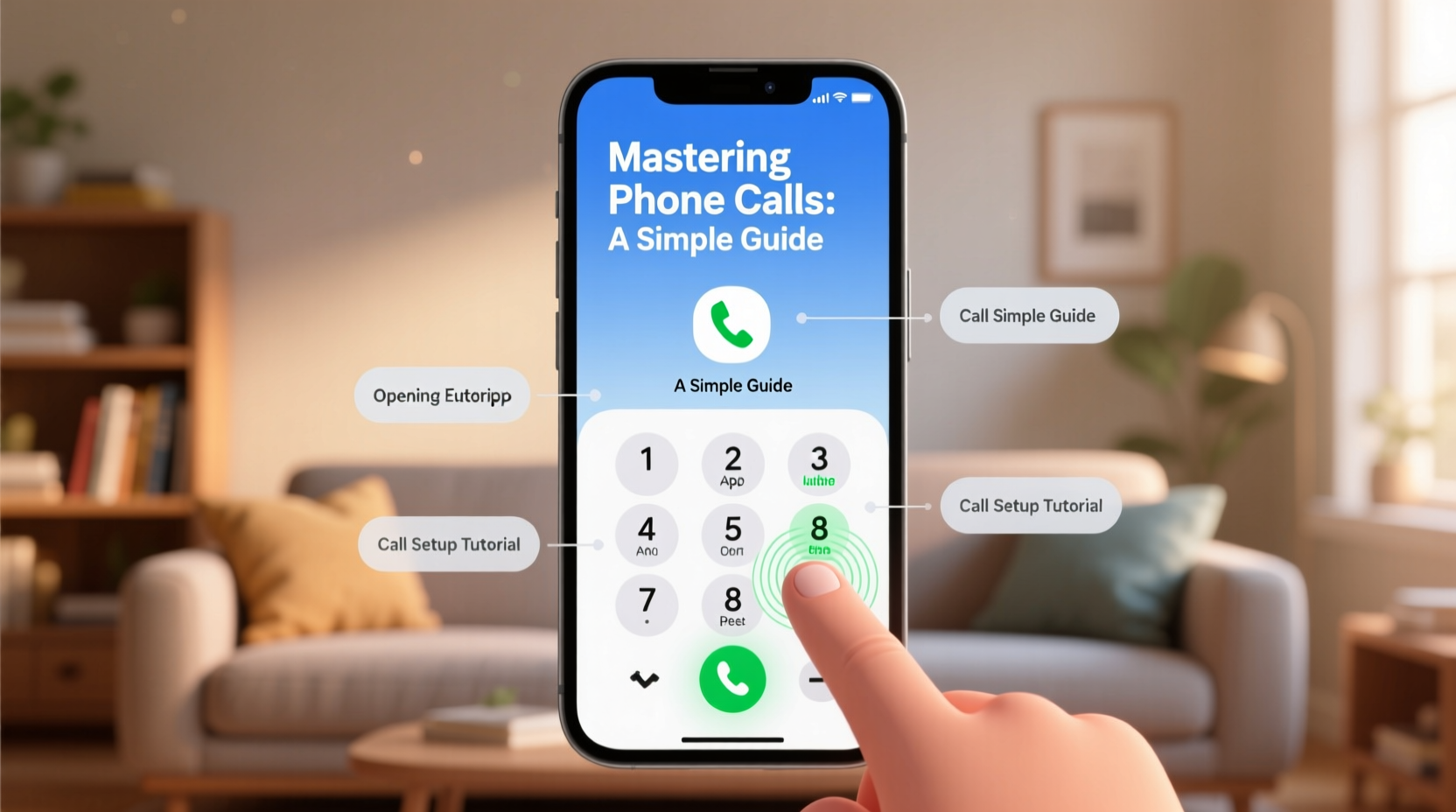
All smartphones come equipped with a built-in phone app, commonly labeled “Phone,” “Dialer,” or represented by a telephone icon. This app is your central hub for making and receiving calls. On most devices, it's located on the home screen or in the app drawer.
The interface typically includes three main tabs:
- Dial Pad: Where you manually enter numbers.
- Recents: Shows incoming, outgoing, and missed calls.
- Contacts: Displays saved names and numbers.
Navigating between these sections allows full control over calling functions. The design varies slightly between iOS and Android, but the core functionality remains consistent across platforms.
Step-by-Step: How to Make a Call
Follow this universal sequence to place a call successfully, regardless of your device model:
- Unlock your phone. Ensure the screen is active and responsive.
- Open the Phone app. Tap the phone icon on your home screen or app list.
- Select the Dial Pad tab. It usually appears by default.
- Enter the number. Use the on-screen keypad to input the full number, including area code and country code if calling internationally.
- Tap the green call button. This initiates the connection.
- End the call. Press the red end-call button when finished.
If the person answers, you’ll hear ringing stop and their voice. If they don’t answer, the call will time out after several rings, returning you to the home screen.
Calling from Your Contacts List
A faster method than typing numbers is selecting someone from your saved contacts:
- Open the Phone app.
- Switch to the Contacts tab.
- Scroll or search for the person’s name.
- Tap their entry and select the phone number listed.
- The call connects automatically.
This approach reduces errors and saves time, especially for frequent calls.
Do’s and Don’ts When Making Calls
To ensure smooth communication and avoid common pitfalls, refer to this comparison table:
| Do’s | Don’ts |
|---|---|
| Check your signal strength before calling | Don’t use speakerphone in quiet public spaces |
| Save important numbers in Contacts | Don’t dial unknown international codes without verifying costs |
| Use headphones in noisy environments | Don’t ignore mute settings during conference calls |
| Verify the number before hitting call | Don’t leave long voicemails without stating your name and number |
Real-Life Example: Helping a First-Time User
Susan, a 72-year-old retiree, recently received her first smartphone from her daughter. She struggled to make calls, often pressing icons randomly and hanging up accidentally. After a 15-minute walkthrough focusing on the Phone app layout and practicing dialing her daughter’s number, Susan gained confidence. By saving key contacts—her doctor, son, and pharmacy—and learning to identify the green and red buttons, she now makes calls independently. Her success came not from memorizing every feature, but from mastering one task at a time.
This case illustrates that patience and repetition are crucial. Simple guidance can transform uncertainty into self-reliance.
“Many older adults feel intimidated by smartphones, but once they understand the basic flow of making a call, it becomes empowering.” — Dr. Alan Reyes, Digital Literacy Educator
Advanced Tips for Smoother Calling Experiences
Beyond the basics, consider these enhancements to improve call quality and convenience:
- Enable Voice Commands: Say “Hey Siri” (iOS) or “OK Google” (Android) followed by “Call Mom” to initiate hands-free calls.
- Use Speed Dial: Assign frequently called contacts to shortcut numbers (e.g., long-press “1” to call a specific person).
- Activate Do Not Disturb: Prevent interruptions during meetings or sleep, while allowing priority calls through.
- Check Voicemail Setup: Ensure your greeting is recorded and retrieval works—especially if you miss calls.
- Block Spam Numbers: Most phones allow you to report and block unwanted callers directly from the Recents list.
These features add layers of efficiency and safety, particularly useful for busy professionals or vulnerable users receiving scam calls.
Checklist: Before You Make a Call
Run through this quick checklist to ensure readiness:
- ✅ Phone is charged or plugged in
- ✅ You have network or Wi-Fi signal
- ✅ Correct number is entered or selected
- ✅ Environment is quiet enough to hear clearly
- ✅ Microphone and speaker aren’t blocked
- ✅ Call purpose is clear (helps keep conversation focused)
Frequently Asked Questions
What should I do if my call won’t connect?
First, check your signal bars or Wi-Fi connection. If there’s no service, move to a better location. Ensure airplane mode is off and cellular data is enabled. If the issue persists, restart your phone. Persistent failure could indicate carrier issues—contact your provider for support.
Can I make calls without a SIM card?
Yes, if connected to Wi-Fi and using internet-based calling apps like FaceTime (Apple), WhatsApp, Google Voice, or Skype. However, traditional cellular calls require a valid SIM card linked to a service plan.
Why does my speakerphone turn on automatically?
This may happen due to accidental taps during call pickup or a misconfigured accessibility setting. To prevent it, be mindful when answering, and review your Accessibility > Audio/Visual settings to disable auto-switching if available.
Final Thoughts and Action Steps
Mastering phone calls doesn’t require technical expertise—just familiarity with your device’s layout and a few proven practices. From opening the dialer to ending a call smoothly, each step builds confidence. Whether you’re teaching someone else or learning yourself, consistency and clarity matter more than speed.
Start today: Open your Phone app, review your contacts, and make a test call to a friend or voicemail. Practice entering numbers slowly. Save one new contact. These small actions build lasting competence.




 浙公网安备
33010002000092号
浙公网安备
33010002000092号 浙B2-20120091-4
Comments
No comments yet. Why don't you start the discussion?