
Navigating your Mac should feel intuitive, not frustrating. While the Apple Magic Mouse is sleek and minimalist, its lack of physical buttons can confuse new users—especially when it comes to right-clicking. Unlike traditional mice, the Magic Mouse doesn’t have a separate right button, but that doesn’t mean you’re limited. With the right settings and techniques, right-click functionality becomes a powerful tool for faster workflows, context menus, and improved control over your digital environment.
This guide breaks down everything you need to know about enabling, customizing, and using right-click on your Magic Mouse. Whether you're a new Mac user or someone who’s never fully explored mouse settings, these insights will help you unlock a more efficient computing experience.
Understanding the Magic Mouse Design
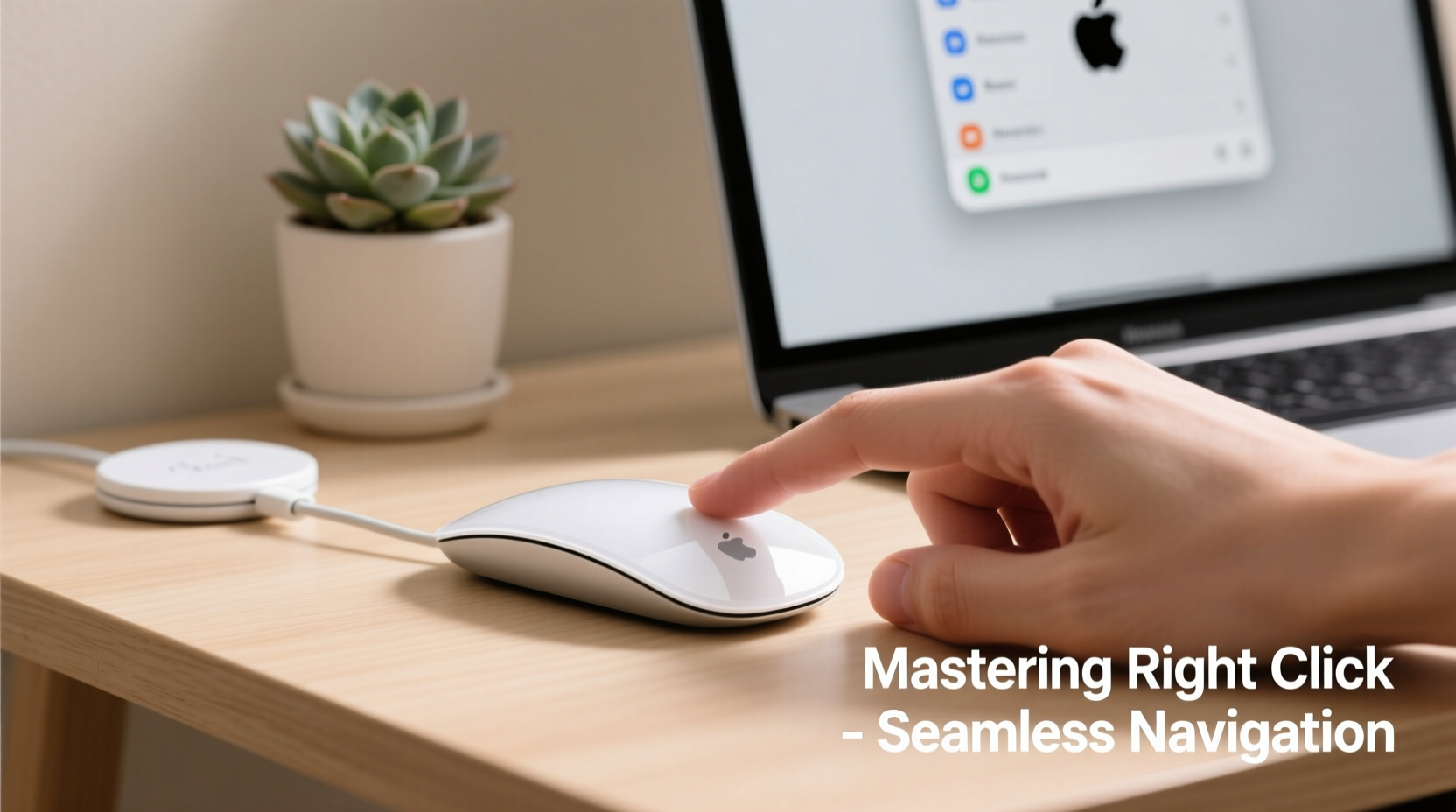
The Apple Magic Mouse is designed with simplicity in mind. Its seamless, multi-touch surface spans the entire top, allowing gestures like swiping, scrolling, and tapping. However, this design means there are no distinct left and right buttons. Instead, Apple relies on software-driven input detection based on where and how you click.
Right-clicking isn’t disabled—it’s just configured differently. By default, macOS supports right-click through a secondary click area on the mouse. But many users either don’t know this feature exists or struggle to trigger it consistently because they haven’t adjusted sensitivity or hand positioning.
The key to mastering right-click lies in understanding two things: system settings and muscle memory. Once both are aligned, accessing context menus—like copying text, opening links in new tabs, or accessing file options—becomes second nature.
How to Enable and Customize Right-Click
Before you can use right-click effectively, ensure it's properly enabled and tailored to your preference. Follow this step-by-step process:
- Click the Apple logo in the top-left corner of your screen.
- Select System Settings (or System Preferences on older macOS versions).
- Navigate to Mouse in the sidebar.
- Look for the option labeled Secondary Click.
- Toggle it on.
- Choose your preferred activation area: Click on the right side or Click on the left side.
You can also adjust tracking speed under the same menu to fine-tune pointer responsiveness. A slower speed increases precision, which helps with accurate clicking—especially useful if you frequently work with small interface elements.
Using Tap to Click with Right-Click
If you've enabled \"Tap to Click\" in your mouse settings, you can also perform a right-click by tapping with two fingers anywhere on the surface. This gesture mimics the behavior found on MacBook trackpads and offers an alternative for those who prefer minimal physical pressure.
To enable two-finger tap for right-click:
- Go to System Settings > Mouse.
- Ensure Tap to Click is turned on.
- Check that Secondary Click includes the option “Click with two fingers” or “Tap with two fingers,” depending on your macOS version.
This method reduces wear on the physical mechanism and allows quieter operation—ideal for shared workspaces or late-night browsing.
Practical Uses of Right-Click in Daily Tasks
Once configured, right-click opens up dozens of shortcuts across macOS. Here are common scenarios where it enhances efficiency:
- Browsing the web: Right-click on links to open them in a new tab, copy the URL, or download linked files.
- Text editing: Highlight text and right-click to access cut, copy, paste, look up definitions, or translate phrases.
- File management: In Finder, right-click files to rename, duplicate, compress, share, or reveal them in their folder.
- Email clients: Quickly move messages to folders, mark as read, or delete without navigating menus.
- Creative apps: In photo or design software, access formatting tools, layer options, or export settings instantly.
“Right-click is one of the most underused yet time-saving features on Mac. It puts power-user functions at your fingertips without memorizing keyboard shortcuts.” — Jordan Lee, macOS Productivity Consultant
Mini Case Study: From Frustration to Flow
Sophie, a freelance writer transitioning from Windows to Mac, initially struggled with what she thought was a missing right-click function. She resorted to long presses and menu bar navigation, slowing her workflow. After discovering the secondary click setting and switching to two-finger tap, her writing and research pace improved dramatically. Within a week, she was using right-click to quickly define words, save image sources, and organize project folders—all without lifting her hands from the mouse.
Her experience reflects a common gap: hardware capability vs. user awareness. The Magic Mouse supports advanced interaction; it just requires proper setup.
Do’s and Don’ts of Magic Mouse Right-Clicking
| Do’s | Don’ts |
|---|---|
| Use consistent finger pressure when clicking on the right side | Don’t press too hard—this can damage internal mechanisms over time |
| Customize click sensitivity and tracking speed to match your hand size | Don’t ignore software updates—new macOS versions often refine mouse behavior |
| Try two-finger tap if you prefer gesture-based input | Don’t assume right-click isn’t working—verify settings first |
| Practice regularly to build muscle memory | Don’t rely solely on Force Touch (if available)—not all apps support it |
Troubleshooting Common Issues
Even after setup, some users report inconsistent right-click responses. Here’s how to resolve frequent problems:
Right-click isn’t responding
First, verify that Secondary Click is enabled in System Settings. Then test the mouse with another user account or restart your Mac. If the issue persists, unpair and re-pair the mouse via Bluetooth settings.
Accidental right-clicks while scrolling
This usually happens when your ring finger brushes the right edge. Reduce tracking speed slightly and focus on centering your index and middle fingers during scroll motions. Alternatively, switch to two-finger tap-only mode to eliminate side-clicking entirely.
Click feels stiff or unresponsive
The Magic Mouse uses capacitive sensors, not mechanical switches. Over time, debris or low battery can affect performance. Clean the surface gently with a dry microfiber cloth and ensure the mouse is fully charged.
FAQ
Can I remap right-click to a different gesture?
Yes. Third-party tools like BetterTouchTool allow full customization of Magic Mouse gestures, including assigning right-click to a three-finger tap or swipe. However, native macOS settings offer sufficient flexibility for most users.
Why does my Magic Mouse stop right-clicking after sleep?
This occasional glitch occurs due to Bluetooth reconnection delays. Wake your Mac, move the mouse to reactivate it, and check Bluetooth connectivity. Keeping your system updated usually prevents recurrence.
Is right-click the same as Control-click?
Functionally, yes. Holding the Control key while clicking produces the same context menu as a right-click. This is useful when using external mice without secondary buttons or troubleshooting temporary mouse issues.
Final Checklist: Mastering Right-Click on Magic Mouse
- Open System Settings and go to Mouse.
- Enable Secondary Click and select your preferred side.
- Test right-click in Finder or Safari.
- Adjust tracking speed for comfort.
- Optionally enable Two-Finger Tap for right-click.
- Practice common actions: copy text, open links in new tabs, manage files.
- Troubleshoot any lag or misfires by cleaning the mouse and checking battery level.
Conclusion
The Apple Magic Mouse is more than a minimalist accessory—it’s a precision tool once you understand its capabilities. Right-clicking, though subtly implemented, plays a crucial role in streamlining everyday tasks. With the correct settings and a bit of practice, you’ll navigate macOS faster and with greater confidence.




 浙公网安备
33010002000092号
浙公网安备
33010002000092号 浙B2-20120091-4
Comments
No comments yet. Why don't you start the discussion?