
In an age where smartphones are central to communication, entertainment, and productivity, it’s easy to lose track of how much time you spend staring at your iPhone. Apple’s Screen Time feature offers powerful tools to monitor and manage digital habits—but many users barely scratch the surface of what it can do. Understanding how to use Screen Time effectively isn’t just about reducing minutes; it’s about regaining control over attention, improving sleep, and fostering healthier relationships with technology.
This guide walks through every aspect of Screen Time, from interpreting usage data to enforcing meaningful limits. Whether you’re trying to break compulsive checking, help a child navigate digital boundaries, or simply gain awareness of your habits, these strategies deliver real results.
Understanding Screen Time: What It Tracks and Why It Matters
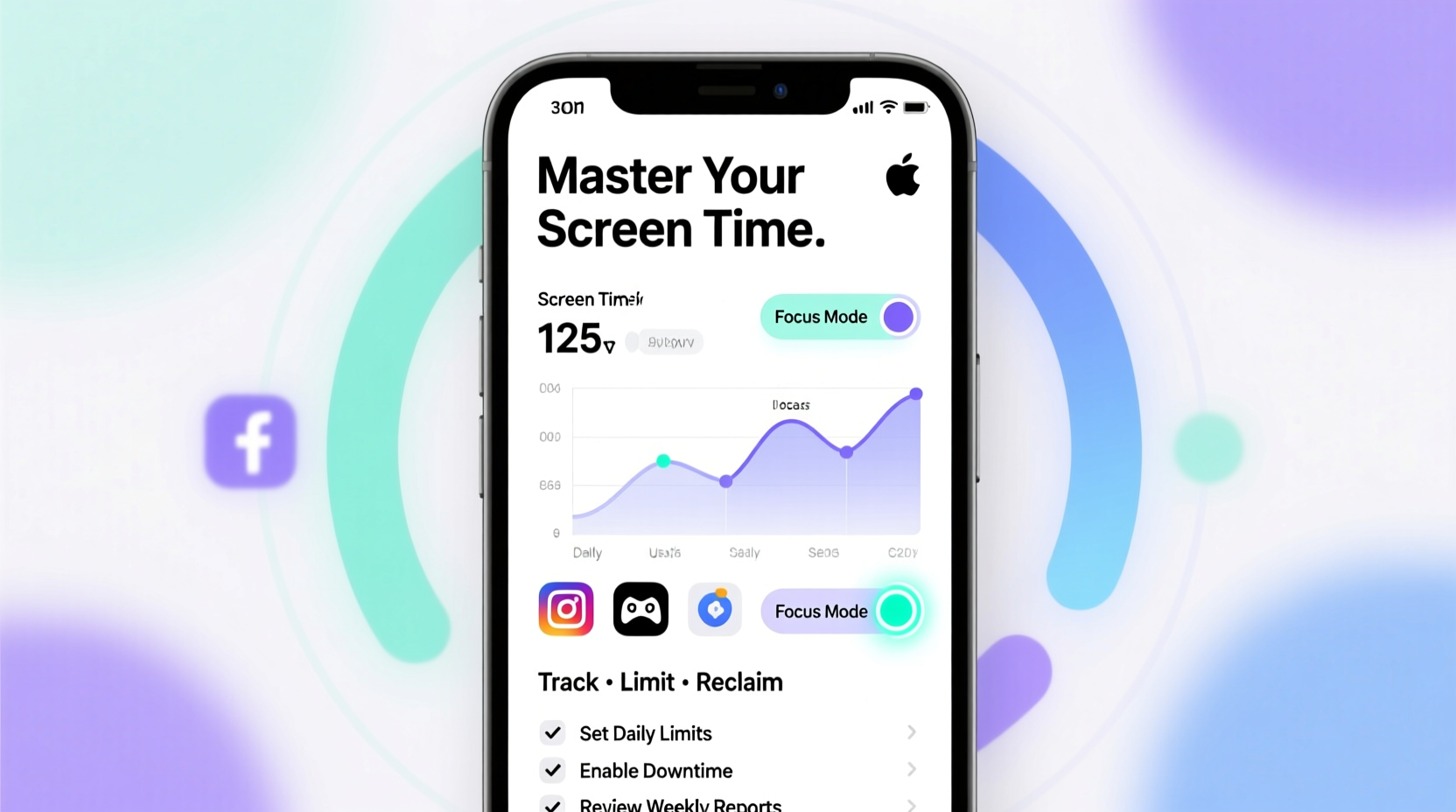
Introduced in iOS 12, Screen Time automatically logs how you use your iPhone. It breaks down activity into categories such as Social Networking, Entertainment, Productivity, and Browsing. Each day, it generates a detailed report showing:
- Total screen time
- App usage by category and individual app
- Notifications received (and how frequently)
- Device pickups (how often you unlock your phone)
- Downtime and App Limit compliance
This data is more than a number—it reveals behavioral patterns. For instance, picking up your phone 120 times a day suggests habitual, often unconscious engagement. Similarly, spending three hours daily on social media may not feel excessive in the moment, but seeing it visualized makes the impact undeniable.
“People consistently underestimate their screen time by nearly 40%. Objective data is the first step toward intentional usage.” — Dr. Linda Kim, Digital Wellness Researcher, Stanford University
Setting Up and Customizing Screen Time
To access Screen Time, go to Settings > Screen Time. If it's your first time, tap “Turn On Screen Time” and choose whether to share data with Family Sharing. Here’s how to configure key features:
Step-by-Step Guide: Activating Core Features
- Enable Screen Time: Navigate to Settings > Screen Time > Turn On Screen Time.
- Set App Limits: Tap “App Limits” > “Add Limit,” select a category (e.g., Social), and set a daily allowance (e.g., 60 minutes).
- Schedule Downtime: Under “Downtime,” set start and end times (e.g., 9 PM to 7 AM). During Downtime, only phone calls and apps you allow are accessible.
- Use Communication Limits: Control who can contact you during Downtime—especially useful for children.
- Turn On Content & Privacy Restrictions: Prevent changes to Screen Time settings with a passcode.
Using Data to Change Behavior
The weekly report in Screen Time is one of the most underused yet effective tools. Every Sunday, you receive a summary of your usage across devices. Review it mindfully:
- Which apps consumed the most time?
- When were you most active? (Check pickup frequency by hour.)
- Did you exceed your App Limits?
- How many notifications disrupted your focus?
Use these insights to adjust habits. For example, if Instagram used 90 minutes daily but you set a 30-minute limit, the app will gray out after the threshold. This friction forces a pause—often enough to redirect attention elsewhere.
Mini Case Study: Reducing Evening Scrolling
Sarah, a 34-year-old graphic designer, noticed she was spending two hours nightly on TikTok and YouTube after dinner. Her sleep suffered, and she felt mentally drained the next day. Using Screen Time, she discovered her highest pickup frequency occurred between 8 PM and 10 PM. She set a 45-minute App Limit for Entertainment apps and scheduled Downtime starting at 9 PM. Within a week, her evening usage dropped to 25 minutes. She replaced scrolling with reading and reported improved sleep quality and morning focus.
Advanced Strategies for Maximum Impact
Beyond basic setup, advanced techniques can amplify effectiveness:
Use Focus Modes to Replace Downtime
Introduced in iOS 15, Focus Modes let you filter apps and notifications based on context—Work, Sleep, Personal Time, etc. Link Screen Time limits to specific Focus modes for precision control. For example, enable a “Reading” Focus that silences all non-essential apps and allows only Books and Notes.
Leverage Family Sharing for Accountability
If you have children or want mutual accountability with a partner, Family Sharing lets you view and manage screen time across devices. Parents can remotely set limits, approve requests for extra time, and schedule strict bedtime controls.
Reduce Notification Load
High notification volume correlates strongly with increased pickups. Go to Settings > Notifications and disable alerts for low-priority apps. Use “Scheduled Summary” for email and news apps to batch notifications once or twice a day.
| Action | Expected Benefit | Time to Implement |
|---|---|---|
| Set App Limits for top 3 time-consuming apps | Reduces passive usage by 20–40% | 5 minutes |
| Enable Downtime during sleep hours | Improves sleep onset and reduces nighttime pickups | 3 minutes |
| Switch high-distraction apps to grayscale | Decreases visual appeal and impulse use | 2 minutes |
| Review weekly report every Sunday morning | Builds awareness and supports habit adjustment | 7 minutes |
Common Pitfalls and How to Avoid Them
Many users abandon Screen Time after a few days because they set unrealistic limits or fail to align them with lifestyle needs. Avoid these mistakes:
- Setting limits too low: Going from 3 hours of social media to 30 minutes often leads to frustration. Reduce gradually instead.
- Ignoring exceptions: Allow flexibility for special occasions. Use “Ask for More Time” to request additional minutes when needed.
- Not using a passcode: Without a Screen Time passcode, it’s too easy to override limits impulsively.
- Skipping the weekly review: Consistent reflection turns data into behavior change.
FAQ
Can I see Screen Time data for previous weeks?
Yes. In Settings > Screen Time, scroll down to “See All Activity” to view historical reports going back several months. This helps identify long-term trends.
Why doesn’t Screen Time include some apps?
Apps like Phone, Messages, and Health are excluded from usage tracking since they serve core functions. However, third-party apps—even system-like ones such as Spotify or Chrome—are fully tracked.
Can I disable Screen Time completely?
You can turn it off, but doing so removes valuable insights. Instead, consider adjusting limits rather than disabling the feature entirely.
Conclusion
Mastering screen time on iPhone isn’t about deprivation—it’s about intentionality. With thoughtful configuration of App Limits, Downtime, Focus Modes, and regular data reviews, you can shift from reactive scrolling to purposeful usage. The goal isn’t zero screen time; it’s ensuring that every minute spent on your device adds value, not distraction.




 浙公网安备
33010002000092号
浙公网安备
33010002000092号 浙B2-20120091-4
Comments
No comments yet. Why don't you start the discussion?