
In an era where smartphones are both indispensable and dangerously distracting, regaining control over your digital habits is essential. The iPhone’s Screen Time feature offers powerful tools to understand and manage device usage—but knowing how to use them effectively is the real key. This guide walks you through practical, actionable steps to master Screen Time, minimize mindless scrolling, and reclaim focus for meaningful work and personal well-being.
Understanding Screen Time: More Than Just Numbers
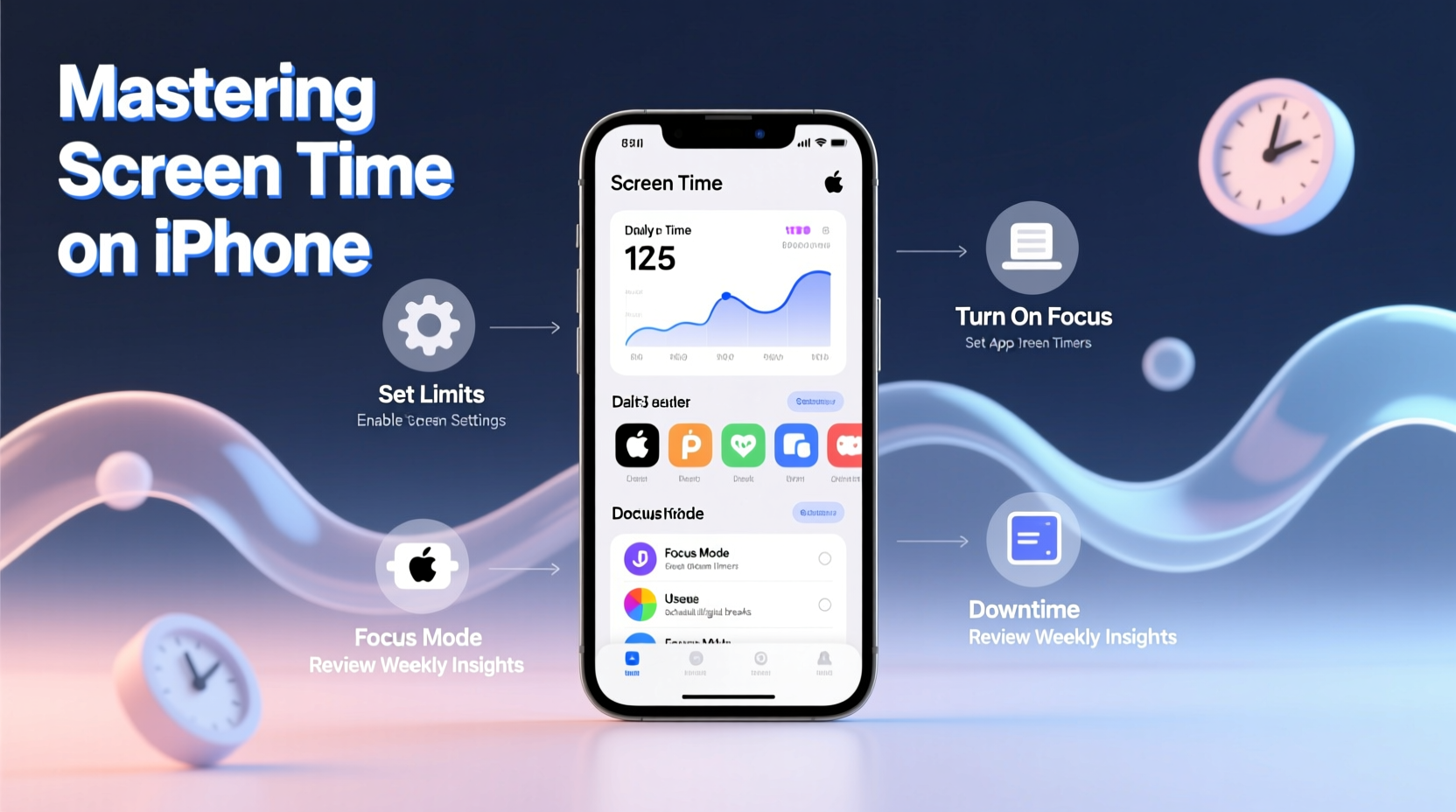
Introduced in iOS 12, Apple’s Screen Time provides detailed insights into app usage, pickups, and notifications. It goes beyond mere tracking by enabling limits, downtime, and content restrictions. However, many users glance at their weekly report and move on without making changes. True mastery lies in interpreting the data and using it to reshape behavior.
For example, seeing that you spend two hours daily on social media might not be surprising, but pairing that insight with intentional adjustments—such as scheduling specific times to check apps—can lead to significant improvements in concentration and mood.
Step-by-Step Guide to Configuring Screen Time
Setting up Screen Time correctly ensures long-term success. Follow this sequence to build a sustainable system tailored to your lifestyle.
- Enable Screen Time: Go to Settings > Screen Time and tap \"Turn On Screen Time.\" Choose \"This is My iPhone\" unless setting up for a child.
- Review Weekly Reports: After a few days of usage, revisit the dashboard to see which apps dominate your time and how often you pick up your phone.
- Set App Limits: Tap \"App Limits\" > \"Add Limit.\" Select categories like Social Networking or Games and set a daily allowance (e.g., 30 minutes).
- Enable Downtime: Under \"Downtime,\" schedule a period (e.g., 9 PM to 7 AM) when only essential apps (Phone, Messages) remain accessible.
- Customize Notifications: Reduce interruptions by going to Settings > Notifications and disabling non-essential alerts.
- Use Communication Safety & Focus Modes: Activate Focus modes (Work, Sleep, etc.) to filter apps and notifications based on context.
These settings work best when reviewed monthly and adjusted according to changing routines.
Do’s and Don’ts of Managing Screen Time
| Do’s | Don’ts |
|---|---|
| Set realistic app limits instead of cutting off access abruptly | Don’t ignore Screen Time reports after initial setup |
| Pair app limits with alternative activities (reading, walking) | Don’t disable limits the moment they trigger—pause and reflect first |
| Use Focus modes during deep work sessions or family time | Don’t enable Downtime without informing household members who may need to reach you |
| Involve family members in shared accountability (via Family Sharing) | Don’t rely solely on Screen Time without addressing underlying habits like boredom or stress-induced scrolling |
Real-Life Example: From Overuse to Intentional Use
Sarah, a freelance designer in Portland, found herself checking Instagram between client tasks, losing track of time, and feeling mentally drained by midday. Her Screen Time report revealed 2.5 hours daily on social media—mostly in 5–10 minute bursts throughout the day.
She implemented three changes: First, she set a 30-minute daily limit for social apps. Second, she activated a \"Work\" Focus mode during project hours, silencing all non-client notifications. Third, she replaced her habitual scroll breaks with five-minute walks outside.
Within two weeks, Sarah reduced her social media use to 45 minutes per day and reported sharper focus, better sleep, and increased billable hours. “It wasn’t about deleting apps,” she said. “It was about designing my phone to serve me, not distract me.”
“Digital wellbeing isn’t about total abstinence—it’s about alignment. Your phone should support your priorities, not sabotage them.” — Dr. Linda Nguyen, Behavioral Technologist, Stanford Digital Wellness Lab
Maximizing Productivity with Focus Modes and Automation
One of Screen Time’s most underused features is integration with Focus modes. These allow you to filter apps and notifications based on your current activity.
To create a custom Focus mode:
- Navigate to Settings > Focus.
- Select or create a new mode (e.g., \"Deep Work\").
- Choose which people and apps can notify you.
- Set a schedule or automate activation (e.g., when opening Notes or connecting to your office Wi-Fi).
- Assign a home screen page so only relevant apps appear during that mode.
This level of customization reduces cognitive load by eliminating decision fatigue. Instead of resisting temptation, your environment makes the right choice automatic.
Essential Checklist for Mastering iPhone Screen Time
Follow this checklist monthly to maintain control and adapt to new challenges:
- ✅ Review last week’s Screen Time report
- ✅ Adjust app limits based on actual needs (not guilt)
- ✅ Update Focus modes for current projects or seasons (e.g., exam prep, vacation)
- ✅ Disable unused app notifications
- ✅ Audit app permissions (Settings > Privacy)
- ✅ Share progress with an accountability partner or family member
- ✅ Test one new digital habit (e.g., no phone during meals)
Frequently Asked Questions
Can I bypass my own Screen Time limits?
Yes, but intentionally. When a limit is reached, you can choose “Ignore Limit” after entering your Screen Time passcode. To prevent impulsive overrides, avoid storing the passcode in iCloud or sharing it. Some users even ask a trusted person to set the passcode for added accountability.
Why doesn’t Screen Time stop me from using apps after the limit?
Screen Time is designed to inform and guide, not enforce rigid blocks. After a limit ends, you can continue using the app by requesting more time. This flexibility prevents frustration but requires self-discipline. Pair limits with behavioral cues (like closing the app and opening a book) to strengthen adherence.
Does Screen Time work across all Apple devices?
Yes. If you’re signed in with the same Apple ID across iPhone, iPad, and Mac, Screen Time syncs usage data and limits seamlessly. This unified view helps manage digital habits holistically, especially for families using Family Sharing to monitor children’s device use.
Conclusion: Design Your Digital Environment for Success
Mastery over screen time isn’t achieved through willpower alone—it comes from designing an environment where focused, intentional use becomes the default. The iPhone’s built-in tools give you unprecedented control, but only if you use them deliberately and consistently.
Start small: Set one app limit today. Tomorrow, configure a Focus mode for your most important task. Over time, these micro-adjustments compound into lasting behavioral change. You don’t need to eliminate screen use; you need to align it with what truly matters.




 浙公网安备
33010002000092号
浙公网安备
33010002000092号 浙B2-20120091-4
Comments
No comments yet. Why don't you start the discussion?