
Capturing a moment on your screen—whether it’s a crucial email, a funny text exchange, or a step in a software tutorial—is one of the most common digital tasks. Yet, many users still fumble with outdated methods or don’t know the full range of options available across devices. Knowing how to take a screenshot efficiently not only saves time but also enhances productivity and communication. Whether you're using a Windows laptop, a MacBook, an Android phone, or an iPhone, each platform offers unique tools and shortcuts designed to make screen capture fast and flexible.
This guide walks through the most effective, up-to-date methods for taking screenshots across major operating systems. From basic button combinations to advanced built-in tools, you’ll learn how to capture exactly what you need—with precision and ease.
Windows: Quick Access and Advanced Tools
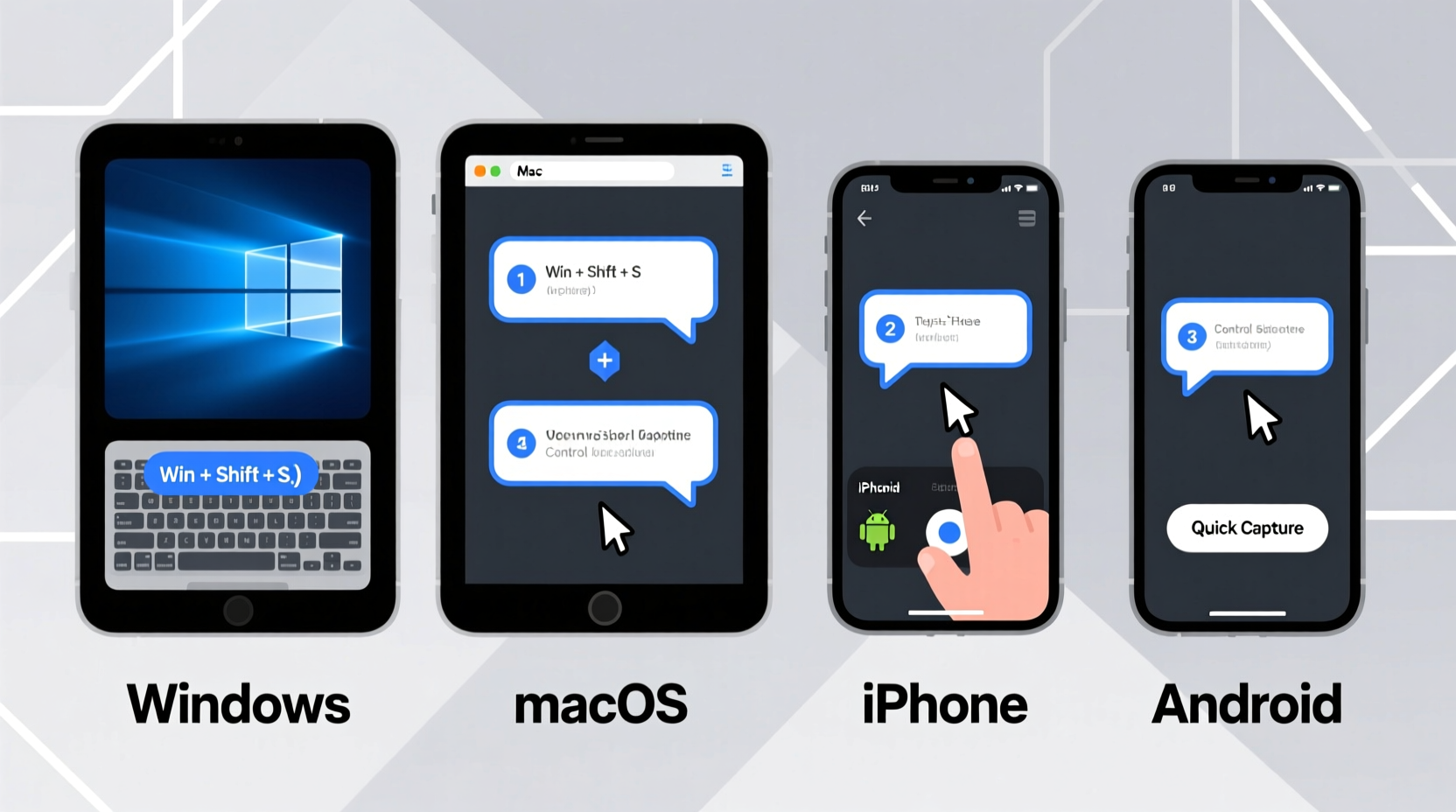
Windows offers multiple ways to capture your screen, from simple keyboard shortcuts to powerful utilities like Snip & Sketch. The method you choose depends on whether you need a full-screen capture, a specific window, or just a portion of the display.
The most universal shortcut is Print Screen (PrtScn). Pressing it copies the entire screen to your clipboard. To save it directly as a file, use Windows + PrtScn—this automatically saves the image in the Screenshots folder inside Pictures.
For more control, press Windows + Shift + S. This activates the Snip & Sketch tool, letting you select a rectangular area, a freeform shape, a single window, or the entire screen. The captured snippet goes to your clipboard, and a notification allows you to edit or save it immediately.
Snipping Tool vs. Snip & Sketch
While the classic Snipping Tool still exists in newer Windows versions, Microsoft recommends using Snip & Sketch for better integration and editing features. You can set Snip & Sketch as the default snipping experience in Settings > System > Clipboard.
“Efficiency in screen capture starts with knowing your tools. On Windows, mastering Snip & Sketch can cut down documentation time by 50%.” — David Lin, Productivity Consultant at TechFlow Solutions
Mac: Precision and Simplicity Combined
Apple has refined its screenshot capabilities over the years, offering intuitive keyboard commands and a dedicated floating toolbar for more complex captures. macOS supports both full-screen and selective captures with instant editing and sharing options.
To take a full-screen screenshot, press Command + Shift + 3. The image saves to your desktop by default. For a partial capture, use Command + Shift + 4, then drag to select the area. If you want to capture a specific window, press Spacebar after Command+Shift+4, then click on the desired window.
For even greater flexibility, press Command + Shift + 5 to open the screenshot toolbar. This panel lets you choose between capturing the entire screen, a selected portion, or a specific window. It also provides recording options for screen videos and settings for saving location, timer, and cursor visibility.
Editing and Sharing Directly from Preview
After taking a screenshot on Mac, a thumbnail appears briefly in the lower-right corner. Click it to open the markup editor, where you can crop, annotate, add shapes, or highlight text before saving. This eliminates the need for third-party apps for quick edits.
| Action | Keyboard Shortcut | Result |
|---|---|---|
| Full screen | Cmd + Shift + 3 | Saves full display to desktop |
| Selected area | Cmd + Shift + 4 | Drag to capture custom region |
| Specific window | Cmd + Shift + 4, then Spacebar | Captures focused window |
| Screen recording | Cmd + Shift + 5 → Record | Records screen with audio option |
Android: Varying Methods Across Devices
Android devices generally use a consistent method for screenshots, though variations exist depending on manufacturer and model. The standard approach works across most phones: press and hold the Power and Volume Down buttons simultaneously for about one second. A flash and sound confirm the capture.
Some Samsung devices support palm-swipe gestures—simply swipe the side of your hand across the screen to take a screenshot. This can be enabled in Settings > Advanced Features > Motions and Gestures.
Once captured, a preview appears briefly. Tapping it opens editing tools that allow cropping, adding text, or drawing. Many manufacturers, including Google Pixel and Samsung, offer extended screenshot functionality—scrolling capture for long web pages or messages. After taking a regular screenshot, tap “Capture More” or “Scroll” to continue capturing the next section automatically.
Using the Power Menu (Samsung and Others)
On recent Samsung Galaxy phones, opening the power menu (by pressing Power briefly) reveals a \"Smart Capture\" option after a screenshot. This includes scrolling capture, magnified insets, and GIF creation from screen sections—useful for tutorials or social media content.
iPhone: Seamless Integration and Hidden Features
iPhones use a uniform button combination: press the Side Button and Volume Up simultaneously. On older models with a Home button, use Side Button + Home. A flash and shutter sound indicate success, and a thumbnail appears in the lower-left corner.
Tapping the thumbnail opens the iOS markup editor—similar to Mac’s preview tool—where you can draw, add text, use a magnifier, or crop. Swipe left on the thumbnail to dismiss it; otherwise, it auto-saves to Photos.
For longer content like articles or conversations, use **Full Page** capture in Safari. After taking a screenshot of a webpage, tap “Full Page” at the top of the markup screen. You can then choose to save only the visible part or the entire page as a PDF, which scrolls infinitely.
Screenshot Alternatives: Screen Recording
Need to show motion or interaction? iPhones support screen recording via Control Center. Add “Screen Recording” to Control Center (Settings > Control Center), then swipe down and tap the record button. Press and hold to include microphone audio—perfect for voice-over demos or bug reports.
“Teaching remotely? A well-timed screenshot or screen recording can replace paragraphs of explanation.” — Dr. Lena Patel, EdTech Specialist at Digital Learning Institute
Checklist: Master Your Screenshots Across Devices
- ✅ Know the primary button combo for your device (e.g., Power + Volume Down on Android).
- ✅ Use selective capture tools (Snip & Sketch, Cmd+Shift+4) when you only need part of the screen.
- ✅ Enable markup tools to annotate screenshots before sharing.
- ✅ Use scroll or full-page capture for long articles, chats, or forms.
- ✅ Set default save locations to keep files organized.
- ✅ Explore screen recording for dynamic demonstrations.
- ✅ Practice accessibility options if physical buttons are hard to press.
Real Example: Troubleshooting with Screenshots
Sophie, a remote customer support agent, receives a message from a user struggling to install software. Instead of asking vague questions, she guides them to take a screenshot using Windows + Shift + S. The user shares a clipped image of the error message. Within seconds, Sophie identifies a missing dependency and sends a direct link to the fix. Without the visual clue, the diagnosis could have taken minutes—or required a screen-sharing session. This small act of efficient capture resolved the issue in under two minutes.
Frequently Asked Questions
Where do screenshots go by default?
On Windows, they’re saved in the Screenshots folder (under Pictures). On Mac, they appear on the desktop. Android and iPhone save them directly to the Gallery or Photos app.
Can I change the screenshot file format?
Yes. On Mac, press Option while using a screenshot shortcut to choose PNG, JPEG, PDF, or other formats. On Windows, edited screenshots in Snip & Sketch default to PNG but can be converted using Paint or other editors.
Why isn’t my screenshot working?
Check if your device is frozen or unresponsive. Also, some apps (like banking or streaming services) block screenshots for security. Try restarting the device or check accessibility settings if hardware buttons are faulty.
Take Control of Your Digital Moments
Screenshots are more than just digital snapshots—they’re tools for communication, learning, and problem-solving. By mastering the built-in features across Windows, Mac, Android, and iPhone, you gain the ability to document, share, and preserve information with precision. These skills are essential whether you're collaborating at work, helping a family member online, or creating content for social media.




 浙公网安备
33010002000092号
浙公网安备
33010002000092号 浙B2-20120091-4
Comments
No comments yet. Why don't you start the discussion?