
GarageBand has long been the go-to digital audio workstation (DAW) for musicians, podcasters, and producers across all experience levels. Whether you're picking up your first instrument or refining a full-length album, GarageBand offers an intuitive interface paired with powerful tools that make music creation accessible and enjoyable. With its seamless integration into Apple’s ecosystem, it stands out as one of the most user-friendly platforms for turning musical ideas into polished recordings.
This guide walks through every stage of song creation in GarageBand—from setting up your first project to exporting a final mix—while offering practical tips and structured workflows suitable for beginners, intermediate creators, and even seasoned users looking to refine their process.
Setting Up Your Project for Success
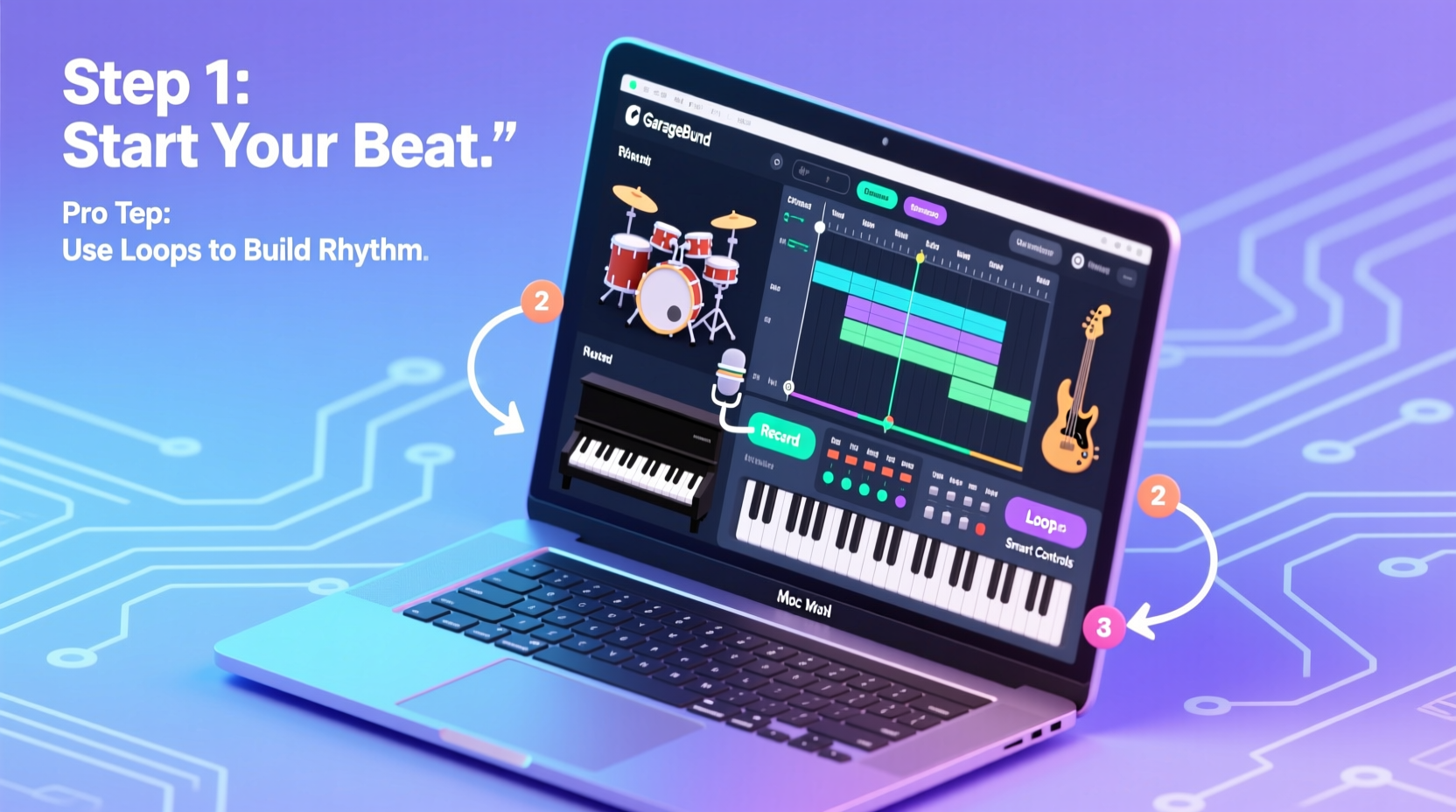
The foundation of any great song begins with proper setup. When launching GarageBand, choose “New Project” and select the type of track you want to create: Real Instrument, Software Instrument, or Audio Recorder. Each option serves a different purpose:
- Real Instrument: For recording vocals, guitar, bass, or live instruments via microphone or direct input.
- Software Instrument: Ideal for MIDI keyboards, virtual synths, drum programming, or piano roll composition.
- Audio Recorder: Best for spoken word, field recordings, or importing external audio clips.
Select a tempo and key signature early—even if they change later—to provide harmonic and rhythmic context. You can always adjust these under the project settings menu. Naming your project clearly helps maintain organization, especially when working on multiple songs.
A Step-by-Step Guide to Building Your Song
Crafting a complete song involves layering elements logically while maintaining clarity and emotional impact. Follow this timeline to build your track from scratch:
- Sketch the Structure: Define the arrangement—intro, verse, chorus, bridge, outro—using empty regions or markers.
- Lay Down a Rhythm Foundation: Start with drums or percussion using the Smart Drums feature or a pre-made loop from the Loop Browser.
- Add Harmonic Support: Record or program chords using a software instrument like Piano or Guitar. Use chord triggers to experiment quickly.
- Create a Melody: Develop a lead line using a synth, vocal idea, or instrumental phrase. Try humming ideas into the voice recorder for inspiration.
- Layer Textures: Introduce pads, arpeggios, or ambient sounds to enrich the atmosphere without cluttering the mix. <6> Record Vocals or Solos: Use a quality microphone, position yourself correctly, and record multiple takes for comping.
- Edit and Refine: Trim silence, align timing, tune pitches with Flex Pitch, and automate volume or pan for dynamics.
- Mix and Balance: Adjust levels, apply EQ, compression, reverb, and ensure each element occupies its own sonic space.
- Export the Final Track: Share as AAC, MP3, or WAV file depending on intended use (streaming, mastering, sharing).
This sequence isn’t rigid—you might begin with a melody or a beat—but having a roadmap prevents creative stagnation.
Essential Tools and Features You Should Know
GarageBand packs professional-grade features behind a simple interface. Knowing what’s available—and how to access it—can dramatically improve your workflow.
| Feature | Purpose | Access Method |
|---|---|---|
| Smart Instruments | Play complex parts with minimal skill (e.g., Smart Strings, Smart Guitar) | New Track > Software Instrument > Smart Controls |
| Flex Time & Flex Pitch | Correct timing and pitch issues non-destructively | Track Editor > Enable Flex |
| Loop Browser | Browse thousands of royalty-free loops by genre, instrument, and mood | Press B or click Loop icon |
| Automation | Control volume, pan, send levels over time | Track Header > Automation Button |
| Mastering Assistant | Apply intelligent mastering presets for loudness and tonal balance | Share Menu > Mastering Options |
“GarageBand is deceptively powerful. Its simplicity hides depth—many chart-topping artists started here.” — Lena Torres, Music Producer & Educator
Common Pitfalls and How to Avoid Them
Even experienced users fall into traps that compromise sound quality or creativity. Recognizing these early saves time and frustration.
- Overloading with Loops: Too many overlapping loops create muddy arrangements. Stick to 3–5 core elements per section.
- Neglecting Headroom: Peaking meters reduce dynamic range. Keep peaks around -6dB during mixing to allow headroom for mastering.
- Ignoring Panning: Everything centered creates a flat stereo image. Gently pan supporting instruments left or right for width.
- Skipping Reference Tracks: Compare your mix to professionally produced songs in the same genre to gauge tonal balance.
Mini Case Study: From Idea to Release in One Weekend
Jamie, a college student with basic piano skills, wanted to produce an original lo-fi hip-hop track for a campus event. Using GarageBand on her MacBook Air, she followed a focused plan:
She began by selecting a 85 BPM tempo in F minor and pulled a vinyl crackle loop and jazzy guitar sample from the Loop Browser. She used Smart Drums to generate a laid-back beat, then recorded a simple two-chord progression using the electric piano software instrument. After sketching a melodic motif on her MIDI keyboard, she duplicated sections to form verses and choruses.
She recorded whispered vocals for texture, applied a touch of reverb and delay, and used automation to fade in the intro and dim the background during spoken lines. Finally, she ran the Mastering Assistant with the “Balanced” preset and exported an MP3 for social media. The entire process took 14 hours over two days.
The result? A cohesive, atmospheric piece that resonated with listeners and earned her an invitation to perform at a local art gallery opening.
Checklist: Your GarageBand Song Creation Workflow
Use this checklist to stay organized and efficient throughout your production journey:
- ✅ Choose project type and set tempo/key
- ✅ Sketch song structure with markers or empty regions
- ✅ Build rhythm section (drums/percussion)
- ✅ Add harmonic layers (chords, bassline)
- ✅ Compose and record melody/lead
- ✅ Layer supporting textures (pads, effects)
- ✅ Record and edit vocals or solos
- ✅ Edit timing and pitch with Flex tools
- ✅ Mix levels, EQ, and spatial effects
- ✅ Automate key parameters for movement
- ✅ Apply Mastering Assistant or export raw mix
- ✅ Export final audio in desired format
FAQ
Can I use GarageBand for professional releases?
Yes. While larger studios may use more advanced DAWs, countless independent artists release albums, singles, and podcasts directly from GarageBand. The key lies in strong writing, performance, and mixing discipline—not just the software.
How do I collaborate with others remotely?
Use the “Share > Project to GarageBand” option to send a package containing all audio and MIDI data. Recipients can open it on their device, add parts, and send it back. Alternatively, export stems (individual tracks) as WAV files for cross-platform collaboration.
Is GarageBand free?
GarageBand is free for all Apple device users—Mac, iPhone, and iPad. It comes pre-installed on most devices or can be downloaded from the App Store at no cost.
Conclusion
Creating music in GarageBand doesn’t require expensive gear or years of training. What matters most is consistency, curiosity, and the willingness to experiment. Every button click, loop drag, and note played brings you closer to finding your unique sound. Whether you’re sketching ideas, producing full arrangements, or preparing tracks for public release, the tools are already in your hands.




 浙公网安备
33010002000092号
浙公网安备
33010002000092号 浙B2-20120091-4
Comments
No comments yet. Why don't you start the discussion?