
System Restore is one of Windows 10’s most powerful yet underused tools for recovering from software failures, driver conflicts, or unexpected system changes. When an update breaks your system, a new application causes instability, or malware alters critical settings, System Restore can return your computer to a stable state—without affecting personal files. Despite its usefulness, many users either don’t know how to use it or assume it’s too complex. This guide demystifies the process, offering clear, actionable steps to enable, configure, and use System Restore effectively.
Understanding System Restore: What It Does (and Doesn’t) Do
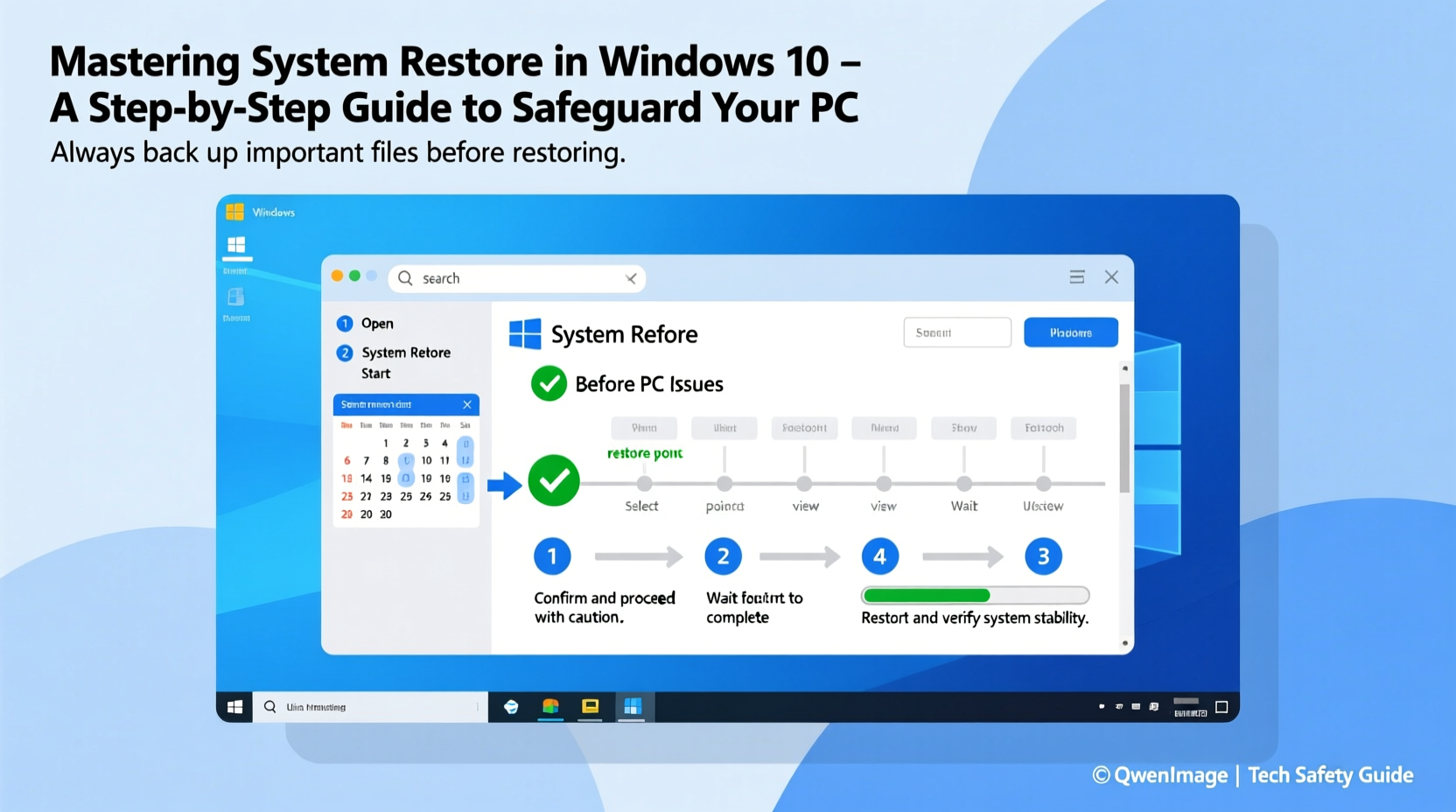
System Restore creates snapshots of your system’s registry, installed programs, system files, and drivers at specific points in time. These snapshots, called restore points, allow you to roll back your PC to a previous configuration if something goes wrong. Crucially, it does not delete or modify your personal data—documents, photos, emails, and downloaded files remain untouched.
However, it's important to understand the limitations:
- It won't recover deleted or corrupted personal files unless they were part of a system component.
- It doesn't protect against hardware failure or disk corruption.
- It cannot reverse changes made by certain types of malware that specifically target or disable restore points.
“System Restore is not a replacement for backups, but it’s a critical safety net when troubleshooting software issues.” — Brian Hill, Senior Systems Engineer at TechGuard Solutions
Step-by-Step: Enabling and Configuring System Restore
By default, System Restore may be disabled on some Windows 10 installations, especially on newly built systems or after a clean install. Follow these steps to activate and optimize it:
- Open System Properties: Press Windows + Pause/Break or search “View advanced system settings” in the Start menu.
- Navigate to System Protection: In the System Properties window, click the “System Protection” tab.
- Select Your Drive: Choose the drive where Windows is installed (usually C:).
- Click Configure: If protection is off, click “Turn on system protection.”
- Adjust Disk Space Usage: Move the slider under “Disk Space Usage” to allocate between 5% and 10% of your drive. For a 500GB drive, this means 25–50GB reserved for restore points.
- Set Up Automatic Restore Points: Ensure “Turn on system protection” is selected and click Apply, then OK.
Creating and Managing Restore Points
While Windows automatically creates restore points before major events like updates, you can—and should—create them manually. Here’s how:
Manual Restore Point Creation
- Go to Settings > Update & Security > Recovery.
- Under “Advanced startup,” click “Restart now.”
- Alternatively, open the Control Panel, go to “Recovery,” and select “Open System Restore.”
- Click “Create a restore point” in the left panel.
- In the System Properties window, click “Create…” under the “Restore point” section.
- Name your restore point (e.g., “Before Adobe Install”) and click Create.
The process takes less than a minute. Once created, the restore point will appear in the list under the “System Protection” tab.
Managing Existing Restore Points
To delete old restore points and free up space:
- Go to System Protection > Configure > Delete.
- This removes all restore points on that drive but keeps System Restore enabled.
- To keep older points while managing space, reduce the allocated disk usage instead.
| Action | Recommended Frequency | Best Practice |
|---|---|---|
| Enable System Restore | Once per installation | Do this immediately after setting up a new PC or reinstalling Windows |
| Create Manual Restore Point | Before any major change | Before driver updates, software installs, or registry edits |
| Check Restore Point Age | Monthly | Ensure recent points exist; automatic ones are usually weekly |
| Review Disk Usage | Quarterly | Keep between 5–10%; adjust based on available space |
Performing a System Restore: Real-World Example
Consider this scenario: After installing a third-party antivirus program, your PC begins crashing during startup. Safe Mode fails to load properly, and performance degrades significantly. You suspect the software conflict is the cause—but uninstalling it normally isn’t possible due to boot failure.
This is where System Restore becomes essential.
Recovery Using Advanced Startup
- Restart your PC and hold Shift while clicking “Restart” from the login screen.
- After reboot, choose Troubleshoot > Advanced options > System Restore.
- Log in with your admin account if prompted.
- Select a restore point from before the antivirus installation.
- Confirm the restore and allow the process to complete (may take 10–20 minutes).
- Your PC reboots into the previous system state, with the problematic software removed and settings reverted.
In this case, System Restore bypassed the need for a full OS reinstall and preserved all user documents and media. The system returned to stability within half an hour.
Frequently Asked Questions
Will System Restore remove my personal files?
No. System Restore only affects system files, settings, installed programs, and drivers. Your documents, music, photos, and emails remain intact.
How far back can I restore my system?
Typically, restore points are kept for up to 90 days, depending on disk space and system activity. Older points are automatically deleted as new ones are created.
Can I use System Restore if my PC won’t start?
Yes. Use the Advanced Startup Options via a recovery drive, installation media, or repeated failed boot attempts (after 2–3 crashes, Windows triggers automatic recovery). From there, access System Restore even if Windows won’t load normally.
Essential Best Practices Checklist
To maximize the effectiveness of System Restore, follow this checklist:
- ✅ Enable System Protection on your system drive (C:)
- ✅ Allocate 5–10% of disk space for restore points
- ✅ Create a manual restore point before installing new software or drivers
- ✅ Verify automatic restore points are being created monthly
- ✅ Test System Restore functionality on a non-critical system first
- ✅ Combine with regular file backups for complete data protection
- ✅ Keep a Windows 10 recovery drive handy for boot emergencies
“Having System Restore enabled is like wearing a seatbelt—you hope you never need it, but you’ll regret not having it when things go wrong.” — Lisa Tran, IT Support Manager at NexaTech
Conclusion: Take Control of Your System’s Stability
System Restore is not a luxury—it’s a fundamental layer of defense for any Windows 10 user. Whether you're a casual home user or managing multiple devices, enabling and understanding this tool can save hours of troubleshooting, prevent data loss scenarios, and eliminate the need for drastic measures like factory resets. By following the steps outlined here, you ensure your PC has a reliable rollback mechanism ready when software changes go awry.
Don’t wait until a crash occurs to set it up. Enable System Restore today, create your first manual point, and integrate it into your digital hygiene routine. Your future self—facing a frozen screen or failed update—will thank you.




 浙公网安备
33010002000092号
浙公网安备
33010002000092号 浙B2-20120091-4
Comments
No comments yet. Why don't you start the discussion?