
Time is one of the most valuable resources in any business, yet tracking it accurately remains a persistent challenge. Whether you're managing employee hours, project timelines, or client billing, Excel offers powerful tools to calculate and manage time—when used correctly. Many users struggle with inconsistent formatting, incorrect totals, or misinterpreted durations. This guide demystifies Excel’s time functions, offering real-world techniques to ensure precision, efficiency, and reliability in your time tracking workflows.
Understanding Excel’s Time System
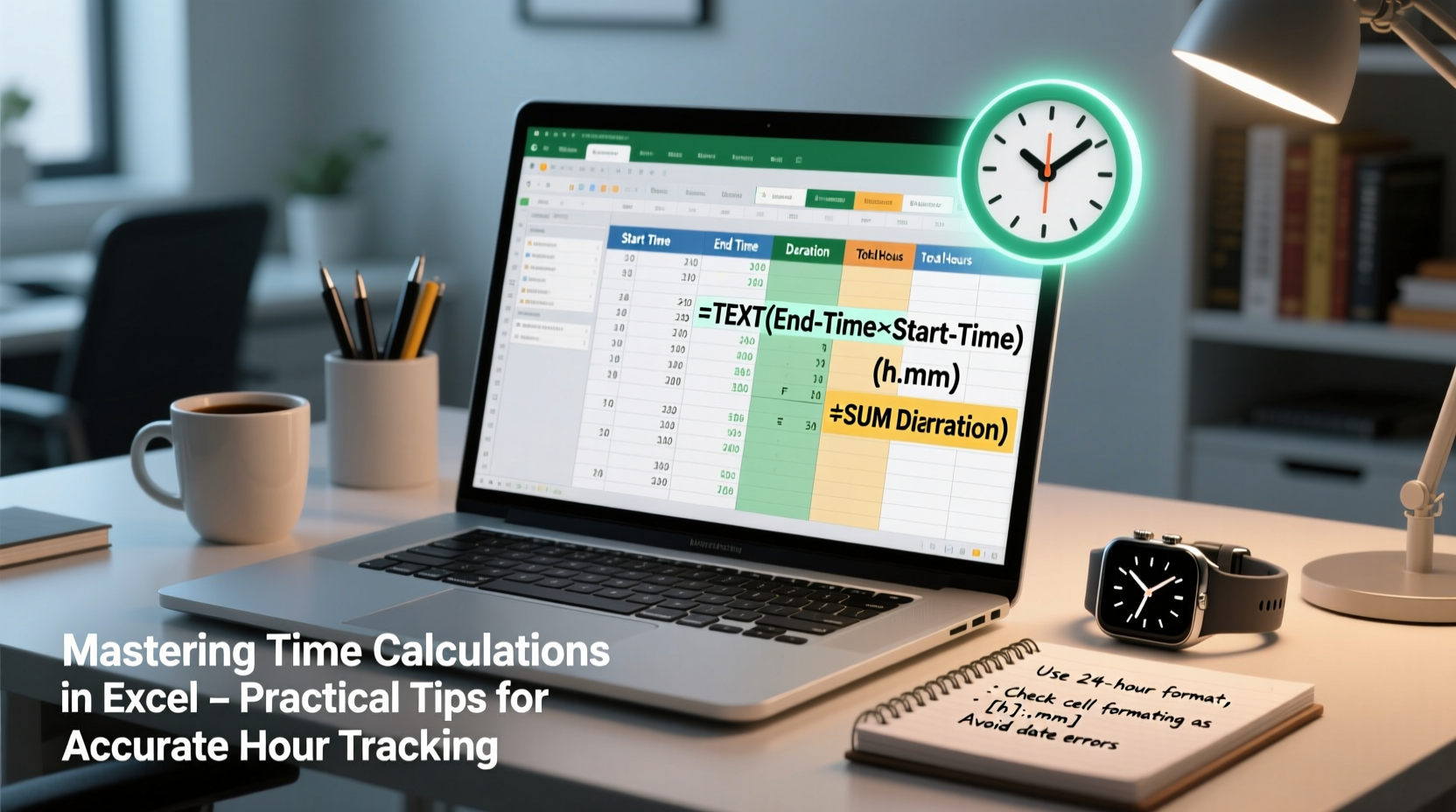
Excel stores dates and times as serial numbers. A full day equals 1, so one hour is represented as 1/24 (approximately 0.04167). For example, 6:00 AM is stored as 0.25 because it’s a quarter of a day. This underlying system enables mathematical operations on time values—but only if formatting and data types are consistent.
Misunderstanding this structure leads to common errors. For instance, entering \"8:00\" without context might be interpreted as 8:00 AM rather than eight hours. To avoid confusion, always distinguish between time of day and duration. Use “hh:mm” format for clock times and “[h]:mm” for elapsed time that may exceed 24 hours.
[h]:mm to prevent Excel from resetting the total at midnight.
Essential Formulas for Calculating Hours
Accurate time math starts with the right formulas. Below are core functions every user should master:
- SIMPLE SUBTRACTION: To find elapsed time between start and end, use
=End-Time - Start-Time. Example: If A2 contains 9:00 AM and B2 has 5:00 PM,=B2-A2returns 8:00 (eight hours). - CONVERTING TO DECIMAL HOURS: Multiply the result by 24 to convert time into decimal format:
=(B2-A2)*24. This yields 8.0 instead of 8:00, useful for payroll or rate-based calculations. - HANDLING OVERNIGHT SHIFTS: When work spans midnight, standard subtraction fails. Use:
=IF(B2 > A2, B2-A2, 1+B2-A2), assuming B2 is end time and A2 is start time. - ADDING FIXED BREAKS: Subtract break duration using time values:
=B2-A2-TIME(0,30,0)deducts 30 minutes.
“Most time errors stem not from complex logic, but from inconsistent formatting and overlooked date components.” — David Lin, Data Analyst & Excel Trainer
Step-by-Step: Building a Weekly Time Tracker
Create a reliable time sheet with these steps:
- Set up headers: Include columns for Date, Start Time, End Time, Break (minutes), Total Hours (decimal), and Notes.
- Format time cells: Select Start and End Time columns, right-click → Format Cells → Custom →
h:mm AM/PM. - Calculate daily hours: In the Total Hours column, use:
=(End Time - Start Time)*24 - (Break/60). Replace “Break” with cell reference (e.g., D2). - Sum weekly hours: Use
=SUM(E2:E6)to total decimal hours across five days. - Add validation: Use Data Validation to restrict time entries and prevent typos.
- Highlight overtime: Apply conditional formatting to flag totals above 40 hours.
Common Pitfalls and How to Avoid Them
Even experienced users make mistakes that compromise accuracy. The table below outlines frequent issues and their solutions:
| Issue | Why It Happens | Solution |
|---|---|---|
| Total hours reset after 24 | Using default time format instead of [h]:mm | Apply custom format: [h]:mm |
| Negative times display as ##### | Subtracting later time from earlier without correction | Use =IF(End>Start, End-Start, 1+End-Start) |
| Decimal conversion gives wrong results | Forgetting to multiply by 24 | Always use (Time Value)*24 for decimals |
| Copy-pasted times don’t calculate | Text-formatted time entries | Use TIMEVALUE() function or clean data first |
| Midnight shifts miscalculated | Excel treats dates as separate days | Ensure both start and end include full date-time stamps |
Real-World Example: Managing Contractor Billing
A small marketing agency tracks freelance designers’ hours across multiple clients. Each week, contractors submit start and end times per task. Initially, the team used basic subtraction and summed totals, but reports showed inconsistencies—especially when sessions ran past midnight.
The finance manager revised the template: all entries now include full date-time values. The formula =IF(B2>=A2, B2-A2, 1+B2-A2) corrected overnight entries, and totals were formatted as [h]:mm. Decimal conversion allowed accurate multiplication by hourly rates. Within two weeks, invoice discrepancies dropped by 90%, and client trust improved due to transparent, auditable logs.
Pro Tips for Advanced Time Management
- Use Named Ranges: Label key cells like “BillableRate” or “OvertimeThreshold” to simplify formulas and improve readability.
- Leverage NETWORKDAYS.INTL: Calculate working hours between dates while excluding weekends and holidays:
=NETWORKDAYS.INTL(Start, End, 1, Holidays)*8assumes an 8-hour workday. - Automate with Conditional Logic: Flag late arrivals:
=IF(A2>\"9:00\"+0, \"Late\", \"On Time\"). - Track Partial Minutes: For granular tracking (e.g., call centers), format as
h:mm:ssand convert to decimal minutes using*1440.
Checklist: Building a Reliable Time Tracking Sheet
Follow this checklist before finalizing your Excel time tracker:
- ✅ Confirm all time entries use proper time format (not text)
- ✅ Use 24-hour or AM/PM consistently
- ✅ Handle overnight shifts with conditional formulas
- ✅ Convert durations to decimal for rate calculations
- ✅ Format total hours as
[h]:mmto avoid rollover - ✅ Validate inputs with drop-down lists or data rules
- ✅ Test edge cases: midnight, zero hours, long durations
- ✅ Protect formulas to prevent accidental overwrites
Frequently Asked Questions
How do I calculate hours between two times across different dates?
Enter both start and end as full date-time values (e.g., 3/10/2024 9:00 PM and 3/11/2024 6:00 AM). Then subtract: =EndDateTime - StartDateTime. Format the result as [h]:mm to see total hours and minutes.
Why does my time total show 12:00 instead of 36:00?
This happens when the cell uses standard time format, which resets after 24 hours. Change the format to [h]:mm under Custom number formats. This allows accumulation beyond one day.
Can Excel track time in 15-minute increments automatically?
Yes. Use Data Validation with a list of valid times (e.g., every 15 minutes) or combine dropdowns with TIME() functions. Alternatively, set up a macro or form control to increment in fixed intervals.
Final Thoughts and Next Steps
Precise time calculation in Excel isn’t about mastering obscure functions—it’s about consistency, correct formatting, and understanding how Excel interprets temporal data. With the right setup, Excel becomes a robust tool for payroll, project management, and performance analysis. The difference between frustration and efficiency often comes down to a single format code or a well-placed IF statement.




 浙公网安备
33010002000092号
浙公网安备
33010002000092号 浙B2-20120091-4
Comments
No comments yet. Why don't you start the discussion?