
In today’s digital landscape, video is everywhere—from personal recordings and educational content to streaming services and remote work meetings. Yet, nothing disrupts the experience faster than a video that won’t play, stutters, or lacks sound. Whether you're a casual viewer or rely on video for professional tasks, mastering playback isn’t just about convenience—it's about efficiency and accessibility. The good news? Most playback problems are preventable with the right tools, knowledge, and habits.
Understanding Video Formats and Codecs
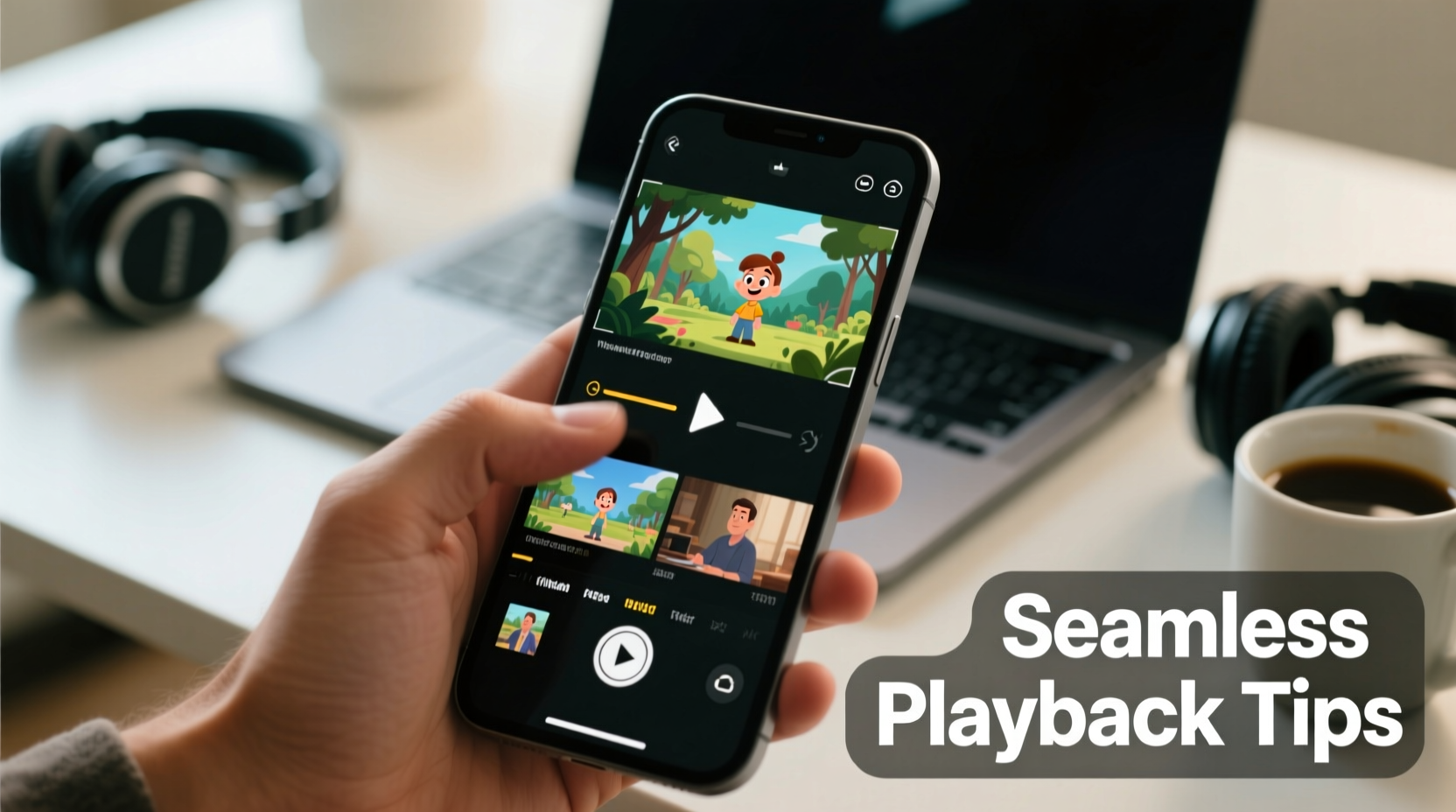
At the heart of most playback issues lies a misunderstanding of file formats and codecs. A video file (like MP4, AVI, or MKV) is a container that holds both video and audio streams. These streams are compressed using specific codecs—such as H.264, VP9, or AAC—to reduce file size without sacrificing quality. Not all players support every codec, which explains why some videos fail to load.
For example, while MP4 with H.264 compression is widely supported, an MKV file using the newer AV1 codec might not play on older software. Similarly, mobile devices may struggle with less common formats like FLV or MOV unless properly configured.
Common Video Containers vs. Supported Codecs
| Container | Common Video Codecs | Common Audio Codecs | Compatibility |
|---|---|---|---|
| MP4 | H.264, H.265 | AAC, MP3 | Universal |
| AVI | MPEG-4, DivX | MP3, PCM | Windows-focused |
| MOV | ProRes, H.264 | AAC, ALAC | Best on macOS |
| MKV | VP9, AV1, H.265 | Opus, FLAC | High-quality, limited device support |
| WebM | VP8, VP9 | Vorbis, Opus | Web-first, excellent for browsers |
“Codec confusion is the number one reason users can't open video files. Knowing what your system supports saves hours of frustration.” — David Lin, Multimedia Systems Engineer
Choosing the Right Media Player
Built-in players like Windows Media Player or Apple QuickTime have limitations. To truly master playback, consider third-party alternatives designed for versatility and performance.
- VLC Media Player: Open-source, free, and supports almost every format and codec out of the box.
- MPC-HC (Media Player Classic - Home Cinema): Lightweight, customizable, ideal for Windows users seeking high performance.
- PotPlayer: Feature-rich with advanced audio and subtitle handling, popular among enthusiasts.
- Infuse (iOS/macOS): Premium app with excellent hardware acceleration and network streaming support.
These players often include built-in codec packs, eliminating the need for external installations. They also allow manual selection of audio tracks, subtitles, and even deinterlacing options for older footage.
Optimizing Playback Performance
Even with the right player, poor performance can ruin the viewing experience. Buffering, lag, or audio-video sync issues usually stem from hardware constraints or misconfigured settings.
Step-by-Step Guide to Smoother Playback
- Check your hardware: Ensure your GPU supports hardware decoding for high-resolution videos (e.g., 4K or HEVC).
- Update graphics drivers: Outdated drivers can prevent hardware acceleration, forcing CPU-based decoding.
- Enable hardware acceleration: In VLC, go to Tools > Preferences > Input/Codecs and select “Hardware-accelerated decoding.”
- Close background apps: Free up RAM and CPU resources for smoother video rendering.
- Adjust cache settings: For network streams, increase input caching (under Preferences > Input/Codecs) to reduce stuttering.
Fixing Common Playback Issues
Despite precautions, problems arise. Here’s how to troubleshoot the most frequent ones:
No Sound?
- Verify the player’s volume and mute settings.
- Check if the video file has an audio track (use MediaInfo tool to inspect).
- Ensure your system audio output is correct (e.g., headphones vs. speakers).
Video Won’t Open?
- Try opening it in VLC—if it plays, the original player lacks codec support.
- Reinstall or update the media player.
- Repair corrupted files using tools like VLC’s recovery mode or dedicated repair software.
Lagging or Buffering?
- For local files: Defragment your hard drive or move the file to an SSD.
- For streaming: Reduce video quality or pause to buffer fully before playing.
- On Wi-Fi: Switch to Ethernet for stable bandwidth during HD playback.
Out-of-Sync Audio?
In VLC, press J to delay audio or K to advance it. You can also adjust synchronization permanently under Audio > Audio Sync.
Real-World Example: Solving a Corporate Training Playback Issue
A mid-sized company distributed internal training videos in MKV format, encoded with VP9 for high quality and small size. Employees on older laptops reported constant freezing and crashes in their default players. The IT team investigated and found that hardware decoding wasn’t supported, and software decoding overloaded aging CPUs.
The solution was twofold: they converted all videos to MP4 (H.264/AAC) for broader compatibility and recommended VLC as the standard player. They also provided a quick guide on enabling hardware acceleration. Within a week, playback complaints dropped by 95%, and employee engagement with training materials improved significantly.
Playback Checklist: Ensure Seamless Experience
- ✅ Verify File Compatibility:
- Is the format supported by your device or player?
- ✅ Use a Universal Player:
- Install VLC or MPC-HC as your default fallback option.
- ✅ Enable Hardware Acceleration:
- Reduces CPU load and improves 1080p+ playback.
- ✅ Update Software:
- Keep media players, drivers, and operating systems current.
- ✅ Test on Target Device:
- Before distributing videos, confirm they play smoothly on expected hardware.
- ✅ Convert When Necessary:
- Use tools like HandBrake or FFmpeg to re-encode problematic files.
Frequently Asked Questions
Why does a video play on my phone but not on my laptop?
Different devices use different decoders and default players. Your phone’s video app may support a codec (like HEVC) that your laptop’s built-in player doesn’t. Try opening the file in VLC to test cross-platform compatibility.
Can I play DVDs or Blu-rays on modern computers?
Most new PCs lack optical drives, but if you have one, VLC can play DVD content. Note that commercial discs use encryption (CSS), so you may need to install libdvdcss separately. For Blu-rays, additional decryption keys and compatible players like MakeMKV are required.
What should I do if a video file is corrupted?
First, try opening it in VLC—it can sometimes recover partially damaged files. If that fails, use specialized repair tools like Remo Repair or Stellar Video Repair. Always keep backups when working with valuable footage.
Conclusion: Take Control of Your Viewing Experience
Mastering video playback isn’t about memorizing technical jargon—it’s about building a reliable toolkit and knowing when to apply each solution. From choosing the right player to understanding format limitations and optimizing system performance, every step brings you closer to seamless, frustration-free viewing. Whether you’re watching home videos, attending virtual conferences, or managing media at scale, these practices ensure you stay in control.




 浙公网安备
33010002000092号
浙公网安备
33010002000092号 浙B2-20120091-4
Comments
No comments yet. Why don't you start the discussion?