
In today’s fast-paced digital world, efficiency matters. Voice assistants like Google Assistant have transformed the way we interact with our smartphones. Saying “Ok Google” to send messages, set reminders, or search the web without touching your device isn’t just futuristic—it’s available now. But many Android users still haven’t unlocked this functionality, either because they don’t know how to enable it or assume their device doesn’t support it. The truth is, most modern Android phones are fully capable of responding to voice commands—once properly configured.
This guide walks you through every essential step to activate and optimize “Ok Google” detection on your Android device. Whether you’re using a Pixel, Samsung Galaxy, or any other Android phone, you’ll learn how to customize settings, troubleshoot issues, and make the most of hands-free control in daily life.
Understanding “Ok Google” and Its Capabilities
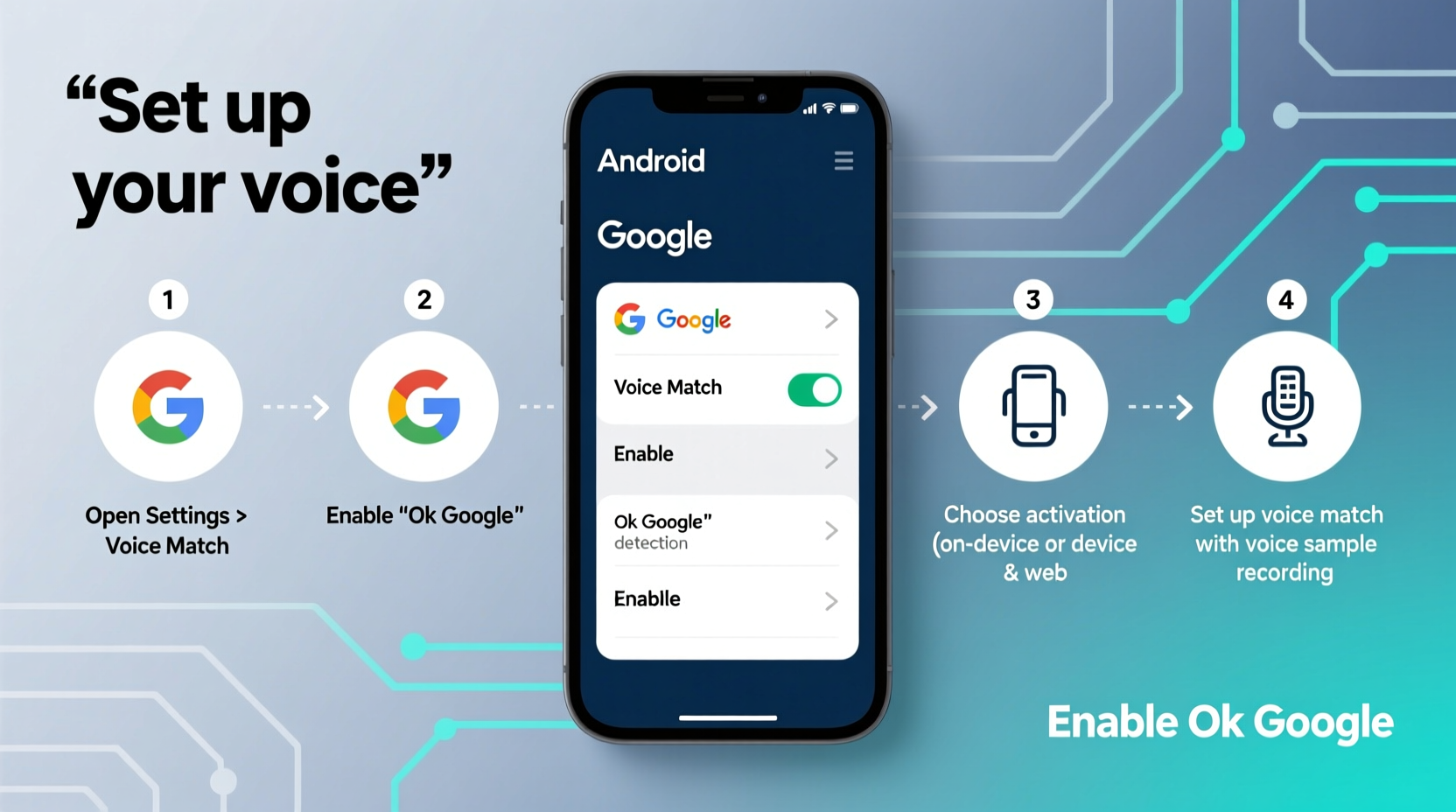
“Ok Google” is the wake phrase that activates Google Assistant on Android devices. Once enabled, your phone listens continuously (when allowed) for this trigger to launch voice commands. You can use it to:
- Make calls or send texts
- Set alarms, timers, and calendar events
- Get directions or check traffic
- Control smart home devices
- Search the web or get definitions
- Play music or podcasts
The feature relies on on-device processing and cloud integration to deliver fast, accurate responses. Importantly, “Ok Google” detection can work even when your phone is locked or screen-off—provided you’ve enabled the right permissions.
“Voice control is no longer a luxury—it's a core accessibility and productivity tool. Enabling ‘Ok Google’ correctly ensures seamless interaction across apps and services.” — Dr. Lena Torres, Human-Computer Interaction Researcher at MIT Media Lab
Step-by-Step Guide to Enabling “Ok Google” Detection
Follow this comprehensive sequence to ensure full functionality. These steps apply to most Android devices running Android 8.0 (Oreo) or later.
- Open the Google App: Locate the Google app on your home screen or app drawer. Tap to open it.
- Access Your Profile: Tap your profile picture or initial in the top-right corner, then select “Settings.”
- Navigate to Google Assistant: Choose “Google Assistant” from the menu. If prompted, sign in with your Google account.
- Go to Devices: Under “Assistant,” tap “Devices,” then select your phone from the list.
- Enable Voice Match: Tap “Voice Match” and toggle on “Unlock with Voice Match” if desired. This allows the assistant to recognize your voice specifically.
- Turn On “Hey Google” Detection: Toggle on “Hey Google” (or “Ok Google”) detection. You may be asked to train the system by repeating phrases three times.
- Allow Always-On Detection: When prompted, grant permission for the phone to listen while locked and screen-off. This is crucial for true hands-free use.
- Test the Feature: Say “Ok Google” clearly. If configured correctly, the assistant should respond immediately.
Optimizing Settings for Real-World Use
Enabling “Ok Google” is just the beginning. Fine-tuning your settings enhances reliability and usability across different situations.
Customize Detection Contexts
You can choose when your phone listens for the wake phrase:
- Headphones only: Limits activation to when headphones are plugged in—ideal for privacy.
- Screen on only: Reduces accidental triggers but limits hands-free use.
- Always listening: Enables detection anytime, even when the phone is asleep—best for maximum convenience.
Improve Voice Recognition Accuracy
If your phone fails to respond consistently:
- Re-train your voice model under “Voice Match” settings.
- Speak naturally but enunciate “Ok Google” clearly.
- Avoid overly soft or distant speech.
Integrate with Accessibility Features
For users with mobility challenges, pairing “Ok Google” with Accessibility settings enables full device control via voice. Explore options under Settings > Accessibility > Voice Access for advanced command capabilities.
Troubleshooting Common Issues
Even after correct setup, some users encounter problems. Below are frequent issues and proven fixes.
| Issue | Possible Cause | Solution |
|---|---|---|
| Phone doesn’t respond to “Ok Google” | Microphone disabled or blocked | Check app permissions; clean microphone ports; restart device |
| Triggers accidentally | Over-sensitive detection | Disable “always-on” mode or retrain voice model |
| Only works when screen is on | “Listen when off” not enabled | Verify setting under Voice Match > “Listen when device is off” |
| Assistant opens but doesn’t process command | Poor internet connection | Ensure stable Wi-Fi or cellular data; test offline commands |
Real-Life Example: Using Voice Control in Daily Routines
Consider Maria, a busy nurse working 12-hour shifts. Her hands are often occupied—between patient charts, gloves, and equipment, touching her phone isn’t always practical. After enabling “Ok Google,” she changed her routine:
- While walking to her car after a shift: “Ok Google, call my husband.”
- During dinner prep: “Set a timer for 15 minutes.”
- Before bed: “Add milk to my shopping list.”
Within a week, Maria reduced her screen time by nearly 30% and felt more in control of her schedule. The ability to issue commands without unlocking her phone became indispensable—especially in high-stress moments when multitasking was critical.
Frequently Asked Questions
Can I use “Ok Google” without an internet connection?
Limited functions work offline, such as setting timers, alarms, or launching apps. Most queries—like searches or messaging—require internet access. Ensure you’ve enabled offline voice recognition in Google settings for basic functionality.
Is “Ok Google” always listening? Is it a privacy risk?
The phone only processes audio locally when detecting the wake phrase. Full recordings aren’t sent to Google unless the trigger is recognized. You can review and delete voice history at any time via your Google Account settings. For added privacy, disable “Store Voice & Audio Activity” in Google Dashboard.
Why does my phone sometimes hear “Ok Google” when I didn’t say it?
This usually happens due to sound patterns resembling the phrase—like someone saying “oak tree” or music with similar phonetics. Re-training your voice model and adjusting sensitivity can reduce false positives.
Final Checklist: Is Your Device Ready for Voice Control?
Use this checklist to confirm full setup:
- ✅ Google app is updated to the latest version
- ✅ Google Assistant is linked to your account
- ✅ “Ok Google” detection is enabled in settings
- ✅ Microphone permission is granted
- ✅ Voice Match has been trained with your voice
- ✅ “Listen when screen is off” is toggled on
- ✅ Test completed successfully in quiet and noisy environments
Conclusion: Take Control of Your Device—Without Touching It
Mastering voice control transforms your Android phone from a handheld device into an intelligent companion. With “Ok Google” properly enabled, you gain instant access to information, communication, and automation—all through natural speech. The setup takes less than ten minutes, but the long-term benefits in convenience, safety (especially while driving), and accessibility are profound.
Now that you understand how to configure, optimize, and troubleshoot voice detection, there’s no reason to keep tapping and swiping when a simple command will do. Activate “Ok Google” today, refine your preferences, and experience what modern Android was designed to deliver—a truly hands-free digital life.




 浙公网安备
33010002000092号
浙公网安备
33010002000092号 浙B2-20120091-4
Comments
No comments yet. Why don't you start the discussion?