
Capturing what’s on your screen is a routine task for many—whether you're troubleshooting an error, sharing instructions, or saving visual information. While taking a screenshot on Windows might seem straightforward, most users only scratch the surface of what’s possible. Behind the familiar Print Screen key lies a suite of powerful tools and lesser-known tricks that can transform how efficiently and effectively you capture your screen.
From basic keyboard shortcuts to advanced annotation features in built-in apps, mastering Windows screenshots means more than just pressing a button. It's about choosing the right method for the job, editing with precision, and organizing captures seamlessly into your workflow.
The Basics: Essential Keyboard Shortcuts
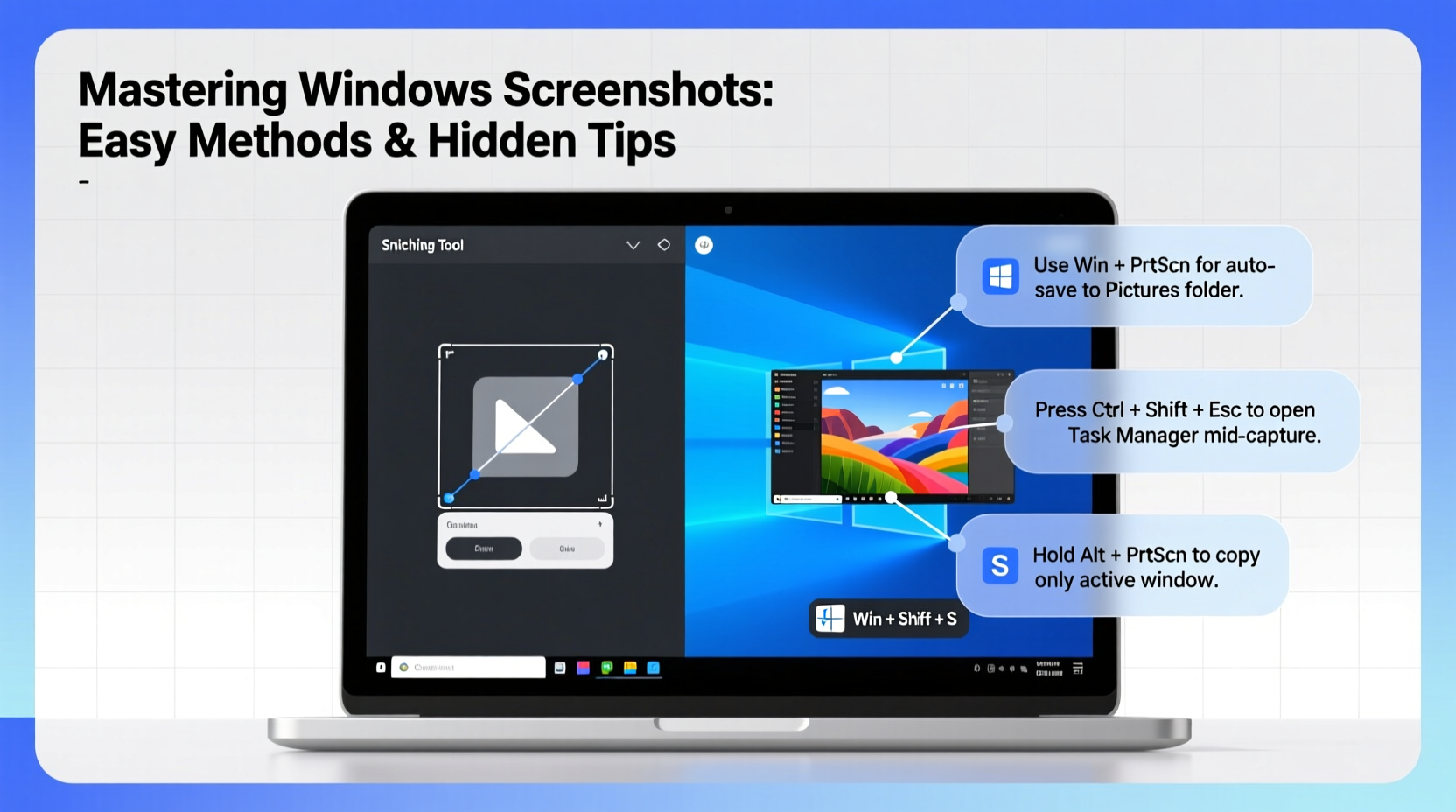
Every Windows user should know the foundational keyboard shortcuts for capturing their screen. These are fast, reliable, and require no additional software.
- Print Screen (PrtScn): Captures the entire screen and copies it to the clipboard. You’ll need to paste it into an app like Paint or Word to save it.
- Alt + PrtScn: Takes a screenshot of only the active window and copies it to the clipboard.
- Windows + PrtScn: Instantly saves a full-screen screenshot to the Screenshots folder inside Pictures.
- Windows + Shift + S: Opens the Snip & Sketch tool, allowing you to select a portion of the screen to capture.
Snip & Sketch: More Than Just a Screenshot Tool
Introduced as a modern replacement for the classic Snipping Tool, Snip & Sketch offers greater flexibility and integration with Windows 10 and 11. When activated via Windows + Shift + S, it allows you to choose from four capture modes:
- Rectangular Snip: Drag to select any rectangular area.
- Freeform Snip: Draw an irregular shape around the content you want to capture.
- Window Snip: Click on any open window to capture it directly.
- Fullscreen Snip: Capture the entire display at once.
After capture, a notification appears in the corner. Click it to open the image in the editor, where you can annotate, crop, highlight, or add text. The edited version can be copied, shared, or saved with one click.
“Snip & Sketch has become indispensable in remote work environments. Its quick-access design reduces friction in daily communication.” — David Lin, IT Productivity Consultant
Hidden Features Most Users Miss
Beyond standard functionality, Windows includes several underused capabilities that enhance screenshot efficiency.
Scheduled Screenshots with Game Bar
While primarily designed for gaming, the Game Bar (activated with Windows + G) can record gameplay or take screenshots—even in non-game applications. Press Windows + Alt + PrtScn to capture the active app window and automatically save it to the Captures folder.
Delay Captures for Menus and Pop-ups
Need to capture a right-click menu or a tooltip? The Snipping Tool (still available alongside Snip & Sketch) supports delayed screenshots. Open the tool, click “New” > “Mode,” then set a delay of 1 to 5 seconds. This gives you time to open hidden elements before the capture occurs.
Clipboard History Integration
Press Windows + V to access clipboard history, which stores recent text and images—including screenshots taken with PrtScn. This feature must be enabled in Settings > System > Clipboard, but once active, it lets you retrieve older screenshots even after multiple copy actions.
| Method | Best For | Output Location |
|---|---|---|
| Print Screen | Quick clipboard copies | Clipboard (paste manually) |
| Windows + PrtScn | Full-screen documentation | Pictures > Screenshots |
| Windows + Shift + S | Partial captures with edit options | Clipboard (editable via Snip & Sketch) |
| Game Bar (Win + Alt + PrtScn) | App-specific captures during recording | Videos > Captures |
| Snipping Tool (with delay) | Capturing transient UI elements | Saved manually after capture |
Step-by-Step: How to Capture a Dropdown Menu
Dropdown menus disappear when you press traditional screenshot keys. Here’s how to capture them reliably:
- Open the Snipping Tool from the Start menu.
- In the toolbar, click the small arrow next to “New” and select “Delay.”
- Choose a 3-second or 5-second delay based on how long you need to open the menu.
- Click “New.” The screen will dim after the countdown begins.
- Before the timer ends, hover over the menu trigger and click to expand it.
- Wait for the capture to complete. The snip window will appear with your dropdown visible.
- Edit or save the image as needed.
Real-World Example: Troubleshooting with Precision
Sarah, a technical support agent, received a ticket about a login error message that disappeared too quickly to read. Instead of asking the user to describe it, she guided them through using the Snipping Tool with a 5-second delay. The customer opened the error, triggered the snip, and captured the exact message. Within minutes, Sarah identified a misconfigured authentication setting. Without a clear screenshot, diagnosis would have taken hours.
This scenario highlights how the right screenshot technique isn’t just convenient—it’s critical for accuracy and speed in problem-solving.
Pro Checklist: Optimizing Your Screenshot Workflow
To ensure consistency and quality across all your captures, follow this checklist:
- ✅ Decide whether you need the full screen, a window, or a custom region.
- ✅ Use Windows + Shift + S for instant partial captures.
- ✅ Enable clipboard history (Windows + V) to access past screenshots.
- ✅ Edit annotations directly in Snip & Sketch—no need to open another program.
- ✅ Save screenshots with descriptive filenames (e.g., “Error_Login_2024.png”).
- ✅ Organize frequent captures in a dedicated folder outside the default Screenshots directory.
- ✅ Use Game Bar for capturing app behavior over time (enable in Settings > Gaming).
Frequently Asked Questions
Where does Windows save my screenshots by default?
If you use Windows + PrtScn, screenshots are saved in Pictures > Screenshots. Game Bar screenshots go to Videos > Captures. Manual snips from Snip & Sketch aren’t saved until you export them.
Can I change the default screenshot format?
Yes. Though Windows defaults to PNG, you can convert images using Paint or bulk rename tools. Advanced users can modify registry settings to change capture formats, but this is not recommended unless necessary.
Why doesn’t Print Screen work on some laptops?
Some laptops require you to press the Fn key along with PrtScn. Others may have reassigned the key to media functions. Check your manufacturer’s keyboard guide or try Fn + Windows + PrtScn.
Final Thoughts: Elevate Your Digital Communication
A well-timed, perfectly framed screenshot can replace paragraphs of explanation. Whether you're teaching, reporting bugs, or collaborating remotely, mastering Windows screenshot tools puts clarity and professionalism at your fingertips. The methods covered here—from basic shortcuts to delayed captures—are designed to integrate smoothly into your daily computing habits.
Don’t settle for blurry, poorly cropped, or incomplete captures. Experiment with Snip & Sketch, leverage clipboard history, and use delays strategically. Once these techniques become second nature, you’ll wonder how you ever worked without them.




 浙公网安备
33010002000092号
浙公网安备
33010002000092号 浙B2-20120091-4
Comments
No comments yet. Why don't you start the discussion?