
The iPhone 14 remains one of the most capable smartphones on the market—not just because of its hardware, but due to the depth of features built into iOS 16 and beyond. While many users stick to basic functions like calls, messages, and camera use, unlocking the full potential of your device requires diving beneath the surface. From customization tricks to overlooked safety tools, mastering your iPhone 14 means turning daily frustrations into seamless experiences.
1. Optimize Battery Life with Precision Controls
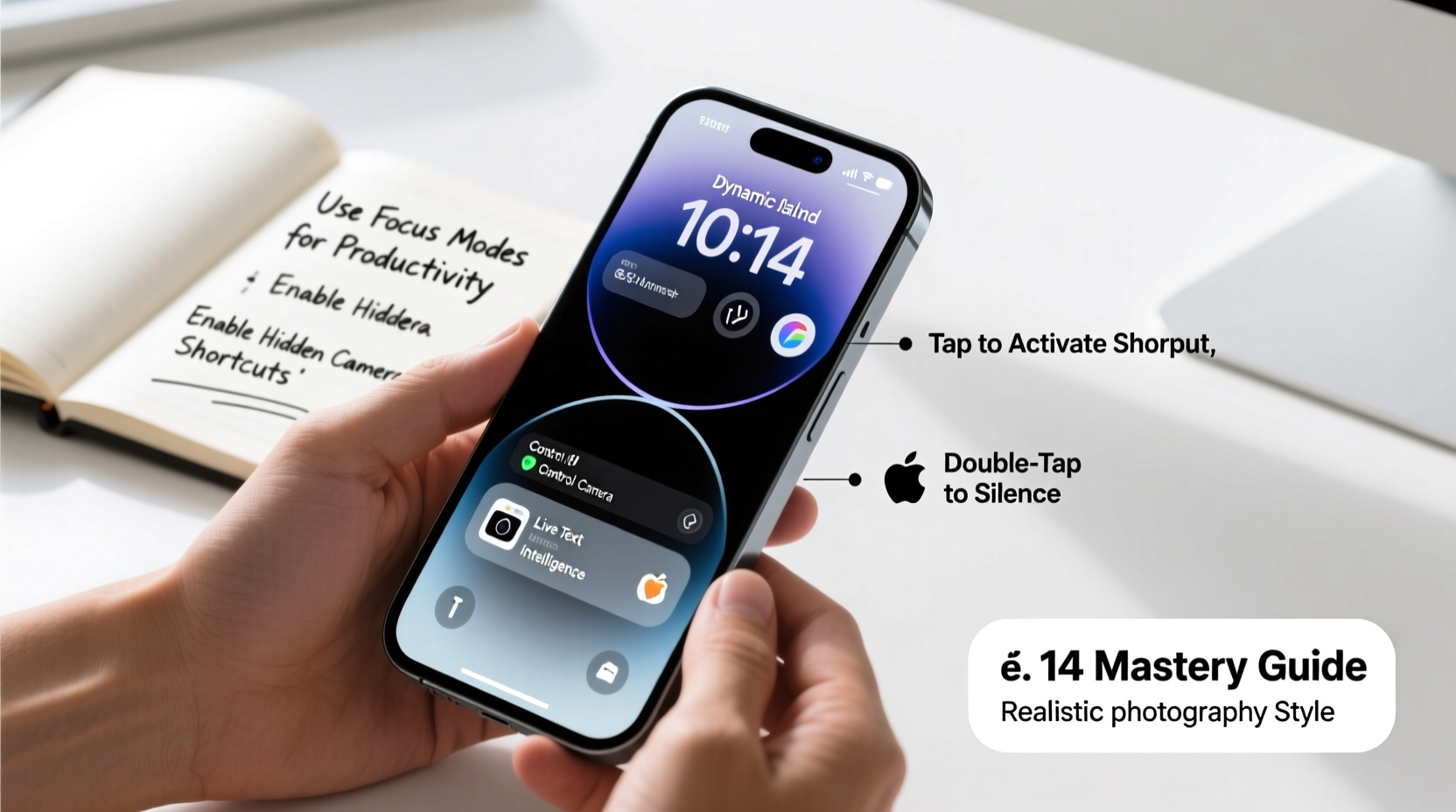
Battery anxiety is real, but the iPhone 14 offers more control over power consumption than most realize. Instead of waiting until 5% to scramble for a charger, proactive management can extend usable time by hours.
iOS 16 introduced enhanced battery health insights under Settings > Battery > Battery Health & Charging. Here, you’ll find “Optimized Battery Charging,” which learns your routine and delays charging past 80% until you need it. This reduces wear on the lithium-ion cell and prolongs overall lifespan.
Additionally, review app-specific battery usage. Streaming apps, social media, and location-heavy services often run in the background unnecessarily. Disable Background App Refresh for non-essential apps via Settings > General > Background App Refresh.
2. Unlock Hidden Camera Features Beyond the Basics
The iPhone 14’s dual-camera system excels in low light and portrait photography, but few users leverage its full capabilities. The \"Photographic Styles\" feature, accessible before taking a photo, allows real-time adjustments to tone and warmth without affecting RAW data—ideal for maintaining consistency across shoots.
To access this, open the Camera app, tap the yellow icon (usually showing “Standard”), and choose a preset or create a custom profile that matches your aesthetic preference.
“Most people treat the iPhone camera like a point-and-shoot, but manual control over focus and exposure gives DSLR-like precision.” — Jordan Lee, Mobile Photographer & Tech Educator
Another underused trick: long-press the shutter button to capture a burst of photos, perfect for fast-moving subjects. Or, press and hold the volume up button when using the native camera for quick hands-free shooting.
Quick Camera Tips Checklist
- Use Volume Up button as shutter remote
- Lock focus and exposure by long-pressing the screen
- Enable Grid in Settings > Camera for better composition
- Switch to Cinematic Mode for video depth effects
- Record in ProRes (if available) for professional editing
3. Master Notifications and Focus Modes
Notifications are essential—but unchecked, they fragment attention and drain battery. The iPhone 14’s Focus Modes go far beyond Do Not Disturb, letting you filter alerts based on activity, time, or location.
Create a “Work” Focus that silences social media, activates during calendar events, and displays only work-related contacts. Better yet, pair it with a Home Screen page that shows only productivity apps.
- Open Settings > Focus
- Select + to create a new Focus (e.g., Sleep, Fitness, Reading)
- Choose allowed notifications (specific people or apps)
- Set schedule or automation (e.g., turn on when headphones connect)
- Link to a specific Home Screen page for contextual clarity
You can even set different lock screen appearances for each Focus, changing wallpapers and widgets accordingly. This visual cue reinforces mental context switching—critical in an age of constant distraction.
4. Discover Under-the-Radar Safety and Accessibility Tools
The iPhone 14 includes life-saving features that remain dormant for most users. Emergency SOS via satellite and Crash Detection were headline additions, but require proper setup to function effectively.
If you frequently hike, drive remote routes, or travel alone, ensure Emergency SOS is enabled: Settings > Emergency SOS > Satellite Messaging. In areas without cellular coverage, follow the on-screen compass prompts to establish a satellite connection. Messages are text-only and must be concise, but can relay your location and status to emergency services.
For accessibility, try Voice Control—a powerful tool originally designed for motor impairments but useful for anyone seeking hands-free operation. Once enabled (Settings > Accessibility > Voice Control), say “Open Messages” or “Tap Send” to navigate entirely by voice. It works offline and supports custom commands.
Emergency & Accessibility Feature Comparison
| Feature | Activation Method | Best Use Case |
|---|---|---|
| Crash Detection | Automatic (sensor-based) | Car accidents, sudden impacts |
| Emergency SOS (Satellite) | Manual trigger after alert | Remote areas without signal |
| Fall Detection | Automatic with watch or phone | Elderly users, solo hikers |
| Voice Control | Manual toggle or Siri | Hands-free navigation, accessibility |
5. Customize Your Experience with Shortcuts and Widgets
One of the iPhone 14’s greatest strengths is personalization through the Shortcuts app. Automations eliminate repetitive tasks—like turning on Bluetooth when arriving at work, logging water intake, or sending a nightly summary of screen time to yourself.
To get started:
- Open the Shortcuts app (preinstalled)
- Browse the Gallery for templates like “Morning Routine” or “Commute Check-In”
- Edit variables (times, locations, messages)
- Add to Automation tab with triggers (time, location, Wi-Fi connection)
Combine shortcuts with widgets on your Home Screen for instant access. For example, a widget that shows upcoming calendar events, next transit arrival, and weather saves multiple app launches each morning.
“A well-automated iPhone doesn’t just save time—it reduces decision fatigue and keeps you focused on what matters.” — Dr. Anita Patel, Digital Wellness Researcher
Mini Case Study: Reducing Morning Friction
Sarah, a project manager in Seattle, used to spend 12 minutes every morning checking emails, traffic, weather, and her schedule. She created a single automation that triggers at 7:00 AM: it reads aloud her calendar highlights via AirPods, turns off Do Not Disturb, adjusts home lights via HomeKit, and sends a “On my way” message to her partner if traffic exceeds 15 minutes. Now, her morning routine takes less than three minutes of active effort.
Frequently Asked Questions
How do I quickly switch between recent apps?
Swipe up from the bottom of the screen (or double-press the side button on models without Touch ID) and pause slightly to enter the app switcher. Swipe left or right to cycle through open apps. On Face ID models, swiping up and holding reveals the same interface.
Can I recover a deleted photo after 30 days?
Only if iCloud Photos is enabled and you’ve backed up the image before deletion. Otherwise, once the Recently Deleted album clears after 30 days, recovery is not possible through Apple systems. Third-party tools may help, but success isn’t guaranteed.
Is there a way to mute all notifications during meetings without scheduling them?
Yes. Create a Focus mode called “Meeting” and assign it to activate manually. Then, add it to your Control Center for one-tap access. Swipe down from the top-right corner and tap the Focus icon to enable it instantly.
Conclusion
Mastering your iPhone 14 isn’t about memorizing every setting—it’s about aligning technology with your lifestyle. Whether it’s preserving battery, capturing better photos, automating routines, or staying safe in emergencies, the tools are already in your pocket. Most require just minutes to set up but deliver lasting improvements in efficiency, peace of mind, and usability.




 浙公网安备
33010002000092号
浙公网安备
33010002000092号 浙B2-20120091-4
Comments
No comments yet. Why don't you start the discussion?