
Microphone echo—where your voice repeats back with a slight delay—is one of the most disruptive issues in virtual communication. Whether you're on a video call, streaming live, or recording audio, an echo can degrade sound quality, distract participants, and damage professionalism. The good news is that most echo problems stem from predictable sources and can be resolved quickly with the right approach.
Understanding why echo occurs is the first step toward eliminating it. Unlike background noise or static, echo is typically caused by audio feedback loops—your microphone picks up sound coming from your speakers, re-amplifies it, and sends it back into the loop. This article breaks down the root causes, offers practical solutions, and provides a clear action plan to restore clean audio.
How Microphone Echo Happens: The Feedback Loop
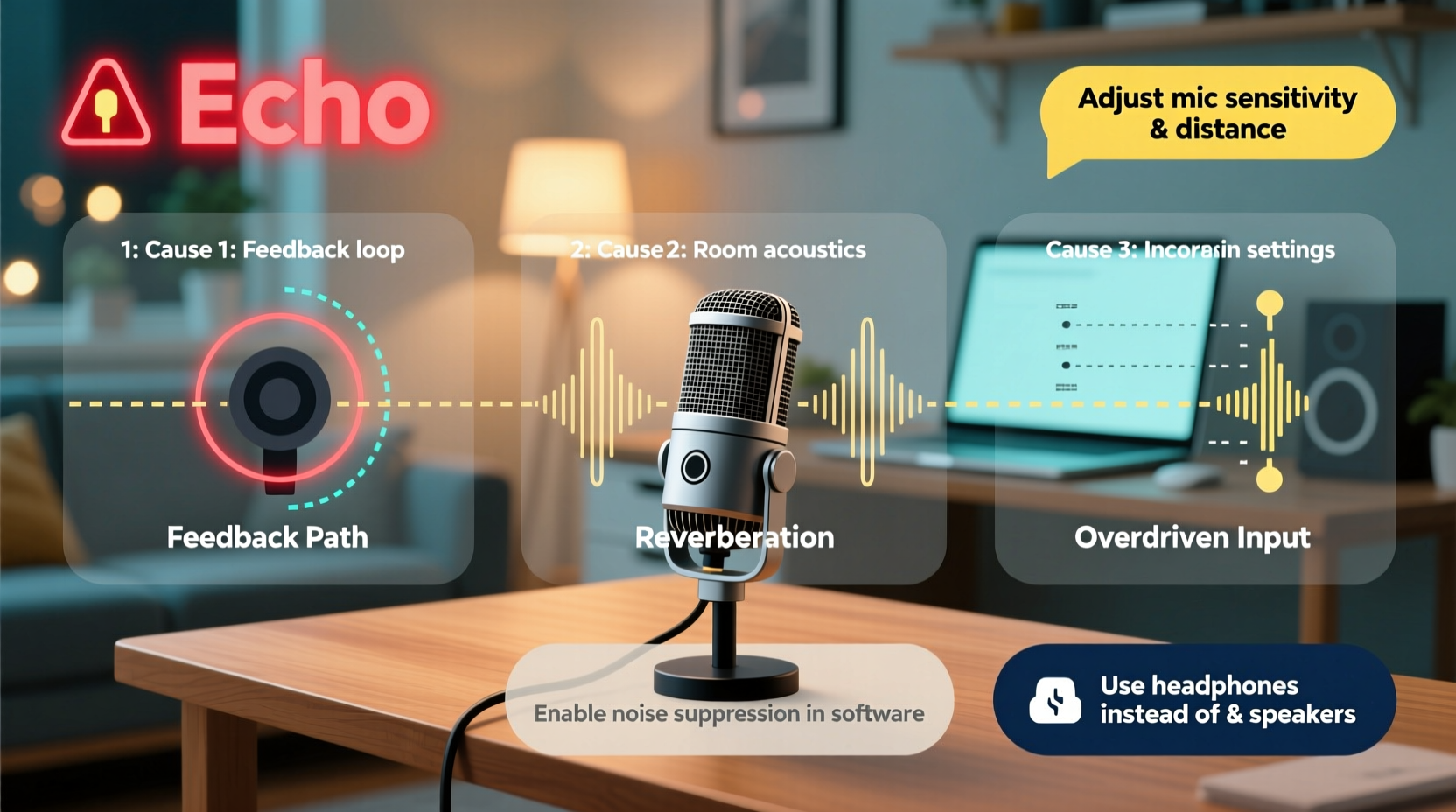
At its core, microphone echo is a physical phenomenon known as acoustic feedback. It occurs when sound output (from speakers or headphones) is captured again by a nearby microphone. This creates a loop: the microphone sends the sound to the remote participant, who hears it through their speakers, which may then be picked up by their mic—repeating the cycle.
The severity of the echo depends on several factors:
- The sensitivity of the microphone
- The volume level of the output speakers
- The acoustics of the room (echo-prone spaces like bare walls amplify the issue)
- Whether multiple devices are active in the same environment
In group settings—such as conference rooms with speakerphones—the risk increases significantly due to overlapping audio paths. Even high-end equipment can suffer from echo if not configured properly.
Common Causes of Microphone Echo
Before applying fixes, identify the likely culprit. Most echo issues fall into one of these categories:
- Speaker-to-Mic Feedback: Sound from your computer or phone speakers is being picked up by the built-in or external microphone.
- Multiple Active Devices: Two devices (e.g., laptop and smartphone) in the same room are both transmitting audio, causing cross-pickup.
- Poor Room Acoustics: Hard surfaces reflect sound, increasing reverberation and making echo more noticeable.
- Software Conflicts: Communication apps like Zoom, Teams, or Discord may have conflicting audio settings or fail to apply noise suppression correctly.
- Faulty or Low-Quality Hardware: Cheap headsets or damaged microphones may lack proper isolation or introduce signal delays.
Each cause requires a different solution. Addressing only one while ignoring others may lead to incomplete results.
Step-by-Step Guide to Eliminate Microphone Echo
Follow this structured process to diagnose and fix echo efficiently:
- Switch to Headphones
Use wired or Bluetooth headphones with a built-in mic. This immediately isolates output from input. - Lower Speaker Volume
Reduce the volume on your device. High speaker levels increase the chance of mic pickup. - Test Your Microphone Sensitivity
In your system settings, adjust the input volume. A setting above 75% often captures too much ambient sound. - Enable Noise Suppression Features
Most modern apps offer echo cancellation. In Zoom: Settings > Audio > Suppress background noise. In Teams: Settings > Devices > Turn on noise suppression. - Check for Duplicate Audio Sources
Ensure only one microphone and one speaker are active. Disable unused devices in System Preferences (Mac) or Sound Settings (Windows). - Update Audio Drivers
Outdated drivers can mismanage echo cancellation. Visit your device manufacturer’s website to install the latest version. - Reposition Your Microphone
If using a standalone mic, angle it away from speakers and place it closer to your mouth to reduce ambient pickup.
Real Example: Remote Worker Solves Daily Call Echo
Sarah, a project manager working remotely, experienced persistent echo during daily team meetings. Her laptop was on a glass desk, and she used external speakers for comfort. The built-in microphone kept capturing the audio output, creating a looping echo heard by all participants.
After testing several fixes, she switched to a USB headset, lowered her speaker volume, and disabled the internal mic in Zoom. She also updated her audio drivers. Within minutes, the echo disappeared. Her team reported clearer audio, and meeting productivity improved.
This case illustrates how combining hardware adjustments with software optimization delivers fast, lasting results.
Do’s and Don’ts: Quick Reference Table
| Do’s | Don’ts |
|---|---|
| Use headphones with a built-in microphone | Use speakers and microphone in the same room |
| Keep microphone gain below 80% | Set mic sensitivity to maximum |
| Enable echo cancellation in your app | Ignore software audio settings |
| Position mic close to your mouth | Place mic far from you or near speakers |
| Update audio drivers regularly | Use outdated or generic drivers |
Expert Insight: What Audio Engineers Recommend
“Echo isn’t just annoying—it can overload communication systems and distort voice clarity. The best defense is prevention: isolate your audio input and output. If you must use speakers, invest in directional mics and acoustic panels.” — Marcus Lin, Professional Audio Engineer
Experts emphasize proactive setup over reactive fixes. High-quality headsets with noise-isolating features, such as the Jabra or Sennheiser series, are designed to minimize echo through hardware-level filtering.
Troubleshooting Checklist
Use this checklist to resolve microphone echo in under 10 minutes:
- ✅ Switch to headphones with a mic
- ✅ Lower speaker volume or turn off speakers
- ✅ Disable all but one microphone in system settings
- ✅ Enable echo cancellation in your communication app
- ✅ Test audio in a quiet environment
- ✅ Update audio drivers and app software
- ✅ Reposition microphone closer to your mouth
- ✅ Avoid carpeted or highly reflective rooms if using open mics
Frequently Asked Questions
Why does my microphone echo only during Zoom calls?
This usually happens because Zoom is using your computer’s speakers as output and the built-in mic as input. When others speak, their voices come out of your speakers and get picked up by your mic, creating a loop. Switching to headphones resolves this instantly.
Can software alone fix microphone echo?
Yes, to some extent. Apps like Google Meet and Microsoft Teams include AI-powered echo cancellation. However, relying solely on software is risky—if the algorithm fails or lags, echo returns. Combine software tools with hardware best practices for reliable results.
Does internet speed affect microphone echo?
Not directly. Echo is primarily an audio feedback issue, not a bandwidth problem. However, poor connection can cause audio lag or clipping, which may be mistaken for echo. True echo persists even with strong internet.
Final Thoughts: Take Control of Your Audio Quality
Microphone echo is preventable—not inevitable. By understanding how sound loops form and taking deliberate steps to break them, you can maintain professional-grade audio in any setting. The key is consistency: use headphones, manage mic sensitivity, keep software updated, and optimize your environment.
Clear communication builds trust and efficiency, whether you’re leading a meeting, teaching online, or collaborating with teammates. Don’t let a simple echo undermine your presence. Apply these fixes today and make crisp, echo-free audio the new standard.




 浙公网安备
33010002000092号
浙公网安备
33010002000092号 浙B2-20120091-4
Comments
No comments yet. Why don't you start the discussion?